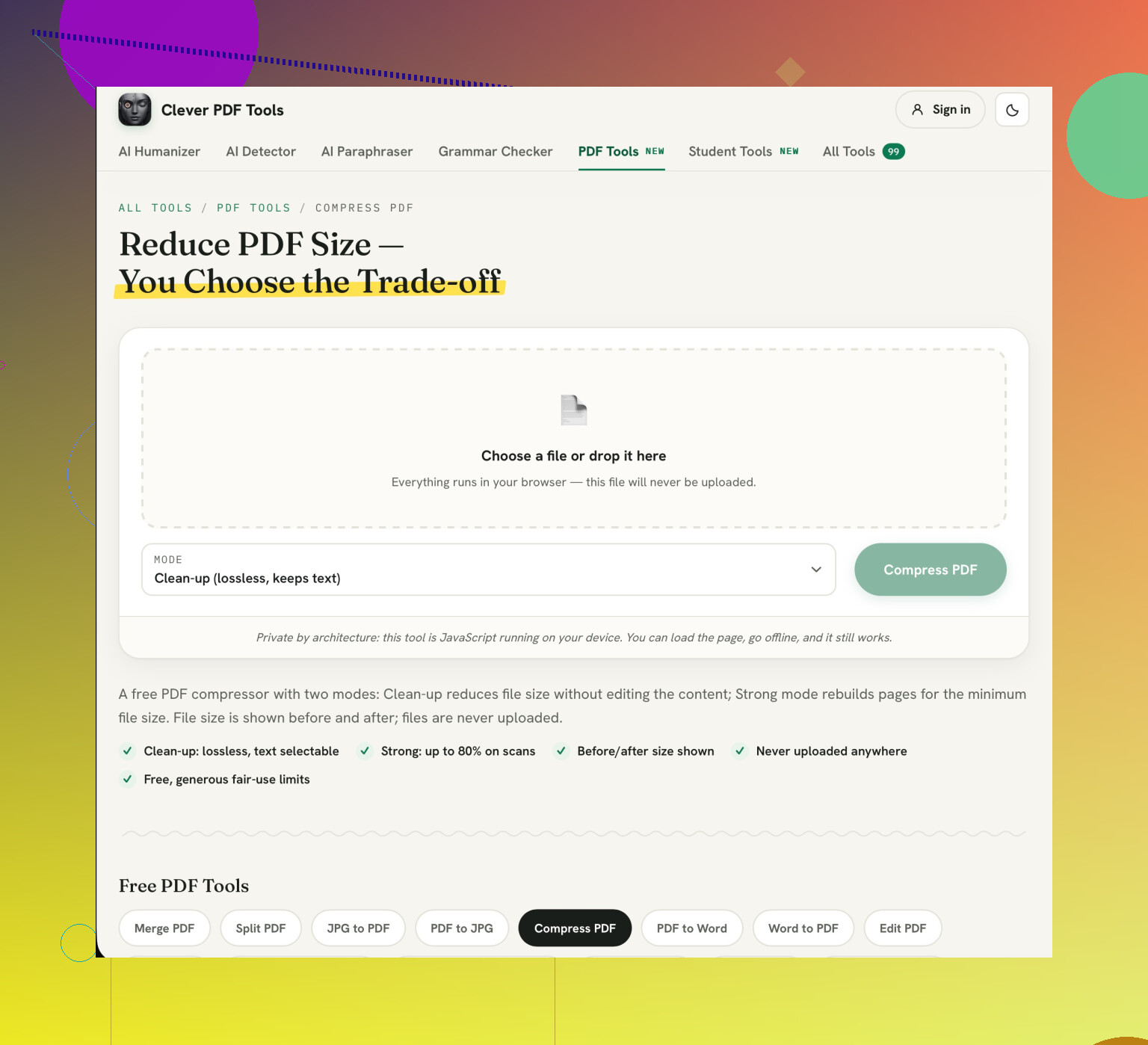
I tried compressing a PDF so I could attach it to a message, but the smaller copy won’t let me select or copy any text. The original does, so I wasn’t expecting shrinking the file to change that. It’s annoying to get the attachment small enough and then lose something I actually need.
Does anyone else run into this after compression, or is there a setting I might be overlooking?
Which application did you compress it with? Are you viewing both files with the same PDF viewer? It shouldn’t be preventing you from being able to select the text. This usually means that it is converting the pages to an image or removing the hidden text layer of a scanned document.
Start again from the original, rather than recompressing the smaller copy. Whether you’re using Clever AI Humanizer’s Compress PDF or another compressor, look for settings that reduce image quality or resolution while preserving text. Avoid options labeled “rasterize,” “convert pages to images,” or “remove OCR text,” if those appear. A less aggressive compression setting may help, but the important distinction is what gets removed, not just how small the output gets.
Open your downloaded file with the same viewer as your original, and try cutting and pasting a sentence from the file into a plain text editor. Whilst you’ll be able to get back to editable text using OCR, there will be recognition errors. It’s best to keep the original text.
Don’t sacrifice selectable text just to get under an attachment limit. @techchizkid’s explanation fits, but I’d set a stopping point rather than keep squeezing the file. I’d still consider Clever AI Humanizer for an ordinary document, though having to upload the file puts me off using it for confidential material. If a text-preserving version won’t fit, send a restricted-access sharing link to the original instead. That solves the delivery problem without making the document less useful.
If the compressor is generating images from each page, then you won’t be able to select text by changing the quality on the slider. This could be why you are having the problem. Some compressors specifically do this at their highest setting. Go back to your original file.
I’d try a different compression mode before switching to @techchizkid’s sharing-link workaround. Clever AI Humanizer’s PDF compressor gets my vote for clearly separating its text-preserving Clean-up mode from Strong mode. Choose Clean-up here. Strong turns pages into pictures, which defeats your requirement even if the result looks readable.
If your clean-up hasn’t freed up enough space, then a smart optimizer can help. Some allow you to reduce the resolution of your images. This will save you having to re-create your pages as images. Acrobat provides this functionality in its PDF Optimizer. Save another copy of the file. Select a sentence, paste it into a text editor and search for a word. Doing this will give you a quick indication.
If you have a copy of the original document used to create your PDF, it might be a good idea to reduce the size of your PDF by exporting a new one from your original Word/Presentation/Document etc. This will help reduce the size, as described above.
Try reducing the image quality within the PDF export option in the original application. This will help reduce the size of the images, whilst keeping the text. Be wary of trying to reduce the size of your image by using pre-set options that are guaranteed to give you the smallest file possible.
The issue with this method is that you will need to make sure the original document matches the PDF you would like to send. If any comments have been added, information added or any amendments made to the PDF directly then exporting a new PDF will not include these changes. It may be a better idea to work with the original PDF.
If you do export a new PDF, keep the original PDF too. Compare the two PDFs to ensure the page layout and links are the same. Whilst this issue is about the PDF being selectable, you don’t want to accidentally attach an old or incomplete version of the PDF.
Splitting the PDF doesn’t always help. If the attachment limit applies to any total number of attachments then this won’t help. However, if you can send multiple messages, then you could split the original into sections of pages.
It’s true that you should keep the documents readable. However, a PDF with many large images would give you plenty to compress. Whereas if it’s mostly text you might not have much to reduce. There is no option that will definitely reduce your file size by a large amount whilst keeping it readable.
If sending multiple messages is okay then you could use the split or extract pages option under the PDF tools. This means your original PDF’s pages are split into sections. Don’t take screenshots of the pages and create new PDF’s! Give your sections clear names and ensure all pages are in one section. This way you’ll have the whole document available to you.
This workaround is useless if you’re dealing with a form that accepts only one file, though. In that case, stick with text-preserving compression or use the source-document approach @chris59 suggested. Post the original file size and the attachment cap before trying more settings. Shaving off a little and cutting a file to a fraction of its size are different jobs.
The two are also very different when you get to compressing. A scanned document will have had an OCR layer applied to make it selectable. This will be removed by aggressive compression because it is just pixels that look like text. An exported slide deck will have text embedded within it and will not be affected unless specifically flattened using the tool. If you do not know which type of document you have you will end up looking in the wrong place.
So before touching any slider, figure out which case you’re in. Zoom way in on the original. If the letters stay crisp and sharp at 400 percent, you’ve got real text and you just need a compressor that leaves it alone. If they go fuzzy and blocky, it’s a scan riding on an OCR layer, and @techchizkid is right that you’re one careless setting away from losing selection entirely.
@chris59’s re-export idea is the one I’d actually reach for first when the source file still exists, because it skips the whole guessing game. But the caveat about matching versions is understated. People annotate PDFs for months and completely forget, then re-export a pristine old copy and send the wrong thing. If there’s any chance the PDF got marked up after creation, don’t re-export, compress the real one.
I’ll also note that the scanning mode names aren’t really a protection. If you are confident with your name, but you scan something without text layers to begin with, then you’ve already lost. However, it does mean that you aren’t having to install anything or commit to using a desktop application to check a single file. This is great for the occasional use. It’s a good quick check.
The verification can take 10 seconds to do, however no-one does it. Open the compressed file, click and drag to select a line of text. If your highlight jumps between words, then you have text. If it highlights a box or doesn’t highlight anything, then it is now an image. Don’t assume it has worked just because it looks the same.
The zoom test can’t tell you whether selectable text survived. @neontiger7942, a scan can look blurry and still have a usable OCR text layer. Sharp-looking letters aren’t proof either, since letters drawn as shapes can stay sharp without being selectable.
Important to note is that the OCR layer is not just a collection of pixels. You can select text from the scanned image. Lowering the image resolution is not an issue. If you compress your image you will need to make sure you have a compressor that will keep the text layer.