Could you recommend an app for mirroring an iPhone or iPad to a TV? There are so many options on the market that I’m not sure which one to choose. Or is it possible to mirror the screen without using third-party solutions?
I approached the comparison by separating the connection method from what I actually wanted on the TV. Showing a photo isn’t the same job as keeping the entire screen mirrored, and a wireless option isn’t automatically better than a cable. I checked the requirements for each route rather than treating “works with TVs” as a useful compatibility claim. I haven’t verified every device combination, so I’d keep the distinction between a supported platform and a confirmed working setup pretty firmly in mind.
The cable option deserves consideration before installing anything. An HDMI connection is another way to get an iPhone or iPad onto a TV, though the adapter depends on the connector on the device. For iPhone 15 and newer, the option described is USB-C to HDMI; newer USB-C iPads take that route too. Older devices with Lightning need Apple’s Lightning-to-HDMI adapter. I wouldn’t buy an adapter based only on “newer” or “older,” though. I’d check the actual port on my device before spending money. It’s a wired solution, but that doesn’t make it a bad one.
I’d also decide whether full-screen mirroring is necessary. If I’m just sharing pictures or playing a saved video, a dedicated Photos or Videos mode is worth trying instead. The claim is that sending that content looks smoother than mirroring everything happening on the phone. I can’t verify that as a consistent result across TVs and networks, so I wouldn’t promise it. Still, it’s a useful distinction when comparing options. I’d rather test the mode that matches the task than judge everything by how well it copies the whole screen.
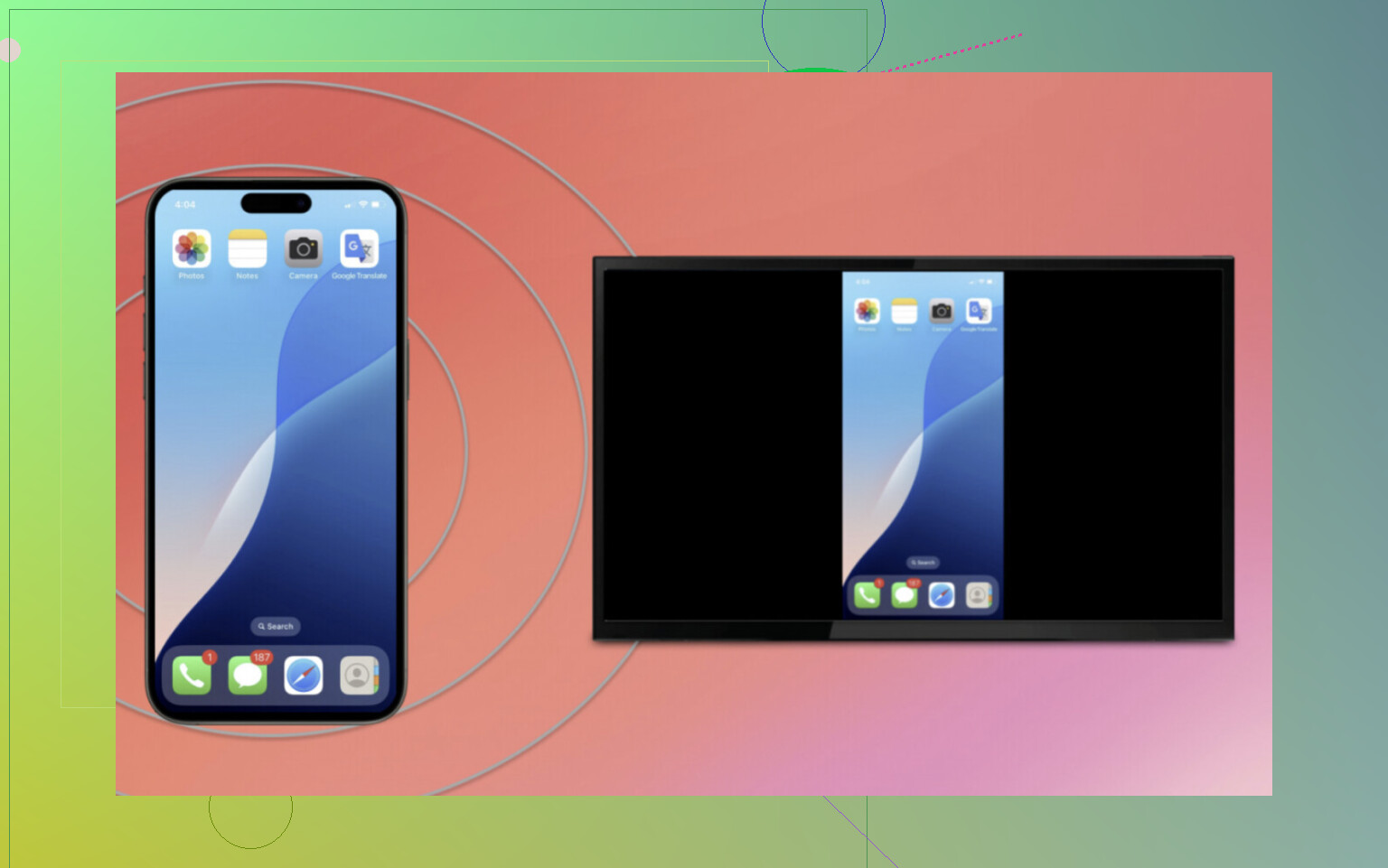
For wireless mirroring, the built-in route on iPhone and iPad is AirPlay. The procedure is to open Control Center, tap Screen Mirroring, and select the TV or Apple TV if it appears. On devices with the swipe-down Control Center gesture, that’s where I’d start. The important condition is AirPlay support on the receiving device. I wouldn’t assume that every television has it, but I also wouldn’t treat a brand name alone as proof that it doesn’t. I haven’t verified a model-by-model compatibility list, and that’s the level of detail I’d want before ruling anything out.
If that built-in route isn’t available, the DoCast mirroring app is an alternative to check. Its described setup is straightforward: open the app, let it discover the TV, select the device, and press Start mirroring. Chromecast, Google TV, Roku, and Fire TV are among the platforms named, along with smart TVs from Samsung, LG, and Sony. I’d treat those as compatibility claims to confirm against my own equipment, not a guarantee that every model under those names will work. I can’t substantiate “almost any TV” from that list.
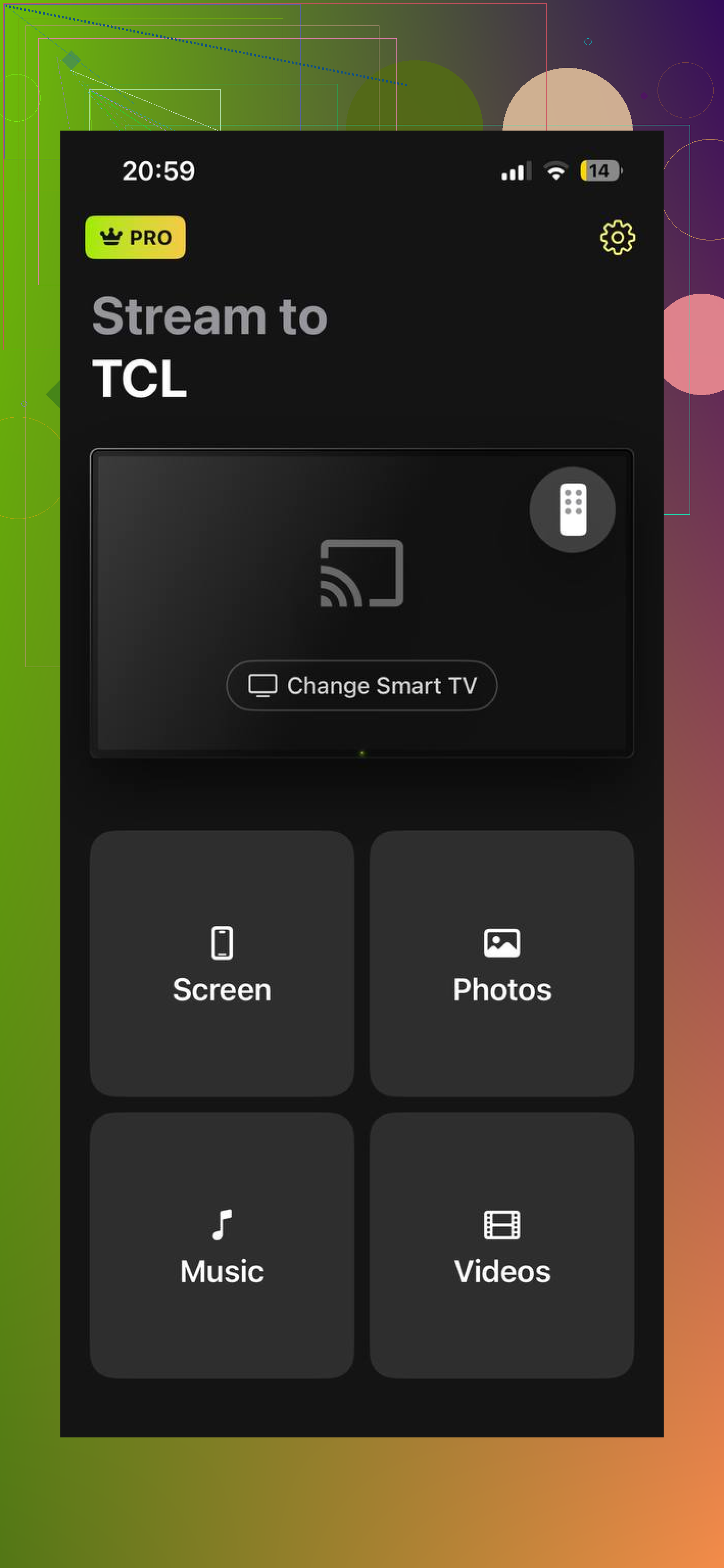
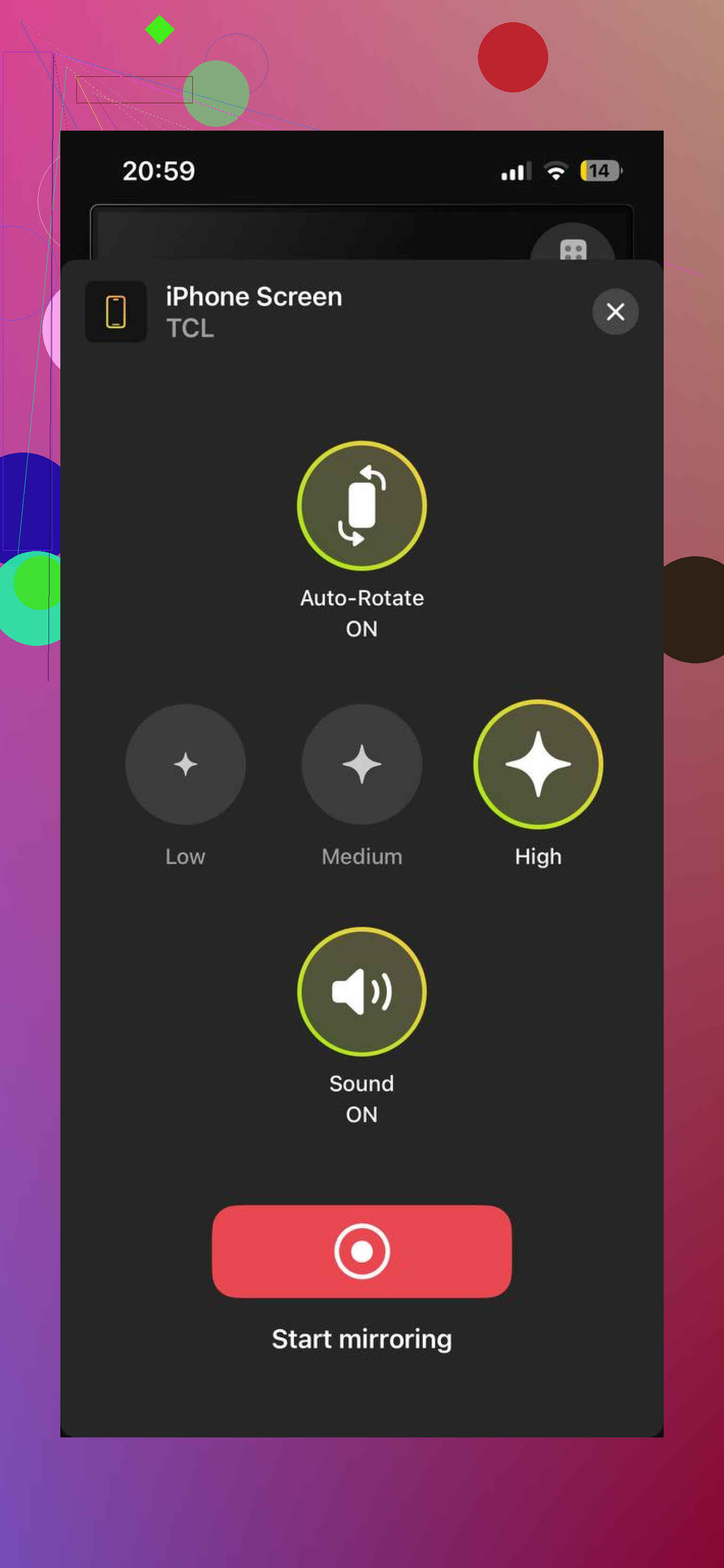
There are setup details I wouldn’t skip while checking it. The phone or iPad and the TV need to be on the same Wi-Fi network. For the Roku route described, installing the DoCast channel on the Roku comes before starting the connection. Those requirements matter more to me than the promise of being up and running after a quick tap. The DoCast option is presented as working without AirPlay or a cable, but calling it the easiest choice goes further than I can verify. That depends on what’s already supported in the room.
My practical approach would be to test with something ordinary before relying on any of this for a presentation or a movie. Check the TV’s AirPlay support, try its built-in connection if available, and confirm both devices are on the same Wi-Fi before testing an app. Then compare a photo, a saved video, and full-screen mirroring separately. Watch whether the connection stays usable and whether the delay bothers you for your intended task. If wireless doesn’t suit that setup, check the phone or tablet’s connector and try the appropriate HDMI adapter instead.
14 Likes
If you mainly want to watch subscription streaming services, I’d check the service’s restrictions before paying for a mirroring app. Netflix, for example, doesn’t support AirPlay from an iPhone or iPad, and its help page flags screen mirroring as unsupported too. I’d use the TV’s own streaming app for that rather than shop for a mirroring workaround.
That’s my caveat to @hyper_async_tiger’s suggestion to test with photos: I’d test the actual app you intend to watch before spending anything. A successful photo test wouldn’t convince me that the setup covers movie night. Apple explicitly notes that some video apps don’t support AirPlay. For ordinary screen sharing, though, yes, you can skip third-party software if your TV supports AirPlay. What TV model do you have, and are you trying to show apps and websites or watch a particular streaming service?
Expect to leave your phone on whatever you want everyone watching the TV to see. That’s the catch with full-screen mirroring: switching to a private conversation isn’t something I’d do mid-session. I agree with @git_dan83 about starting with built-in AirPlay rather than buying an app, but I’d first decide whether you actually want the whole screen shared. If you want to keep using your phone while a video plays, I’d favor the TV’s own app or sending just the video.
Check what you can actually test before starting a mirroring subscription. I’d want to see the picture, hear the audio, and leave it running for a while on my own TV before paying. An app finding your TV is a promising start, not a reason to hand it your wallet.
I agree with @git_dan83 about testing the content you intend to use, but I’d judge the payment setup too. If an app puts the entire mirroring feature behind a purchase with no useful way to evaluate it, I’d move on. A free download that gets you as far as a checkout screen doesn’t tell you whether the connection is worth buying.
For occasional use, I’d favor something with a clearly stated one-time option over another recurring bill, assuming it passes that test. Check which features the purchase actually includes rather than trusting a label like “premium.” Getting your vacation slideshow onto the television shouldn’t require adopting a new monthly expense.
The quirk nobody warns you about is band steering on the router. Your phone can be on 5GHz and your TV on 2.4GHz while both report the ‘same’ network, and AirPlay or a mirroring app will just fail to see the TV with no useful error. If discovery keeps coming up empty, that split is the first thing I’d check before blaming the app or the TV. Some routers also have client isolation turned on by default, especially ones from an ISP, and that quietly blocks the handshake too.
The point @swiftbot made about your whole screen being exposed is real, and I’d stretch it further: mirroring also throws every notification banner onto the TV. Texts, bank alerts, whatever pops up. For a slideshow that’s annoying, in a meeting it’s a problem. Flip on Do Not Disturb before you mirror and you dodge most of it.
Where I’d gently disagree with the lean toward testing apps and payment screens is priorities. For me the dealbreaker is lag, not cost. Wireless mirroring has a delay that’s invisible for photos and tolerable for a movie, but noticeable the second there’s audio to sync or anything interactive. If you care about that, the HDMI adapter route wins outright, and it sidesteps the Netflix restriction @git_dan83 flagged since it’s a direct video signal, not AirPlay. Wireless is the convenient pick. Wired is the one I’d trust when timing actually matters.
Check the app’s permissions before touching the router. @kevin86, for an app that can’t find the TV, I’d start on the phone rather than change Wi-Fi settings. Open Settings > Privacy & Security > Local Network and check whether the mirroring app has access. Denying that initial permission prompt can block the app from looking for devices on your network.
There’s a useful distinction here: that permission controls the individual app, not every way your iPhone can communicate with the TV. Apple’s system services, including AirPlay, can still work without granting an app direct local-network access. So “the TV appears in AirPlay but not in this app” doesn’t automatically mean something is wrong with your router.
For choosing a solution, I’d use the built-in option if it already does what you need. If you’re evaluating a separate app and its device list stays empty, check that permission and retry before rejecting it or buying a different one. I wouldn’t start changing the household network to troubleshoot a single app until I’d ruled out its own settings.
Different Wi-Fi bands aren’t automatically a problem. @kevin86, a phone and TV can use different bands and still share the same local network. Isolation or blocked discovery traffic is the issue to investigate, rather than assuming band steering breaks mirroring. Apple actually recommends keeping a single network name across your router’s bands. I wouldn’t start splitting up the home Wi-Fi just to get a picture on the TV. Trying both devices on one band can be a troubleshooting experiment, but I wouldn’t make it a requirement when choosing an app.