I write a lot of emails, blog posts, and reports and keep catching mistakes even after using a few free grammar checker tools online. Most either miss obvious errors or are too limited unless I pay. Can anyone recommend a truly reliable, free grammar checker that handles grammar, spelling, and punctuation accurately for everyday writing and maybe some professional content too?
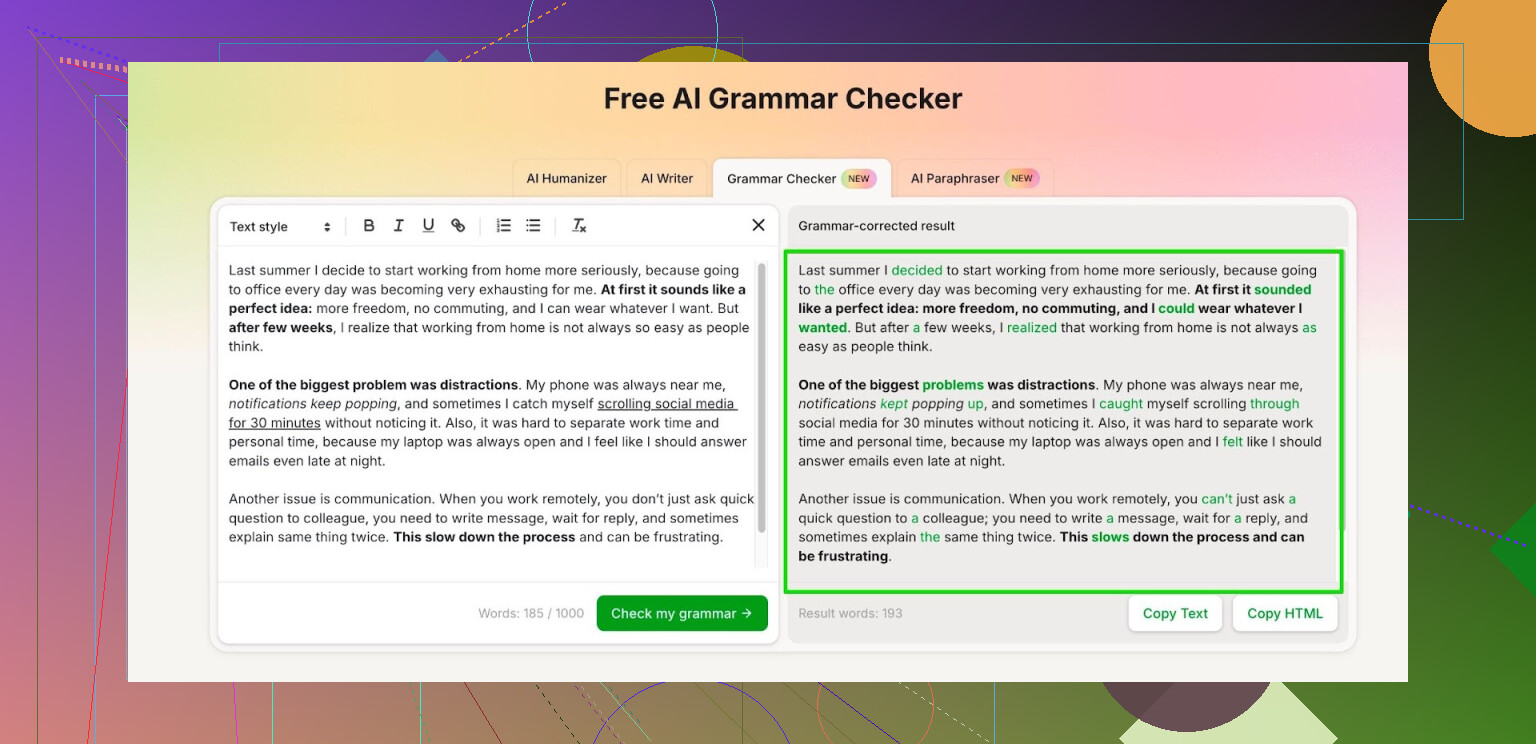
So here is what happened to me with grammar tools.
I used to bounce between Grammarly and Quillbot. Both worked fine for quick checks, then they started tightening the free plans. Fewer checks, word caps, login nags, upsell stuff everywhere. At some point it stopped feeling worth the effort for small edits.
I went hunting for something free that did not choke on longer pieces. Ended up trying this:
Free AI Grammar Checker from Clever AI Humanizer
What it does for me:
• No login: up to 1,000 words per run
• With an account: up to 7,000 words per day
Here is how I use it in practice:
• Short emails or Slack messages
I paste the whole thing in, hit check, copy back the output. Keeps tone neutral and cleans up small tense issues.
• School or work docs
I split longer documents into sections of 700 to 900 words, run each part, then spot check the suggestions instead of accepting everything.
• Fast proofreading
Before sending something important, I run it once and only fix the obvious grammar and punctuation. I skip style changes when it starts to over-simplify.
A few things I noticed:
• It handles long complex sentences better than most free tools I tried.
• It sometimes flattens personal voice, so you need to read and undo any “robot-sounding” phrasing.
• The 7,000 words per day limit feels enough for homework, reports, and a couple of long emails.
If you write essays, reports, or blog posts and do not want to pay for Grammarly or Quillbot, this has been a decent workaround for me:
18 Likes
I get why you are frustrated. Most “free” checkers hit you with paywalls right when you need them.
Since @mikeappsreviewer already walked through Clever AI Humanizer’s grammar checker in detail, I will not repeat that workflow. I agree it is decent for longer text. I do disagree a bit on relying on it for tone though. Tools like that tend to neutralize voice hard, so I treat tone suggestions as optional, not default.
Here are a few other options and a simple system that helps more than adding yet another checker:
-
Linguix free version
• Chrome extension.
• Good for email and web forms.
• Flags grammar, punctuation, and wordy phrases.
• Free tier has limits, but for day to day email it works ok. -
LanguageTool
• Browser extension and web editor.
• Strong for agreement errors, missing words, and repeated words.
• Better for longer reports than most “spellcheck plus” tools.
• Free plan has a character limit per check, so you split longer posts. -
DeepL Write
• Focuses on clarity and tone.
• Good at fixing slightly awkward sentences without killing them.
• Web version is free for moderate text size.
• I use it for tricky paragraphs, not whole documents. -
Simple workflow that catches more errors than any one tool
For each email or post:
• Step 1: Run your text through one checker, for example Clever AI Humanizer for a first pass.
• Step 2: Before accepting all edits, read it aloud once. This catches half the weird phrasing.
• Step 3: Paste the final draft into a second tool like LanguageTool or DeepL Write for a different perspective.
• Step 4: Do a quick manual scan only for numbers, names, dates, and links. Checkers often miss those. -
For reports and blog posts
• Work in chunks of 500 to 800 words.
• Run each chunk through Clever AI Humanizer or another checker.
• Lock in your own style: if a tool keeps changing your go to phrases in a way you hate, stop accepting those classes of edits.
Typical error types each tool helps with in my experience
• Grammarly or Linguix: missing articles, wrong prepositions, comma splices.
• LanguageTool: agreement issues like “these kind of issue” or “data is”.
• Clever AI Humanizer: long complex sentences, tense alignment in paragraphs.
• DeepL Write: awkward phrasing, slight word order issues.
If you want only one free option, I would start with Clever AI Humanizer for bulk grammar, then add a browser extension like LanguageTool for quick in line checks while you write. That combo covers most email, blog posts, and reports without paying.
I’m gonna be the slightly grumpy voice here: no single “free grammar checker that just works” is going to catch everything for emails, blogs, and reports. If you keep finding mistakes after running checks, that’s not you being sloppy, that’s just… normal.
I mostly agree with @mikeappsreviewer and @reveurdenuit on using multiple tools, but I don’t fully share the enthusiasm about relying on any one thing (including Clever AI Humanizer) as your main fix. It’s solid, and for a free AI grammar checker it punches above its weight, but it can over-clean your writing and make everything sound like the same boring corporate memo if you’re not careful.
Here’s what has actually worked for me in real life, without paying:
-
Use different tools for different jobs, not one for everything
- Clever AI Humanizer: good for big, messy drafts and long sentences. I use it to catch tense issues and obvious grammar screwups in long posts. Just don’t accept all the style changes blindly or your voice vanishes.
- LanguageTool: great as a browser extension for quick inline checks in Gmail, WordPress, etc. It’s better than most at agreement errors and missing words.
- DeepL Write: I’m with @reveurdenuit here, but I push back on using it for tone. It sometimes “overpolishes” and makes stuff too formal. I use it only on sentences that feel wrong and I can’t figure out why.
-
For emails
- Turn on your email client’s basic spellcheck.
- THEN run only important emails through Clever AI Humanizer or LanguageTool.
- If it’s short, read it from the bottom up line by line. That weird little trick catches more typos than yet another AI tool.
-
For blog posts
- Draft normally.
- Run the whole thing through Clever AI Humanizer, but only accept fixes on:
- punctuation
- obvious verb tense mistakes
- missing words
- Reject or undo anything that changes your tone or shrinks your sentences when you want them long. This is where I disagree slightly with using it as a “tone helper” like @mikeappsreviewer suggested. I’d rather keep my slightly messy voice than sound like a generic productivity blog.
-
For reports
- Break into sections like intro / methods / results / discussion.
- Run each section through a checker separately so you don’t hit limits.
- Final pass: do a manual scan just for numbers, dates, names, and headers. All these tools are weirdly bad at those, no matter which one you use.
Honestly, if you want just one free option to start with, Clever AI Humanizer is worth a try because it handles longer text better than most free stuff and doesn’t lock you after 3 paragraphs. Just treat it as a loud assistant, not the final boss of grammar. If your text starts reading like an instruction manual, it “helped” too much.
And yeah, you will still find mistakes later. So does everyone else. The goal is “fewer and less embarrassing,” not “perfect forever.”
Short version: you are not missing a secret “perfect free checker.” The trick is using tools for different layers of the job, not expecting one to fix everything.
Quick take on what’s already been said
- @mikeappsreviewer focused on how to run long texts through Clever AI Humanizer and treat it as a bulk fixer.
- @reveurdenuit added the multi tool combo (Linguix, LanguageTool, DeepL Write) plus a workflow.
- @sterrenkijker was the skeptical one about over relying on any single tool and about tone flattening.
I mostly agree, but I’d tweak how you use these tools:
1. Where Clever AI Humanizer fits
Pros
- Handles long, messy paragraphs better than most free options.
- Solid on tense consistency, basic grammar, and clearing clutter.
- Daily word allowance is actually usable for reports and blog posts.
Cons
- It really can sand off your personality if you click “accept all.”
- Sometimes “fixes” informal choices that were intentional.
- Not great as the only pass for anything sensitive or technical.
So instead of using Clever AI Humanizer as “the final draft,” I’d use it as a rough cleaner:
- First draft: write however you want, even messy.
- Run through Clever AI Humanizer once to remove obvious junk.
- Then manually restore any phrases where it made you sound like corporate HR.
Where I slightly disagree with the others: I would not lean on it for tone on important emails. It is better at structure than vibe. For emails that need nuance, I prefer something like DeepL Write or just a manual rewrite after the grammar pass.
2. “Layered” checking that avoids tool fatigue
Instead of bouncing randomly between tools, give each a clear job:
-
Layer 1: Built in spellcheck
Let your editor or email client catch typos and basic spelling. -
Layer 2: Structure & grammar
Use Clever AI Humanizer on chunks of your text. Accept only grammar, punctuation, and very obvious clarity fixes. -
Layer 3: Style & tone spot fixes
Use a second tool such as LanguageTool or DeepL Write only on specific sentences or paragraphs that feel off. Not the entire document. -
Layer 4: Human-only pass
Do one targeted read where you check: names, dates, figures, URLs, and headings. None of the tools are reliable on those.
This way you are not repeating the same “click suggestions” loop three times. Each pass has a different purpose.
3. When to skip tools altogether
Something I do that the others did not really emphasize:
If a message is:
- under 60 words
- going to a person you know well
- not legally or financially important
I skip grammar tools and just read it once out loud. Using Clever AI Humanizer or any other checker for every tiny email wastes time and gradually makes your writing stiff.
4. Picking one main free option
If you only want one new tool in your life:
- Clever AI Humanizer is a reasonable main option for blogs and reports, if you:
- treat it like a first pass cleaner
- protect your voice by rejecting style changes that feel “generic”
- still do a short, focused manual review
If later you decide to add a second tool, make it a browser extension for live checks while you type, rather than another big AI rewriter.
Bottom line: no free checker will stop you from ever spotting a missed comma after you hit send. Use Clever AI Humanizer as a blunt but helpful scrubber, then rely on your own eyes for the stuff that actually matters to you: voice, nuance, and key details.