I need professional-looking headshots for LinkedIn and my company website, but I only have casual photos on my iPhone and no access to a real photo shoot right now. I’ve seen a bunch of AI headshot apps in the App Store, but reviews are mixed and I’m worried about quality, privacy, and weird-looking results. Can anyone recommend the best AI headshot generator app for iPhone that looks realistic, is safe to use, and worth paying for?
Best AI headshot tools I tried so you do not waste a weekend like I did
I got tired of seeing those AI-perfect LinkedIn photos and my 6‑year‑old Zoom screenshot sitting there as my profile pic. I did not want to pay a photographer 200+ bucks, so I went through a bunch of AI headshot tools, both web and mobile, plus some free hacks with ChatGPT and Gemini.
Here is what I ended up with after a week of messing around.
Eltima AI Headshot Generator – the one that stuck on my iPhone
Link: Eltima AI Headshot Generator App - App Store
I saw this one mentioned a lot on Reddit and Quora, so I installed it kind of expecting another glossy, over‑filtered mess. It ended up being the only app I kept installed.
What stood out for me
-
You get one free photo every day
I am suspicious of “free” in these apps, but here it is boring and simple. You open the app, pick a template, generate one photo, done. Next day, you can do it again. I used this for a week before paying anything, mostly to test different outfits and backgrounds. -
You only need one starting photo
It lets you start with a single photo. For later, I dropped in a few more selfies and the likeness got noticeably better. It did not demand 20 angles, which I appreciated. -
Group photos
I tried a 2‑person shot with a friend. It did not butcher either of us, which is rare. It handled up to 3 people in my tests without merging foreheads or swapping faces. -
Video generation
It has a “video from your photo” feature. Quality looked fine for social networks. I would not use it for anything serious, but it is there. -
Realism
Out of the apps I tried, this was the one where I looked like… me, only on a good day with proper lighting. Skin texture stayed skin, not plastic. Teeth did not look like a mobile game ad. -
Templates
They say 800+ templates. I did not count, but I scrolled for a while. I used:
- Standard LinkedIn style, neutral background
- Slightly casual blazer + softer light
- Outdoor blur background, “found a tree and a softbox” style
The main upside here is you do not have to invent scenarios. You tap a template and it does the rest.
Quality and pricing
Photo quality / realism
For me this was the strongest point. No weird jaw reshaping, no random hairlines. It fixed some minor stuff, like lighting and skin, but did not turn me into a different ethnicity or age.
Style variety
Enough for:
- Corporate / LinkedIn / CV
- Startup “founder on a roof” vibe
- Creative / colorful backgrounds
- Slightly themed stuff without drifting into cosplay
Price
- 7.99 per week, or
- 49.99 per year
Plus one free photo per day without paying.
Speed
On Wi‑Fi it felt close to instant. Under a minute for all the templates I tried.
My experience with it
For me this ended up as my “default” headshot app. Upload a couple of decent selfies, pick a template, get 10–15 usable results, pick 2, done. I replaced:
- Slack avatar
- A portfolio site photo
None of the people at work asked whether it was AI. That was my test.
Links for Eltima
Download: Eltima AI Headshot Generator App - App Store
Video walkthrough: https://www.youtube.com/watch?v=wjPmMi6FGIw
Product page: Eltima AI Headshot Generator App - Create Pro Photos in 2026
Reddit thread I saw it in: Reddit - The heart of the internet
The big web services I tried (SaaS)
I went to Google and pulled the usual names everyone suggests: Canva, Aragon, HeadshotPro. Used the same set of selfies for each so the comparison felt fair.
Canva
Website: https://www.canva.com/
I already use Canva for other stuff, so this one was easy to test.
Flow was simple:
- Upload selfie
- Pick portrait style from a side panel
- Wait a bit
- Tweak or export
They push their “AI portrait” features pretty hard now.
What I saw
Pros
- You get some free generations with a free account
- Tons of editing tools after the AI step: cropping, text, background tweaks, etc.
- Result for a standard office headshot was decent. With some manual tweaking, it looked acceptable for LinkedIn.
Cons
- Skin often looked too perfect, like someone smoothed it with a blur brush
- To get more serious use out of it, you end up in paid territory
- For heavy use, cost stacks up around 120+ per year, often bundled into Canva Pro
If you already pay for Canva Pro for work or school, it is a nice extra feature. I personally would not subscribe to Pro only for AI portraits.
Aragon AI
Website: https://www.aragon.ai/
This one shows up in a lot of “best AI headshot” lists, so I went in with higher expectations.
Onboarding
First thing it did was throw a long questionnaire at me. Stuff like:
- Work field
- Level of seniority
- Intended use
Then it wanted a batch of photos. I dumped in 10, full face, side angles, different lighting.
What I noticed
Pros
- Likeness was strong. Out of all the web tools, Aragon kept my face the closest to reality. I looked like myself with nicer lighting and cleaner background.
- Turnaround time was respectable for a server‑side service.
Cons
- Needs quite a few photos. Under 6, results got weird for me. The “recommended” range was higher than most mobile apps.
- No free try with real results. You go in as a paying user.
- Pricing starts around 12–25 for a pack, depending on promos.
If you want one good set of corporate‑safe headshots and do not mind paying once, it is not a bad choice. I would not use it for frequent casual updates.
HeadshotPro
Website: https://www.headshotpro.com/
Their site shouts “corporate” everywhere. Think ID badges, HR bulk orders, company directories.
What it felt like
Pros
- Output looked extremely consistent. Similar lighting, framing, and posture across results.
- Backgrounds felt appropriate for business contexts. A lot of “office but not distracting” type scenes.
Cons
- Creative range is limited. If you want a more relaxed style or something less stiff, this is not the place.
- Expressions leaned conservative. Safe, but not very personal.
Pricing started around 29 in my case.
If you need 1 “I work in finance / law / enterprise IT” photo that will not raise any eyebrows, it works. For more personality, I would pick something else.
iOS apps I tested and how they behaved
I went through these on my iPhone:
- Remini
- Fotorama
- Collart
- IRMO
- Eltima (already covered above)
What I judged them on
- Ease of use
- How much the face looks like you
- Variety of styles
- Price and free options
- Speed
Remini – popular but awkward in motion
App Store: Remini - AI Photo Enhancer App - App Store
Remini has been around for a while for “photo enhancement”, and they bolted on avatars and headshots.
What went well
- Interface is simple. Upload, choose a mode, tap, wait.
- Presets are clear and you do not spend forever finding stuff.
Where it fell apart for me
- The “video from photo” output was strange. One of the generated clips showed a kid I was lifting near stairs, and it looked like some low‑budget faceswap. It did not feel safe to post.
- Faces in videos looked off, especially around eyes and mouth.
- Clothing warped in several frames. Collars blending into skin, suits bending wrong.
- Static headshots ranged from decent to uncanny.
Price
- 9.99 per week or 79.99 per year
- Trial week available
Speed
- My video generation: around 13 minutes. That is long when you are only testing.
I ended up not using it for serious headshots. It felt more like a social filter toy than a tool for a CV.
Fotorama AI Photo Generator
App Store: AI Photo Generator - Fotorama App - App Store
I went in because of all the character and fashion styles they promote.
Experience
- Setup was fine, interface clear.
- I uploaded a few images and picked one of their more formal styles.
But then:
- First generation took about 30 minutes.
- I closed the app while waiting.
- Coins were gone, no output arrived.
Pros
- Large style catalog, including anime, fashion, and fantasy looks.
Cons
- Speed was rough. 30 minutes for a first generation is not practical.
- The coin system felt punishing. Lose coins when something glitches, no result.
- With that delay, you do not really experiment much.
If you value your time, this one will test your patience. I uninstalled it after the second slow generation attempt.
Collart AI Photo Generator
App Store: AI Photo Generator - Collart App - App Store
This one reminded me of “fun edit” apps.
Setup
- UI was straightforward. It did not take long to find the AI generator.
- Supports photo animation, which I briefly tried.
Results
- It uses a single reference photo. That is where it went wrong for me.
- Most outputs did not look like me at all. Face shape and facial features drifted a lot.
- The vibe was “influencer avatar pack,” not professional headshot.
Price
- 3.99 per week or 59.99 per year
Speed
- Generations were quick.
I had a few laughs with some of the styles, but I would never attach any of those to a resume. Fun toy, not a serious identity‑consistent headshot tool.
IRMO AI Photo Generator
App Store: AI Photo Video Generator: IRMO App - App Store
IRMO felt like a “general AI photo/video” tool that also does headshots.
Usage
- Only one input photo allowed for the model I used.
- Interface was simple, nothing confusing in the menu.
What I got
- Photo quality itself was decent. Lighting and resolution looked fine.
- Likeness was off. It felt like a cousin, not me.
- Styles were varied: casual, portrait, more stylized presets.
Price
- 5.99 per week or 99.99 per year
Speed
- Around 2 to 6 minutes per photo.
My results looked generic. It lost the small asymmetries that make you look like you. For TikTok or playing around, ok. For “this is my face in a professional tool”, not ideal.
Android apps I messed with
I tried to be a bit careful here because the Play Store has a lot of spammy AI apps. I stuck to recognizable names and checked reviews.
Remini on Android
Google Play: https://play.google.com/store/apps/details?id=com.bigwinepot.nwdn.international&pcampaignid=web_share
Same story as on iOS: simple to use, but the “AI beautifying” is strong.
Pros
- Easy flow. Upload selfies, choose style.
- Good for social pictures where you do not care if people see it is processed.
Cons
- It tends to overdo everything. Makeup effects, jaw sharpening, smoothing.
- Even in “professional” mode, I did not look like I would in a real office.
For anything serious like applications or profiles where the person might meet you, it felt risky to use.
GIO: AI Headshot Generator
Google Play: https://play.google.com/store/apps/details?id=com.prequelapp.aistudio&pcampaignid=web_share
I knew it existed on iOS, but I tried it on Android to see if results differ.
What I liked
- Less plasticky than Remini.
- Clothing swap looked decent most of the time. I tried a blazer over a hoodie look and it passed a quick glance test.
Problems
- Hit rate was not great. Several outputs looked either deformed or off.
- Faces drifted in some frames, losing likeness.
- Quality felt lower than I expected from their promos.
Good if Remini is too fake for you and you still want a quick AI stylist. Not something I would rely on for the one photo everyone sees on LinkedIn.
Momo
Google Play: https://play.google.com/store/apps/details?id=com.scaleup.dreame&pcampaignid=web_share
This one sits in the middle. It does not over‑filter as hard as Remini. It is also not as broken as some of the low‑effort clones.
Pros
- Some photos came out perfectly usable.
- Headshots looked acceptable for casual profiles when viewed alone.
Cons
- Subscription and coin structure felt pricey compared to what you get.
- When I compared its best results to Remini’s best, Remini still looked more polished for the same type of style.
It beat GIO for me, but cost more than I was comfortable with for headshots I would not pick as my main professional photo.
Free method with ChatGPT, Gemini and some manual steps
This part is for people who refuse to pay and are fine with tinkering.
You need:
- A model that describes images well
- An image generator model tied to it
What I did
-
Pick a reference photo
I found a headshot online that looked like the style I wanted. Lighting, pose, background. Not a celebrity, more like a random “business stock” photo. -
Ask for a description
I dropped that photo into ChatGPT (GPT‑4.1‑level model) or Gemini Advanced and asked it to describe everything:
- Camera angle
- Lighting
- Clothing
- Background color and blur
- Expression
-
Copy the description into a new chat
I opened a new conversation so it did not keep any image context. -
Upload my own selfie
In the new chat, I uploaded my selfie and then pasted the previous description with a prompt along the lines of:
“Generate a professional headshot of this person using the described style, same lighting, same framing, neutral background, realistic face, no heavy beauty filters.” -
Pick the image generator
- On ChatGPT side, I used DALL‑E
- On Gemini side, I tried the “nano banana” style image model where available
How it turned out
ChatGPT (DALL‑E)
- It usually produced a person that felt like a sibling version of me.
- The pose and lighting followed the description quite well.
- Facial features were close but never exact. DALL‑E has a strong internal style that bleeds through, so I could see its signature in hair and eyes.
Website: https://chatgpt.com/
Gemini (Nano Banana Pro)
- Photorealism was higher for me. Sometimes the output looked closer to a camera shot.
- Safety filters were strict. If the model thought I was trying to clone a “real person”, it sometimes blocked the request and complained.
Website: Nano Banana Pro - AI-beeldgenerator en foto-editor van Gemini
This whole “description loop” trick works best when:
- You describe style in detail
- You accept that it will not perfectly match your face
- You are okay with retrying multiple times with small prompt changes
You pay 0 cash, but you pay with time and retries.
Some closing notes from my tests
- If you want a single, reliable headshot on iPhone, Eltima was the one I kept. Likeness, speed, and the daily free photo made it low stress to test.
- If you want a one‑off serious set from a web service and do not care about ongoing templates, Aragon is worth considering.
- HeadshotPro works best if your company wants consistent “badge” photos or you need a conservative style.
- Canva is fine if you already pay for it and want something good enough plus easy post‑editing.
- Most of the iOS “fun” apps broke likeness too much for me to trust them with serious profiles.
- Free AI model hacks with ChatGPT and Gemini are good if you like experimenting and have time, but I would not rely on those as my main professional face unless I get a near‑perfect match.
If you decide to try any of these, start by:
- Taking 5–10 clear selfies in neutral light
- Avoiding strong expressions or weird angles for the input set
- Testing the free tier or trial before throwing money at subscriptions
That alone saves a lot of frustration and refunds.
14 Likes
I’m in the same boat as you, no recent photoshoot, only random iPhone pics.
I agree with a lot of what @mikeappsreviewer said, but I’d tweak the priorities a bit if your main goal is “safe for LinkedIn and company site” from casual photos.
Here is what I’d do, step by step, with specific iPhone options.
- Default pick on iPhone: Eltima AI Headshot Generator App
If your priority is realism and not wasting time, this is the one I’d start with.
Why it works well for your use case:
• It needs one decent selfie to start. That is perfect if you only have casual photos.
• You get one free headshot per day, so you test it before paying.
• Likeness is strong. It tends to keep your actual face, not a “beauty filter” version.
• Templates are already tuned for LinkedIn, resumes, company bios.
Quick setup tips so your outputs look professional:
• Take 3 to 5 new selfies right now in front of a window in daylight, plain wall behind you.
• Keep your phone at eye level, no up the nose angle.
• Wear what you would wear in a real headshot, shirt or blazer.
• Neutral or slight smile, no wide grin.
Feed Eltima 3 to 5 of those, then:
• Use neutral backgrounds and simple outfits first.
• Generate 5 to 10 results, zoom into eyes, teeth, hairline to check for weirdness.
• Pick 1 or 2 that look like you would on a good office day.
You can reuse those for LinkedIn, email, Slack, website.
- Where I slightly disagree with @mikeappsreviewer
They are more tolerant with some of the “fun” apps for casual use. For strictly professional headshots from iPhone, I would avoid:
• Remini for LinkedIn
Too much smoothing, strong “beauty” vibe. When HR sees that next to you on Zoom, the mismatch looks odd. It is fine for Instagram. I would skip it for your company site.
• Single photo apps that drift on likeness
Collart, IRMO, and similar single photo generators often miss small facial details. If your face looks like a cousin version, it is not safe for a corporate profile.
For hiring managers, consistency matters more than perfect styling.
- If you want one web backup option
If iPhone apps fail you, my ranking for “one good serious batch” from Safari on your phone:
• Aragon AI
Good if you are OK uploading 10 to 15 photos and paying once. Strong likeness, clean corporate style. I would use it for one upgrade round, not ongoing updates.
I would not start here though, since you already have an iPhone and Eltima is simpler to test for free.
- Simple quality check before you upload anywhere
Take your favorite Eltima result and do three checks:
• Open the photo next to a recent selfie in your Photos app.
Your jawline, nose, and eye distance should match. If it looks like a sibling, regenerate.
• Zoom to 200 percent on hair, ears, and clothing edges.
Look for extra fingers, bent collars, strange blur around ears.
• Ask one colleague “Does this look like me, or like a filter?”
If they say “looks like a professional photo of you,” you are done.
- Concrete plan for you right now
If I were you, I would do exactly this:
• Take 5 new selfies in good light in a plain t shirt or shirt.
• Install Eltima Ai Headshot Generator App on your iPhone.
• Use today’s free generation on a neutral LinkedIn template.
• If the likeness passes the side by side test, pay for one week, batch generate 30 to 40 headshots in 3 styles:
– Formal suit, neutral background for LinkedIn.
– Smart casual, softer light for your company site.
– Slightly more relaxed for internal tools like Slack.
• Export 3 finals and store them in a “Headshots” album in Photos so you do not lose them between apps.
That gives you enough material for LinkedIn, your company website, and any future profiles, without booking a real shoot right now.
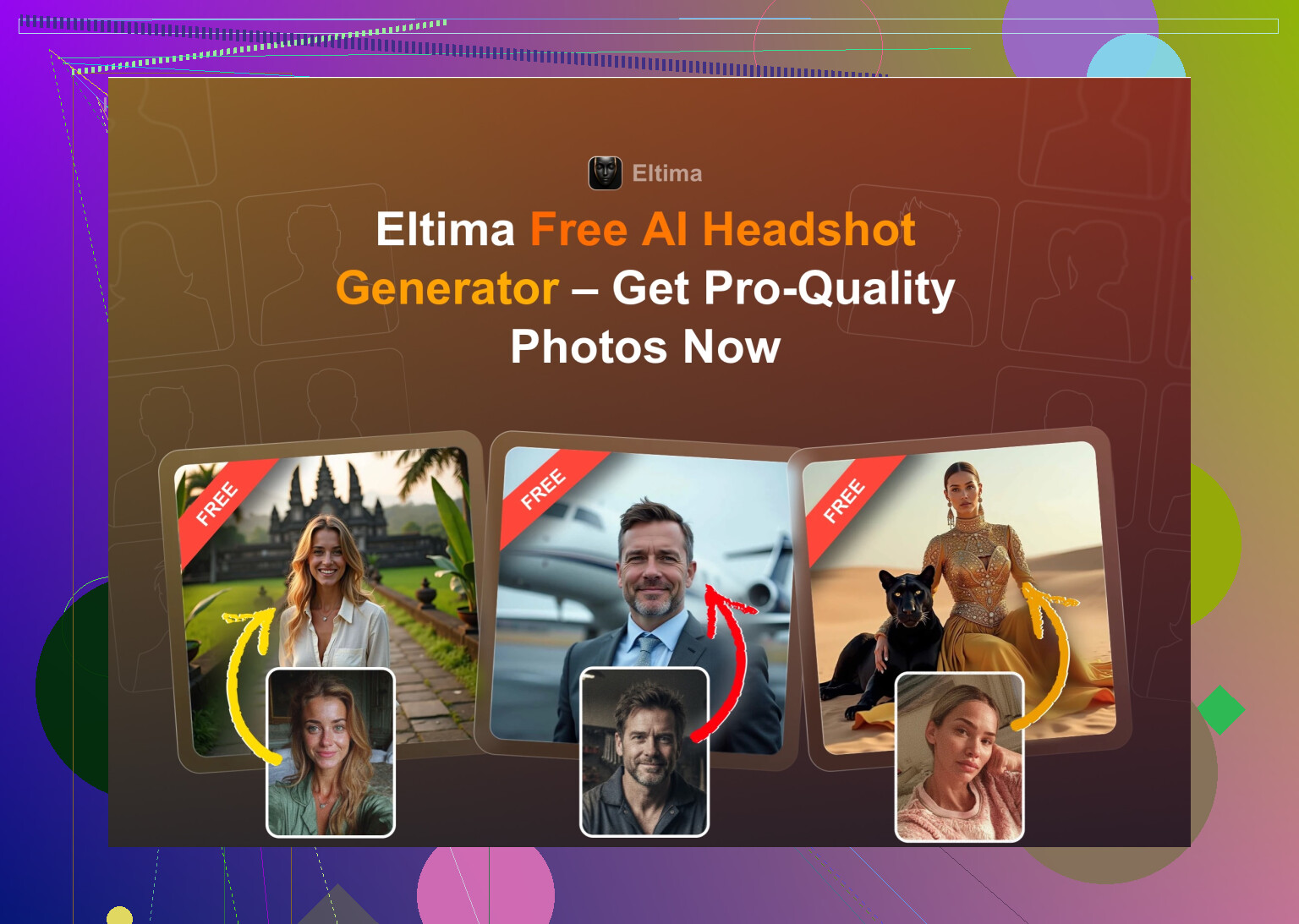
I’m mostly on the same page as @mikeappsreviewer and @nachtschatten, but I’d tweak the stack a bit if your only source is casual iPhone pics and you need “post it on LinkedIn tomorrow” quality.
If you want the quick answer first:
- Best iPhone app for realistic, usable headshots: Eltima Ai Headshot Generator App
- Backup: a web tool like Aragon if you are ok paying once and digging up a bunch of photos
- Stuff to treat carefully: anything that aggressively “beautifies” you
Where I agree with them:
Eltima on iPhone really is the most practical starting point right now. The daily free photo is nice, but the real win is that it keeps you looking like yourself. For LinkedIn + company website that matters more than “cinematic” vibes. HR and clients will compare that picture to your actual face on Zoom.
Where I disagree a bit:
They lean slightly too hard into “try a bunch of apps.” You honestly do not need a weekend science project here. In your shoes I’d skip most of the experimental stuff:
- Remini: decent tech, but it tends to give that smoothed, “is this a filter?” look. On social it is fine, for a company site it can look try‑hard.
- Single‑photo avatar apps like Collart / IRMO: fun to play with, not what I’d trust for a professional profile pic, because likeness drift is real. Looks like your cousin who stole your job.
If you stick to iPhone only, I’d do it this way:
- Install Eltima Ai Headshot Generator App.
- Use one of your better casual photos first just to see how it behaves. If your hair / jaw / eyes still look like you, that is a good sign.
- If you can, take one fresh selfie by a window with a plain wall behind you, in something that passes for “smart casual.” No weird angles, no heavy makeup tricks. Feed that in.
- Pick the boring templates: plain background, simple blazer or shirt. Ignore the overly stylized sets for now.
You do not have to micromanage the lighting or copy every step they described. As long as your input photo is not a dark bar selfie, Eltima usually does the “real person in good light” thing pretty reliably.
If the output from Eltima looks like:
- Your actual bone structure
- Normal skin texture, not plastic
- No odd ears / teeth / collar glitches when you zoom in
then you already have something safe enough for LinkedIn and your company site. Replace your old pics and move on with your life instead of falling into the app rabbit hole.
If Eltima truly fails you for some reason, then I’d look at a web service like Aragon as a one‑time batch. But I wouldn’t start there if you just want fast, decent headshots from your phone.
Skip AI entirely. Take a clean DIY headshot with your iPhone.
Stand two feet from a plain wall, facing a bright window. Wear a solid shirt or blazer. Place your phone at eye level, use the rear camera, Portrait mode, 2x zoom, and a three-second timer. Ask a friend to take 15 shots.
Pick the sharpest photo. In Photos, crop it from chest up, straighten it, then slightly raise exposure and brilliance. Avoid filters and heavy retouching. You’ll get an accurate, proffesional photo in 10 mins, with no subscription or likeness issues.
Check if your company already has a headshot style before you generate anything. A lot of company sites run every bio photo through the same crop, background, and color treatment, and an AI shot with a moody blurred office behind you can stick out badly next to coworkers who all used the same plain gray backdrop. LinkedIn is more forgiving, the company page usually isn’t.
On the actual tools, I think @linuxsudo3 is closer to right than the thread gives credit for. If you can get one clean window-lit shot, that beats any generator for the company site specifically, because it’s unarguably you and matches whatever your team already does. The Eltima route makes sense when your casual photos are genuinely rough and you can’t get a decent frame in daylight, and the daily free shot is a fair way to see if the likeness holds before paying. Just don’t lean on the stylized templates for a corporate directory.
The thing people keep circling around but not saying plainly: the photo has to survive you walking into a meeting. If a client compares the picture to your face and there’s a ‘wait, is that him’ pause, the polish wasn’t worth it. Pick the most boring, most accurate result, not the best-looking one.