My Seagate external hard drive suddenly stopped showing up on my PC, and it has important files I can’t lose. I’m looking for safe Seagate external hard drive recovery options before I try anything that could make the data loss worse.
First thing: stop using the Seagate drive for now. Don’t copy anything to it, don’t format it, and don’t keep trying random fixes. If Windows says the drive needs to be formatted, or your files suddenly disappeared, the data may still be there. The problem is that deleted or “missing” files can get overwritten if the drive keeps being used.
Do a quick sanity check before running any recovery tool. Plug it in and listen to it. If it’s clicking, grinding, making loud spin-up sounds, or repeatedly trying and failing to start, I would not scan it yourself. That can make a failing drive worse. In that case, check Seagate’s Rescue Data Recovery Services first, especially because some Seagate drives include Rescue coverage for a limited period. You can look up the serial number on Seagate’s site and see what’s covered.
If the drive sounds normal but doesn’t show up in File Explorer, shows as RAW, or Windows asks to format it, recovery software is usually the next practical step. A lot of the time Windows just can’t read the file system anymore, while the files are still sitting on the disk.
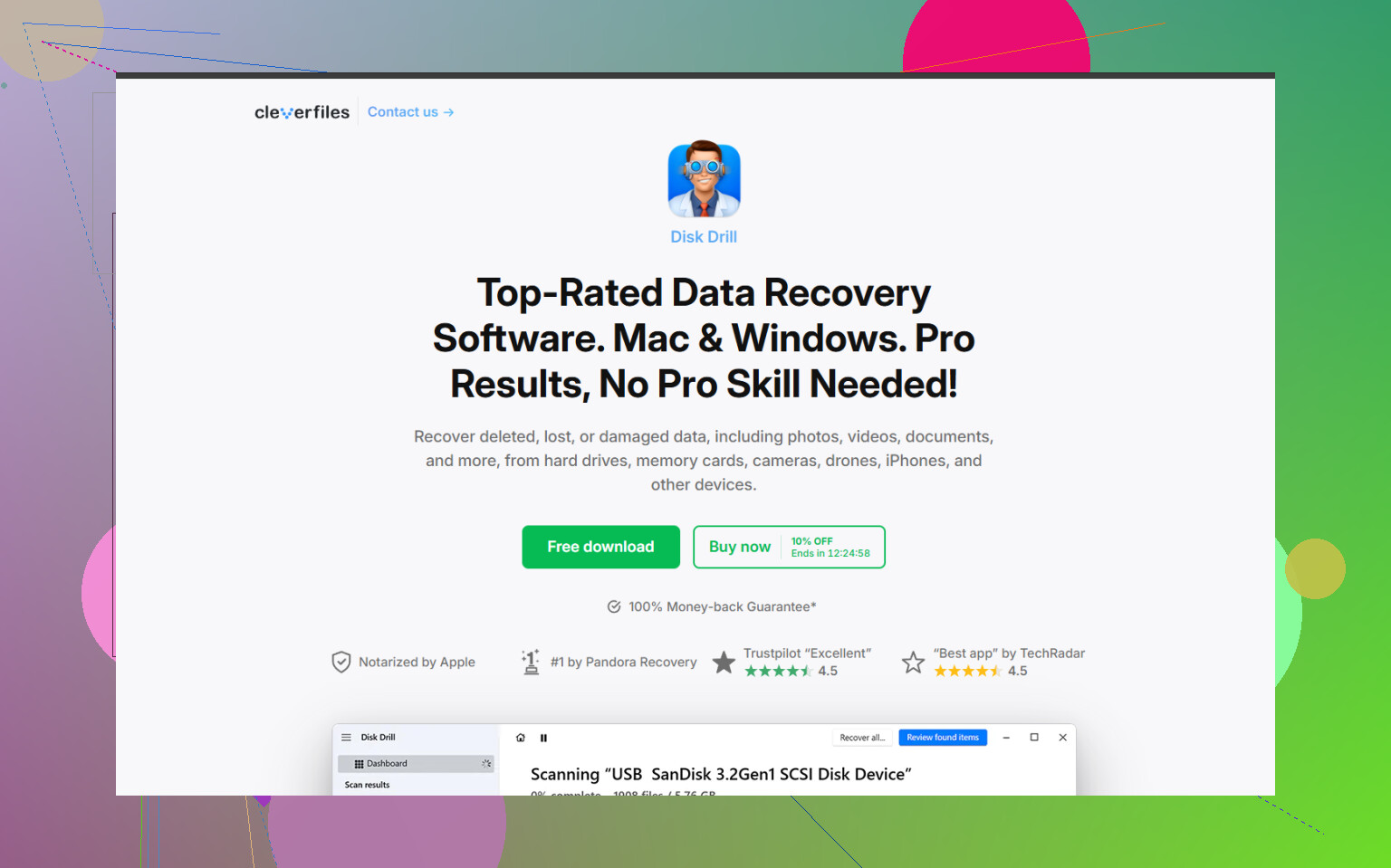
For DIY recovery, Disk Drill is a decent option for Seagate external drives, especially after unsafe unplugging, RAW partitions, or drives that show up incorrectly.
A safer way to go about it:
- Install the recovery software on your computer’s internal drive or another external drive, not on the Seagate drive you’re trying to recover.
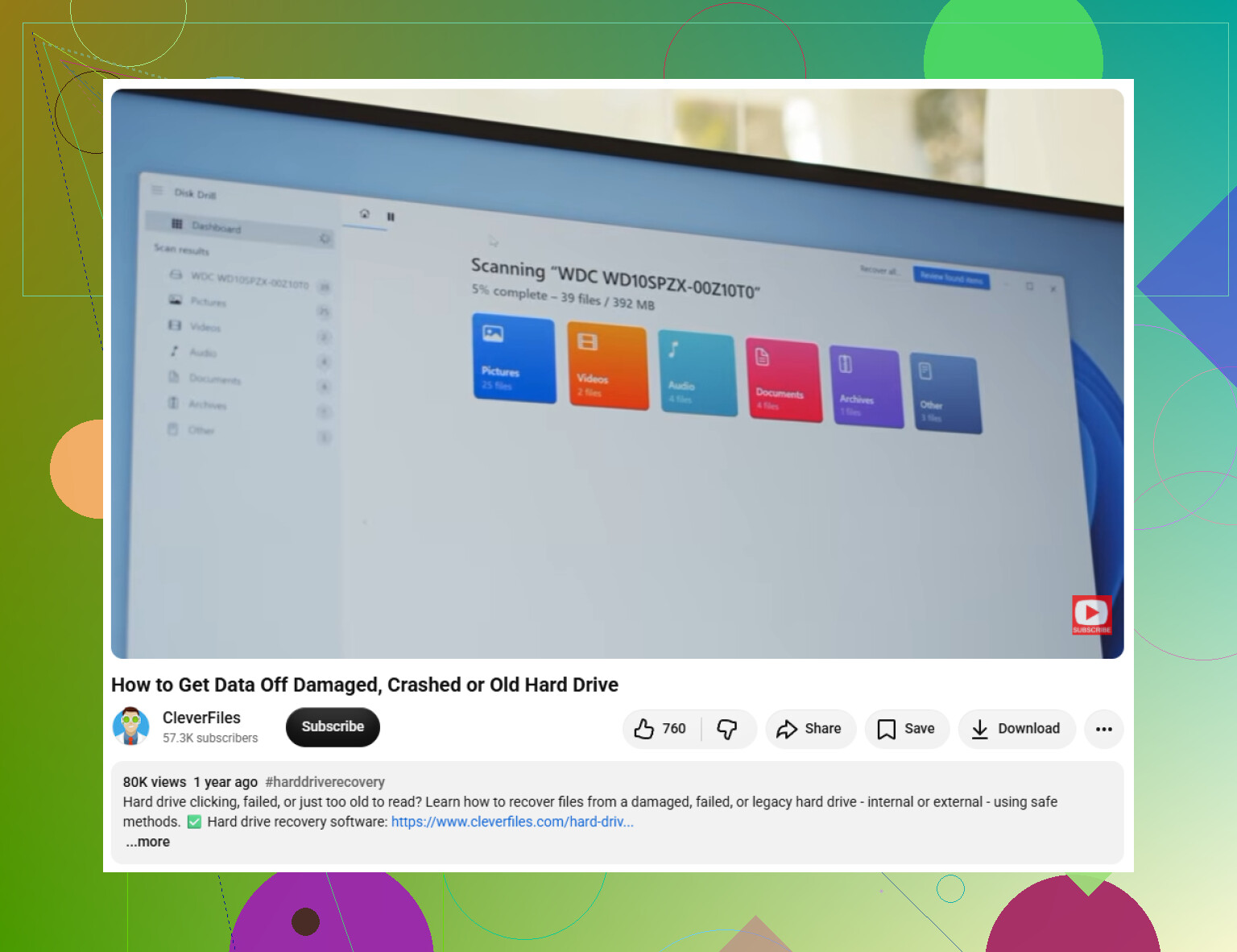
- If the Seagate seems flaky, make a byte-to-byte backup first. Disk Drill can create a full disk image, then you can disconnect the original drive and scan the image instead.
- Use a known-good USB cable and try another port if it doesn’t show up. Bad cables cause more weird external-drive issues than people expect.
- Scan the Seagate drive or the disk image for lost data.
- Preview files before recovering them. If photos, videos, or documents preview correctly, that’s usually a good sign they’re recoverable.
- Recover the files to a different drive. Never save recovered files back onto the same Seagate drive.
If Disk Drill or another tool doesn’t see the drive, check Windows Disk Management. If it appears there with the right size, like 2TB or 5TB, recovery software may still be able to read it even if File Explorer can’t.
Once you get the important files back, don’t just assume the drive is fine. Run SeaTools from Seagate and use the Long Generic Test. If it fails, replace the drive. If it passes, you can format and reuse it, but I’d still keep another backup from now on.
Large Seagate drives can take hours to scan, sometimes longer. But if it powers on, sounds normal, and shows up with the correct capacity, you probably still have a reasonable shot at recovering the data.
19 Likes
The sneaky way people make this worse is by running “repair” tools before they have a copy of the data. I would not run CHKDSK, initialize the disk, create a new volume, or let Windows “fix” it if the files matter. Those steps can be useful on a drive you do not care about, but they can also change the file system enough to make recovery messier.
I agree with the earlier point about checking whether the drive sounds physically bad first. If it sounds normal, I’d look at the boring hardware side before assuming the disk itself is dead: try a different USB cable, avoid USB hubs, try a rear motherboard USB port, and test on another computer. With some Seagate externals, the USB enclosure or power adapter is the weak link, not the actual drive. That said, don’t crack the case open right away if there’s any chance you have warranty or Rescue coverage, because that can complicate it.
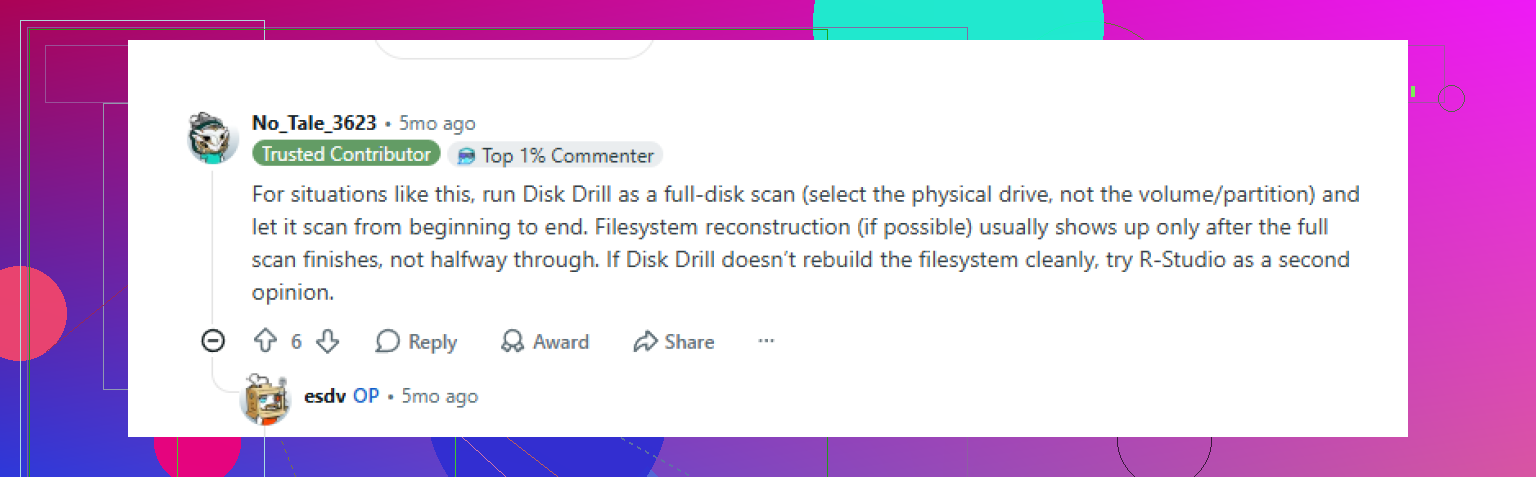
If the drive shows the correct size in Disk Management, then software recovery is reasonable. Disk Drill is fine for this kind of “drive visible but unreadable” situation, but I’d treat imaging as the main goal, not just scanning the failing disk over and over. Make an image to another healthy drive if you can, then recover from that image. If the drive drops offline during imaging, gets slower and slower, or starts disconnecting, stop there and decide whether the data is worth a lab recovery. DIY recovery is best when the problem is logical. If the hardware is dying, patience can become damage pretty quickly.
Don’t open the case just to “try SATA” unless you know what model you have. Some externals behave differently through their USB bridge, and pulling the bare drive can create a new problem instead of solving the old one. I’d check the simple stuff from Windows first: does it appear in Disk Management with the correct capacity, or is it missing completely? Correct size but unreadable means software recovery is worth trying, and Disk Drill is fine if you recover to a different disk. Missing, wrong size, clicking, or disconnecting every few minutes means stop testing it and price out a recovery lab before the drive gets worse. The boring answer is the safest one: identify whether the computer can still see the actual disk before choosing software.
Check the power supply if it’s a larger Seagate desktop external with its own adapter. A weak adapter can make the drive spin half-way, disappear, or show nothing at all, which looks like dead-drive behavior when the disk may be fine. Don’t buy recovery software until Windows can at least see the drive with the correct size.