A bunch of files suddenly disappeared from my external hard drive after I moved it between computers, and now I can’t tell if they were deleted, hidden, or corrupted. I need help figuring out the best way to find missing files on an external hard drive and recover them before I lose anything important for good.
Files ‘vanishing’ off an external drive is ugly, but I’ve seen it end up being file system damage more often than true deletion. Windows loses the map, the data stays put. Different problem.
First thing, stop using the drive.
Do not copy anything onto it. Do not format it. I wouldn’t run repair tools yet either. If a tool rewrites file system stuff before you pull your files off, recovery gets messier fast.
What I’d check first:
- In File Explorer, turn on Hidden items. I’ve seen folders look gone when they were only hidden.
- Look at the drive’s used space. If it still shows close to the same amount of used storage, while the folders look empty, thta’s a decent sign. The files are often still on the disk.
- If Windows still detects the drive, I’d skip ‘fixing’ it for now and go straight to scanning it.
The one I used was Disk Drill. I had an external drive show up almost blank once, even though it still had a few hundred GB marked as used. Disk Drill pulled up the missing folders without much drama.
This is the order I’d follow:
- Install Disk Drill on your internal drive, or another healthy disk. Do not install it onto the external drive with the missing files.
- Plug in the external drive and open Disk Drill.
- Pick the problem drive, then click Search for lost data.
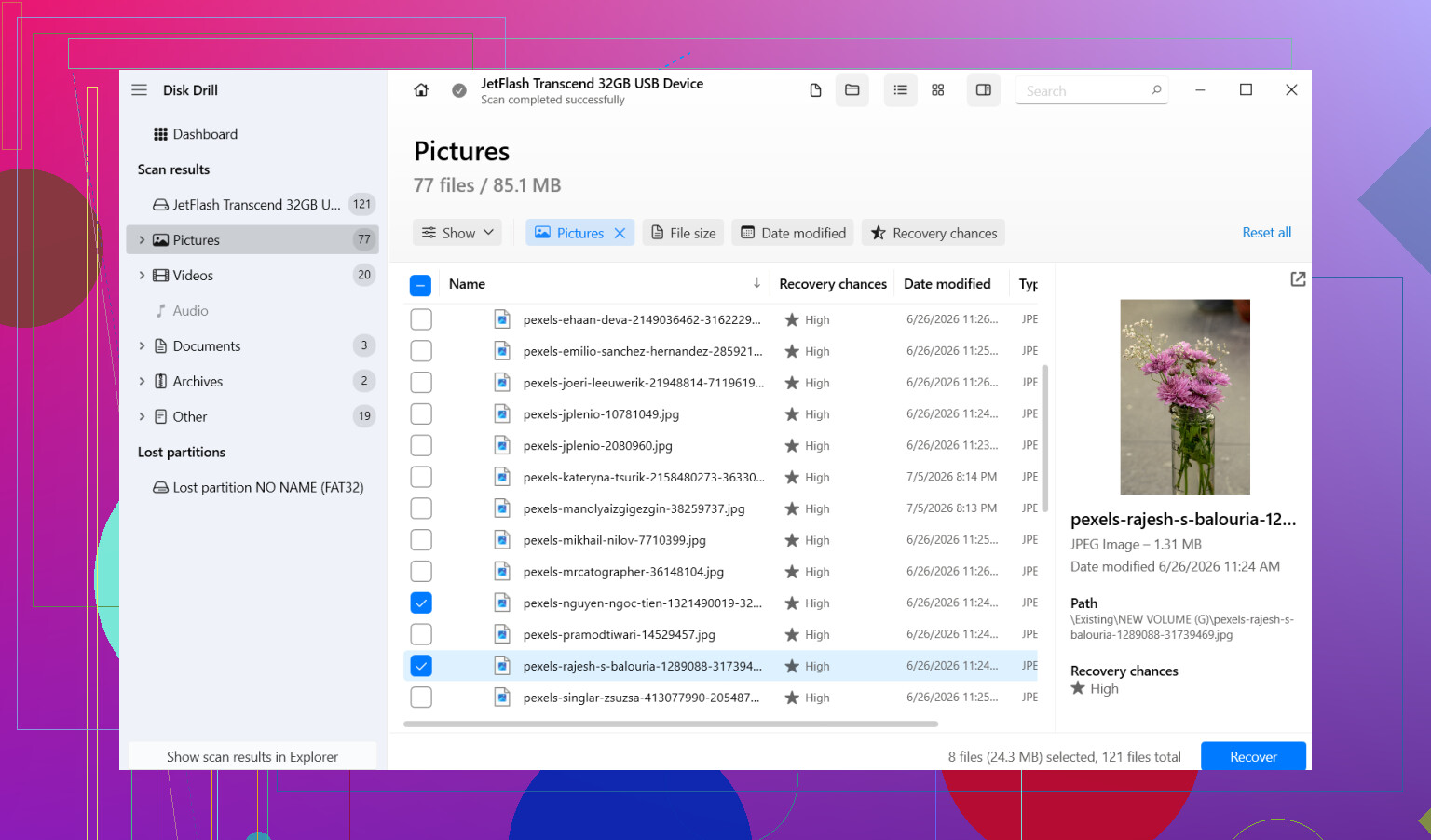
- Let the scan finish fully. After that, browse results or filter by file type if you’re chasing photos, videos, docs, whatever.
- Preview some files first. I always do this, because names alone don’t prove much.
- Select what you want, then hit Recover.
- Save the recovered files to a different drive. Never write them back onto the same external disk.
After your important stuff is copied somewhere safe, then deal with the original drive.
I’d also stay away from CHKDSK at this stage. Google loves throwing it at every drive problem. The issue is simple, CHKDSK tries to repair the file system, and in doing so it might alter or drop damaged directory entries. Good if your goal is making the drive mount cleanly. Bad if your goal is getting missing files back first. I always recover first, repair second.
If Windows pops up with ‘you need to format the disk before you can use it,’ don’t hit Format. I’ve seen people do this in a panic. Usually it means the file system got damaged, not tht the files are gone beyond recovery.
One case where I would stop messing with software, if the drive is clicking, grinding, dropping offline, or having trouble spinning up. At that point I’d unplug it. Repeated reads on a failing drive can make the outcome worse. That’s where a recovery lab starts making more sense.
So yeah, if the drive is still detected and it isn’t making bad noises, your odds are often decent. Improper unplugging, power loss, and file system corruption cause this stuff all the time. Get the data off first. Worry about repairs later.
25 Likes
Check the simple stuff first. Different computer often means different view settings, drive letters, permissions, or a file system the other machine did not handle well.
I agree with @mikeappsreviewer on one big point, don’t write anything new to the drive. I slightly disagree on waiting too long to inspect the file system state, though. I would not run repairs yet, but I would check properties and Event Viewer so you know if Windows logged I/O errors, NTFS errors, or unsafe removal events.
What I’d do:
-
Test the drive on the original computer again.
Sometimes the files “disappeared” because the second PC hid them, changed permissions, or indexed the drive badly. -
Check folder permissions.
Right click the top folder, Properties, Security. If your account lost access, the files look gone when they are not. Take ownership only after you know the drive is stable. -
Open Command Prompt and run:
attrib -h -r -s /s /d X:.
Replace X with your drive letter.
This clears hidden, read-only, and system flags from files and folders. I’ve seen this fix “empty” drives after moving between PCs. -
Compare used space with visible files.
If File Explorer shows 700 GB used but you only see 50 GB, your data is still somwhere on the disk or in damaged directory entries. -
Check Disk Management.
If the partition shows RAW, unallocated, or wrong size, this points more to partition or file system damage than deletion.
If you need recovery, Disk Drill is a solid pick because it finds missing folders and file signatures on external drives without needing to repair first. Search terms like best way to recover files from an external hard drive or external hard drive file recovery usually lead people there for a reason.
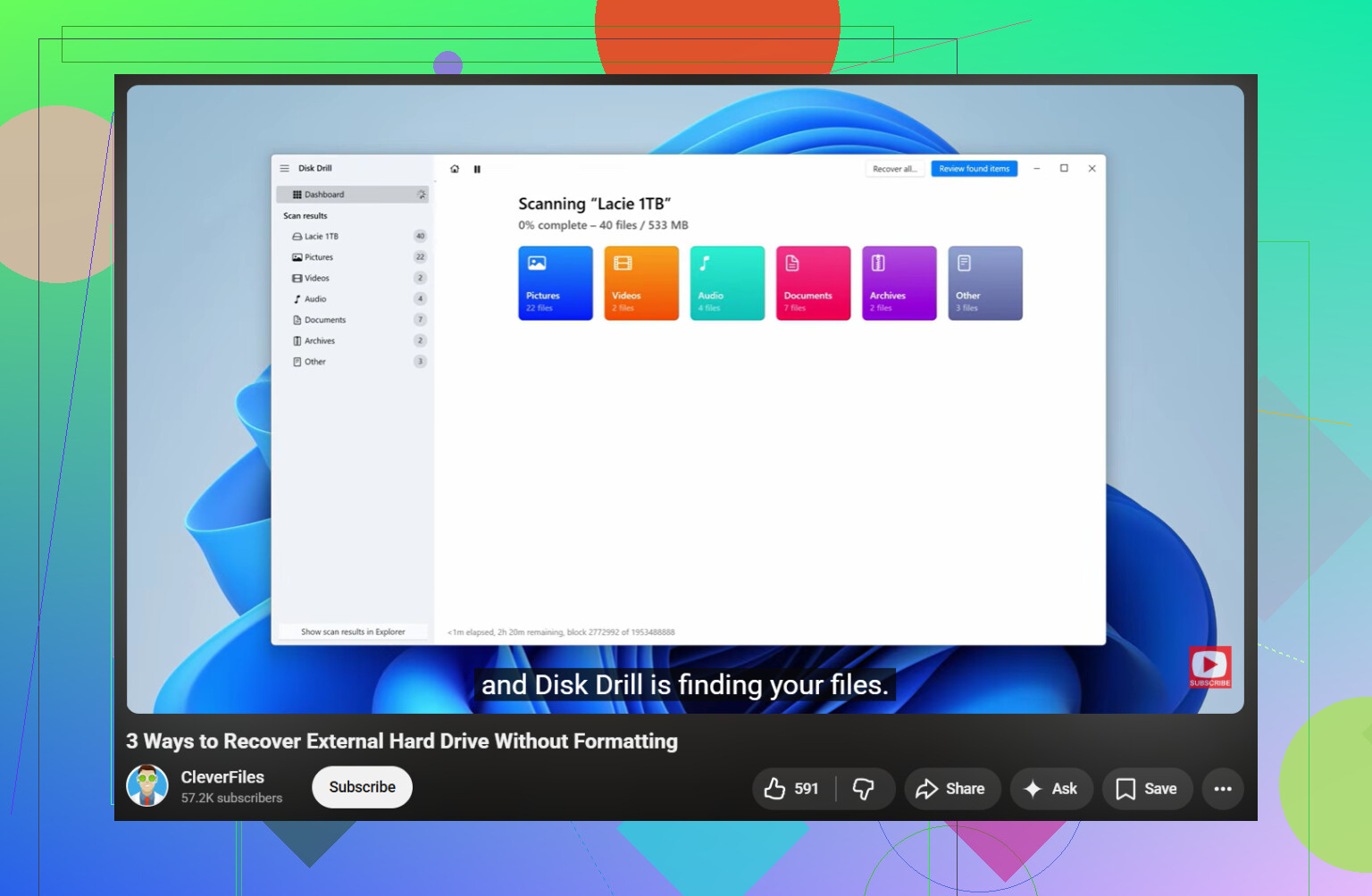
If you want a quick walkthrough, this video guide for recovering files from an external hard drive covers the process well.
One more thing. If the drive disconnects, clicks, or freezes Explorer, stop. Software recovery gets risky fast on failing hardware. At tht point, clone the drive first or send it out.
I’d add one angle neither @mikeappsreviewer nor @stellacadente really leaned on enough: search the drive from outside normal Explorer indexing before assuming recovery mode.
If the files only “disappeared” after moving between computers, sometimes the issue is pathing, not loss. I’ve seen folders end up nested inside other folders after a sloppy drag-and-drop, or renamed into something weird. Use a tool like Everything or even PowerShell to search the external drive directly by wildcard, file extension, or modified date. Example: search *.jpg or *.docx across the whole drive, not just where you think the files should be. Sounds dumb, but it catches a lot of “missing” stuff.
Also check whether the second computer was a Mac. If yes, look for oddball temp folders, duplicate volumes, or permission weirdness. Cross-system moves can get wonky fast.
If the drive still shows the old used capacity and searches come up empty, then yeah, I’d move to recovery software. Disk Drill is a solid option for external hard drive file recovery because it lets you preview recoverable files before pulling them back. That matters, esp if you’re trying to figure out whether the files were deleted versus just lost from the file table.
One thing I slightly disagree on: running attrib blindly can clutter things if the drive has legitimate system-hidden folders. Not dangerous most of the time, just messy and sometimes confusing.
And if you want a cleaner guide on the whole process, this step-by-step hard drive file recovery discussion is pretty relevant.
Main rule is still the same: don’t write to the drive until you know what happened. That part people ignore, then wonder why recovery got harder lol.
I’d add one check nobody really pushed: verify whether the files are showing up in the drive’s Master File Table indirectly. Tools like WinDirStat or TreeSize can map space usage even when Explorer acts dumb. If 600 GB is “used” but no folders appear, that usually means metadata damage, not clean deletion.
I slightly disagree with running broad attribute resets too early. It can muddy the picture if you’re trying to figure out whether this was hidden files, permission issues, or actual file system corruption.
Also, check SMART health before heavy scanning. CrystalDiskInfo is quick for that. If health is bad or reallocated/pending sectors are climbing, clone first, recover second.
If search, space analysis, and SMART don’t clarify things, then use Disk Drill. Pros: easy previews, good deleted/lost partition detection, solid for externals. Cons: deep scans can lose original folder structure, large scans take a while, and the best recovery features are paid. It’s a good middle ground alongside what @stellacadente, @jeff, and @mikeappsreviewer already covered.
Yeah, I’d check the used space too before doing anything drastic. If the drive suddenly looks empty but Windows still says there’s a bunch of space being used, that’s usually a pretty different situation from the files actually being deleted.
Also, did you move the drive between the two computers while it was still plugged in / in use? And is it showing the same thing on both machines?
I’ve seen people jump straight to CHKDSK or formatting when this happens, and that can make things a lot harder to recover. I’d definitely try to figure out what Windows is actually seeing first.
There’s a similar case here too if you want to compare what happened: https://www.reddit.com/r/DataRecoveryHelp/comments/1wcxier/my_external_hard_drive_files_dissapeared/
Everything won’t save you if this is actual table damage, and that’s worth being clear about. It builds its index straight off the NTFS master file table. So if your folders vanished because the directory entries got mangled, Everything reads the same broken map Explorer does and shows you the same nothing. Where @jeff is right is the other case, the nested-folder or renamed-after-a-messy-drag situation. For that it’s great. Just don’t expect it to conjure files that the file system itself has stopped tracking.
The thing nobody’s named yet is the format. You said you moved the drive between machines, which to me screams exFAT. Lots of portable drives ship that way so they work on Windows and Mac. exFAT has no journaling. Pull it mid-write, or let one machine think it was unmounted cleanly when it wasn’t, and the directory table takes the hit with nothing to roll it back. That matches your symptom almost too well, folders gone but space still used.
So before the deep recovery stuff, check what file system Disk Management reports. If it says exFAT or RAW, you’re almost certainly looking at metadata damage, not deletion, and the recovery approach changes slightly. Signature scanning will still pull your files, but you’ll likely lose folder names and structure in the process, so plan for a messy pile of recovered files rather than a clean tree.
On the used-space check everyone keeps pointing to, I’d treat it as a hint and nothing more. exFAT tracks allocation in a separate bitmap from the directory, so the two can disagree. You can see ‘used’ space that’s stale, or free space that hasn’t caught up yet. It tells you the data probably hasn’t been overwritten. It does not tell you the file records are intact.
When you do scan, Disk Drill is fine for this, same as the others said. Point it at the raw disk, not the volume, so it rebuilds from signatures instead of trusting the damaged table. And if the thing cost you real money or holds irreplaceable stuff, imaging the drive to a file first and recovering from the image is the move. One clone, then hammer the copy as much as you want without touching the original again.