I’m trying to recover MP4 video files from an SD card after they suddenly disappeared during a transfer. The card still shows storage being used, but the videos won’t open or show up properly. These are important personal recordings, and I need advice on the best SD card video recovery methods or tools that might restore them without causing more damage.
I know the feeling. You delete a clip you needed, your stomach drops, and your first instinct is to poke at the card until something works. I did that once. Bad move. If your video vanished from an SD card, stop touching the card right away.
Deleted does not always mean gone. On most SD cards, the file data sits there for a while. The system only marks the space as free. Your video stays recoverable until new data lands on top of it.
What I’d do first
1. Stop writing anything to the card
This matters most.
Do not shoot more video. Do not take photos. Do not move files onto the card. Do not format it, even if Windows nags you. Pull the card out and leave it alone until you’re ready to scan it.
I learned this the hard way with a camera card from a weekend trip. A few new clips later, half the old footage was toast.
2. Check if your computer still sees the card
Before trying recovery, see if the card shows up at all.
Use a different card reader.
Try another USB port.
Plug it into a second computer if you have one.
On Windows, open Disk Management and look for the card there.
If Windows says the card is RAW or throws up a format prompt, don’t panic yet. I’ve seen recovery tools scan cards in that state without much trouble. If the card does not appear anywhere, you might be dealing with a failing card or a busted reader instead of a simple delete.
Recovery tools I’ve seen work
3. Scan the card with recovery software
For video, Disk Drill is one of the better picks I’ve used. It handles a long list of file types, and its camera-focused scan mode helps with fragmented video files, which is common on action cams, drones, and some mirrorless cameras.
I’ve seen it pull clips from stuff like GoPro, DJI, and Sony cards where a plain file scan missed chunks.
The Windows version gives you up to 100 MB free for recovery. For big video files, that limit won’t get you far, but it’s enough to scan, preview, and see whether your footage is there before spending money.
If you want a free route, PhotoRec is worth a shot. It works. It’s ugly. It also tends to strip away original filenames and folder layout, so expect a pile of generic recovered files. Still, for zero cost, it has saved people’s footage plenty of times.
How I’d run the recovery
4. Recover to another drive, never the same card
Connect the SD card with a card reader.
Run a full scan or deep scan.
Filter results for video files.
Preview whatever looks promising.
Save recovered files to your computer or an external drive.
Do not save recovered files back onto the SD card. I know it sounds obvious, but people do it. If you write recovered data onto the same card, you risk wiping out parts of other deleted files you have not pulled yet.
If the recovered video won’t play
5. The file might be there, but damaged
This part gets annoying. Sometimes recovery brings back the file, but the clip won’t open.
First thing I’d try is VLC Media Player. VLC has opened broken files for me when other players failed and spat out errors.
If VLC won’t handle it, look into video repair tools. Some of them rebuild corrupt footage using a clean sample recorded on the same camera, with the same settings. Sounds weird, but yeah, it sometimes works.
And if your system keeps asking to format the card, ignore it for now. Recovery first. Cleanup later.
What matters most
Time matters. Writes matter more.
Your odds improve if you stop using the card fast and start recovery before anything overwrites the deleted area. If the card still reads, you’ve got a decent shot. If you keep recording on it, things get ugly fast. Simple as that.
11 Likes
If the space is still used, your MP4s are often still there, but the file table got messed up during transfer. Slight disagree with @mikeappsreviewer on one point, I would make a byte-for-byte image of the SD card first if your PC still reads it. Work from the image, not the card. Failing cards get worse fast.
Use USB Image Tool, HDD Raw Copy, or Win32 Disk Imager. Save the image to your PC. Then scan the image with Disk Drill. That cuts risk and lets you retry with other tools later.
If files come back but do not play, the issue is often the MP4 header, moov atom missing or broken. MediaInfo helps check this. ffmpeg sometimes fixes it with:
ffmpeg -i broken.mp4 -c copy fixed.mp4
If ffmpeg fails, untrunc or a repair tool using a sample file from the same camera often works better.
Also check hidden files on the card before recovery. On Windows, run:
attrib -h -r -s /s /d X:.
This fixes cards where files ‘vanish’ after transfer but storage still shows used. Seen it hapen with cheap SD cards and flaky readers.
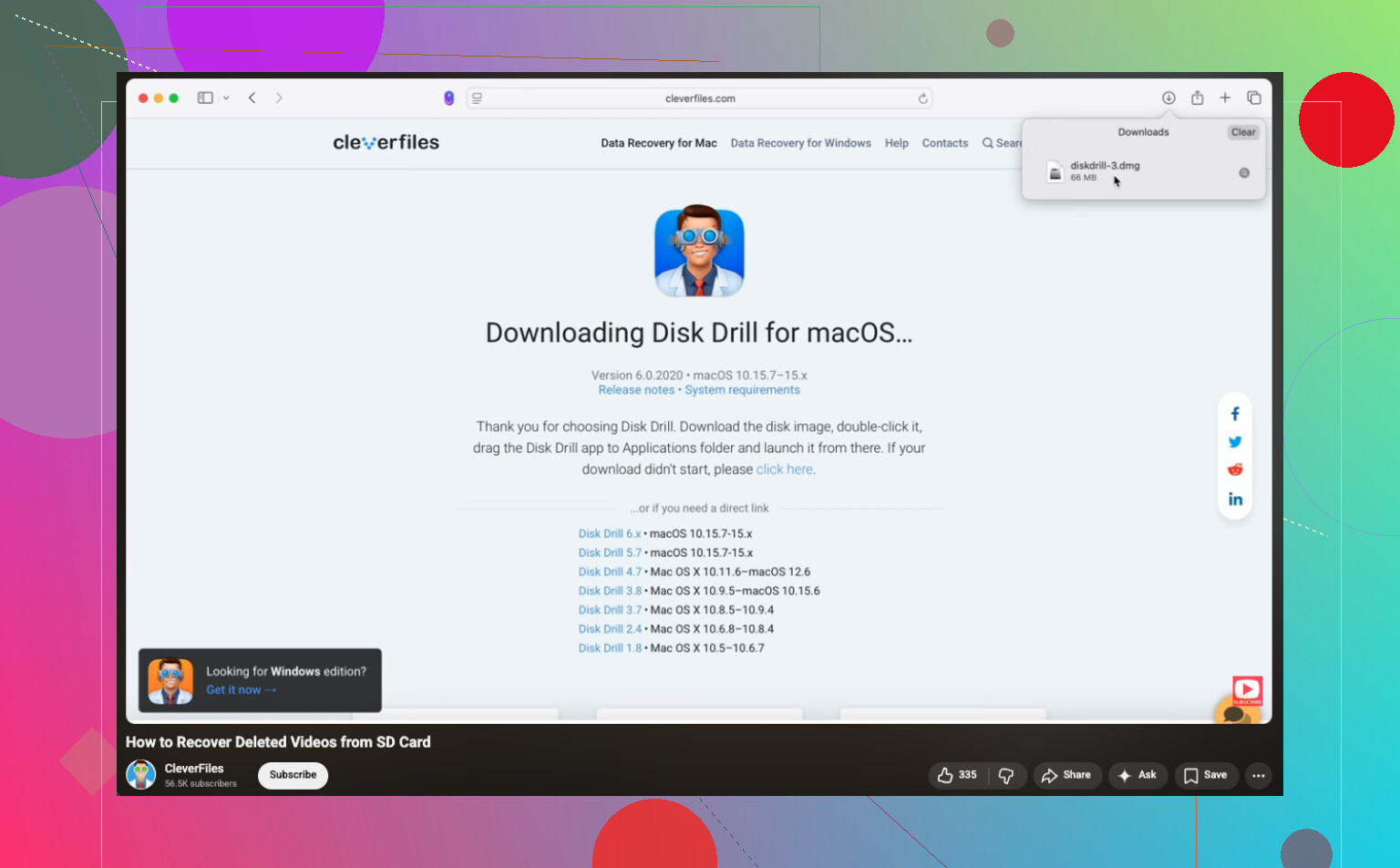
For a step-by-step video, this SD card MP4 video recovery guide on YouTube is easy to follow.
If the card still shows used space, I would not assume the files are “gone.” Sometimes the transfer dies halfway and you end up with orphaned data, broken directory entries, or zero-byte placeholders. Slightly different take from @mikeappsreviewer and @reveurdenuit: before running repair commands on anything, check the card’s health. Use something like H2testw or the SD card formatter’s diagnostics if available. A fake or dying card can make recovery look possible, then corrupt everything again.
Also, do not run CHKDSK first. People love suggesting that, but on camera cards it can make a mess of video structures.
What I’d try:
- Put the card’s lock switch on.
- Copy the entire visible contents to your PC, even weird folders.
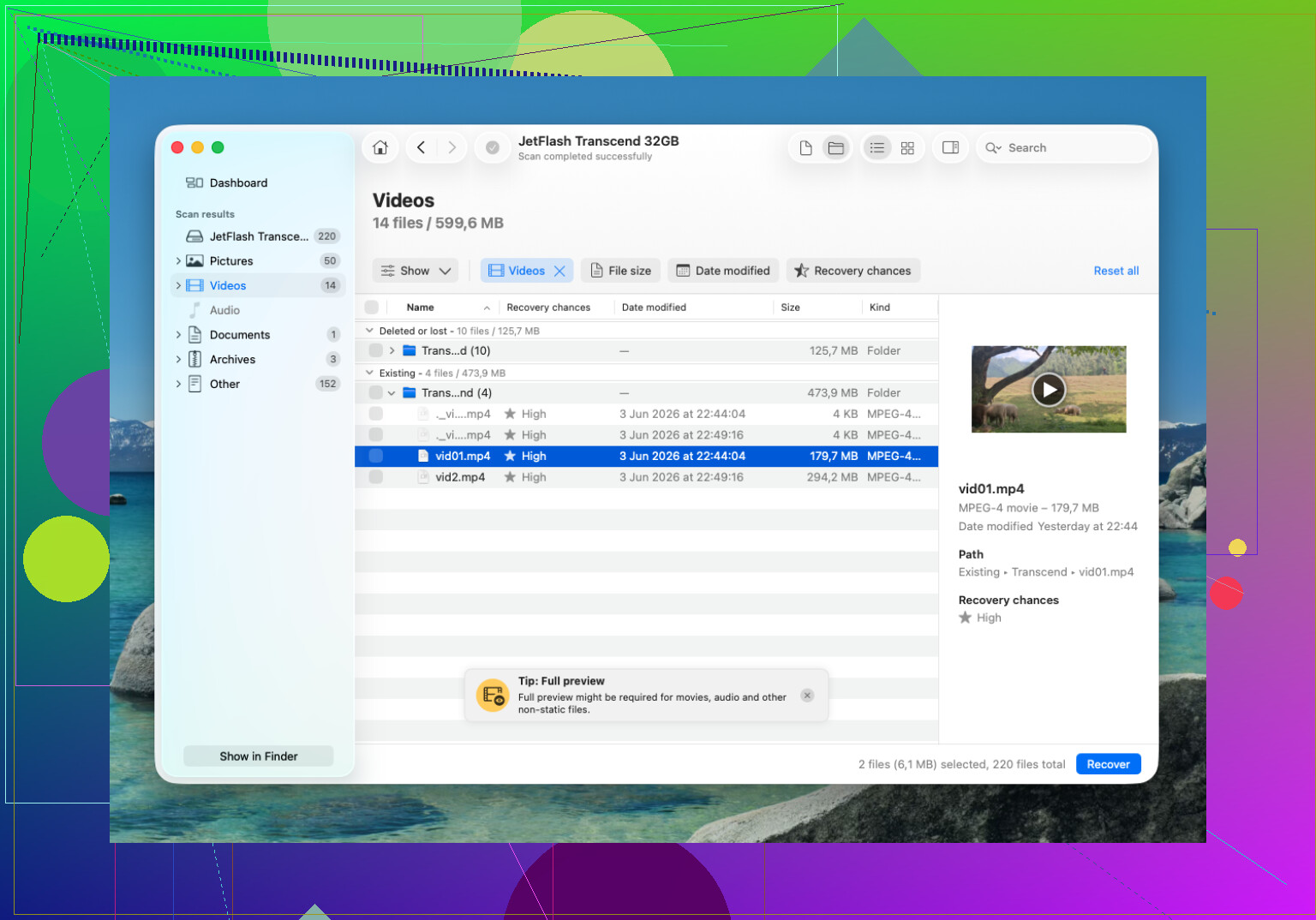
- Use Disk Drill to scan for lost MP4/MOV signatures and see if file sizes look realistic.
- If the recovered files exist but won’t play, test them in MPV, not just VLC. MPV is weirdly good with damaged files.
- Compare recovered clip sizes to what your camera normally creates per minute. Tiny files usually mean header-only junk.
One more thing people skip: check the camera brand’s own recovery/import utility. Canon, Sony, Panasonic, GoPro, DJI, etc sometimes rebuild clips their own way better than generic tools.
This thread on recovering deleted videos from an SD card and camera footage has some useful real-world tips too. Don’t keep plugging the card in and out 20 times btw, that can make a flaky reader/card combo act even dumber.
One angle I’d add to what @reveurdenuit, @himmelsjager, and @mikeappsreviewer said: check whether the camera wrote the clips as split segments or sidecar-managed media. A lot of cameras create helper files like THM, XML, BDMV, IDX, BIN, CPI, or manufacturer metadata. If those are missing but the raw video chunks still exist, generic recovery can bring back the payload while leaving you with unplayable or oddly truncated MP4s.
So I would not start with “recover every MP4.” I’d first recover the whole card structure if possible, including hidden system folders. Sometimes the winning move is rebuilding the original folder layout, then importing through the camera maker’s own software instead of dragging clips directly.
I slightly disagree with doing health tests too early if the card is unstable. Repeated full reads can stress a dying card. If it disconnects, gets slow, or changes capacity reading, get one good image or one good scan pass and stop.
On Disk Drill specifically:
Pros
- Good at finding deleted/lost video files
- Preview helps confirm whether footage is real before recovery
- Friendly interface compared with PhotoRec-level tools
Cons
- Free recovery limit on Windows is small for video
- Recovered names/folder structure may still be messy
- Deep scans can return lots of false-positive MP4 fragments
If Disk Drill shows many similarly named MP4s with odd sizes, recover a few samples first, not everything. Real clips usually match your camera’s normal bitrate and duration pattern. Fragments often open for a few seconds, then die.
Also, if your card is microSD in an adapter, swap the adapter. Those fail more often than people think.