My phone doesn’t have an IR blaster, but I need a TV remote app after losing the original remote. Are there any reliable apps that can control a smart TV over Wi-Fi?
If your TV connects to Wi-Fi, you probably don’t need an IR blaster. Most smart TVs can receive remote commands directly through your home network.
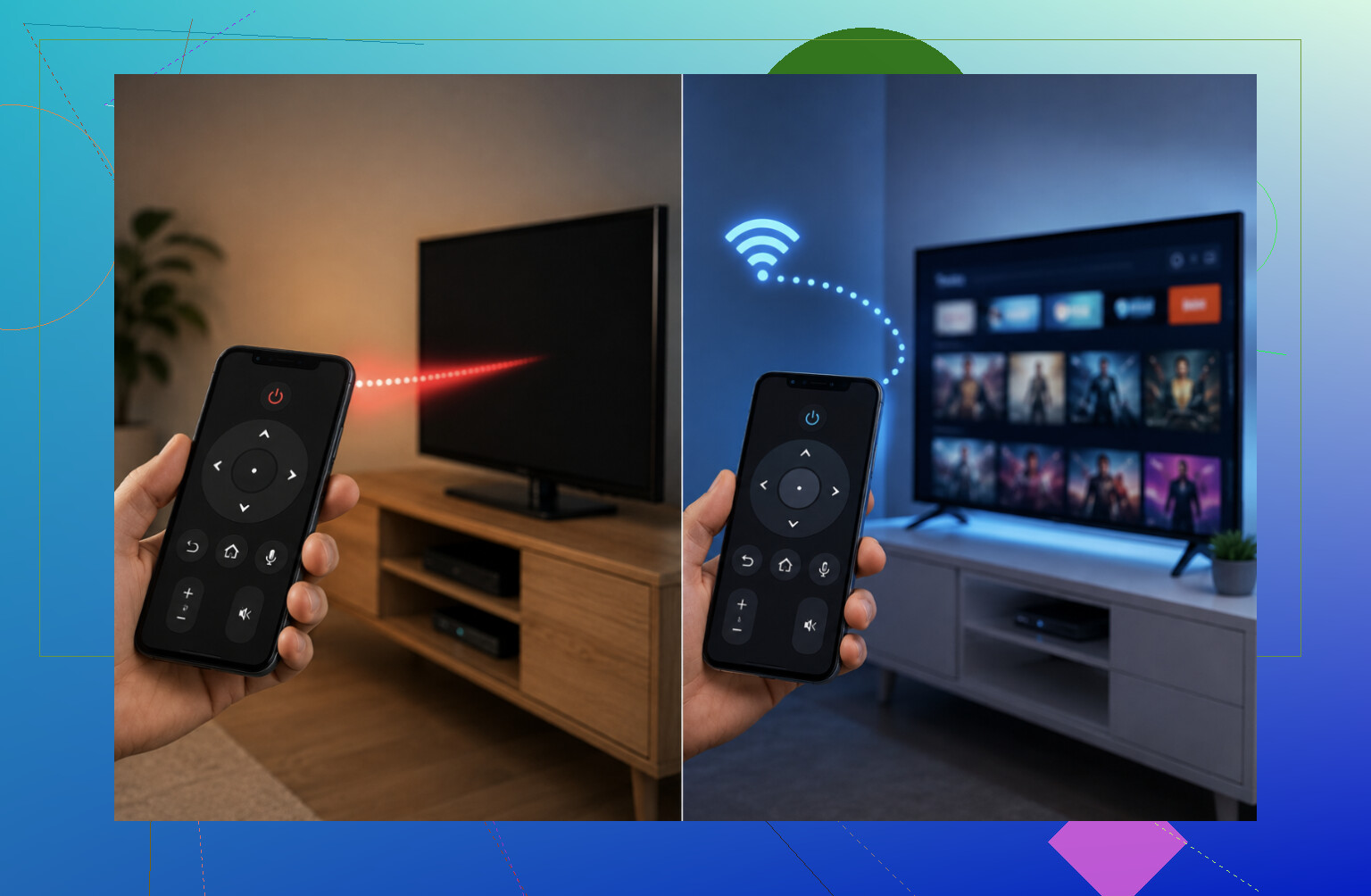
An IR blaster works like a traditional remote. It sends an infrared signal toward the TV, so it needs a clear line of sight. Some Android phones included one, but iPhones never have.
Smart TVs work differently. Your iPhone and TV communicate over Wi-Fi, which means you can control the TV without pointing the phone at it. It may even work from another room.
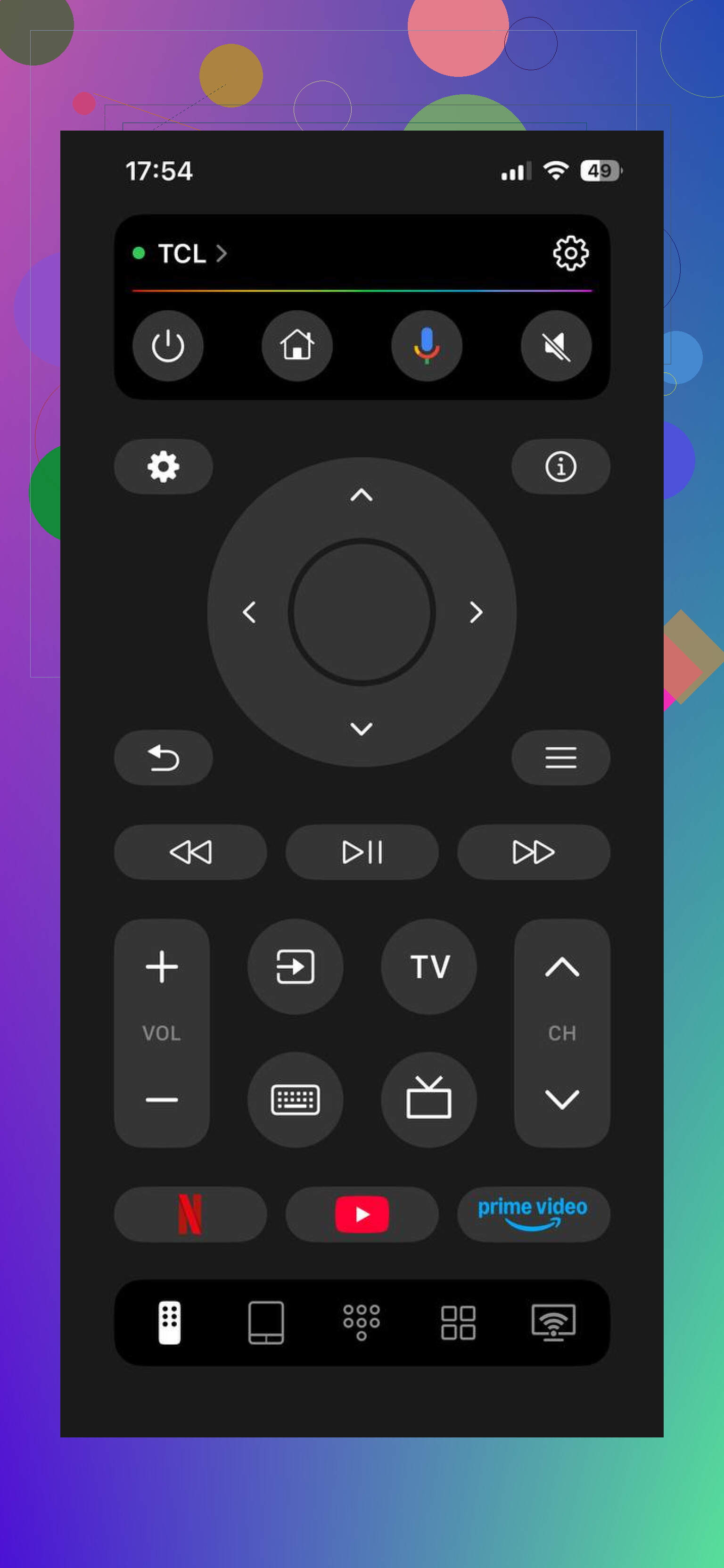
For a smart TV, make sure both devices are connected to the same Wi-Fi network. Then use the manufacturer’s app, such as Samsung SmartThings, LG ThinQ, Roku, or Fire TV. You can also use a universal app like TVRem, which supports Samsung, LG, Roku, Fire TV, Android/Google TV, and Apple TV over Wi-Fi.
IR only becomes an issue if you have an older TV with no network connection. An iPhone app by itself cannot control that kind of TV. You would need either:
- A basic universal IR remote, which is usually the easiest option.
- An external IR blaster or dongle. These exist, but iPhone compatibility can be limited and setup is often more trouble than it’s worth.
So if it’s a smart TV, use the brand’s app or a Wi-Fi option like TVRem. If it’s an older non-Wi-Fi TV, a cheap physical universal remote is the simpler answer.
The TV model should tell you which situation you’re dealing with. If it supports Wi-Fi, you’re in app territory. If it doesn’t, you’ll need IR hardware.
44 Likes
Don’t factory-reset the TV while you’re missing the remote. Wi-Fi apps work, but the TV usually has to be online already, and the first connection may require approving a pairing code on-screen with the TV’s physical buttons. If it isn’t connected to your network, temporarily use Ethernet or borrow a compatible remote to finish setup. After that, the official brand app is usually the least troublesome option.
If your phone is on a guest Wi-Fi network, the app may never find the TV even though both devices show as connected. Many routers block devices on the guest network from talking to each other, so put the phone and TV on the same regular network and turn off any “client isolation” setting.
I agree with @turb0_hawk about using the official app first. A universal Wi-Fi remote can be convenient, but discovery and pairing tend to be less predictable. There’s another small catch: some TVs disable network control while fully powered off. The app may work perfectly once the TV is on but fail to wake it, leaving you dependent on the TV’s physical power button.
If pairing is impossible because you can’t navigate the TV menus, a cheap replacement remote is often the fastest way to get through setup. Once network control is enabled, you can switch back to the phone app.
A free manufacturer app and a “universal remote” with a weekly subscription may do the same basic job, so check the purchase screen before installing anything. For a Wi-Fi TV, you do not need an IR blaster. Pair through the TV maker’s app, and expect an approval prompt or code on the television during the first connection.
There’s another route if you use a Roku, Fire TV, Google TV, or Apple TV box. Its phone app can control the streaming device, and HDMI-CEC may pass power, volume, and input commands to the television. That depends on CEC already being enabled, but it can work even when the TV maker’s own app is poor.
@ @datadev’s warning about waking the TV matters. Network standby settings sometimes need to be enabled before power-on from an app will work. If the set is offline or waiting at its initial setup screen, no Wi-Fi app can magically reach it.
Turn off any VPN and make sure the remote app has permission to access devices on your local network. Otherwise it may insist the TV “can’t be found” while both devices are sitting three feet apart on the same Wi-Fi, because apparently that is progress.
Yes, Wi-Fi control works without an IR blaster. Start with the TV manufacturer’s app, then approve the pairing message on the TV. On iPhone, check Settings for the app’s Local Network permission. On Android, nearby-device or location permissions may affect discovery, depending on the app and phone version.
If the app still finds nothing, temporarily disable mobile data so the phone cannot quietly route traffic away from Wi-Fi. Once paired, you can turn everything back on.
Expect a phone app to replace the everyday buttons, but not necessarily every function of the original remote. The most reliable choice is the TV manufacturer’s app, provided your exact model supports network control. “Smart TV” alone is not a guarantee. Some older sets have Wi-Fi for streaming but use discontinued or limited remote-control protocols.
Look in the TV settings or manual for terms such as Mobile TV On, Network Remote, Remote Device Manager, or IP Control. If that feature is disabled, the app may detect the television but still refuse to connect. Pairing normally creates an authorization record on the TV, so reinstalling the app or switching phones can trigger another approval request.
If you cannot navigate far enough to connect the TV or approve pairing, try plugging in a basic USB keyboard or mouse. Many TVs accept at least arrow, Enter, Escape, and text-entry commands over USB. Support varies, but it can be enough to finish Wi-Fi setup without buying a model-specific remote.
Once the TV is online, use the official app before trying universal apps. Universal apps can be convenient across several brands, but they depend on the same network-control interface and cannot bypass missing model support. No IR blaster is needed for a compatible Wi-Fi TV. For an older model whose network remote service is no longer supported, a physical replacement remote remains the dependable fix.
Pull the exact model number off the back panel before you install anything. Plenty of older sets stream over Wi-Fi just fine but quietly dropped the phone-remote feature, so no app on earth will pair with them. If yours still lists something like Network Remote or IP Control in its specs, you’re set. If not, a cheap replacement remote saves you an afternoon of frustration.
The hidden snag is that the TV may still be looking for an old Wi-Fi network, so the app cannot see it even though network control is supported.
If you recently changed routers, temporarily give the new router the same Wi-Fi name and password as the old one. The TV may reconnect automatically, letting you pair the official remote app and update its network settings. A second phone running a matching hotspot can work too.
Once both devices are actually on the same network, no IR blaster is needed. If the TV never reconnects, you’ll still need its buttons, Ethernet, or a borrowed remote to get past that first setup step.
Try a USB keyboard or wireless keyboard with a touchpad. Plug its USB reciever into the TV, then use arrow keys, Enter, Esc, and media keys to control menus and apps. This skips IR, Wi-Fi pairing, VPN settings, and phone permissions.
Check the TV manual for USB keyboard or HID support. A basic model often costs $15 to $25 and needs almost no setp. Keep the receipt, since older TVs sometimes limit keyboard input to selected apps.