I’m trying to organize my music and video files and keep seeing both MP3 and MP4 options when downloading or converting media. I’m confused about what each format is actually for, how they affect audio quality, file size, and device compatibility, and which one I should use in different situations. Can someone break down the real-world differences between MP3 and MP4 in simple terms so I don’t pick the wrong format and lose quality or waste storage?
If you’ve ever downloaded music or videos, you’ve probably seen file formats like MP3 and MP4. The names look similar, so it’s easy to assume they’re basically the same thing. In reality, they serve different purposes.
My experience
I’ve come across both formats many times over the years—whether downloading music, watching videos, or organizing media libraries—so they’re pretty familiar territory.
What they are & how they differ
MP3 is an audio format. It’s designed specifically for storing music or other sound recordings in a compressed file that still sounds good while keeping the file size relatively small.
MP4, on the other hand, is a multimedia container format. That means it can hold video, audio, subtitles, and sometimes images all inside one file.
So the simple difference is:
- MP3 → audio only
- MP4 → audio + video (and sometimes more)
Everyday example:
If you download a song from the internet or rip music from a CD, it’s usually saved as an MP3. But if you download a movie, YouTube video, or clip from your phone, it will often be saved as an MP4 because it contains both video and sound.
Player recommendations
Windows
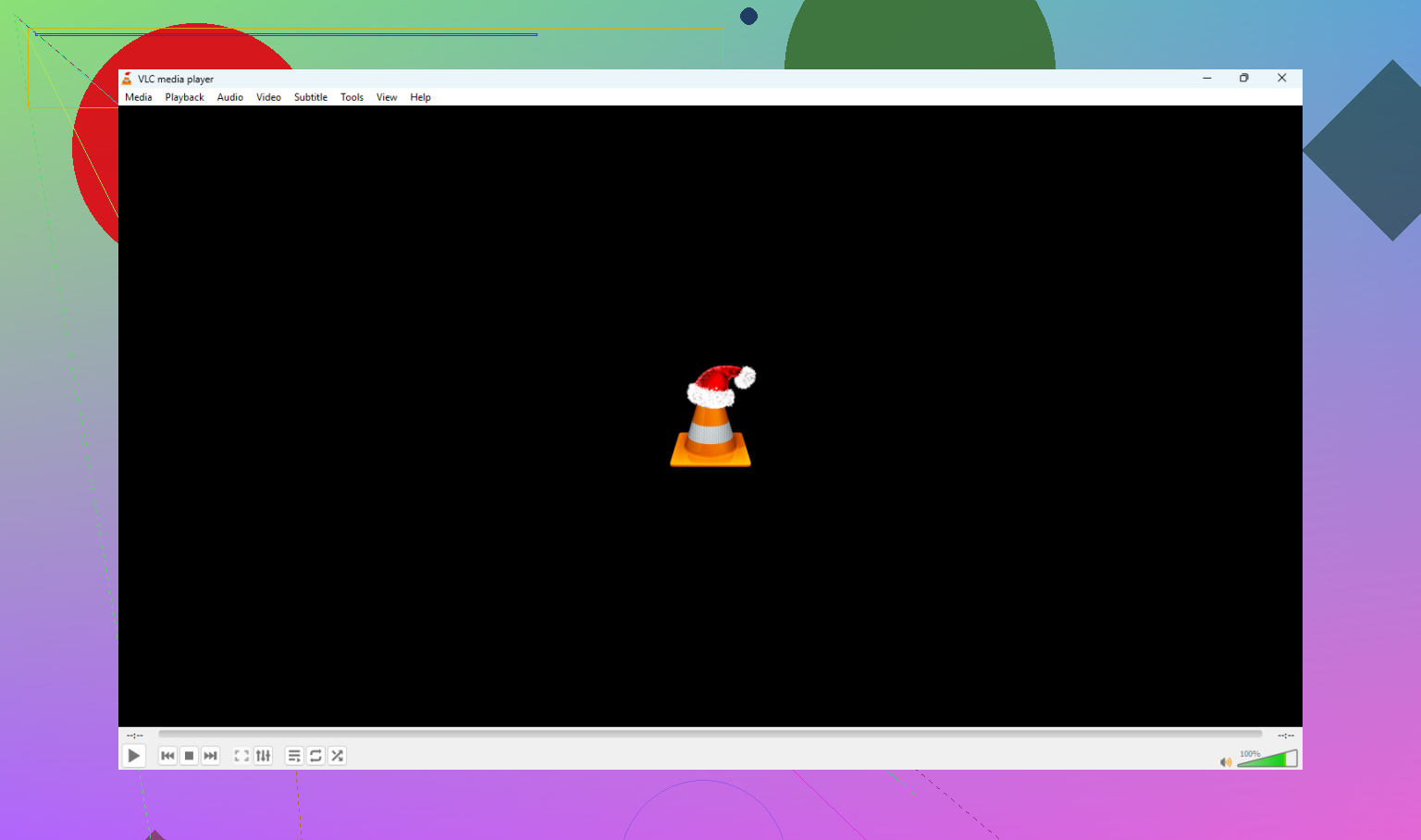
VLC Media Player
A very versatile media player that supports a huge range of formats, including MP3, MP4, MKV, AVI, and many others. It’s lightweight, free, and widely used.
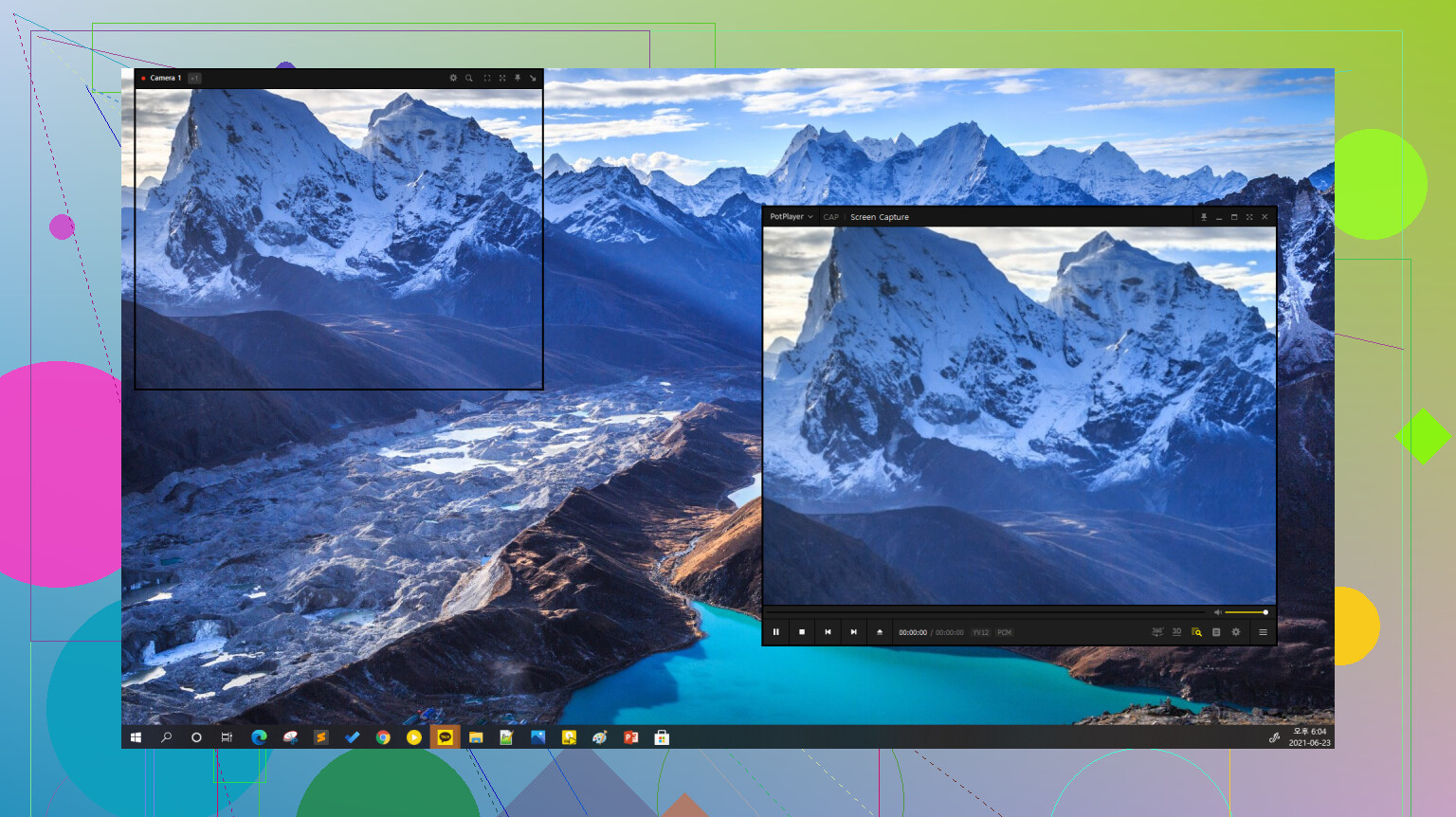
PotPlayer
Another powerful player for Windows with a lot of customization options. It supports many formats and offers advanced playback controls, which can be useful if you watch a lot of different media files.
Mac
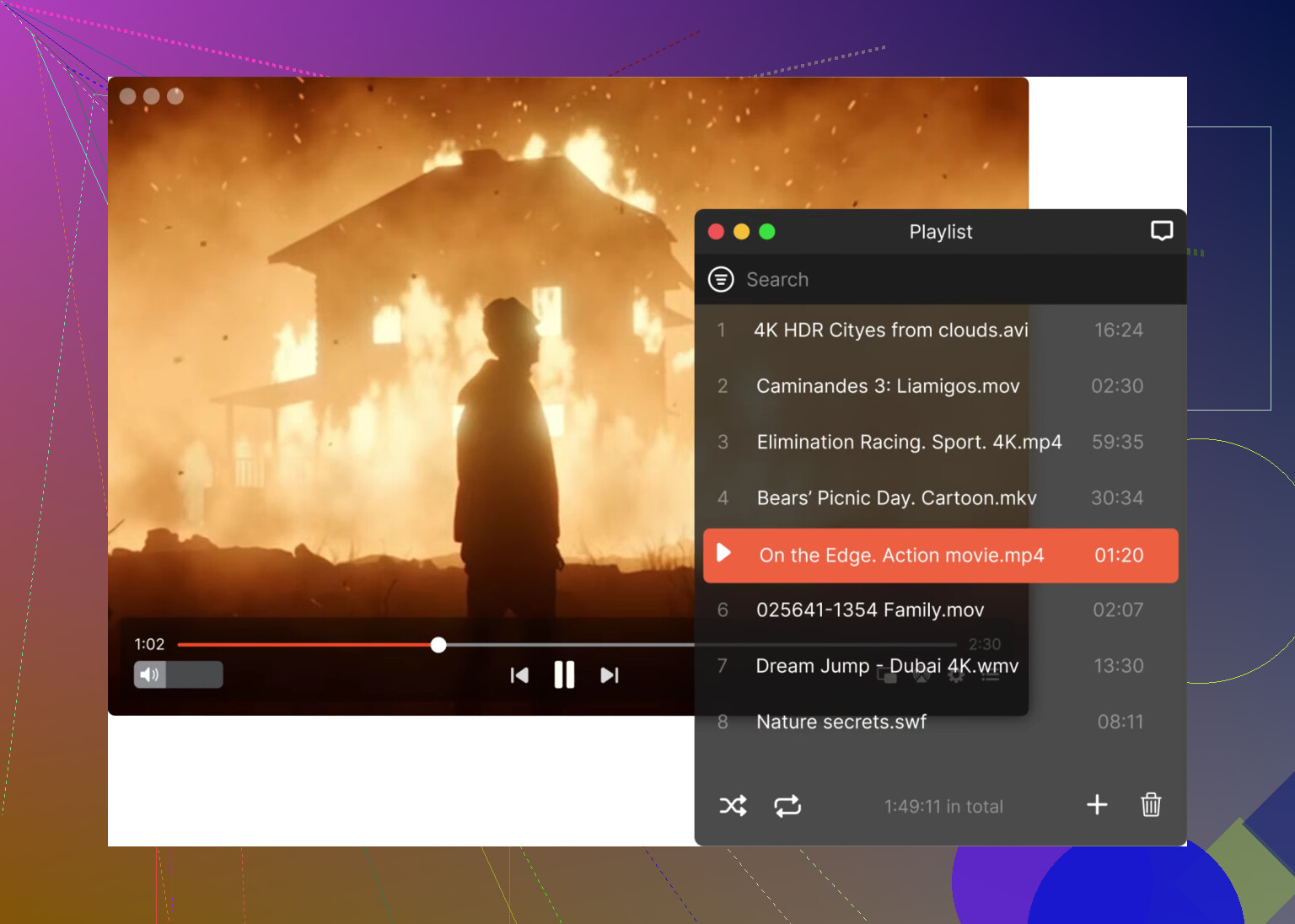
Elmedia Player
A flexible media player for macOS that supports a wide variety of formats, including MP4, MP3, MKV, AVI, and more. It’s designed to play pretty much anything you throw at it without requiring extra plugins or conversions. It also has some useful features like built-in subtitle support (including downloading subtitles automatically), playlist management, adjustable playback speed, and video tuning options such as brightness and contrast controls.
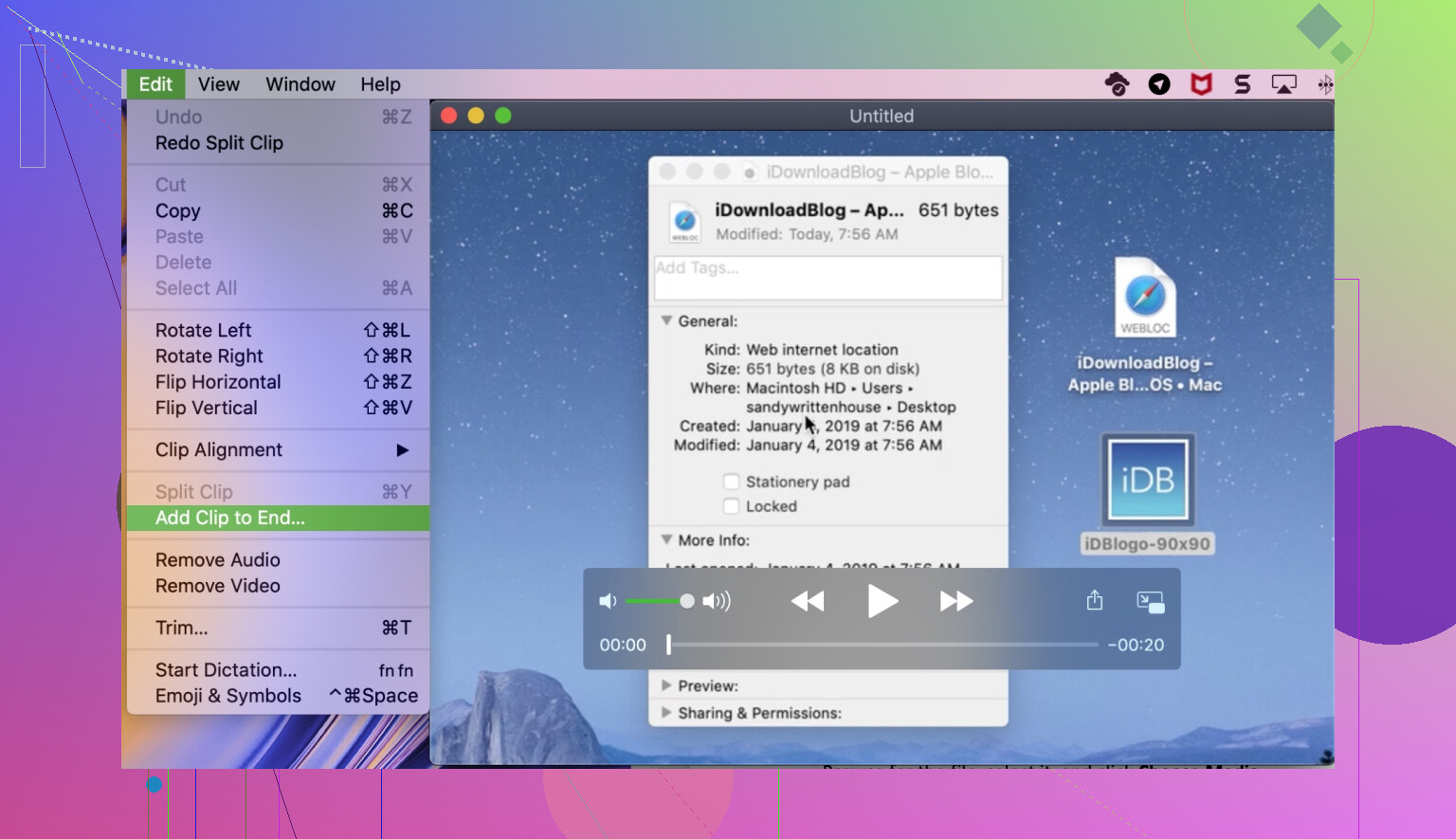
QuickTime Player
This is the default media player included with macOS. It works well for common formats like MP3 and MP4 and has a clean, simple interface. However, unlike Elmedia Player, QuickTime has limited format support and cannot play some formats like MKV or AVI without converting them first.
Closing note
Hopefully this clears up the difference between MP3 and MP4. They may look similar at first glance, but once you know that one is audio-only and the other is a multimedia container, it becomes much easier to tell them apart. Hope this helped!
7 Likes
MP3 and MP4 look related, but they solve different jobs.
- What each format is for
MP3
- Audio format
- Holds sound only
- Common for music, podcasts, audiobooks
- Plays on almost every device from old car stereos to phones
MP4
- Container format
- Usually holds video plus audio, sometimes subtitles and cover art
- Standard for phone videos, YouTube downloads, movies
So for your organizing:
- Music library → MP3 makes sense
- Video collection → MP4 makes sense
I slightly disagree with @mikeappsreviewer on one small thing. I would not think of MP4 only as “video plus audio”. MP4 can also be audio only, for example .m4a files from iTunes are MP4 containers with just audio. No video inside, but still MP4 based.
- Audio quality
Important part: MP3 vs MP4 does not equal bad vs good quality.
Quality depends on:
-
Codec
MP3 uses the MP3 codec.
MP4 usually uses AAC for audio, sometimes others. -
Bitrate
Rough guide:- 128 kbps MP3 → ok for speech, weak for music
- 192 kbps MP3 → decent music quality
- 256–320 kbps MP3 → high quality for most people
- 256 kbps AAC (inside MP4 or M4A) → often sounds similar to or better than 320 kbps MP3 at the same file size
AAC is more efficient than MP3. For the same size you often get better sound from AAC in an MP4 or M4A file.
- File size
For the same song length:
- MP3 at 192 kbps is smaller than 320 kbps MP3
- AAC at 192 kbps is usually similar size to MP3 at 192 kbps, but sounds cleaner
- MP4 with video is much larger because video data dwarfs audio
If you only care about music and space:
- Stick to MP3 192–320 kbps, or M4A (AAC) 192–256 kbps
- Do not store audio as full MP4 video if you do not need the picture, it wastes space
- What to use when converting
For music:
- Output as MP3 if you want max compatibility, especially for old car stereos, cheap players
- Output as M4A (AAC in MP4 container) if you mostly use phones, modern players, iTunes
For videos:
- Output as MP4 with H.264 video and AAC audio
- This combo plays almost everywhere: phones, TVs, browsers
Avoid converting lossy to lossy over and over.
Example: FLAC → MP3 → MP3 again.
Each step throws away more audio detail.
- How to sort your files in practice
Simple rules to keep folders sane:
-
Put all music and podcasts as:
- .mp3
- .m4a (AAC)
-
Put all movies, clips, recorded streams as:
- .mp4
-
If you download a YouTube video:
- Want video → keep MP4
- Want only sound → extract and save as MP3 or M4A
- Player side
You do not need many apps, but you need at least one good one on each system.
Windows:
- VLC is fine for most people, though I think its interface feels clunky.
- If VLC annoys you, PotPlayer has more tuning options, like @mikeappsreviewer said.
Mac:
- QuickTime for quick checks of MP3 and MP4
- For mixed stuff, subtitles, MKV, odd camera files, use Elmedia Player
Elmedia Player handles MP3, MP4, MKV, AVI and streams to TV, so it helps once your collection grows.
- TL,DR for your question
- MP3 = audio format, sound only, great for music and voice
- MP4 = container that usually has video plus audio, standard for video files
- Audio quality depends more on codec and bitrate than on MP3 vs MP4 name
- For organizing:
- Music folder → MP3 or M4A
- Video folder → MP4
- On Mac, install Elmedia Player if QuickTime starts refusing some files in your library
MP3 and MP4 look like “version 3 vs version 4” but they’re not upgrades of each other, they’re different things doing different jobs.
Quick contrast with what @mikeappsreviewer and @waldgeist already said:
-
I agree:
- MP3 = audio only
- MP4 = container that usually has video + audio
-
Where I’d nitpick a bit:
People often say “MP4 is video,” which is sloppy. MP4 can be audio only, chapter data, subtitles, whatever. Video is common, not required.
- What they actually are
MP3
- A specific audio codec and file format.
- Always compressed, always lossy.
- Holds one main thing: audio samples.
- Tiny bits of extra data like artist, album, cover art are stored as tags, but that’s it.
MP4
- A container format (MPEG‑4 Part 14).
- Think of it like a box with labeled compartments inside.
- Those compartments can hold:
- Video (often H.264 or H.265)
- Audio (often AAC, sometimes AC‑3, sometimes even MP3 inside)
- Subtitles
- Chapters
- Cover art / metadata
Important detail a lot of people miss:
The “.m4a” music files from iTunes or Apple Music are just MP4 containers with only an AAC audio track. No video, still MP4-based.
- For your organizing: how to think about them
Instead of obsessing about “MP3 vs MP4,” think in terms of what the file is for:
-
Music, podcasts, audiobooks:
- MP3
- M4A (AAC in MP4 container)
-
Movies, shows, clips, phone recordings:
- MP4
I personally avoid saving audio-only stuff as a full MP4 with a black video track. Some converters do this by default and you just waste space on a fake video stream. Turn that off if you see that setting.
- Audio quality & file size in practice
This is where people get confused and blame the file extension for things it does not control.
-
MP3:
- Old but super compatible
- At 128 kbps: meh for music, ok for voice
- At 192 kbps: fine for most people
- At 256–320 kbps: “good enough” for almost everyone unless you’re hunting for flaws
-
AAC (usually inside MP4/M4A):
- More efficient codec than MP3
- Roughly: 192 kbps AAC ≈ 256 kbps MP3 in perceived quality
- So you can shave some space without a big audible hit
What really matters:
- Codec (MP3 vs AAC vs FLAC)
- Bitrate (128 vs 192 vs 320, etc.)
Not the letters “3” or “4” in the file name.
Also, try hard not to:
- Convert lossy → lossy repeatedly
Example: MP3 → AAC → MP3 again. Each step throws away more detail.
If you ever have a choice, keep a lossless master (like FLAC or ALAC) and generate MP3/M4A from that when needed.
- Compatibility traps that bite people
This is where my opinion diverges a tiny bit from @mikeappsreviewer and @waldgeist: they’re right that MP3 is the most compatible, but I’d be extra strict about it for old or dumb devices.
-
Old car stereos, DVD players, “MP4 players” from the bargain bin:
- Safest choice: MP3 at 192–256 kbps
- Some will read M4A, some will not, and they rarely tell you clearly
-
Modern phones, computers, smart TVs:
- Fine with both MP3 and AAC in MP4/M4A
- For pure music libraries, M4A (AAC) at 192–256 kbps is a nice balance of quality and size
I’d do:
- “Legacy devices” folder: rip / transcode to MP3 only
- “Modern devices” folder: M4A or MP3, your preference
- How I’d actually set up your folders
Super simple layout to avoid future headaches:
- /Music
- /MP3
- /M4A
- /Podcasts
- MP3 or M4A, but stay consistent per show
- /Video
- MP4 for everything
- /Archive_Lossless (if you care)
- FLAC or ALAC as your masters
Inside each:
- Use clear names like “Artist - Album - TrackNumber - Title.ext”
- This makes it way less painful if a player ignores tags or if you move to a different system.
- Playing the files without going insane
On Windows/macOS you do not need ten different players, but I’d disagree slightly with the idea of only living inside system defaults:
-
On macOS:
- QuickTime is fine for basic MP3/MP4.
- It falls over on MKV, a bunch of AVIs, weird camera formats.
- Elmedia Player is genuinely worth installing.
- Handles MP3, MP4, MKV, AVI and more
- Good with subtitles and streams to TV
- Much nicer if your library is not 100% Apple‑friendly
-
On Windows:
- VLC is basically the “just throw it at me” option.
- If you care a lot about fine‑tuning video, PotPlayer’s extra knobs are nice, like folks already mentioned.
You don’t have to marry any of these, but if you’re dealing with mixed formats, VLC or Elmedia Player will save you from half the “why won’t this play” nonsense.
- Concrete rules you can apply right now
To directly answer your “what each is for / audio quality / size” confusion, here’s the no‑nonsense version:
-
What they are for:
- MP3: audio only
- MP4: container that usually has video + audio (but can be audio only)
-
How they affect audio quality:
- MP3 or AAC at the same bitrate can sound different, with AAC often slightly better.
- The extension “.mp4” by itself tells you almost nothing about quality.
- Bitrate and codec are what matter.
-
How they affect file size:
- For the same bitrate and duration, MP3 vs AAC are similar size.
- Video inside MP4 is what explodes file size, not the format name.
- Storing an audio track as a full video file wastes space unless you need the picture.
So for your library:
- If it’s music or spoken word:
- Use MP3 or M4A.
- Aim for 192–256 kbps at least.
- If it’s something you watch:
- Use MP4 with H.264 + AAC.
- Keep one good player installed:
- On Mac, Elmedia Player covers you far better than QuickTime alone.
- On Windows, VLC (plus PotPlayer if you like tinkering).
Follow those rules and the MP3 vs MP4 thing pretty much stops being an issue, and you won’t end up with random “video” files that are just an album cover wasting space.