I keep hearing about pCloud as a cloud storage option but I’m confused about what it really offers compared to Google Drive or Dropbox. I’m mainly looking for secure file backup, easy sharing, and reliable access across devices. Can anyone break down what pCloud is, its main features, pros and cons, and whether it’s worth switching from my current cloud storage provider?
So, you’re looking at pCloud. Think of it as a digital locker for your life–photos, videos, and work docs – that you can pull up on your phone, laptop, or a random browser while traveling. It’s basically the Swiss alternative to Google Drive or Dropbox, run by a company that actually gives a damn about privacy laws.
The big “hook” with pCloud is that they offer a lifetime plan. Instead of bleeding $10 a month forever, you pay a one-time fee and the storage is yours for life. It’s a bold move that has earned them a loyal following, especially for people tired of the “subscription-everything” era.
Why people actually like it
In my experience, pCloud is one of the fastest services out there for syncing. Since they’re based in Switzerland, your data isn’t subject to the same prying eyes as US-based giants.
- The Lifetime Deal: If you plan on using cloud storage for more than three years, it pays for itself.
- Media Player: You can stream your music or 4K videos directly from the app without downloading them first.
- Selective Sync: It’s great at letting you choose which folders stay on your hard drive and which stay only in the cloud.
- Swiss Privacy: Better legal protection for your data by default.
The stuff they don’t put in the ads
It’s not all perfect. For one, their “Zero-Knowledge” encryption (pCloud Crypto) is a paid add-on. If you don’t pay for that extra layer, pCloud technically has the keys to your files, which feels a bit stingy for a privacy-focused company.
Also, the 10GB free tier is okay, but you have to jump through hoops–like inviting friends–to unlock the full amount. And while it works with most things, it doesn’t have the deep integration with apps like Google Docs or Microsoft 365 that the “big guys” have.
The desktop experience (and its limits)
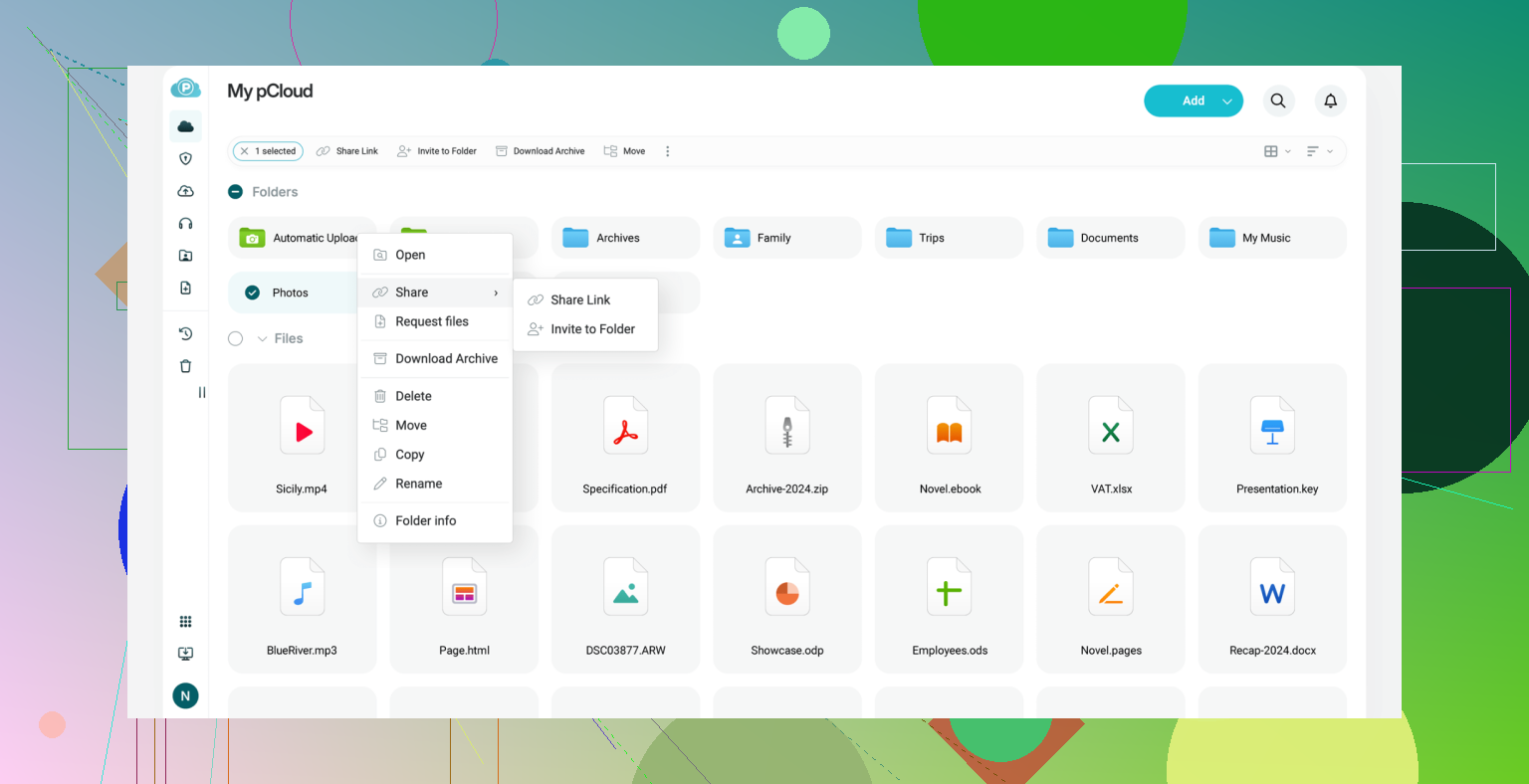
On Windows or Mac, pCloud creates a virtual “P:” drive. It’s clever because it doesn’t take up space on your physical hard drive, but it can feel a little clunky.
It’s fine for basic tasks, but if you’re a power user, the desktop app feels a bit like a wrapper. It doesn’t always feel “native” to your system, and managing thousands of files through their interface can get tedious.
A better way: CloudMounter
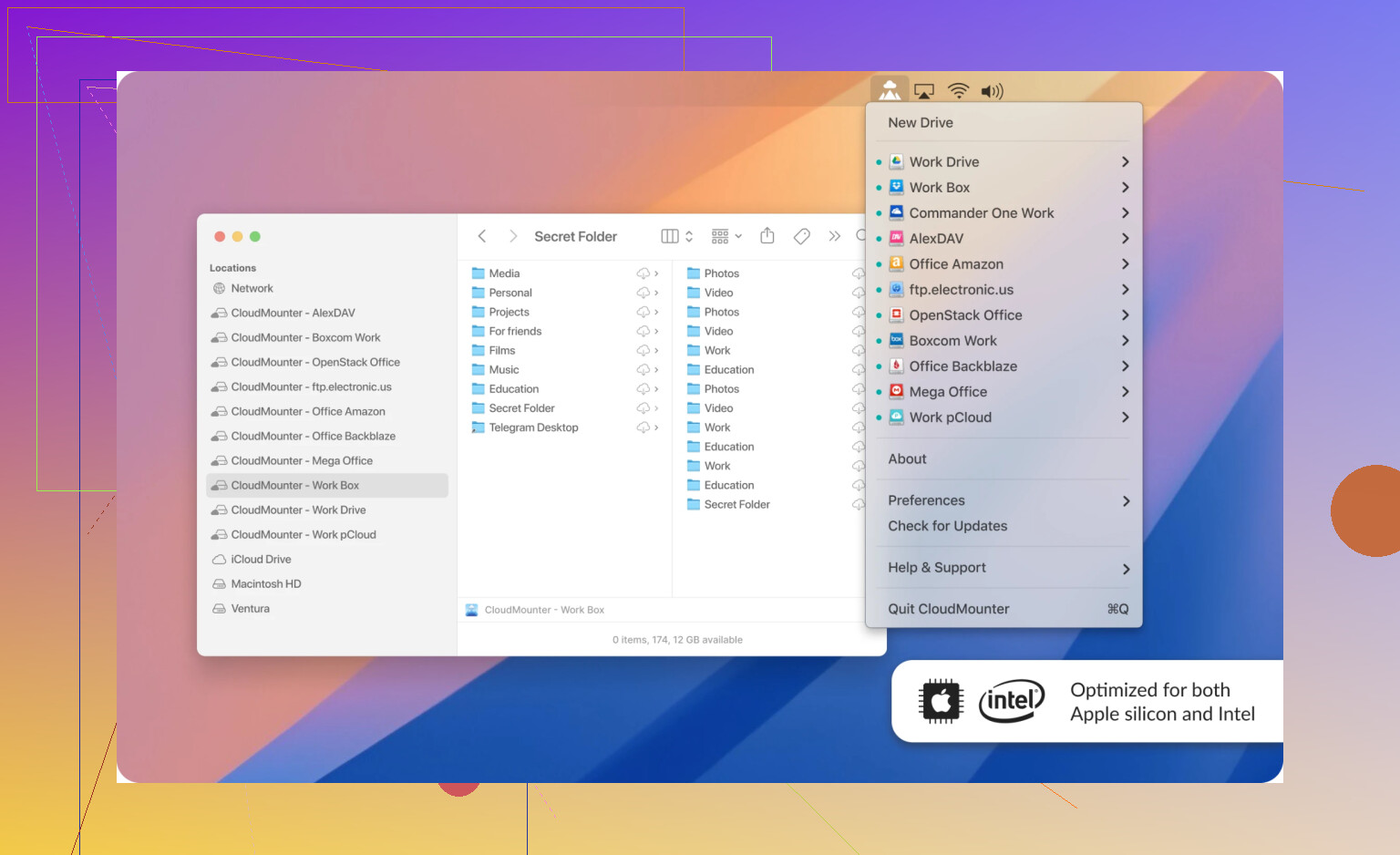
If you want pCloud to feel like a real part of your computer, I’d skip their official app and use CloudMounter instead. It mounts pCloud directly into your File Explorer or Finder so it behaves exactly like a plugged-in USB drive.
- Real Integration: No weird separate apps; just drag and drop in your normal folders.
- Multiple Clouds: You can mount your Dropbox, Google Drive, and pCloud all in one window.
- Encryption: It can encrypt your files locally before they even hit pCloud’s servers, which saves you from paying for their “Crypto” subscription.
- Lightweight: It doesn’t hog system resources the way some official cloud clients do.
For Mac power users: Commander One
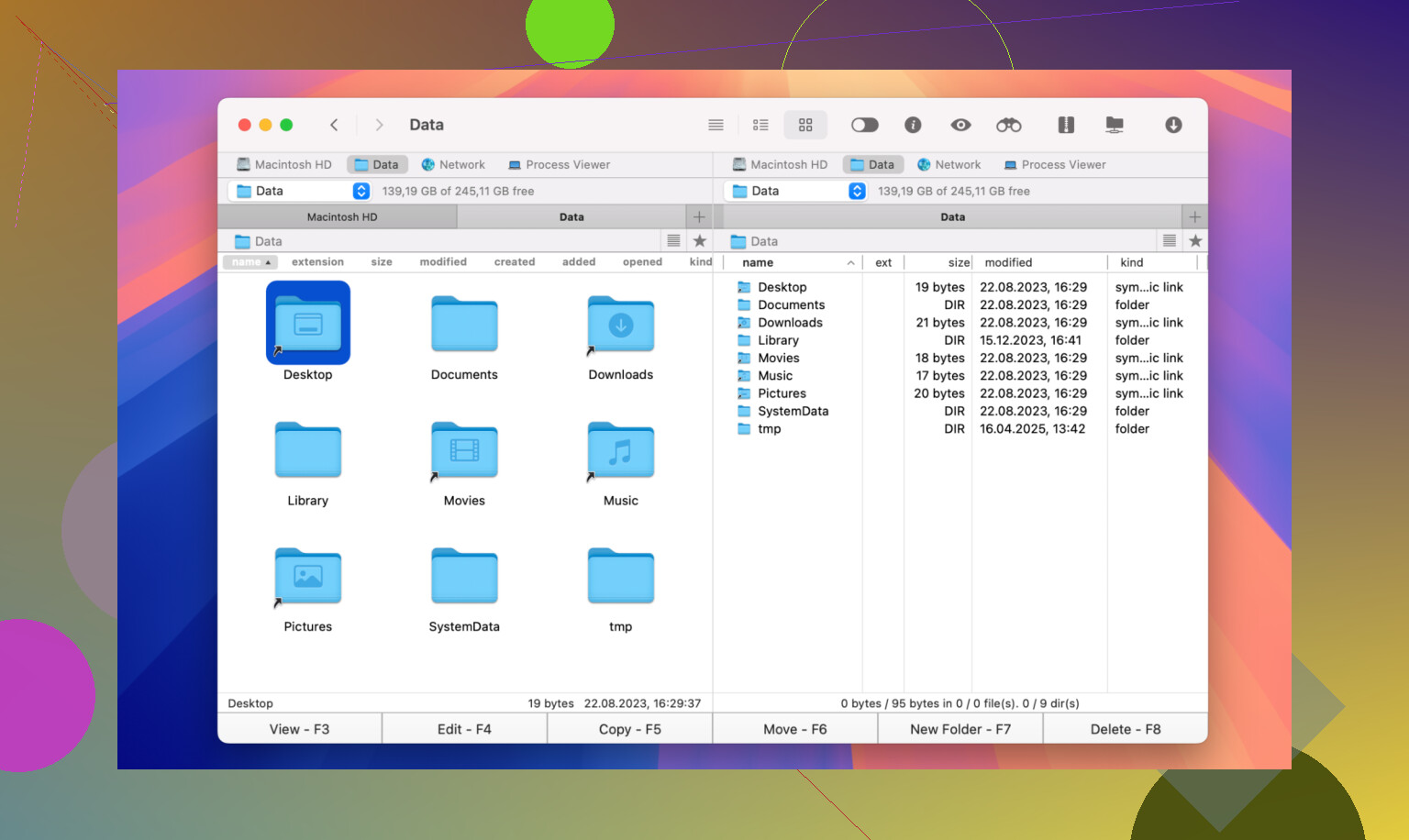
If you’re on a Mac and find yourself moving files around constantly, Commander One is a total game-changer. It’s a dual-pane file manager that replaces Finder and handles pCloud like a pro.
It lets you see two folders side-by-side, which makes moving files between your local “Downloads” and your pCloud “Archive” incredibly fast. It also handles FTP, Amazon S3, and zip files without breaking a sweat. It’s built for people who hate clicking through ten different Finder windows just to find one document.
10 Likes
pCloud is a straight cloud storage provider, similar to Google Drive and Dropbox, but with a few key differences that affect how you would use it.
Short version of what it offers you
-
Storage and sync
• Works as online storage you access via apps or browser.
• Has a sync folder on desktop, similar to Dropbox.
• Also has a virtual drive that does not take local space.
So you pick if files stay only online or also on your disk. -
Pricing model
• Main appeal is the one time “lifetime” plans, usually 500 GB or 2 TB.
• If you compare to Google One or Dropbox over 3 to 4 years, it often comes out cheaper.
• If you are unsure you will stick with it long term, it is a bit of a gamble. -
Security and encryption
This is where people get confused.
• Regular pCloud storage is encrypted in transit and at rest on their servers.
• They hold the keys for normal folders, similar to Google Drive and Dropbox.
• End to end encryption is a separate paid add on called pCloud Crypto.
If you want strong privacy for backups, you either pay for Crypto or encrypt before upload with a tool like Cryptomator or CloudMounter.
Here I disagree a bit with @mikeappsreviewer.
They skip pCloud Crypto and rely on third party encryption.
For non technical users, pCloud Crypto is simpler, even if it costs extra.
If you are comfortable with extra software and passwords, pre encrypting before upload gives you more control.
- Compared to Google Drive and Dropbox
Google Drive
• Best for integration with Google Docs, Sheets, Gmail.
• Great for collaboration and shared editing.
• Not focused on privacy, tied to your Google account data.
Dropbox
• Strong sync and sharing.
• Good for teams and simple collaboration.
• Pricing is subscription only, no lifetime option.
pCloud
• Better as an “archive and media locker” than as a live document workspace.
• Lifetime deal is its main edge.
• Under Swiss jurisdiction, some people prefer that for privacy reasons.
• Weaker office integration, you still use Google Docs, Office, etc outside pCloud.
- Sharing and access
For your needs, here is how it behaves.
Secure file backup
• Works fine as a backup target if you use backup software or manual uploads.
• Versioning is available, so you restore older versions or deleted files for a period.
• For sensitive files, combine it with local encryption.
CloudMounter is helpful here, since it lets you encrypt files before upload and mounts pCloud like a drive on macOS or Windows.
Easy sharing
• You create public links to files or folders.
• You can set passwords and expiration dates on links on paid plans.
• You can receive files from others via “upload links” so they drop files straight into a folder.
Not as collaboration focused as Google Drive, but fine for sending files, clients downloads, family photos, etc.
Reliable access across devices
• Native apps for Windows, macOS, Linux, Android, iOS.
• Web app if you are on a random machine.
• Built in video and audio player so you stream content.
If you dislike their desktop app like @mikeappsreviewer, you can skip it and use CloudMounter on desktop. It mounts pCloud as a network drive and keeps all your cloud services in one place, with optional on the fly encryption.
- Who it fits based on your use case
You said you care about secure backup, sharing, and access across devices.
pCloud is a good fit if
• You want long term storage for photos, videos, documents.
• You are ok to either pay for pCloud Crypto or use something like CloudMounter, Cryptomator, or VeraCrypt for encryption.
• You do not rely heavily on online office suites inside your storage.
I would skip it if
• You live in Google Docs and Sheets all day.
• You want everything to be end to end encrypted by default without extra cost or tools.
• You only need small free storage, since their free tier tasks get annoying fast.
If you try it, I would
• Start with the free or a short term paid plan.
• Upload a test set of your photos and important docs.
• Test restore, sharing links, and mobile access for a week.
If you like the feel and your workflow, then the lifetime plan starts to make more sense.
pCloud in one sentence: it’s a regular cloud drive like Google Drive or Dropbox, but priced and structured more like a long term “vault” than a live collaboration hub.
Since @mikeappsreviewer and @techchizkid already covered the lifetime pricing and basic features, here’s a different angle, focused on what you actually care about: secure backup, sharing, multi device access.
1. How pCloud actually works in practice
Think of three “modes”:
-
Sync folder
Similar to Dropbox. A folder on your computer that mirrors to pCloud. Whatever you put there uploads, whatever you delete there deletes from cloud too. -
Virtual drive
pCloud mounts a special drive (like an external disk) that mostly keeps files online. Good for saving disk space, but it can feel laggy with huge folders. Here I agree with @mikeappsreviewer: their official desktop client feels a bit clunky at scale. -
Web / mobile apps
You can log into the browser or app, see your folders, stream photos / videos, share links, etc. Pretty standard.
Under the hood it is not magical: it syncs files, keeps versions for a while, and stores them in their data centers.
2. Security: what is actually “secure” here?
pCloud encrypts:
- In transit: when your files travel between your devices and their servers
- At rest: on their disks in the data center
But for normal folders pCloud holds the keys, same idea as Google Drive or Dropbox. So:
- They could technically access your data if compelled
- You get convenience, previews, video streaming, etc
pCloud Crypto is their paid, zero knowledge option. One special folder that is end to end encrypted. Only you hold the key, and they cannot see the contents.
Where I disagree a bit with both @mikeappsreviewer and @techchizkid:
- If “secure backup” for you means “nobody but me can read this,” I would not bother storing sensitive stuff in the regular pCloud space unencrypted and just “trust Swiss law”
- Either pay for Crypto or use a local encryption tool and then upload the locked files
If you want a clean setup without a lot of fiddling, Crypto is simpler. If you like more control or do not want the extra subscription, encrypt locally first.
For that, a solid option is CloudMounter. It lets you:
- Mount pCloud as a network drive on macOS or Windows
- Encrypt files locally before they go up, so pCloud just sees scrambled blobs
That way your backup is actually private, and you are not locked into pCloud’s own Crypto system.
3. Sharing: how it feels compared to Google Drive / Dropbox
What pCloud does well:
- Public share links to files or folders
- Option for password and expiration date on paid plans
- Upload links so other people can send files to you straight into a folder
Where it is weaker:
- No real time doc editing like Google Docs
- No deep Office integration like OneDrive
So for your “easy sharing” need:
- Great for “here’s the folder with photos / PDFs / zips”
- Not great if you want everyone editing the same document online at once
I know @techchizkid already said it is more “storage bucket than workspace,” and that part I 100 percent agree with.
4. Access across devices
This part is pretty boring in a good way:
- Windows, macOS, Linux clients
- Android and iOS apps
- Web interface
If you are on a laptop all day, and you also have Google Drive, Dropbox, etc, the official clients can start to feel heavy. That is one place CloudMounter actually shines: you run one lightweight app, mount pCloud, Google Drive, Dropbox all as drives, and you work with them through your normal file manager. No three different sync daemons eating RAM and battery.
Personally I find that more stable long term than juggling multiple native sync clients.
5. How I would use pCloud for your specific case
Given your priorities:
Secure file backup
- For “I never want to lose this” stuff (photos, tax docs, work archives)
- Use pCloud as the offsite copy
- Encrypt before upload if privacy matters
- Either pCloud Crypto
- Or something like CloudMounter / Cryptomator
Easy sharing
- Store the non super sensitive things in normal folders
- Use share links + optional password on paid plan
- For big media folders, pCloud’s built in video / photo viewer is nice enough
Reliable across devices
- Phone: auto upload camera roll if you want
- Laptop / desktop: either
- official client if you are ok with its quirks, or
- CloudMounter if you prefer a more native, lighter “mount as drive” approach
6. When pCloud actually makes sense vs Google Drive / Dropbox
Use pCloud if:
- You want a long term “parking lot” for a ton of files and the lifetime pricing works out
- You are okay separating “storage” (pCloud) from “collaboration” (Google Docs / Office)
- You are willing to think a tiny bit about encryption instead of assuming it is magically private
Stick to Google Drive / Dropbox if:
- Real time collaboration in Docs / Sheets / Office is your daily life
- You only need modest storage and do not care about lifetime deals
- You cannot be bothered with the extra encryption wrinkle
So yeah, pCloud is not BS, it is just not a full Google Workspace replacement. It is more like a big, fairly cheap, reasonably private safety deposit box in the cloud, and you bolt on privacy with Crypto or something like CloudMounter if you need the “nobody can read this” level.
Think of pCloud as “cloud hard drive + optional private safe,” not a full collaboration suite like Google Drive.
Where I differ a bit from @techchizkid / @hoshikuzu / @mikeappsreviewer:
- I would decide first what you want private vs shareable, then pick tools, instead of starting from pricing or clients.
- I am less sold on pCloud’s virtual drive for day to day work and prefer keeping it as an archive plus media library.
Quick breakdown for your use case:
- Secure backup
- Good for: large, long term archives (photos, tax docs, project zips).
- Regular space: fine for non sensitive stuff, encrypted at rest but keys held by pCloud.
- Really private stuff: either pCloud Crypto or pre encrypt folders and treat pCloud as storage only.
- I like using CloudMounter here: it mounts pCloud as a drive and encrypts locally so pCloud only sees scrambled files and names.
- Sharing
- Strong for “here’s a folder of photos / PDFs / installers.”
- Password + expiry on links is nice on paid plans.
- Weak for co editing documents; you will still use Google Docs / Office for that.
- So I keep active docs in Google Drive, finished outputs in pCloud for long term sharing.
- Access across devices
- Mobile apps and web are straightforward, no real complaints.
- Desktop client: OK for light use, but with big libraries it can feel sluggish and a bit foreign in the OS. This is where CloudMounter helps.
CloudMounter pros:
- Single lightweight app to mount pCloud, Google Drive, Dropbox etc as drives.
- Local encryption before upload for real privacy.
- Feels more “native” in Finder/Explorer than the pCloud client.
- Reduces background sync clutter if you juggle several clouds.
CloudMounter cons:
- Extra cost on top of pCloud, so overall bill can creep up.
- No automatic full machine backup logic; it is still a drive, not a backup system.
- Encryption adds another password to manage; lose it and you lose the data.
- Needs a bit of setup; not as “sign in and forget” as the stock apps.
How I would set it up in your shoes:
- Use pCloud as:
- Archive for photos, finished projects, “do not lose” files.
- Casual sharing hub for non sensitive stuff.
- Keep collaboration docs in Google Drive or similar.
- For anything you would not want pCloud or anyone else to see: put it in an encrypted area, either pCloud Crypto or via CloudMounter.
- Test restore and link sharing with a small sample first, then decide if the lifetime plan math works for you.