Wrestling with WordPress Migration: My Recent Adventure
Alright, so here’s the scene: I’m neck-deep in figuring out WordPress migrations. Not gonna lie, it’s one of those tech things that you think is just “copy pasta” until you realize you’ve got databases, file trees, mismatched plugin versions, and a stomachache. But stick with me—maybe my potholes will save you a few.
Manual Migration: Where Only the Brave Survive
First up, if you’re daring enough to manually move your WordPress site, start with the actual official manual migration guide—DON’T try to wing it. It reads a little like an old-school instruction manual, but in this context, that’s a good thing. Seriously, skip the sketchy blogs—otherwise you’ll end up with broken permalinks and a 3:00 AM existential crisis.
Fast Lane: Tools That Don’t Suck Your Soul Out
But—real talk—if you’re allergic to the command prompt (join the club), let me rave for a sec about a trick I tried. So, I stumbled onto CloudMounter during a frantic mission to move files between hosting accounts. It basically acts like a universal plug for all your cloud services, but the gem here is making regular ol’ FTP (or SFTP) servers show up in Windows File Explorer.
No more awkward file managers, no more double downloads. You just drag files from your old host to the new one, as if moving them between folders. It spared me the usual, “WAIT, WHICH FOLDER WAS I EVEN IN?!” confusion.
How I Nailed the FTP Setup
So if you’re on Windows and curious how this shakes out, here’s what I did:
-
Grab the App: Download and get CloudMounter up and running. Setup is painless.
-
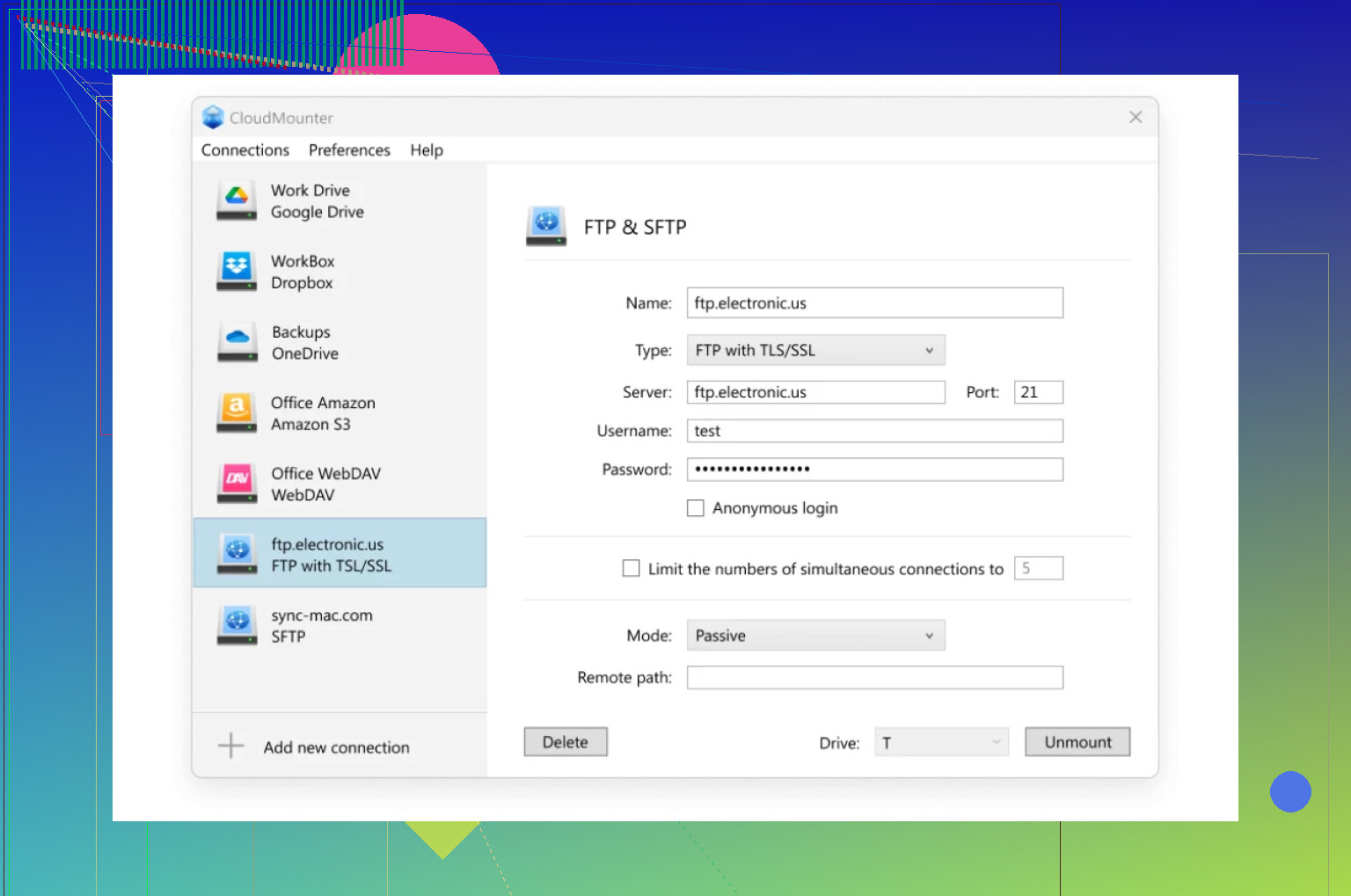
Fire It Up: Launch CloudMounter, poke around, and hit the “FTP & SFTP” storage option. You’ll see icons for different clouds—they’re not what you want for this.
-
Connection Details: As soon as the dialog pops up, pick “FTP.” Plug in your server’s address, the usual port (21), credentials, and decide between “Active” or “Passive” mode (I just left all defaults, since my host is basic). Toss in the remote path if you want to drop straight into a folder.
-
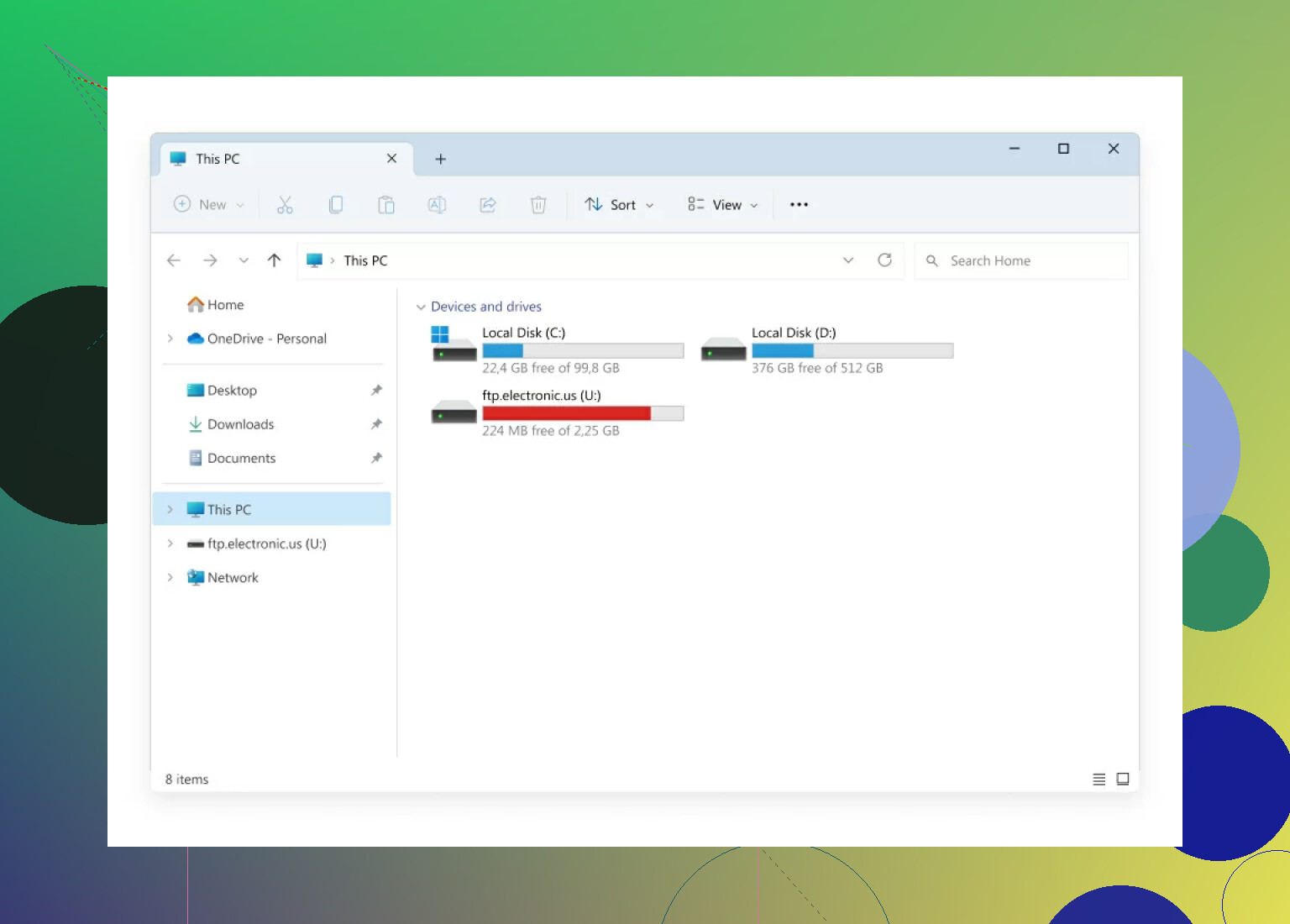
Mount It: Slap that “Mount” button. If it connects, you’re golden—your FTP server will now be chilling in File Explorer alongside your C: drive.
What I Wish I Knew Before
Honestly, I lost a solid evening trying to manually juggle FileZilla, Windows Explorer, and a bunch of half-downloaded zip files littered on my desktop. If you’re more about results and less about “learning by frustration,” this method feels like a magic trick.
Still—follow the official docs for the database part, since this trick mostly helps with file shuffling. No sense in blowing up your WordPress install because you swapped out the wp-content but forgot about the SQL.
TL;DR: Tools like CloudMounter make the whole WordPress-moving process feel a lot less like a root canal. Just remember: always have a backup, double-check your database import, and consider therapy after your first failed migration attempt.
Good luck!