I accidentally emptied Trash on my Mac before realizing it had important files I still need. I’m trying to find out if deleted Mac files can actually be recovered after Trash is emptied or if they’re gone for good. I need help with the safest recovery options and what to do next to avoid making it worse.
I did this once on a MacBook and the first move was obvious after I calmed down. Stop using the machine right now. Don’t install stuff. Don’t save files. Quit apps you don’t need. If it’s still busy syncing, indexing, or doing background junk, shut it down.
Reason is simple. Emptying Trash usually removes the file references, not the file data itself. The storage space gets marked free, and your old files sit there until new writes land on top of them. Keep using the Mac and you raise the odds of wiping the thing you want back.
On newer MacBooks this gets worse fast because of TRIM. SSDs use TRIM to clear deleted blocks in the background so the drive stays fast. Nice for performance, bad for recovery. I’d treat it like a timer already running.
Before you mess with recovery tools, check the easy places people forget:
- Time Machine snapshots
If you had Time Machine on at any point, macOS often keeps local snapshots for roughly the last day even when the backup drive isn’t connected. Open Time Machine, go to the folder where the deleted files used to be, then scroll back. I’ve seen files show up there after Trash was emptied. - Cloud trash bins
If the files lived in iCloud Drive, Dropbox, or Google Drive, don’t poke around on the Mac. Use your phone or another computer and check the service website. A lot of them keep a separate deleted-items area for around 30 days. - App-level deleted folders
Photos and Notes do their own thing. Apple Photos has a Recently Deleted area. Notes too. Those usually keep items for 30 to 40 days and don’t care what happened in the system Trash.
If none of those pan out, data recovery software is the next step. The logic is old-school. If the bytes are still present and not overwritten, a scanner reads raw storage and tries to rebuild the files.
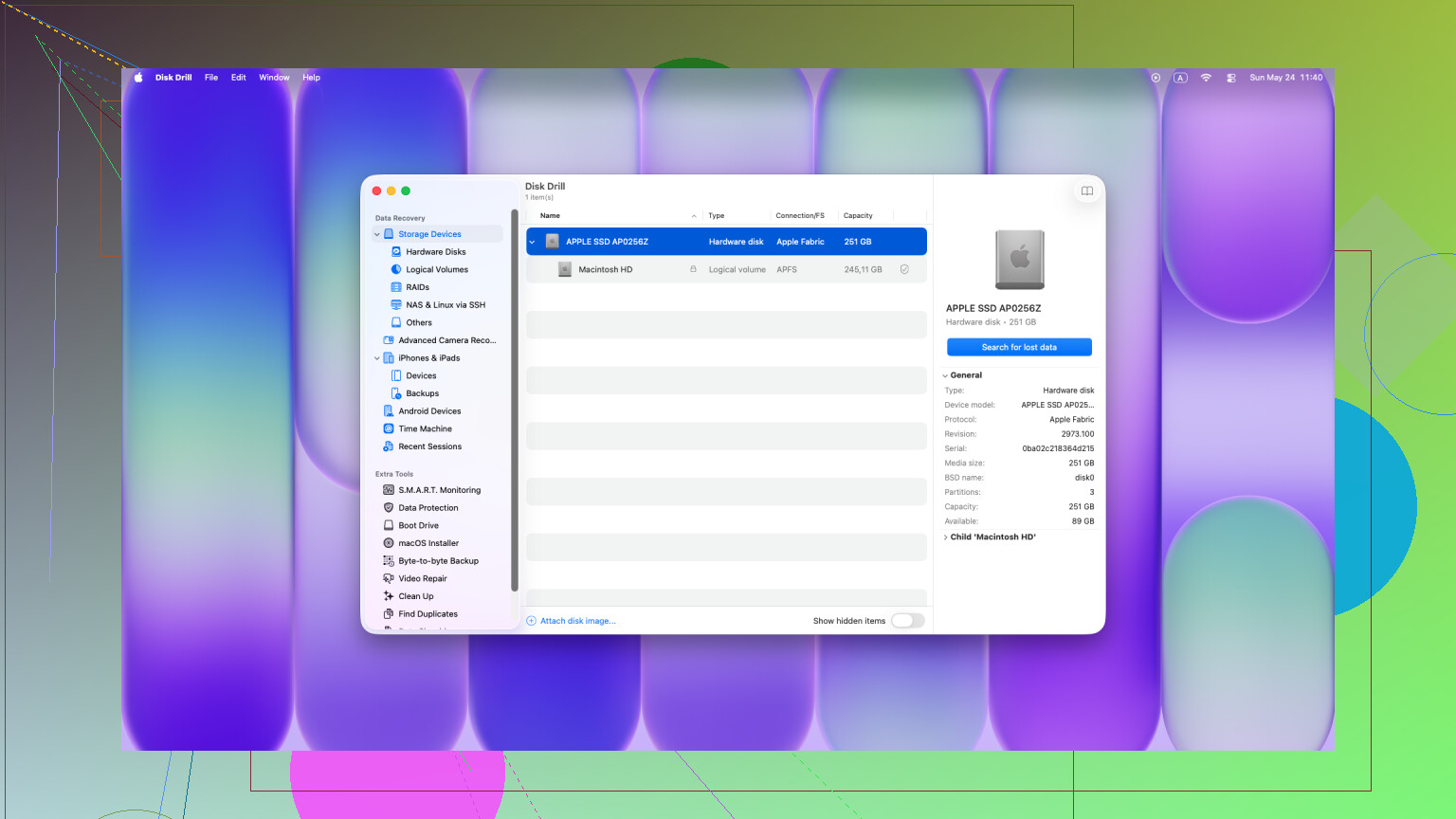
I’ve had the best results with Disk Drill on Macs. Older recovery apps tend to choke on newer Apple hardware. M-series Macs and T2-equipped models put more walls around internal storage, with encryption and tighter access rules. Some tools barely get a look in. Disk Drill tends to do better there.
Important part, don’t install it onto the same internal drive if you can avoid it. That write activity is the exact thing you’re trying to prevent. Better move is to download it on another computer, put it on a USB drive, then run it from there on the MacBook. Bit awkward, but safer.
When you open it, run a full scan, their Universal Scan option if it’s available. The free scan lets you see what is still recoverable. I liked being able to preview files first, especially photos and docs, because you can tell pretty fast whether the file is intact or half-garbled. If you recover anything, save it to an external drive. Don’t put it back onto the Mac’s internal storage.
If the scan finds nothing useful, the last stop is a recovery lab. That’s the expensive route. They use hardware-level methods and bypass the normal OS path. Price is usually ugly, somewhere around $300 to $3,000 from what I’ve seen, so this only makes sense if the data matters more than the bill.
Also, I keep seeing Terminal tips posted around forums for this. Most of those are for pulling files out of a Trash folder before it’s emptied. They won’t resurrect data after the bin was cleared. I wouldn’t waste time there.
So yeah, stop all writes, check snapshots and cloud bins, then scan from external media as fast as you can. On SSD Macs, waiting is what kills your chances. Hope you get lucky, I did once, barely.
7 Likes
Yes, files emptied from Trash on a Mac are not always gone for good. The short answer is this. Recovery depends on your drive, your timing, and whether new data hit the same space.
I agree with @mikeappsreviewer on stopping writes fast. I only disagree a bit on one point. Shutting the Mac down is not always the best first move if FileVault is on and you are not 100 percent sure about your login and recovery flow. For some people, staying logged in and avoiding writes is safer than creating a new access problem.
A few things to check that were not covered yet:
-
Look in your app autosave history.
Pages, Word, Photoshop, Preview, and some editors keep temp versions outside Trash. Open the app first, then look for Open Recent, Recover Unsaved, or AutoRecovery folders. -
Check duplicate storage spots.
Mail attachments, Messages downloads, AirDrop saves, and Downloads often still hold a copy. People delete the desktop file and forget the original is somewhere else. -
Search hidden temp locations.
Use Finder search with file kind, date, and name fragments. Also check:
~/Library/Containers
~/Library/Application Support
~/Library/Autosave Information -
Snapshot-based recovery from APFS tools.
If your Mac uses APFS, some backup apps besides Time Machine create snapshots. Carbon Copy Cloner is one example. Worth a look.
If none of thsoe hit, use recovery software. Disk Drill is one of the better Mac options because it handles modern macOS file systems better than a lot of older tools. Scan first, recover to an external drive only.
If your Mac has an internal SSD, your odds drop fast. On older HDD Macs, recovery rates are often much better.
For a simple Mac guide, watch how to recover files after emptying Trash on Mac.

Not always gone, but I’d push back on one thing from @mikeappsreviewer and @nachtschatten: people jump to file carving tools a little too fast. Before deep recovery, check whether the files were ever part of a synced or versioned workflow.
A lot of “deleted forever” Mac files still exist as older versions in iCloud-enabled apps. Pages, Numbers, Keynote, even some third-party editors keep version history that is separate from Trash. Right-click the file’s old location or open the app and look for Browse All Versions. That can save you a lot of pain.
Also, Spotlight can still help sometimes, not by restoring data, but by exposing duplicates, exported copies, cached previews, or renamed versions you forgot about. Search by content keywords, not just filename. I’ve seen PDFs and images turn up that way after the original was nuked. Kinda dumb, but it works.
If you do need recovery software, Disk Drill is one of the few Mac data recovery tools I’d actually bother trying, mainly because it handles APFS and modern Macs better than a bunch of old abandonware. But recover to an external drive only, or you may overwrite what you’re trying to save. That part matters more than the app.
One more thing people miss: if the file came from a USB drive or SD card and you only trashed the Mac copy, check the source device before doing anything else. Sounds obvious, yet somehow nobody does it in the panic spiral.
If you want another Apple-focused discussion on recovering deleted Mac files after emptying Trash, this thread is worth skimming: Apple Support discussion on recovering files deleted from Mac Trash.
So yeah, emptied Trash is not insta-death every time. On SSD Macs the odds drop fast, on older hard drives it’s usually less brutal. Time matters a lot, and so does not making it worse by poking around too much.