My iPhone storage is full, and I’m trying to find a way to get more space without paying for iCloud. I’ve already deleted apps and photos, but I still keep getting storage warnings and can’t update my phone. I need help figuring out whether external storage or another option will work.
Your iPhone throwing the storage warning is annoying, esp if you have zero interest in paying Apple every month. I ran into this on a 128 GB phone and fixed it without iCloud.
You cannot upgrade the storage inside the phone
This part is simple. iPhone storage is fixed from day one. No microSD slot. No hidden upgrade path. If the phone shipped with 128 GB, you live inside 128 GB. So the only two paths are, clear space from what is already on it, or move stuff off the phone to external storage.
Check the real numbers first, Settings > General > iPhone Storage
I would start there before deleting random stuff. It is the only place on the phone where the storage breakdown is honest. You will see the color bar at the top, then the list of apps and categories below it.
Two fixes from this screen usually move the needle fast.
-
Open an app you barely touch anymore and hit Offload App. This removes the app itself but keeps its saved data. The icon stays there. If you install it again later, it comes back with your old data. Big games, airline apps, hotel apps, and old shopping apps are common space hogs.
-
Scroll to Messages and open Review Large Attachments. This one catches people off guard. Old videos, memes, PDFs, voice notes, and random junk from group chats pile up for years. I found multiple gigabytes in there on my own phone. No joke.
The photo delete mistake almost everyone makes
Deleting photos does not clear the space right away. They sit in Recently Deleted for 30 days, still taking up storage. So after cleaning up your library, go to Photos > Albums > Recently Deleted and remove them for good. I skipped this once, looked at the storage bar, and thought my phone was bugged. It wasn't. I was.
Safari cache builds up quietly
Open Settings > Apps > Safari > Clear History and Website Data.
This wipes cached site data, which stacks up over time. On a phone used daily for months or years, the total gets bigger than most people expect. You are not losing anything important for storage purposes.
Why low storage makes the whole phone feel bad
When the phone gets too full, performance drops. I saw app launches slow down, the camera hesitate, and the keyboard feel delayed. iOS needs working space for temp files, updates, indexing, and background tasks. If free space gets squeezed too hard, the phone starts acting tired. Clearing storage is not only about fitting more stuff on it. It often fixes the lag too.
The big win is usually your photo library
For most people, photos and videos take the largest chunk. Going through 8,000 photos by hand is miserable, so I get why people put it off.
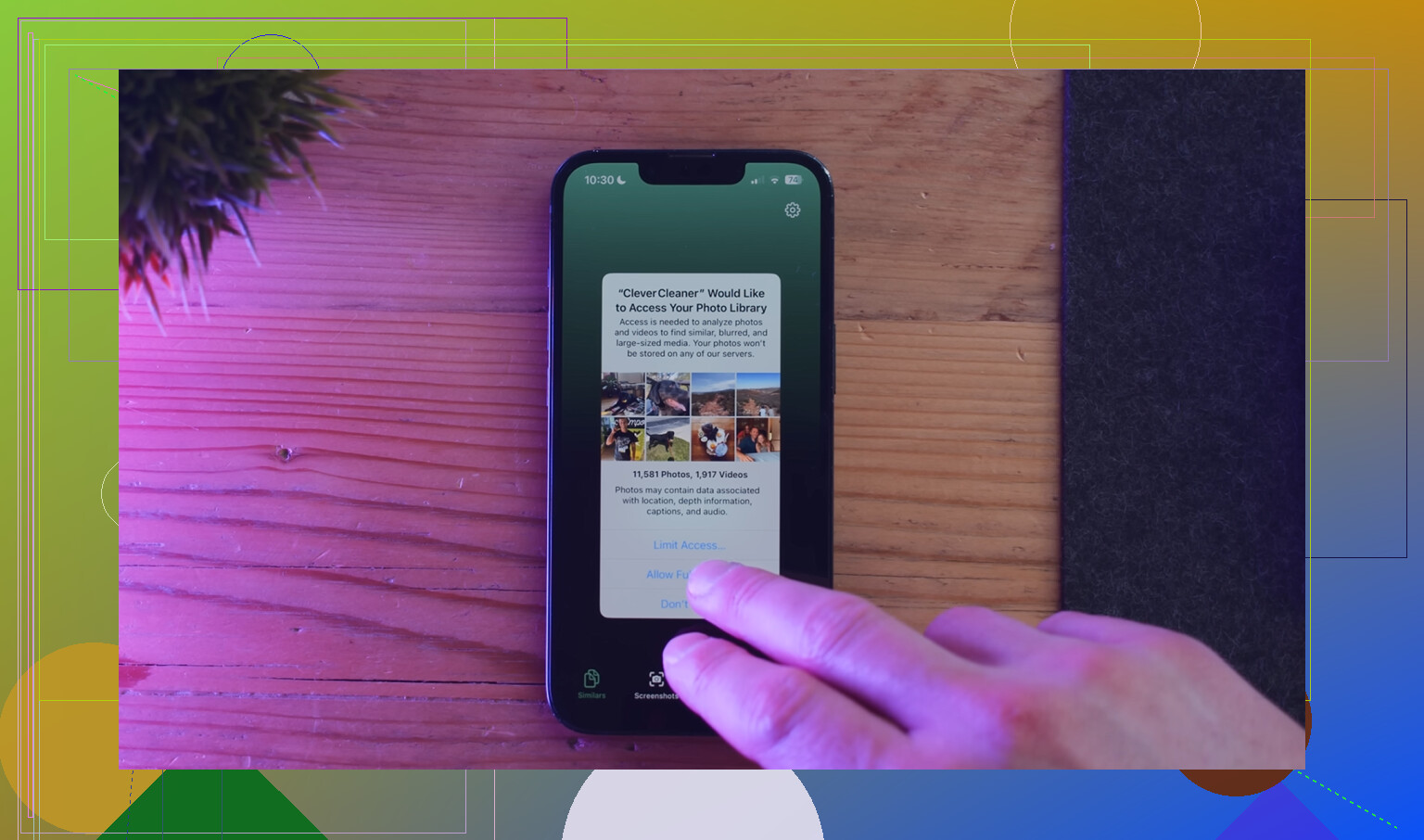
Clever Cleaner is one way to deal with it, and it does not ask for a subscription. What stood out to me was how it groups the cleanup instead of dumping your whole library into one endless feed.
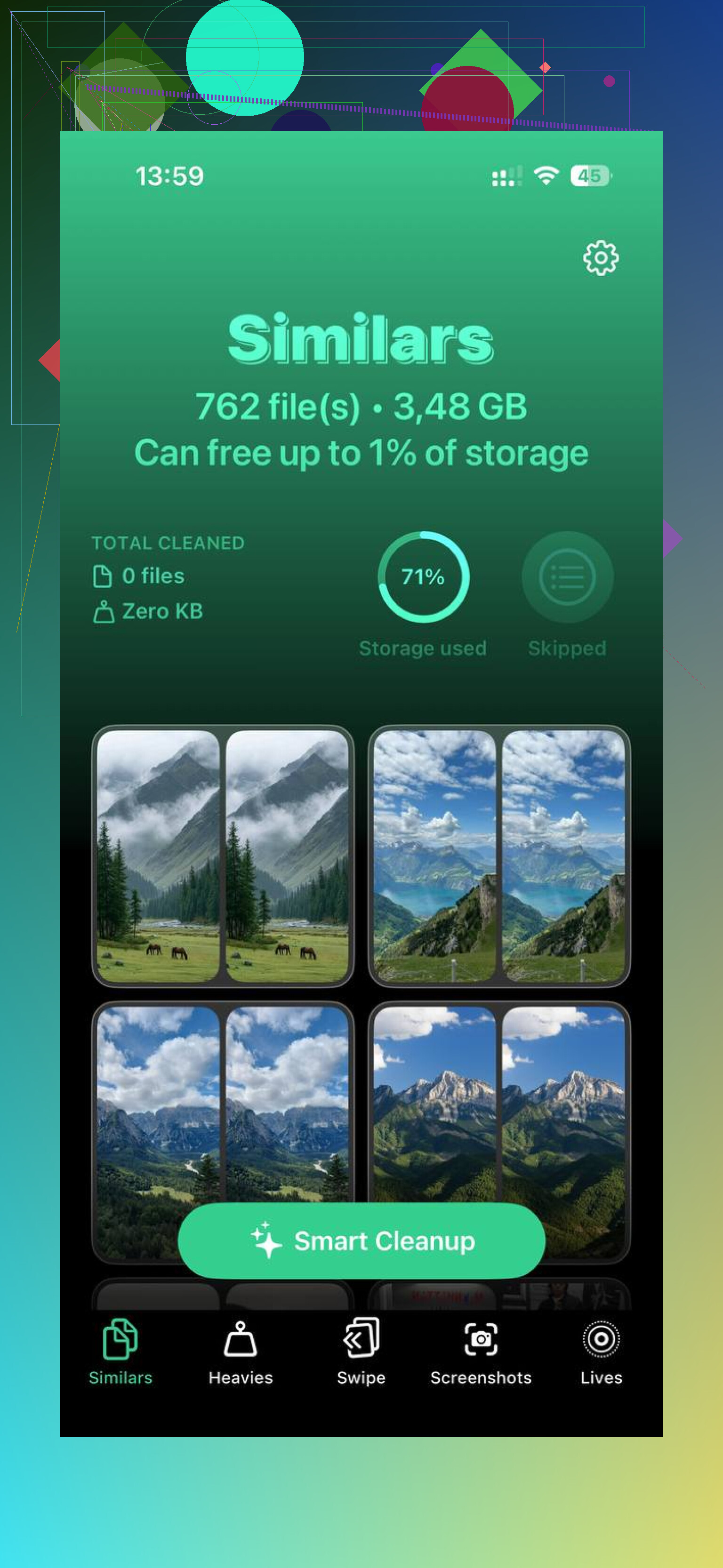
The Heavies section puts the largest files first and shows the file size, so old 4K videos float right to the top. Those are often the fastest wins. One forgotten video from a concert or vacation can eat several gigabytes by itself.
The Similars section groups near-duplicate shots and picks a Best Shot, which helps with burst photos and those five slightly different pics of the same receipt, pet, or parking sign. The Screenshots section breaks out screenshots separately and shows their sizes before you delete anything. From what I saw, the processing stays on the phone.
If you do not want cloud storage at all, use a flash drive
This is the old-school fix, and honestly it still makes sense. An iPhone flash drive gives you extra room without a monthly bill. Something like the SanDisk iXpand plugs into the charging port, lets you move photos and videos off the phone, and then you delete them from the device.
One purchase, no subscription. If your goal is to keep files but stop the storage warnings, this route works.
11 Likes
No, you do not add internal storage to an iPhone. Apple does not give you a slot or upgrade option. Your storage is fixed.
I agree with @mikeappsreviewer on the main point, but I think people focus too much on deleting apps first. Apps are often not the biggest problem. Media, message data, and failed update files eat more space than most people think.
Try these instead.
-
Remove downloaded media from streaming apps.
Netflix, Spotify, YouTube, Prime Video, Podcasts. Offline downloads sit quietly and take gigabytes. I found 12 GB in Spotify once. Open each app and delete downloads by hand. -
Delete old iPhone update files.
Go to Settings, General, iPhone Storage. If you see an iOS update file listed, delete it. A stuck update download can take 5 to 8 GB. -
Change camera settings going forward.
If you shoot in ProRAW, 4K, or 60 fps, your phone fills fast. Switch to High Efficiency in Settings, Camera, Formats. This will not free old space, but it slows the problem a lot. -
Move files to a computer, not the cloud.
Use a Mac, Windows PC, or external SSD through the Files app. Then remove the originals from the phone. This is the cheapest long-term fix if you hate subscriptions. -
Clean photo clutter smarter.
If your library is bloated with duplicates, screenshots, and large videos, Clever Cleaner helps sort it faster. This guide on free iPhone storage cleanup with Clever Cleaner explains it in plain english.
For iOS updates, aim for 8 to 10 GB free. Less than that and the phone starts acting weird. Annoying, but yup, that’s how iOS behaves.
Nope. You can’t add internal storage to an iPhone without iCloud, with iCloud, or with magic. Apple solders the storage in place, so what you bought is what you’re stuck with. @mikeappsreviewer and @byteguru are right on that part.
Where I slightly disagree is the usual “just delete more stuff” advice. Sometimes the problem is not your files, it’s iOS being bloated by System Data. That category can get stupidly large for no obvious reason.
A few things I’d try that weren’t really covered:
- Restart the phone after cleanup. Sounds dumb, but storage totals sometimes don’t recalculate right away.
- Turn off “Keep Downloaded” in Apple Music/Podcasts if you use them. Apple’s own apps hoard space too.
- Check Files app for giant ZIPs, PDFs, video exports, GarageBand projects, etc. People forget Files exists.
- Mail app can cache a ton of attachments. Removing and re-adding the mail account can sometimes shrink that cache.
- If System Data is huge, back up to a computer, then do a restore. Annoying? yep. Effective? also yep.
If photos are still the main issue, Clever Cleaner is actually useful for finding large videos, duplicates, and screenshot junk faster than doing it manualy. That’s probly the quickest way to free space without paying monthly.
If you want to keep files but not on the phone, use:
- a computer
- an external drive in Files
- or a Lightning/USB-C flash drive
Also, if you want a quick look at how Clever Cleaner works, this Clever Cleaner iPhone storage cleanup video is easier to follow than most text guides.
Short version: you can’t upgrade the iPhone itself, but you can stop the storage warnings without iCloud by moving stuff off-device and dealing with hidden storage hogs.
You already got the core answer from @byteguru, @nachtdromer, and @mikeappsreviewer: you cannot physically add internal storage to an iPhone. I’ll push back on one thing though. People often obsess over the biggest categories in iPhone Storage, but sometimes the faster win is fixing what is preventing updates, not trying to “clean everything.”
What I’d do differently:
- Use a computer to update iOS instead of updating on-device. Finder on Mac or Apple Devices/iTunes on Windows can install the update with less free space required on the phone.
- Turn off shared photo libraries temporarily if you use them. Shared content can make cleanup confusing because deleting locally is not always the clean break people expect.
- Check voice memos and downloaded edits/projects from apps like iMovie, CapCut, GarageBand, Lightroom. These hide outside the usual photo purge.
- Review offline maps in Apple Maps or Google Maps. Those can quietly eat several GB.
- Disable automatic app redownloads so the phone stops refilling itself after you clean it.
On cleanup apps, Clever Cleaner is decent if your issue is photo clutter.
Pros:
- fast at spotting duplicates and large videos
- easier than scrolling the Photos app forever
- useful for screenshots cleanup
Cons:
- still needs you to review before deleting
- not helpful for System Data
- won’t “expand” storage, only helps reclaim it
So no, no storage upgrade. But yes, you can usually get enough space back without iCloud, and if the goal is just to update the phone, doing the update through a computer is often the sneaky fix people miss.