My external hard drive suddenly shows as corrupted and Windows keeps asking me to format it. I have important files on it, so I’m trying to recover data and repair the drive without wiping everything. What safe steps or tools should I try first?
If the files matter, don’t start by “repairing” the drive. That’s where a lot of people make things worse. Windows may offer to run CHKDSK or tell you to format it, but if the file system is already messed up, those steps can reduce your chances of getting the data back cleanly.
First thing: stop using the drive. Unplug it if it’s an external HDD. If it’s an internal drive, don’t copy anything to it or install anything on it. Every write gives you one more chance to overwrite something recoverable.
It’s also worth figuring out what kind of “corruption” you’re dealing with. Common signs are:
- Windows says the drive has to be formatted.
- The file system shows as RAW.
- The drive letter appears, but the drive won’t open.
- The drive is clicking, grinding, or making other bad noises.
If the drive still shows up in Disk Management and the capacity looks right, that’s usually not the worst-case scenario. It often means the drive itself is still being detected, and the issue may be with the partition or file system rather than total hardware failure.
I’d get the important files off before doing any repair work. Disk Drill is a good option for this because it can make a byte-to-byte backup first, then scan the backup instead of hammering the original disk. That matters if the drive is flaky.
The basic order would be:
- Install Disk Drill somewhere else, not on the problem drive.
- Make a disk image if the drive is readable enough.
- Run Universal Scan on that image.
- Preview the files you care about.
- Recover them to a separate healthy drive.
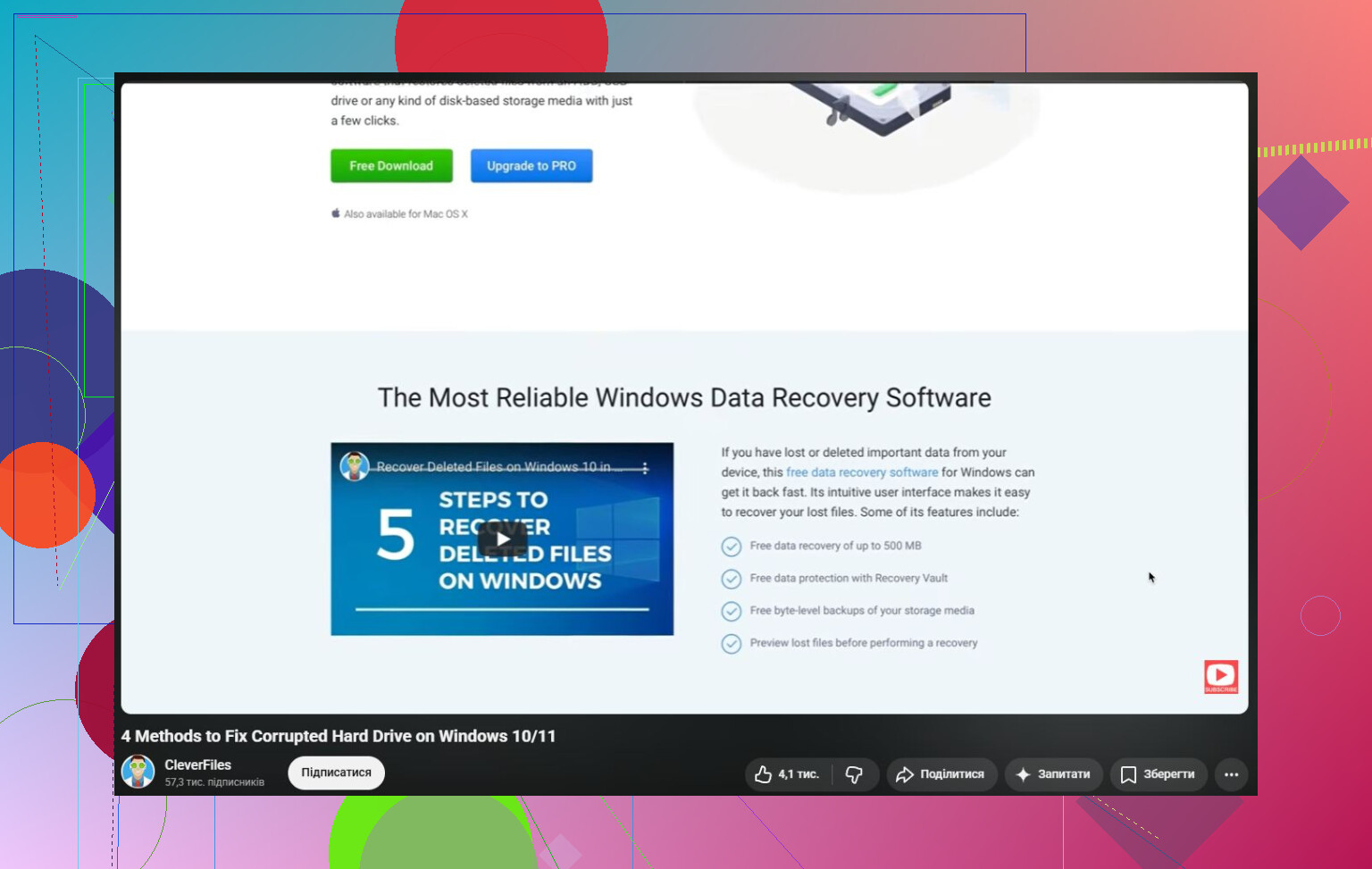
On Windows, Disk Drill also lets you recover up to 100 MB for free, so you can at least confirm whether the files are recoverable before spending money.
Once the data is safe, then you can worry about fixing the drive.
Start with the boring stuff first:
- Use a different USB cable.
- Try another USB port.
- Plug the drive into a different computer.
A surprising number of “dead” or “corrupted” external drives are really just a bad cable, dock, or enclosure.
If the drive is not showing as RAW, you can try CHKDSK:
chkdsk X: /r
Just be careful with it. CHKDSK changes the file system while trying to repair it. Sometimes that’s fine, but it can also delete damaged entries or move things around. That’s why I’d only run it after the important files are already recovered.
If the drive is RAW, CHKDSK usually isn’t going to do much for you. In that situation, recover the files first, then either try repairing the partition with TestDisk or format the drive after you’re done.
Also watch how the drive behaves. Stop doing DIY attempts if you see things like:
- constant clicking,
- random disconnects,
- reads that are painfully slow,
- or the drive vanishing from Disk Management.
Those are more in the hardware-failure category. If the data is really important, a recovery lab is the safer route. The more you keep poking at a failing drive, the worse the odds can get.
So a corrupted hard drive is not automatically finished. A lot of the time the data is still sitting there and only the file system or partition info is damaged. The main thing is the order: recover first, repair or format later. That gives you the best shot at saving the files, and maybe the drive too.
15 Likes
Whether the disk itself is failing or the USB enclosure is flaky changes the safest move. A lot of external drives get blamed as “corrupted” when the bridge board, cable, or power brick is the weak part. If it is a 3.5-inch external drive with its own power supply, try a known-good power adapter only if the voltage and polarity match exactly. Don’t guess there.
I agree with the recover-first advice, but I’d be even more stubborn about not letting Windows “help.” Cancel the format prompt. Don’t initialize it in Disk Management. Don’t create a new volume because Windows says the space is unallocated. Those actions can make recovery messier, even if they don’t erase every byte immediately.
If you want a low-risk check before buying anything, look at whether the drive reports the correct size and model. If it shows the right capacity, recovery software or imaging still has a chance. If it shows 0 bytes, the wrong size, drops in and out, or makes clicking sounds, stop treating it like a file system problem. At that point the “fix” is not CHKDSK or formatting. It is either cloning with a recovery-focused tool to another drive or sending it out if the files are worth more than the cost of a lab. Once your files are copied somewhere safe, then format it and test the drive before trusting it again.
Check what the drive was last connected to before you do anything else. Windows asking to format is not proof the disk is physically bad or even truly corrupted. If it was used with a Mac, Linux machine, NAS, DVR, game console, router USB port, or any encryption tool, Windows may just not understand what it is looking at. In that case, the “fix” is using the right system, password, or enclosure, not formatting or running repairs.
If it really was a normal Windows NTFS or exFAT external drive and it suddenly changed to RAW, then I’d treat it as read-only until the files are copied out. I agree with the recover-first advice, but I’d be careful about spending hours trying random repair tools on the only copy. If Disk Drill or another recovery tool can preview the files, recover them to a different healthy drive. Do not recover back onto the corrupted one.
After that, sure, try repairs if you want. CHKDSK, TestDisk, repartitioning, formatting, whatever fits the situation. But those are “make the drive usable again” steps, not “protect my only copy of important files” steps. And if the drive disconnects, clicks, freezes the computer, or takes forever to read small folders, stop trying to fix the file system. That’s when the problem may be the hardware, and software repair can turn a recoverable mess into a worse one.
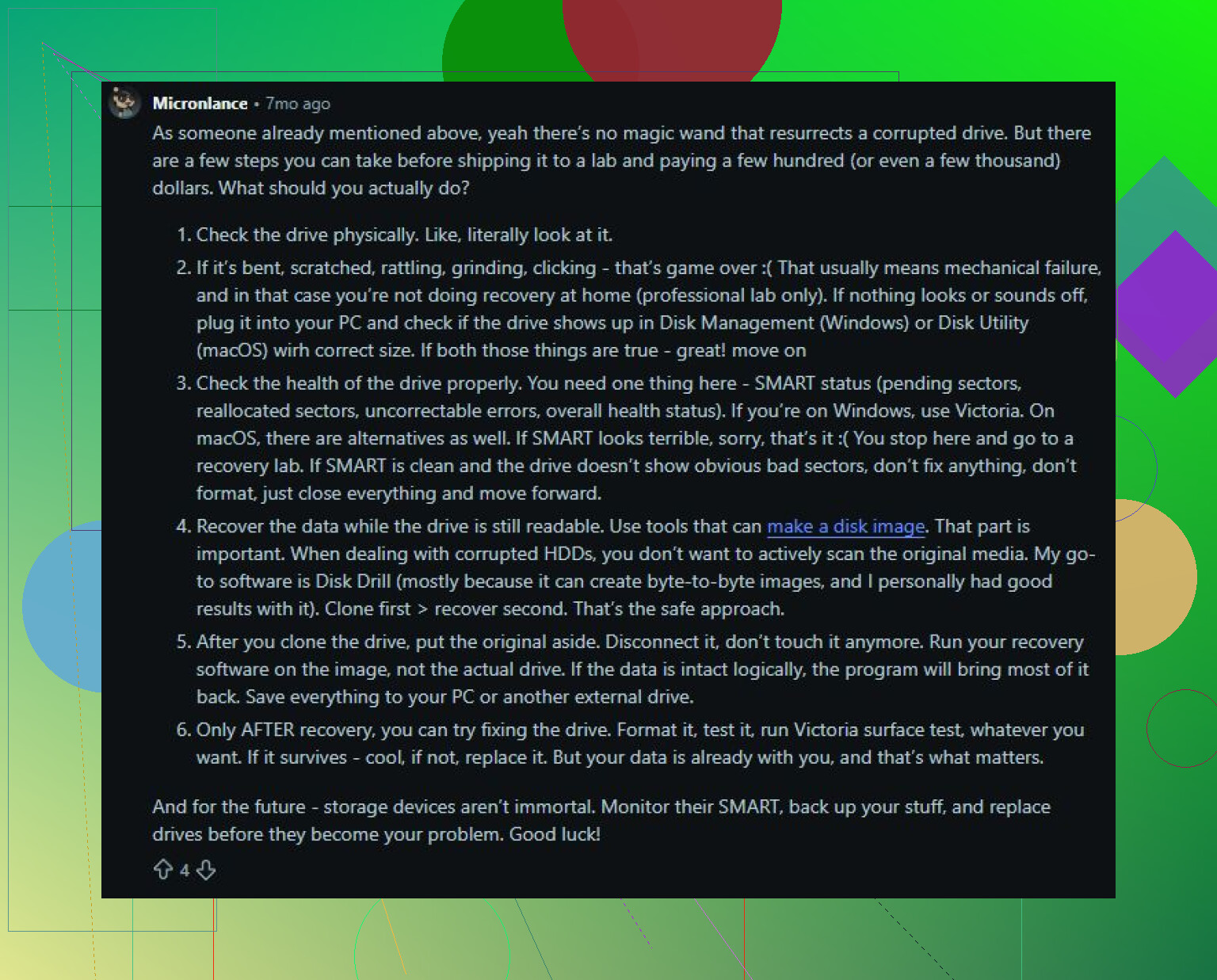
Formatting is not a repair step if you still need the files. If the data matters, clone the drive first with something like ddrescue to an equal-or-larger disk, then run recovery or repair tools against the clone. The annoying part is you need another drive, but it keeps your only copy from getting chewed up while you experiment.