My iPhone is almost out of storage, and deleting apps/photos only helps for a little while. I’m trying to figure out if iPhone storage can be physically upgraded, or if using iCloud, external storage, or buying a higher-capacity iPhone is the only real solution.
Yeah, it’s annoying, especially when you realize later that the storage size you bought was probably too small. But the short version is this: you can’t officially upgrade an iPhone’s internal storage after purchase.
You may run into videos or repair shops saying they can swap the storage chip for a bigger one. Technically, that kind of thing exists, but it’s not a normal upgrade. It means desoldering parts from the logic board, writing firmware, and hoping nothing goes wrong. If it fails, the phone can be dead. If it succeeds, your warranty is gone, and Apple is not going to treat that phone like a standard device anymore. For most people, it’s just not worth the risk.
The better move is to figure out what’s actually eating the space. Go to Settings > General > iPhone Storage first. That storage bar is usually pretty revealing. Photos, videos, Messages, and a few huge apps are normally the main offenders.
If apps are taking up a lot of room, try Offload Apps before deleting them completely. It removes the app itself, but keeps the app’s data and documents. So if you reinstall it later, you can usually pick up where you left off instead of starting from scratch.
Messages can also quietly get huge. Old chats with videos, GIFs, screenshots, and random memes can sit there for years. If you don’t need every text thread forever, change the message history setting so old messages clear after 30 days or 1 year. That keeps the problem from building right back up.
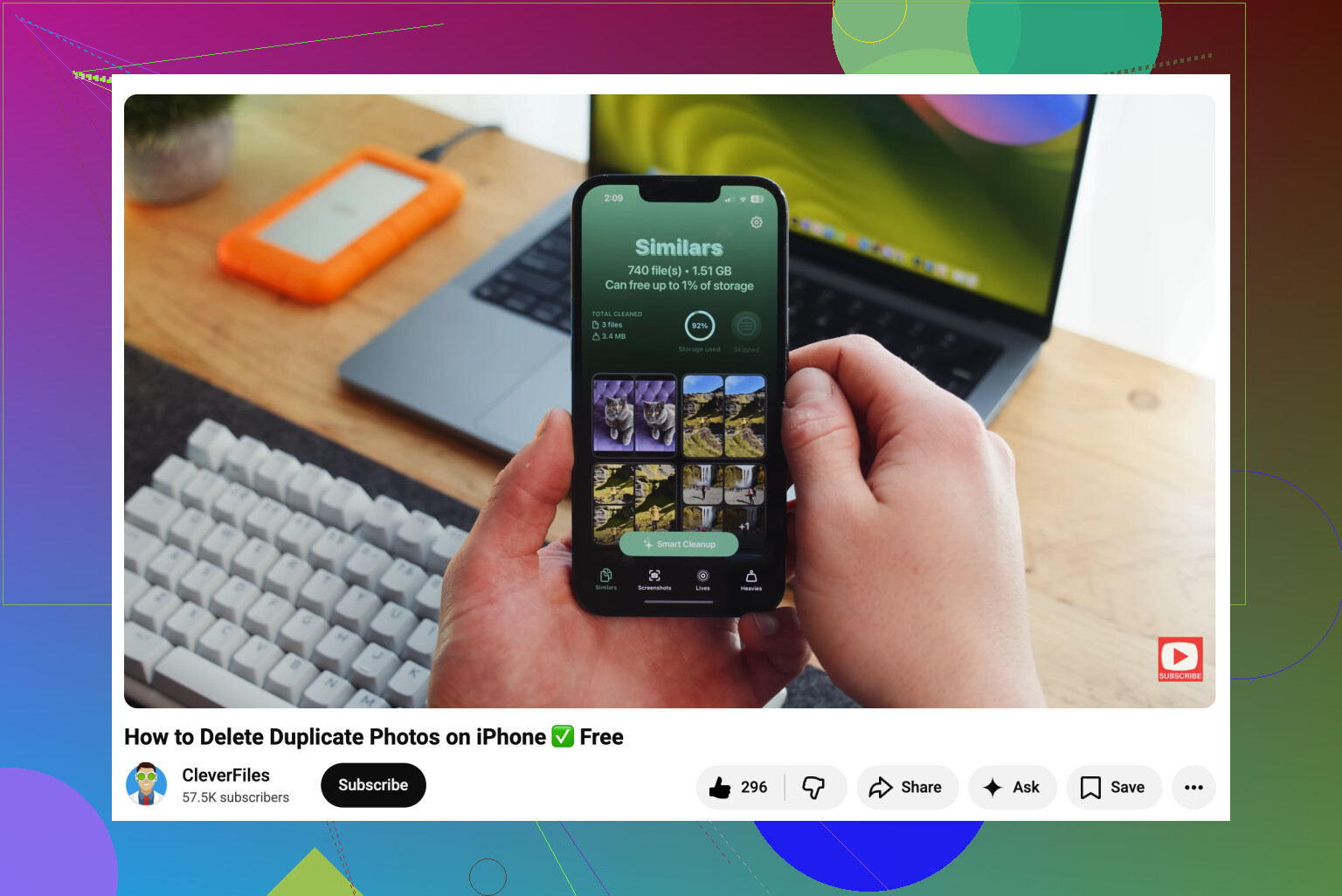
Photos are usually the biggest one, though. Apple’s duplicate detection helps a little, but it mostly catches exact duplicates. An app like Clever Cleaner can be more useful if your camera roll is full of near-identical shots. Its “Similars” tool groups photos that are basically the same, suggests the best one, and lets you delete the extras faster. The “Heavies” section is also worth checking because it sorts large videos by size, and those can burn through storage fast. It can also convert Live Photos into regular still images if you don’t care about keeping the motion part.
If you’ve cleaned up the obvious stuff and still don’t have enough room, then you’re looking at cloud storage or external storage. iCloud is the easiest option on an iPhone. With Optimize iPhone Storage turned on, your phone keeps smaller versions of photos locally while the full-resolution versions stay in iCloud. They still show up in Photos, but they don’t take as much device storage. If you don’t want iCloud, Google Drive gives you 15GB free, and Dropbox has a free tier too, but you’ll need to manage those files more manually.
External drives are another option people forget about. You can get flash drives that plug into the iPhone directly, either Lightning on older models or USB-C on newer ones. Some can even be used for recording video straight to the drive, so the footage doesn’t fill the phone first. Just check that the drive is formatted in something the iPhone can read, like exFAT or APFS.
So, no, there’s no safe “upgrade the storage chip” path for a normal user. It’s boring, but cleaning up storage, using iCloud or another cloud service, and adding an external drive is the much safer route.
18 Likes
iCloud does not increase the storage inside the phone; it only lets the phone keep less stuff locally when syncing is set up right. External drives are fine for dumping videos or files, but they won’t help with apps, iOS updates, or “System Data,” so if those are your problem, the real fix is cleanup or a higher-capacity iPhone next time.
Don’t pay a repair shop to “upgrade” the storage unless you’re fully prepared to lose the phone and everything on it. That kind of board-level swap is more like a risky repair/mod than an upgrade, and it is not the same category as putting a bigger SSD in a laptop.
The missing trap here is iCloud Photos. A lot of people turn it on, see their photos in iCloud, then delete photos from the iPhone thinking they are clearing only the phone. That is usually wrong. If iCloud Photos is syncing, deleting a photo on the iPhone deletes it from iCloud too. iCloud is not a separate photo vault by default. It is a sync system.
What you want, if photos are the problem, is Optimize iPhone Storage. That lets the phone keep smaller local versions while the full versions live in iCloud. It can save a lot of space, but it is not instant and it works best when the phone is charging, on Wi-Fi, and has enough free space to breathe. If your phone is already down to a few hundred MB, iOS can get weird and slow before optimization catches up.
External storage is useful, but I would treat it as an archive, not an expansion slot. You can move big videos, exported files, downloaded movies, or camera footage to a USB-C or Lightning drive depending on your iPhone. That helps if your camera roll is full of 4K videos. It does almost nothing if the storage hog is apps, game data, Messages attachments, iOS, or random cache. You cannot install apps onto an external drive like it is a computer.
The cheaper workaround is usually boring maintenance:
Go to iPhone Storage and check the top 5 items, not the colored bar.
Delete downloaded music, podcasts, Netflix/YouTube/Disney downloads, offline maps, and large game files.
Clear big Message attachments if you send a lot of videos.
Offload apps you rarely use instead of deleting everything.
Move old videos somewhere else before deleting them from Photos.
Check Recently Deleted after cleanup, because deleted photos and videos can still sit there for a while.
If “System Data” is the thing eating a giant chunk, don’t expect iCloud or an external drive to fix it. Sometimes it shrinks on its own after updates or after the phone has time to process stuff. Sometimes syncing, Safari cache, streaming app cache, or failed downloads are involved. If it stays absurdly large, a full encrypted backup, erase, and restore can clean it up, but that is the annoying route and you need to be careful that your backup is complete first.
For photo cleanup tools, I’d treat them as sorters, not magic storage fixers. Something like Clever Cleaner can be handy for finding similar shots or huge videos faster than scrolling manually, but I’d still review what it marks before deleting anything. The real space savings usually come from removing large videos and duplicate bursts, not from deleting a few random screenshots.
So the realistic answer is: no normal internal upgrade, iCloud is useful but not the same as extra phone storage, external drives help only for certain file types, and the permanent fix may simply be buying more storage next time. If you are already fighting storage every month on a 64GB or 128GB phone, cloud cleanup will buy time, but it probably won’t make the phone feel like a higher-capacity model forever.

A phone full of videos is a very different problem from a phone full of app data and System Data. The first one can be fixed with cloud storage, a computer, or an external drive pretty cleanly. The second one often cannot, because iOS still needs internal storage for apps, updates, caches, indexes, thumbnails, and whatever the app itself insists on keeping locally.
Internal storage is basically a purchase-time decision. The soldered storage-chip swap people talk about is real in the same way engine swaps are real: possible for specialists, bad as normal ownership advice. I would not treat that as an “upgrade path” unless the phone is already out of warranty, not worth much, and you are okay with it becoming a parts phone.
The iCloud confusion is the big trap. Paying for more iCloud storage gives you more space in Apple’s cloud account, not more flash storage inside the iPhone. It only helps the phone if you turn on the right syncing/optimization options and give it time to move full-size originals out of local storage. If you just buy a bigger iCloud plan and change nothing, the phone may stay just as full. And like @mikeappsreviewer said, deleting from Photos while iCloud Photos is on usually deletes from the synced library, not just from the device.
The practical split I’d use is this: if Photos is the big category, use iCloud Photos with Optimize iPhone Storage, or export old videos to a computer/external drive and then delete them from Photos and Recently Deleted. If Messages is huge, attack attachments. If apps are huge, offload or remove the worst offenders. If System Data is huge, stop expecting a USB drive or iCloud plan to solve it. That is more of a cleanup, update, backup/restore, or “iOS needs breathing room” problem.
External storage is fine, but it is not a second internal drive. It is more like a suitcase. Great for moving vacation videos, ProRes clips, PDFs, downloads, and old archives off the phone. Not useful for making Instagram, games, Messages, or iOS itself live somewhere else. And I would keep two copies of anything important before deleting it from the iPhone, because a tiny flash drive in a drawer is not much of a backup plan.
So the answer is: no normal physical upgrade, iCloud is the most convenient pressure valve, and external storage is useful for specific files. If the phone is constantly close to full even after cleanup, the honest fix is a higher-capacity iPhone next time rather than trying to turn a 64GB or 128GB model into something it was never built to be.