My iPhone storage is almost full, and Facebook is taking up a lot of space. I want to clear the Facebook app cache, but I’m not sure if it only removes temporary files or if it could delete messages, photos, login info, saved posts, or app settings. Can someone explain what actually gets deleted when clearing Facebook cache on iPhone?
Facebook can take up a ridiculous amount of space on an iPhone, and it’s annoying because it usually happens quietly. The good news is that clearing its local data won’t delete your Facebook account or anything important tied to it.
Your friends, posts, profile photos, saved items, and account info are stored on Facebook’s servers. The stuff sitting on your iPhone is mostly temporary app data, like cached images, videos, cookies, and other files Facebook keeps around so the app loads faster.
If you want to clear Facebook’s cache, there are basically two useful options.
Offload App
Go to Settings > General > iPhone Storage > Facebook, then choose Offload App. This removes the app itself but keeps its Documents and Data. That means you’ll usually stay logged in when you reinstall it, and your settings are more likely to remain in place.
The downside is pretty important: offloading does not usually remove the big storage chunk. Most of the junk is sitting in Documents and Data, so this is more of a light cleanup than a real fix.
Delete and reinstall Facebook
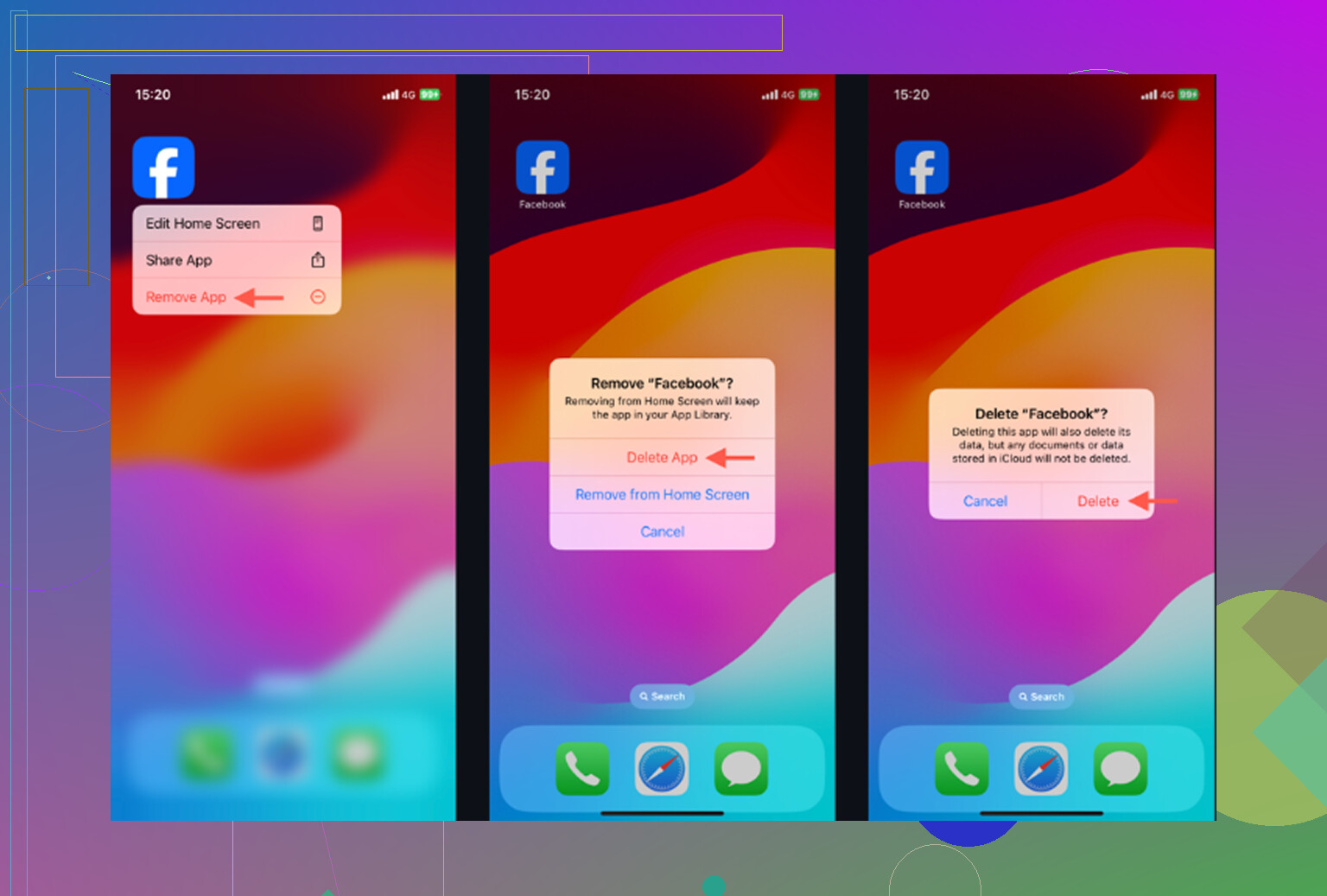
This is the better option if Facebook is taking up a lot of storage. From iPhone Storage, tap Delete App. You can also long-press the Facebook icon and remove it from there.
Deleting the app removes the local cache along with the app data. After you reinstall Facebook, you’ll need to log in again, but your account, posts, photos, saved content, and friends list will still be there because they sync back from Facebook.
There’s also a small cleanup option inside Facebook itself. Open the Facebook menu, go to Settings and Privacy > Settings > Browser, then clear Browsing Data. That mostly clears the in-app browser’s cookies and cached web pages. It helps a little, but it won’t touch the main media cache that usually causes the storage problem.
Why Facebook fills back up again
Even after a clean reinstall, Facebook will start rebuilding cache pretty fast. Reels, autoplaying videos, images in the feed, and pages you open all create local files again. If you use the app normally, the storage number can start climbing within a few days. That’s just how the app is designed to make scrolling feel quicker.
If your iPhone still feels slow after clearing Facebook, the bigger issue is probably not Facebook anymore. A full photo library is often the real storage drain. Old screenshots, repeated shots, burst photos, and forgotten videos can take up way more space than an app cache.
iOS also needs free space to work properly in the background. When the phone is close to full, everything can feel slower, even apps that have nothing to do with Facebook.
For the photo library side, Clever Cleaner is useful because it focuses on the files that are actually eating storage. It doesn’t clear Facebook cache, so you still have to handle that manually. But it does help find the big stuff in Photos.
The Heavies tab sorts files from largest to smallest and shows the exact file sizes. A single video near the top can easily be larger than a bunch of Facebook cache.
The Similars tab groups photos that are almost the same and marks a Best Shot, so you’re not manually comparing five versions of one picture. It also shows file sizes on screenshots before you delete anything, which makes it easier to see what’s worth clearing.
Everything runs on the device, so the files are not uploaded to an outside server.
The practical order is: delete and reinstall Facebook first if you want the immediate cache cleanup. Then go through the photo library with Clever Cleaner if the phone is still low on space. After deleting photos or videos, remember to open Photos > Recently Deleted > Delete All, otherwise the storage won’t actually free up yet.
15 Likes
Don’t bother deleting random iPhone “System Data” or signing out of Facebook expecting a big cleanup. The real space is usually Facebook’s local media/browser cache, and deleting/reinstalling the app clears that, but you should expect to log back in and recheck notification/privacy settings afterward since some app preferences can reset even though your messages, photos, posts, and account stay on Facebook.
Expect to get some storage back, but don’t expect Facebook to stay small for long. The cache is mostly local copies of things you already viewed, so deleting/reinstalling the app should not remove your posts, uploaded photos, friends, groups, or messages from your account. The annoying catch is login and security: before deleting it, make sure you know your password and still have access to your 2FA method, email, or phone number. That’s the part people forget, then the “cache cleanup” turns into an account recovery problem. I’d treat Offload App as the low-risk but weak option, and Delete App as the real cleanup option. Just don’t delete Messenger too unless you mean to, since it’s a separate app with its own local data.
Before you delete anything, screenshot the Facebook number in iPhone Storage so you can actually tell if the reinstall did anything. @yozora is right about the 2FA trap, that catches people way more than the cache ever does. Honestly the cache refills so fast that I’d only bother with the full delete if storage is at panic levels.