I’m trying to clean up my iPhone photo library but keep everything marked as Favorite. I don’t see an easy way in the Photos app to select all non-favorites, and I’m worried about deleting the wrong pictures. Is there an iOS Shortcut, filter, or safe workaround to delete all photos except Favorites?
iPhone makes this more annoying than it should be. Favorites are just photos with a heart tag, not files sitting in their own protected folder, so if you select everything in your library and hit delete, your favorites go with the rest of it. Photos does not give you a simple “select non-favorites only” option.
The easiest built-in workaround is to temporarily hide the photos you want to keep.
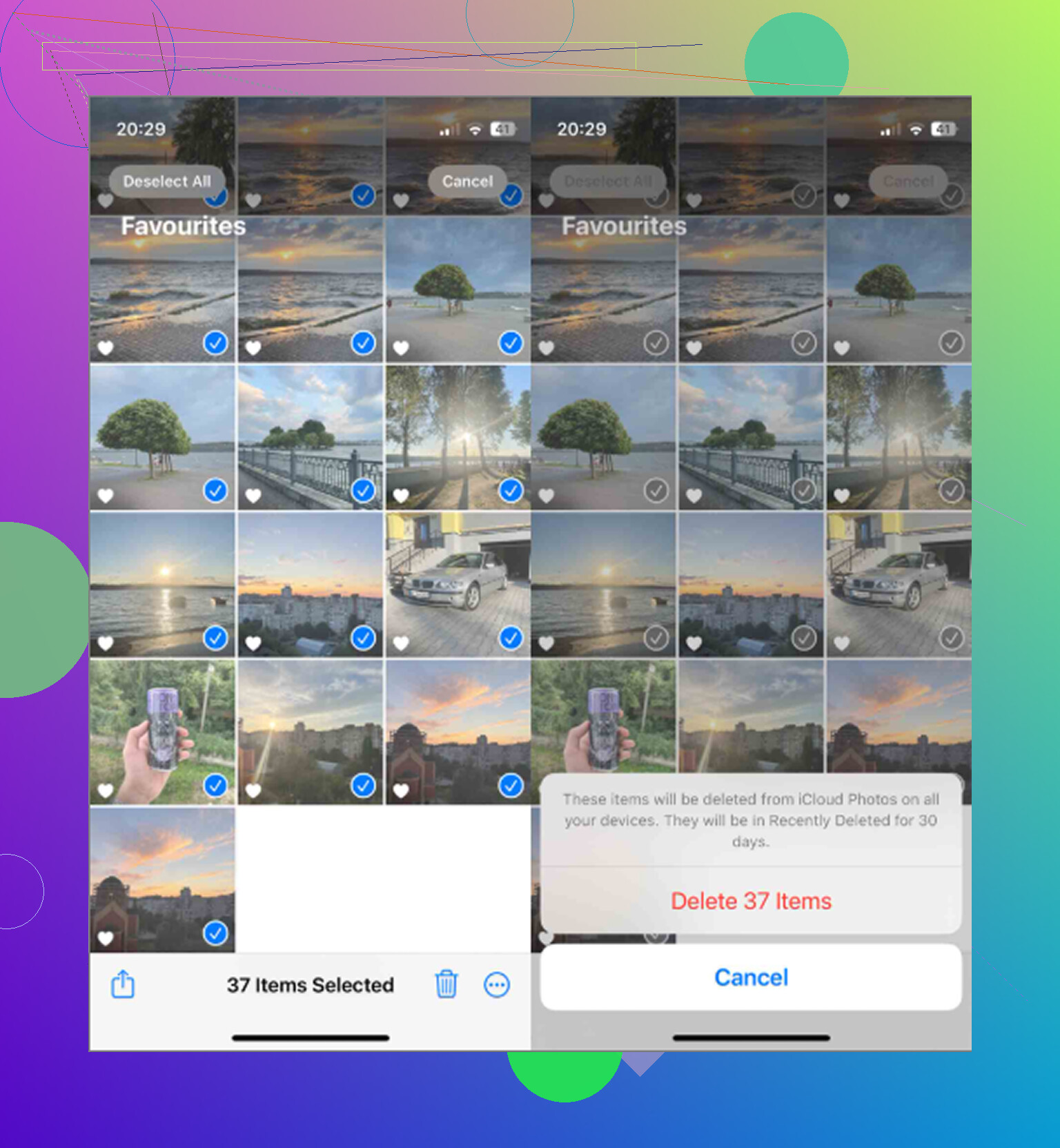
- Open the Favorites album.
- Tap Select, then Select All.
- Use the three-dot menu and choose Hide.
- Go back to your main library and delete everything that is still showing.
- Open the Hidden album afterward, select those photos, and Unhide them.
That puts your favorites back in the main library, while the non-favorites are the only ones you deleted. It is a little clunky, but it works without installing anything.
You can also do it with Shortcuts if you have a big library and want something more automated. Create a shortcut with Find Photos, set the filter to photos where Favorite is false, then add them to a temporary album like “Cleanup.” After it runs, open that album, select all, and delete. If the shortcut stalls on a huge library, add date filters and run it in chunks instead of trying to process years of photos at once.
One big thing to check first: if iCloud Photos is turned on, deleting from your iPhone deletes from iCloud and your other synced devices too. It is not “delete from this phone only.” Back up anything important somewhere outside iCloud before doing a large cleanup.
Also, do not expect storage to free up right away. Deleted photos sit in Recently Deleted for 30 days and still count against your storage. After deleting, go to Photos - Albums - Recently Deleted - Delete All. Restarting the phone afterward can help iOS show the updated free space correctly.
If your phone was already lagging, low storage is probably part of it. iOS needs free space for temporary files and background tasks. Once storage gets tight, simple things like opening the camera, scrolling Photos, or deleting videos can start to hang.
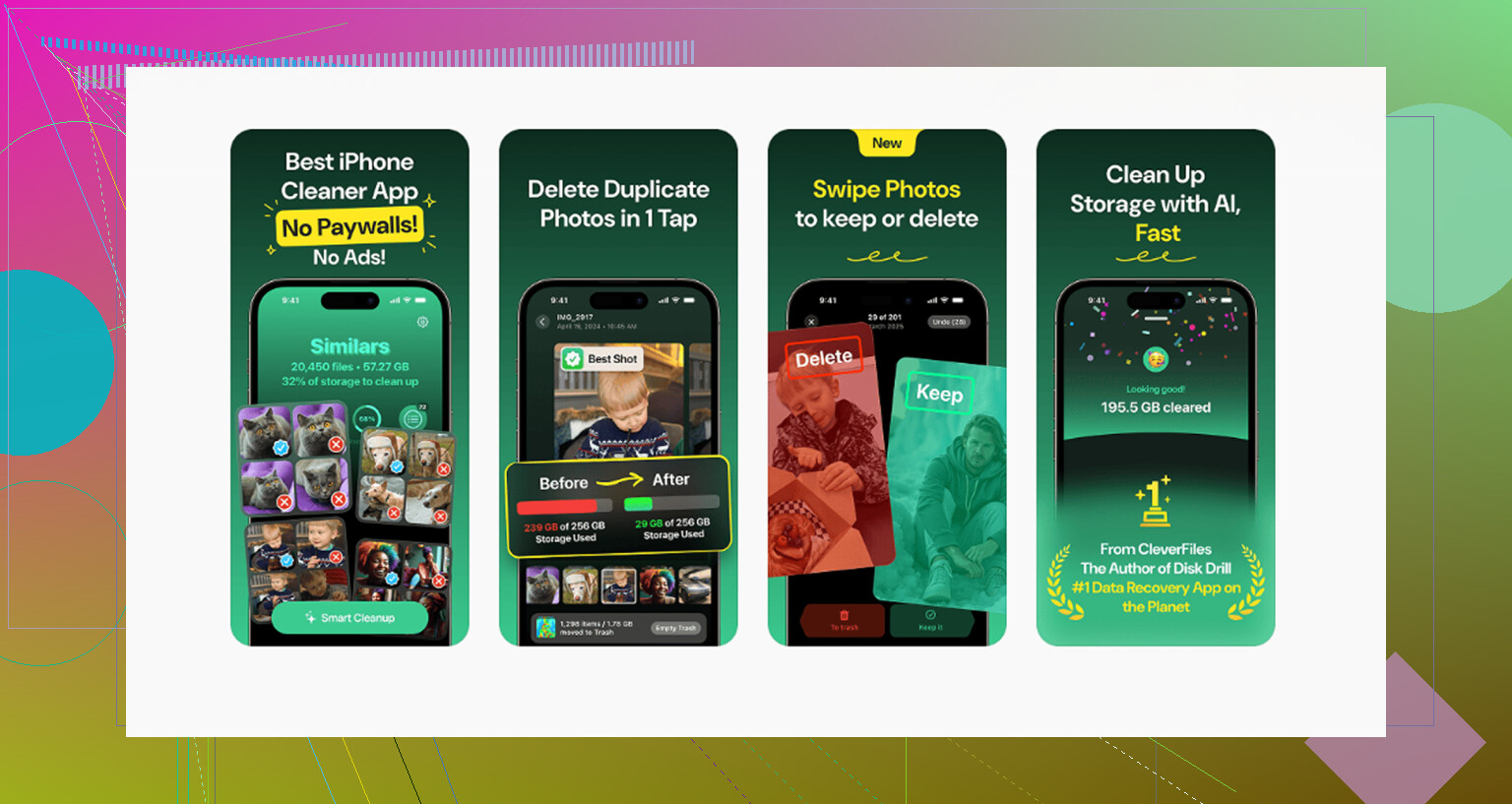
The annoying part is that Apple Photos still does not let you sort your library by file size, so it is hard to find what is actually eating the space. Clever Cleaner is useful for that because its Heavies tab sorts files from largest to smallest and shows exact sizes. Usually a few old 4K videos take up more room than a pile of normal pictures. It also has Similars for grouping near-duplicates and picking a Best Shot, plus a Screenshots tab that shows screenshot sizes before deleting. The app is free, has no ads or subscription, and does the processing on the device instead of sending the library to a server.
So the practical combo is: use the Hidden album trick or a Shortcut to remove everything except favorites, then use Clever Cleaner to find the big leftovers and duplicate clutter that Photos does not make easy to spot.
43 Likes
If you have a Mac tied to the same iCloud Photos library, I’d do this there instead of on the phone. Photos on macOS can make a Smart Album for items where Favorite is false, which gives you a reviewable pile of non-favorites before you delete anything. That is safer than running a shortcut blind on a big library. The annoying catch is that deletes still sync everywhere, so test with a few throwaway photos first and make sure Recently Deleted looks the way you expect before committing to the whole cleanup.
Do not trust albums as a safety net. A regular album is just a view of the same photo, so making a “Keep” album and then deleting from Recents will still delete the original. That is where people get burned. The Mac Smart Album idea is the cleanest if you have a Mac, but on iPhone I would first export the Favorites somewhere separate, like Files, an external drive, or a computer, then do the delete pass. The Hidden trick can work, but Hidden is still inside Photos and still part of the same iCloud library, so it is not a backup. For a big library, I would rather spend ten extra minutes making an outside copy of the Favorites than try to recover from Recently Deleted after one wrong tap.
The sneaky downside of the Shortcut method is that it can make deletion feel too safe, when it is really just building a big delete list that still needs a human review.
If you use Shortcuts, I would not make the shortcut delete anything by itself. Have it find photos where Favorite is not true, then put those into a temporary album called something obvious, like “Delete candidates.” Then stop. Open that album in Photos, skim it, and delete from there manually. That extra review step is boring, but it is the difference between a cleanup tool and a panic button.
The other little trap is that adding photos to that temporary album does not move or copy them. It is only a grouping. So after you delete them from that album, they are gone from the library too. In this case that is what you want, but it is worth keeping straight because Photos’ album behavior is weird if you think in folder terms.
For a smaller library, I actually think the Hidden method mentioned above is less fiddly than building a Shortcut. For a huge library, the Shortcut-to-review-album method is better because you can run it by year or month and not ask the phone to sort through everything at once. Something like “favorite is false” plus “date is in 2022” is a lot less likely to choke than the whole camera roll in one shot.
I would treat Clever Cleaner or any similar cleanup app as a second pass, not the main answer to “delete everything except favorites.” It can be useful if your real storage problem is giant videos, screenshots, or near-duplicates, but it is not a replacement for making sure the favorites are protected first. Do the favorite/non-favorite split first, empty Recently Deleted only after you are calm, and then look for the big junk.
If you only have a few favorites, export them first. Open Favorites, tap Select All, then Share and Save to Files. Choose a seperate iCloud Drive folder or external USB drive. Confirm the files open there. Next, delete the entire Photos library and empty Recently Deleted. Re-import the saved favorites into Photos. This skips hiding, Shortcuts, and extra apps. Use “Export Unmodified Original” where available to preserve quality and metadata.
Nuking the whole library and re-importing like @xbinarysocketx suggested works, but you lose more than you think. The Favorite heart itself doesn’t survive Save to Files, and neither do albums, edits history, or your Memories. You get the pixels back, not the organization. For a handful of photos that’s fine. For anything you’ve spent years sorting, it’s a bad trade.
The Hidden trick is the least destructive of everything mentioned here, and I’d lean on it over Shortcuts for most people. @shizuka is right that the Shortcut just builds a delete list, so if you’re going that route, the review-album step isn’t optional.
Clever Cleaner earning a spot in this thread makes sense for the big-video hunt, but that’s a separate job from protecting favorites. Do the split first, breathe, then go looking for the space hogs.