I deleted photos, apps, and files on my iPhone and emptied Recently Deleted, but my iPhone storage still looks almost full. I’m trying to figure out why the storage space isn’t updating and what else I need to clear to actually free up space.
Your storage probably isn’t changing because “deleted” on an iPhone usually doesn’t mean deleted yet. Most of the time, iOS just moves the stuff into a Recently Deleted area and keeps it there for a while. Photos and files can sit there for about 30 days, and some deleted messages can hang around longer, up to around 40 days. Until you clear those folders yourself, they’re still taking up space.
The annoying part is that there isn’t one big iPhone trash can like the Recycle Bin on Windows or Trash on a Mac. Apple splits it up by app, so you have to check a few different places.
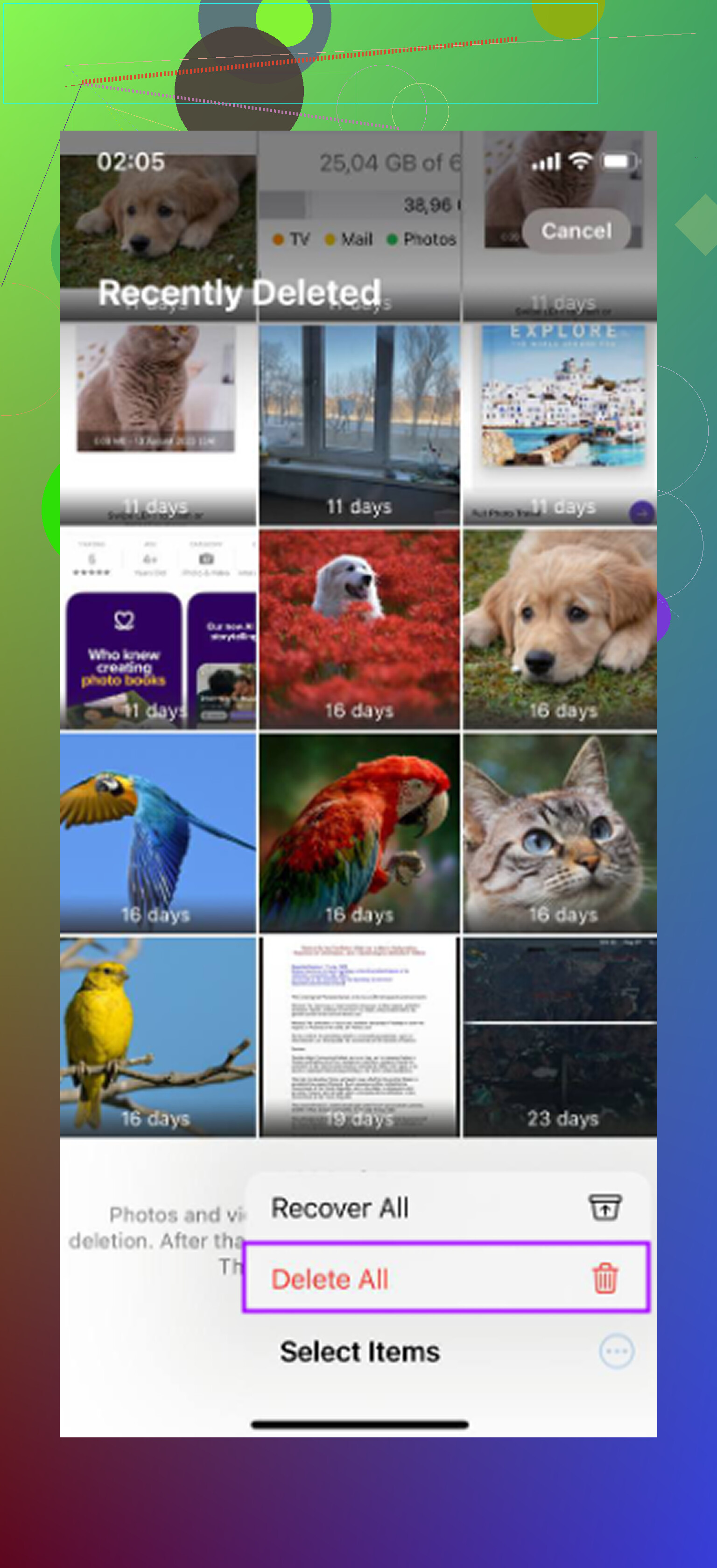
- Photos: This is usually where the biggest chunk of space is hiding. Open Photos, go to Albums or Collections, then scroll down to Utilities. Open Recently Deleted. You may need Face ID or your passcode. Tap Select, then choose Delete All if you want those items gone for real.
- Files: Open the Files app and tap Browse. Under Locations, look for Recently Deleted with the trash icon. Open it, tap the three-dot menu, choose Select, then delete everything permanently.
- Notes: If you’ve deleted notes with attachments, scans, drawings, or images, they can still be sitting around. Go back to the main Folders view in Notes and look for Recently Deleted.
- Messages: On iOS 16 and newer, deleted conversations can also be recovered for a while. In the Messages list, tap Edit or Filters near the top, then choose Show Recently Deleted and clear them from there.
If you don’t see a Recently Deleted folder somewhere, it usually means one of two things: either that app doesn’t currently have anything deleted, or your iOS version doesn’t support that feature in that spot. Messages is a good example, since that Recently Deleted section only appears after you’ve actually deleted something recently. Photos can also be easy to miss now because Apple buried it farther down under Utilities.
I ran into this when my iPhone got so full it was basically unusable. Apps were crashing, everything lagged, and I couldn’t even take a photo. Low storage can really mess with iOS because the system needs free space for temporary files and normal background stuff.
I tried cleaning it all by hand at first, but it got old fast. I’d empty Recently Deleted in Photos, then still have a bunch of System Data sitting there that I couldn’t easily clear. The phone was still slow, so I started looking for a cleanup app that wasn’t packed with ads or locked behind some expensive yearly subscription.
The one I ended up using was Clever Cleaner. I’m usually pretty suspicious of cleanup apps, but this one was free when I used it, with no ads and no premium upsell.
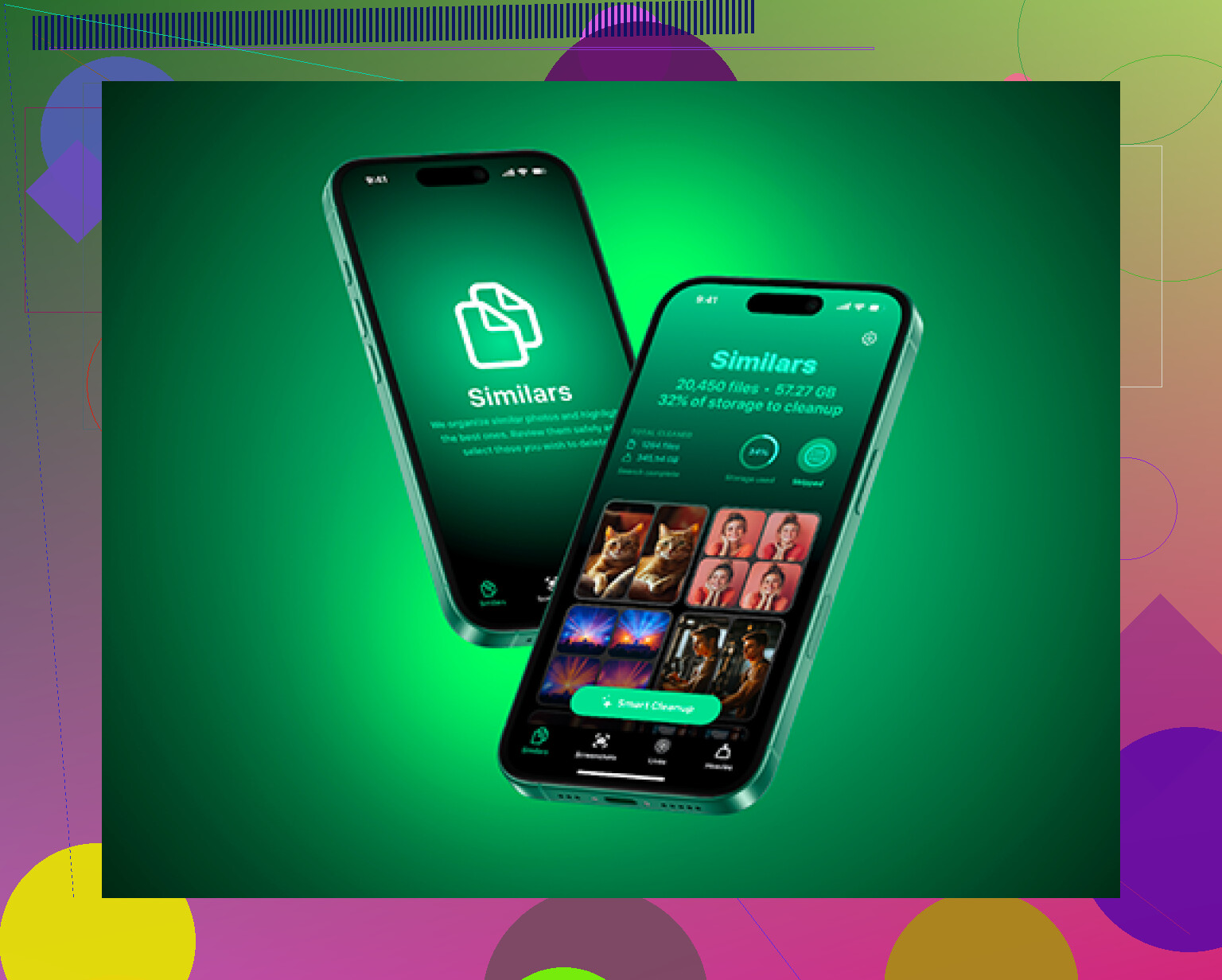
The useful part was that it showed the actual file size for screenshots and videos instead of making me guess. The Heavies section made it easy to find huge forgotten files, like old screen recordings. The Similars section was also helpful because it grouped near-duplicate photos, so I could keep the best one and remove the rest. It also runs on the device, which matters if you don’t want your photos being sent off somewhere else.
After you clear the Recently Deleted folders, restart the phone too. A hard restart can sometimes help with bloated System Data or old caches that don’t clear right away. Between manually emptying the hidden trash folders and cleaning out duplicates or oversized videos, you should finally see the storage number move, and the phone should feel less stuck.
20 Likes
Check whether the space is actually being used by apps and caches before deleting more personal stuff. The iPhone Storage screen separates things like Photos, Apps, iOS, and System Data, and the fix depends on which bar is still huge. If Photos went down but Apps or System Data stayed high, emptying Recently Deleted did its job, but something else is filling the phone.
@mikeappsreviewer is right that Recently Deleted is the first place to look, but I wouldn’t keep hammering the delete button if the storage page has not refreshed yet. That screen can lag. Restart the phone, then leave it plugged in on Wi-Fi for a bit. iOS sometimes needs time to re-index photos, clear thumbnails, remove app temp files, and recalculate the storage chart. It is annoying, but the number is not always instant.
The thing people usually forget is app data. TikTok, Instagram, Spotify, YouTube, Podcasts, Maps, Safari, and messaging apps can keep a lot of cached junk that does not live in Photos or Files. For some apps, the only real cleanup is inside the app settings, clearing downloads, or deleting and reinstalling the app. For Safari, go to Settings > Apps > Safari > Clear History and Website Data if you are okay losing site data. If System Data is the big one and it will not shrink after a restart and some idle time, make an encrypted backup, erase the phone, and restore. That is the annoying “last resort,” but it is often what actually clears the mystery storage when normal deleting does nothing.
You may not see the number drop the minute you empty Recently Deleted, especially if the phone is already almost out of working space. iOS still has to update its database, clear local thumbnails, finish iCloud Photo syncing, and recalculate the storage page. If the storage screen is open while you are deleting stuff, back out of Settings completely, restart, and check again later instead of trusting the number immediately.
The missing caveat here is iCloud Photos. If you use “Download and Keep Originals,” deleting local photos is not the same situation as someone using “Optimize iPhone Storage.” With Optimize turned on, the phone may already have been keeping smaller local versions, so deleting a bunch of photos might not free as much space as expected. Videos, screen recordings, saved message attachments, and offline downloads usually move the needle more.
I’d be careful with cleanup apps in one specific way: they can help you find duplicate photos or huge videos, but they cannot magically wipe iOS System Data. So if you use something like Clever Cleaner, treat it as a photo/video sorting tool, not a full storage repair button. For mystery storage that keeps coming back, the more boring answer is usually app downloads, message attachments, or a backup/erase/restore if System Data is truly out of control.
Expect a small delay, but if nothing changes after a restart and a few hours, stop deleting random photos and look at which category is still huge. The storage bar matters more than the total number. If Photos is no longer the big chunk, emptying Recently Deleted probably worked and you are chasing the wrong thing.
A common trap is confusing “Offload App” with deleting an app. Offloading removes the app itself but keeps its documents and data, so a game, video editor, chat app, or streaming app can still leave a lot behind. In Settings > General > iPhone Storage, tap the app and check the split between “App Size” and “Documents & Data.” If the data is the problem, offloading will barely help. You either need to clear downloads/cache inside that app, or fully delete the app and reinstall it if you are okay losing local data.
I’d be a little skeptical of trying five different cleaners for this. Something like Clever Cleaner can be useful for finding big videos or duplicate-looking photos, but it won’t fix the confusing parts of iOS storage by itself. If System Data is the monster category and it stays that way after charging, Wi-Fi, restarting, and waiting, the cleanest fix is usually backup, erase, restore. Annoying, but less annoying than deleting half your camera roll and finding out the problem was cached app junk the whole time.