I have an SSD formatted as ExFAT that suddenly became unreadable after being disconnected during a file transfer. Windows asks me to format it, but I need the photos and documents on it. What’s the safest way to recover data from an ExFAT SSD without making things worse?
First thing: stop writing to the exFAT drive. Don’t save new files to it, don’t format it again, and don’t let Windows “repair” it with CHKDSK for now. Deleted or formatted exFAT data often isn’t wiped immediately. The drive usually just marks that space as free, and the files stay recoverable until something new gets written over them.
exFAT shows up on a lot of USB drives, SD cards, external SSDs, and portable hard drives, so this is a pretty common recovery situation. If this was an external hard drive or SSD and you deleted the files from Windows, check the Recycle Bin first. It’s a quick thing to rule out. USB sticks and SD cards often skip the Recycle Bin though, so an empty bin doesn’t necessarily mean the files are gone.
After that, use recovery software. I’d usually start with Disk Drill since it’s simple enough for most people and works well with deleted files, formatted exFAT drives, and corrupted exFAT volumes.
- Install Disk Drill on another drive, not the exFAT drive you’re trying to recover.
- Plug in the exFAT device and wait for it to show up in the app.
- Run a scan. Universal Scan is usually the one to use.
- Let it finish, or start checking found files while the scan is still running.
- Preview what you can before recovering it.
- Recover the files to a separate drive. Don’t save them back to the same exFAT device.
If you want a free option, TestDisk is worth a look too. It’s not as friendly, and the interface can feel rough if you haven’t used tools like that before, but it’s very useful when the issue is a lost or damaged partition. For example, if the exFAT partition disappeared or the drive suddenly shows as unallocated, TestDisk may be a better fit than a basic deleted-file scan.
One catch is SSDs. If the exFAT device is an SSD, recovery depends a lot on TRIM. TRIM tells the SSD which deleted blocks can be cleared internally. Once that cleanup happens, normal recovery software usually can’t get the data back. Internal SSDs commonly use TRIM, so deleted-file recovery can be a long shot. External SSDs over USB are less predictable because TRIM may not be passed through properly, so recovery can still be possible in some cases. Regular hard drives, USB flash drives, and most SD cards don’t behave the same way, which is why recovery odds are often better on those.
If the drive is clicking, randomly disconnecting, not showing up on multiple computers, or looks physically damaged, don’t keep trying scans and fixes. That points more toward hardware failure, and DIY attempts can make the damage worse. At that point, a professional data recovery lab is usually the safer route.
If it’s only a file system problem or accidental deletion, exFAT recovery can go pretty well. The big thing is to stop using the drive right away and recover everything to a different device before anything gets overwritten.

6 Likes
Scanning the original SSD first is not the safest move if the drive is unstable. If it disconnected during a transfer, the problem might be the exFAT metadata, but it could just as easily be a bad cable, flaky USB enclosure, weak port, or the SSD dropping offline under load. A recovery scan can hammer the device for hours, and if it keeps disconnecting you may make the situation worse or end up with a half-baked result.
The safer order is: plug it in once, see if it stays visible in Disk Management, and if it does, make a sector-by-sector image or clone to another drive before trying recovery. Then run recovery software against the image/clone, not the original. That way if Disk Drill, R-Studio, DMDE, UFS Explorer, etc. has to do a long scan, it is reading from the copy. Disk Drill is fine for a simpler attempt if the drive is stable and you mainly care about photos/documents, but I would not treat any recovery app as the first step if the SSD is dropping out.
Do not initialize it, do not format it, and do not accept any Windows repair prompt. If the files are very important and the SSD will not stay connected long enough to image, stop there and send it to a lab. If it stays connected normally, image first, recover to a different disk, then worry about reformatting or replacing the SSD afterward.
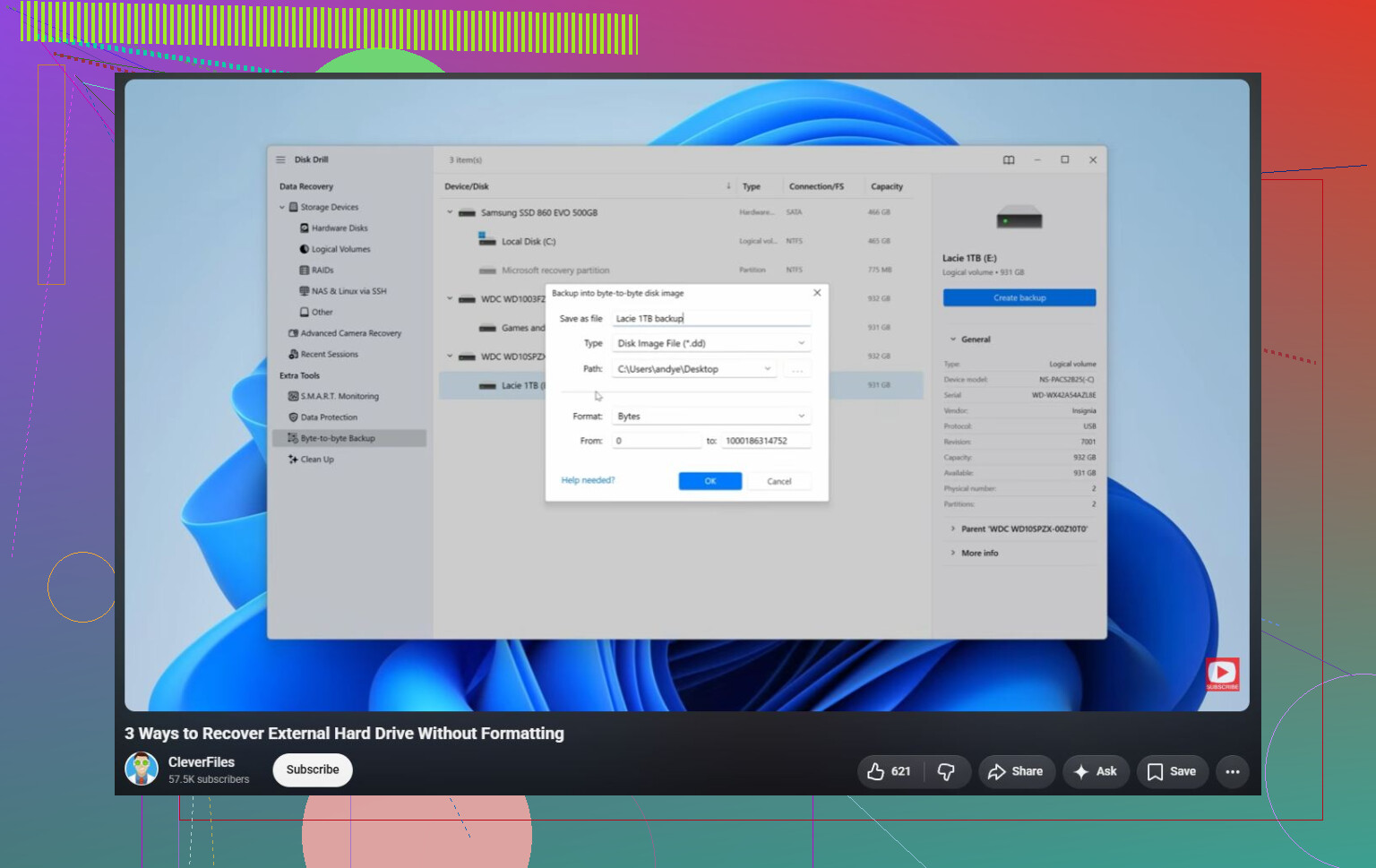
If Disk Management shows the SSD at the correct size, your odds are much better than if it shows 0 bytes, “No Media,” or keeps vanishing. In the first case, I’d follow @himmelsjager’s image-first approach and then scan the image with whatever tool you’re comfortable with, Disk Drill included if you want the easier interface. In the second case, don’t waste hours swapping recovery programs, because they all need the device to return readable sectors. Try a different cable/enclosure/USB port once, preferably direct to the PC, but if the size is wrong or it drops offline under light access, treat it like a device problem rather than an exFAT problem. Also, don’t run CHKDSK just because Windows suggests it. On a damaged exFAT volume it can “fix” the file system in a way that makes recovery messier.
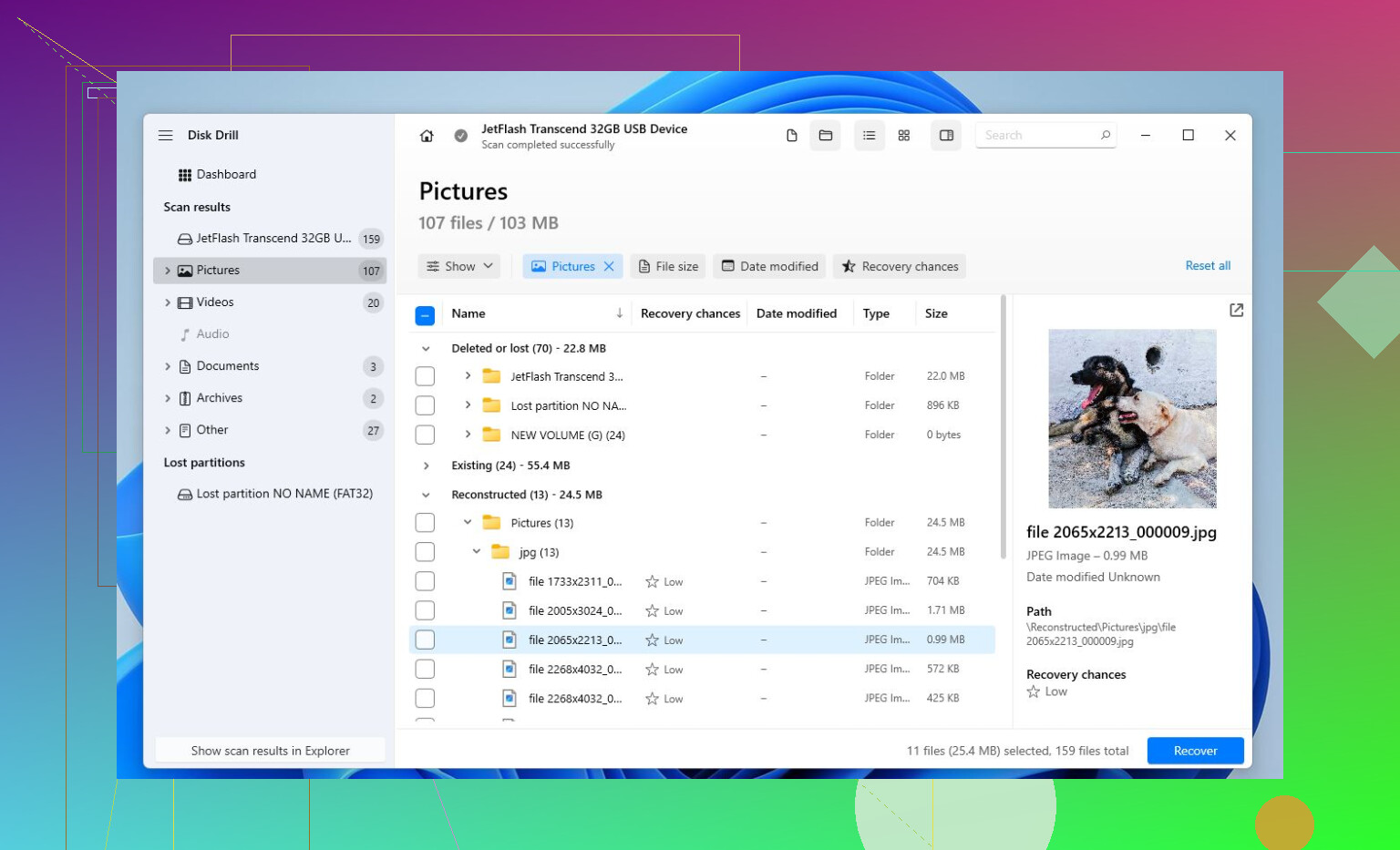
Whether this is a bare SSD in a USB enclosure or a sealed portable SSD matters. A flaky USB bridge can make exFAT look ruined, so I’d try one known-good cable/enclosure once, then stop experimenting and image it if it reads steadily. If it still asks to format, scan the image with Disk Drill, DMDE, etc., and recover to a different drive.