My hidden photos seem to have disappeared without me deleting them. I checked the Hidden album and Recently Deleted, but I can’t find them anywhere. Has anyone had hidden photos deleted on their own after an iPhone update, iCloud sync issue, or Photos app glitch? I’m trying to figure out if there’s a way to recover them.
The Hidden album on an iPhone is a little weird because it is not really a separate folder. It is more like a hidden view of photos that are still part of your normal library. That is why a lot of the “missing photos” or “why didn’t my storage change?” issues have pretty simple causes.
If you cannot see the Hidden album
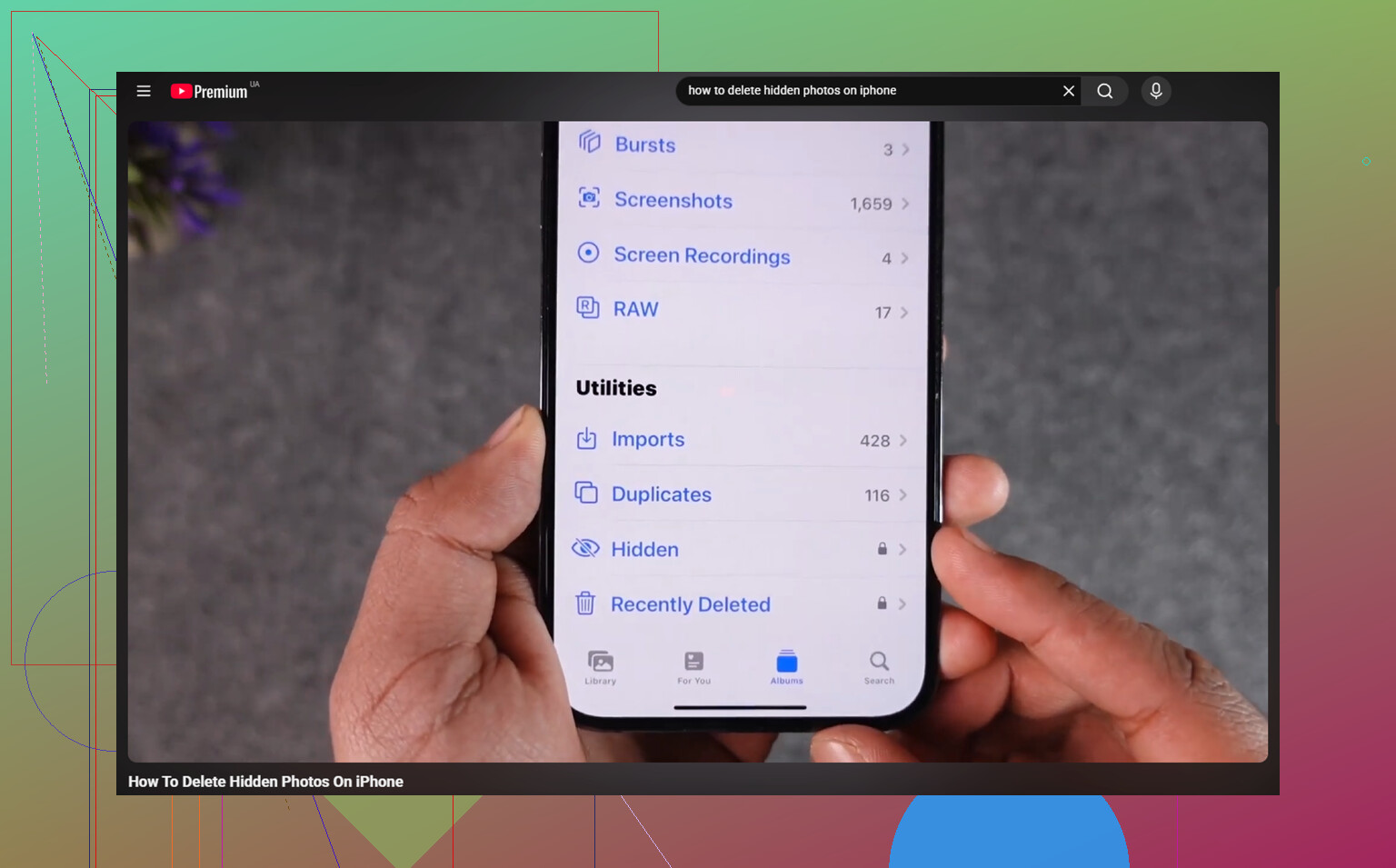
Check the setting before assuming anything was deleted. Go to Settings - Photos and make sure Show Hidden Album is turned on. Sometimes an iOS update or settings change can make that toggle switch off, which removes the Hidden album from the Photos app view. The photos are still there. The album just will not show up until you turn it back on.
After that, open Photos, go to Albums, and scroll down to Utilities. Hidden should be near the bottom.
If Hidden opens but looks empty
First place to check is Recently Deleted. If the photos are there, you can recover them from there.
If Recently Deleted is empty but your iCloud storage still looks like it is using the same amount of space, it may just be the Photos app not indexing the library correctly. In that case, turning iCloud Photos off and back on in Settings can force the library to refresh and re-index. That often fixes the “empty album but storage is still used” situation.
Deleting hidden photos
Opening Hidden should ask for Face ID, Touch ID, or your passcode. If that prompt is not showing up properly, restart the phone first. A hard restart usually clears that kind of glitch.
Once you are inside the Hidden album:
- Tap Select in the top right
- Use Select All, or choose the photos one by one
- Tap the trash icon
One thing people miss: deleting them there does not free the space right away. They go to Recently Deleted and sit there for 30 days, and they still count against storage during that time. If you want them gone now, go to Recently Deleted, tap Select, then Delete All.
iCloud deletion works everywhere
If iCloud Photos is on, deleting hidden photos on your iPhone also deletes them from your iPad, Mac, and any other device using the same iCloud Photos library. Hidden is not a private storage area. It is just part of the same photo library with a filter on it.
The Hidden album is usually only part of the mess
If you have a huge Hidden album, there is a good chance the rest of the library has the same problem. Usually it is not just hidden screenshots. It is repeat shots, old screen recordings, big videos, duplicate-looking photos, and random stuff that built up over time.
That can matter for performance too. When iPhone storage gets close to full, the system has less room for background work, and the phone can start feeling slower.
Cleaning the main photo library
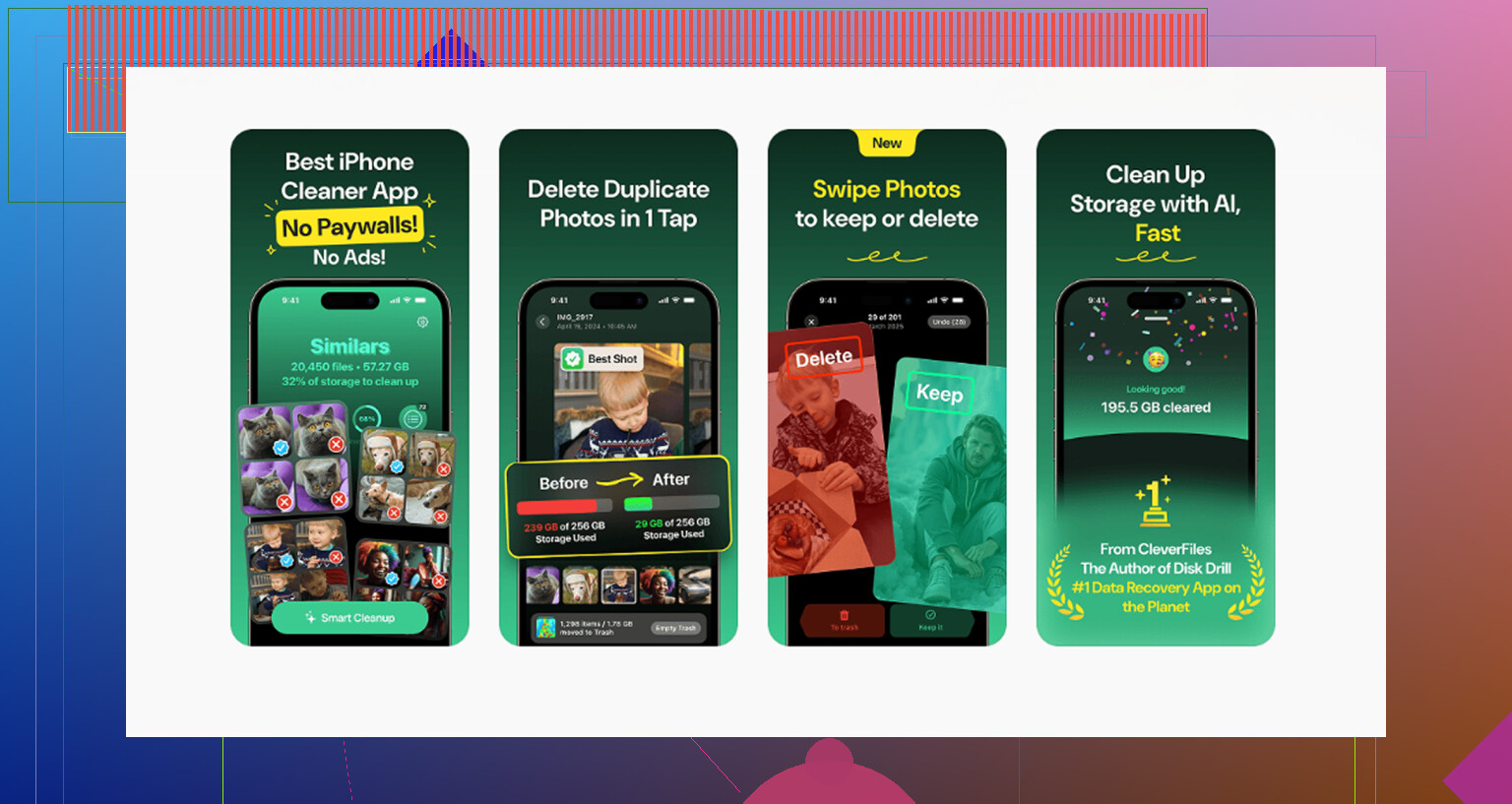
Clever Cleaner cannot clean the Hidden album because Apple blocks third-party apps from accessing it. So that part has to be done manually with the steps above. For the normal photo library, though, it is free, with no ads and no subscription.
The Similars tab groups photos that look almost the same and suggests a Best Shot from each set. That helps with burst photos, repeated vacation shots, and all the “same picture but slightly different” stuff without making you inspect every single image one at a time.
The Heavies tab sorts files by size, largest first, and shows exact file sizes. Big 4K videos and screen recordings usually show up right at the top.
It also shows file sizes on screenshots before you delete them, which makes it easier to see what is actually worth removing.
Everything is processed on the iPhone itself, with nothing uploaded to an outside server.
Best order is: clear the Hidden album manually, then run Clever Cleaner on the main library. After both, empty Recently Deleted. Otherwise your storage will not really drop yet.
15 Likes
They usually don’t delete themselves.
If iCloud Photos is on, I’d check iCloud.com and any old iPad/Mac still signed in, because a delete or cleanup from another device can look like the iPhone update caused it. If they’re missing there too and not in Recently Deleted, it’s probably a sync-side deletion rather than the Hidden album breaking.
If they are gone from iCloud.com and Recently Deleted, there may not be a hidden “restore from Hidden album” trick left to find. Hidden is only a flag on the photo, so if that flag got removed or the view is bugged, the pictures might show up back in the regular library instead of in Hidden.
Before doing anything drastic, I’d search the main Photos library by date, place, person, screenshot, video, or whatever you remember about the missing items. Check Library, not just Albums. Sometimes people look in Hidden, see nothing, and assume deletion, but the photos are sitting in the normal timeline again under the original date they were taken.
I’d be a little careful with the “turn iCloud Photos off and on” idea unless you know what is stored locally and what is only in iCloud. It can be fine, but if your phone is low on space or the sync is already confused, it can make the situation more annoying. I’d first check iCloud.com from a browser, then any other device signed into the same Apple ID, then the regular library search. If none of those show them, it points more toward an actual delete/sync event than the Hidden album itself deleting things.
A hidden-album display glitch and a real iCloud deletion look similar on the phone, but they behave very differently once you check from outside the Photos app. If the pictures still exist somewhere, they usually show up by date in the main library, on iCloud.com, or on another device. If every signed-in device agrees they are gone and Recently Deleted is empty, I would stop treating it like a Hidden album problem.
The caveat I don’t see mentioned much is backups. If these photos mattered, don’t start toggling sync settings, restoring the phone, or doing cleanup yet. Check whether you have an old iPhone backup from before this happened. A normal iCloud backup probably will not help if iCloud Photos was enabled, because the photos are not stored inside that backup the same way. But an encrypted Finder/iTunes backup on a computer, or an older device that has not connected to Wi-Fi in a while, might be worth looking at before it gets a chance to sync the deletion.
I agree with the point that Hidden is just a flag, not a vault. That also means an iOS update should not normally be able to “delete the Hidden album” as a separate container. More likely explanations are: the items were unhidden and are back in the regular timeline, deleted from another device, removed during a cleanup, or the library/database view is lagging. Less common, but possible, is that you were looking at a different Apple ID, shared library, or transferred library after the update.
A fast check I’d do is search Photos for something boring and specific from one missing item, like the month/year, a location, “screenshot,” “receipt,” or a person if face recognition had tagged them. Then check the same on iCloud.com. If there is no trace in either place, I would focus on recovery options rather than trying to make Hidden refresh. At that point the update may just be the thing you noticed around the same time, not the thing that caused it.
And if you use any cleaner app, including Clever Cleaner or anything similar, keep in mind it should not be able to reach the Hidden album directly. So if hidden photos vanished, I would not immediately blame a cleaner app unless the photos had been unhidden first or were duplicates in the regular library. The boring answer is probably sync history, but unfortunately boring does not mean easy to reverse.
Set your expectations low on this one. If the photos are already gone from iCloud.com and Recently Deleted on every device, the odds of a clean recovery are not great. I’m not saying give up, but the earlier replies chasing a ‘Hidden album refresh’ are more likely to burn time than fix anything.
The thing nobody’s stressed yet is the clock. Recently Deleted holds items for 30 days, and that timer starts when the photo was actually deleted, not when you noticed. So if this really was a sync deletion from an old iPad two or three weeks ago, you might have days left, not a full month. That changes the priority. Before you poke at settings, check every signed-in device and iCloud.com right now, because whatever is still sitting in Recently Deleted is the only easy win here.
@viajeroceleste is right about the backup caveat, and that’s the part I’d act on fast. A regular iCloud backup won’t hold the photos separately if iCloud Photos was on, but an old encrypted Finder backup or a device that’s been offline can. The catch is that the second an offline device reconnects to Wi-Fi, it syncs the deletion too. So if you have an old phone or iPad in a drawer, keep it off the network until you’ve pulled anything off it.
I’d also skip the ‘turn iCloud Photos off and on’ step for now, same as @sternenwanderer said. On a phone that’s low on space or mid-sync, that can trigger a re-download or worse, and it does nothing to bring back something that’s genuinely deleted. It’s a fix for a display glitch, not a recovery tool.
One edge case worth ruling out: if you ever joined or left an iCloud Shared Photo Library, photos can move between ‘your’ library and the shared one, and some end up looking missing when they’re really just under a different owner. Check whether that’s set up under Settings, Photos.
On the cleaner tool that came up earlier, it’s fine for what it does, but it’s irrelevant to your actual problem. It can’t touch Hidden and it can’t restore anything. Save it for later when you’re just trimming duplicates and big videos out of the normal library. Right now your only job is finding where those files still exist before the window closes.