My drive suddenly changed from NTFS to RAW after a restart, and now I can’t open any of my files. Disk Management shows the partition as RAW, but it still has important documents and photos on it. I need help figuring out the safest way to convert a RAW drive to NTFS without data loss or making the problem worse.
Posting this because I hit the same mess a few days ago, and I don’t want someone else panic-clicking their way into losing a drive.
My disk flipped to RAW out of nowhere. Windows kept pushing the format prompt, and yeah, I backed off fast because my files were still on it. I went looking for a way to deal with a RAW drive and get it back to NTFS without wiping everything, and the first half hour was a blur of bad advice and vague tutorials.
This thread helped me sort out what was going on:
https://discussion.7datarecovery.com/forum/topic/how-to-convert-raw-to-ntfs-without-losing-data/
The main thing I missed at first, formatting is not some harmless repair step. If you do it right away, you’re making recovery harder. From what I read, the files are often still sitting there, but the file system is damaged badly enough Windows stops reading it properly.
So my takeaway was simple. Recover the files first. Don’t write new data to the drive. Don’t keep retrying random fixes from YouTube comments. Get the data off if you still can, then deal with converting or reformatting the disk after.
I’m still working through it myself, espeically the recovery-first part, but at least I’m not blindly pressing buttons now.
If you’ve had a RAW drive and got it back without losing your stuff, post what you did. I’d like to hear what worked in real use, not theory.
8 Likes
Do not try to convert it first. Recover first.
I agree with @mikeappsreviewer on one part, ignore the format prompt. I disagree a bit on one thing though, you do not need to sit frozen and avoid every step. You need a clean order.
- Stop using the RAW drive.
- Check SMART health with CrystalDiskInfo or Disk Drill.
- If health is bad, clone the drive first.
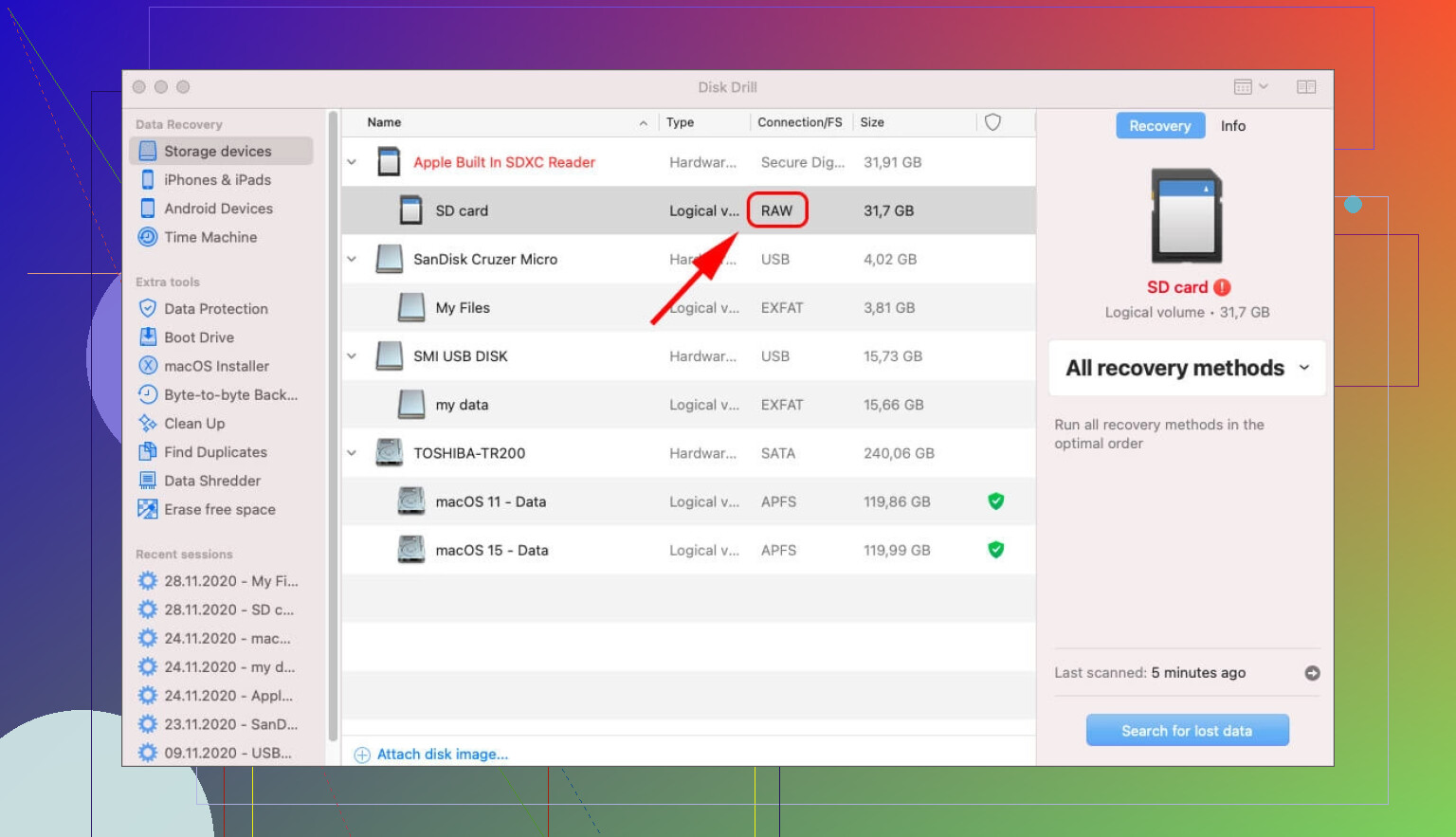
- Recover files from the clone or from the RAW partition with Disk Drill.
- After your files are safe, delete the RAW volume and format it back to NTFS.
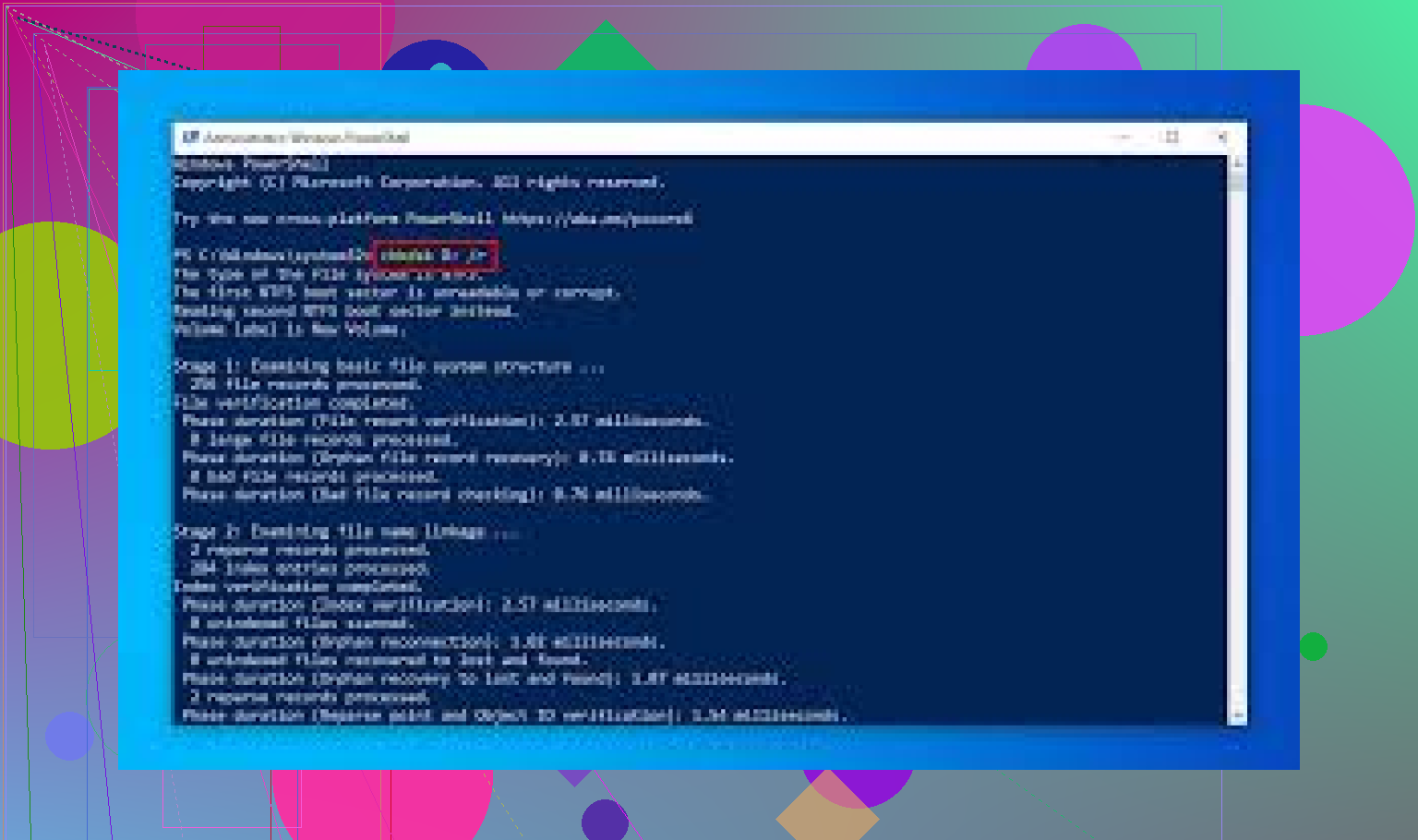
There is no safe “RAW to NTFS” switch in Windows for a damaged file system. CHKDSK usually says RAW drives are not supported, so don’t waste time there. TestDisk sometimes restores the partition structure, but I would not use it first if your docs and photos matter. One wrong write and stuff gets uglier fast.
Disk Drill is solid for RAW recovery because it reads the disk by signatures and filesystem records when Windows stops mounting it. If the drive is healthy, recovery rates are often decent for photos, PDFs, Office files, and common folders. If SMART shows reallocated sectors, pending sectors, or read errors, clone ASAP. ddrescue is better for failing drives, no question.
After recovery, format in Disk Management or run:
format X: /fs:ntfs
If you want a simple explainer on NTFS and how it works on Windows drives, this helps:
how the NTFS file system stores and protects your data
Short version, you do not convert a broken RAW disk into NTFS without risk. You pull data off first, then reformat. Thats the safe path.
You’re not really “converting” RAW back to NTFS in-place in a safe way. That’s the part a lot of guides blur together. @mikeappsreviewer is right about not formatting first, and @caminantenocturno is right about keeping the order clean, but I’d push one extra check before doing anything fancy: verify whether this is a file system issue or a connection issue.
I’ve seen external drives show up as RAW just because of:
- bad USB cable
- flaky enclosure
- weird power issue after reboot
- outdated storage controller driver
So before recovery software, try the non-destructive stuff:
- unplug and reconnect
- different USB port
- different cable
- if external, try another PC
- check Event Viewer for disk errors
- see if the correct size and partition layout still appear in Disk Management
If it suddenly reads normally on another machine, don’t “repair” it yet. Just copy everything off ASAP.
If it stays RAW, then yes, recovery-first is the move. Personally I would avoid writing tools that attempt automatic fixes unless the data is already backed up. Read-only scanning is safer. Disk Drill is fine for this kind of RAW partition recovery, especially if the drive still spins up and reports the right capacity. If the scan finds your folder structure, that’s a decent sign the damage is logical, not total disaster-level.
One thing I slightly disagree on with the usual advice: TestDisk is not always too risky if you know exaclty what you’re doing and the issue is just a damaged boot sector or partition table. But if you’re asking the question here, that probably means this is not the time to experiment on the original disk. That’s how people turn “RAW but recoverable” into “cool, now it’s worse.”
After the files are copied elsewhere, then wipe/recreate/format NTFS.
Also, if you want a visual walkthrough instead of ten conflicting blog posts, this step by step guide to recover a RAW drive and format it back to NTFS is easier to follow than most.
One small disagreement with @caminantenocturno and @sonhadordobosque: before assuming corruption, I’d also check whether the partition lost its drive letter or volume GUID after the reboot. I’ve seen Windows label a volume oddly while the underlying partition was still mostly intact.
Quick checks I’d add:
diskpartlist volumelist diskselect disk ndetail disk
If the partition size looks right, that matters. If the capacity is suddenly wrong, think hardware or enclosure first.
Also, skip any “convert RAW to NTFS” tool. That wording is marketing fluff in most cases. @mikeappsreviewer is right that recovery comes before repair, but I would separate two scenarios:
-
Drive health fine, partition present, only file system unreadable
Try a read-only scan with Disk Drill and preview files before saving anything. -
Capacity wrong, disconnects, clicks, SMART warnings, painfully slow reads
Stop software experiments and image it first, or send it out if the data is truly irreplaceable.
Disk Drill pros:
- easy preview
- good at RAW scans
- decent folder reconstruction
Cons:
- deep scans can be slow
- recovered filenames may be generic if metadata is damaged
- not magic on failing hardware
After recovery, recreate the partition and format NTFS. If this is an external HDD, I’d also replace the cable/enclosure before trusting it again.