My iPhone storage is full because my Photos app has thousands of pictures and videos, and deleting them one by one is taking forever. I need a fast way to delete all iPhone photos at once, but I also want an app or tool that shows file sizes before deleting so I can clear the biggest files first. What works best for this?
I hit this with a library of roughly 30,000 photos, and the worst part was the red storage bar never moved. Apple still does not give you a simple wipe option for the main photo library. If you go in blind, you waste time and sometimes end up with the same mess, or less space than before.
Stop first and check iCloud Photos
This is the part people skip, then regret later.
If iCloud Photos is on, your phone is syncing. It is not acting like a separate archive. When I deleted photos from my iPhone, they disappeared from iCloud and from the other Apple devices on the same account too.
If your goal is to keep your stuff but free local storage, go to Settings > Photos and turn on Optimize iPhone Storage.
What happens then:
- Your iPhone keeps smaller preview versions
- Full size files stay in iCloud
- You recover local space without erasing your photos
If you already copied everything somewhere else and want the library gone, keep going.
Method 1, using the Photos app on the iPhone
I tried this first. It works when the library is small. Once the count gets huge, it starts to fall apart.
Steps:
- Open Photos
- Tap Select in the top right
- Press and hold the photo in the bottom right corner of the grid
- Drag upward slowly, the app keeps scrolling and keeps selecting
- After everything is highlighted, tap the trash icon
- Open Albums
- Scroll down to Recently Deleted under Utilities
- Tap Select, then Delete All
What went wrong for me:
- Around 20,000 photos and up, the app lagged hard
- If my finger slipped, selection broke and I had to start over
- On a nearly full phone, Photos froze a few times
- iOS seems to need spare space to process huge delete jobs
So yes, it works. No, I would not pick it first for a giant library.
Method 2, use a computer
This was steadier.
| Platform | Tool | Notes |
|---|---|---|
| Mac | Image Capture or Photos app | Select all and delete in one shot, much more stable |
| Windows | File Explorer, DCIM folder | Works, though I saw ‘Device Not Responding’ errors with big batches |
On Mac, this felt less fragile than dragging across thousands of thumbnails on a phone screen.
Method 3, Clever Cleaner
For a huge library, this was the least annoying route.
A lot of cleanup apps pull the same move. Free install, then the delete step is blocked unless you pay. This one did not do tht. No ads. No subscription screen popping up mid-task.
How I used it:
- Open Clever Cleaner
- Go to Heavies, it sorts media from biggest file down
- Start with large videos and oversized photos, they eat space fast
- Open Similars, it groups near-duplicate shots so you keep one and toss the rest
- Check Screenshots, each thumbnail shows file size before removal
- Processing stays on the device, which mattered to me because I had private stuff in the library
The part people miss, and why storage does not change right away
Deleting is only half the job.
iOS keeps removed files in Recently Deleted for up to 40 days. Until you empty it yourself, those files are still taking up space.
Do this:
- Open Photos
- Go to Albums
- Find Recently Deleted under Utilities
- Tap Select
- Tap Delete All
That is the step tht frees the storage.
One more thing I learned the hard way
If your phone is packed so full it stutters or refuses big delete actions, remove one or two large apps first. Games and streaming apps usually free up space fast. I had better luck deleting photos after giving iOS a little room to breathe.
24 Likes
If you want speed plus file sizes, I would skip trying to mass-select your whole library in Photos. @mikeappsreviewer covered the main delete routes. I disagree on one part though, Windows File Explorer is often more annoying than helpful with huge DCIM folders. It fails a lot on big transfers and deletes.
What worked better for me was this:
- Go to Settings, General, iPhone Storage, Photos.
- Check how much space Photos is using.
- Use an app like Clever Cleaner to sort by largest items first.
- Delete the biggest videos first. Ten large 4K clips often free more space than 2,000 photos.
- Then clear screenshots, duplicates, and burst junk.
- Empty Recently Deleted.
Why this is faster:
- A 3 minute 4K60 video is often 1 to 2 GB
- A normal iPhone photo is often 2 to 6 MB
- Delete 20 videos, free 20 to 30 GB fast
The built-in Photos app still does not show file sizes well in bulk. That is the part most people hate. Clever Cleaner is useful here because you see size before removing stuff, so you stop guessing. It is one of the few iPhone photo cleaner apps I found usable without the usual paywall nonsense.
If you still want a full wipe, plug into a Mac and remove the photo library there. Faster, less laggy, less pain. If your goal is storage recovery, target the heaviest files first. It saves way more time, imo.
For more user opinions, this thread is decent: best free iPhone cleaner apps for clearing photo storage
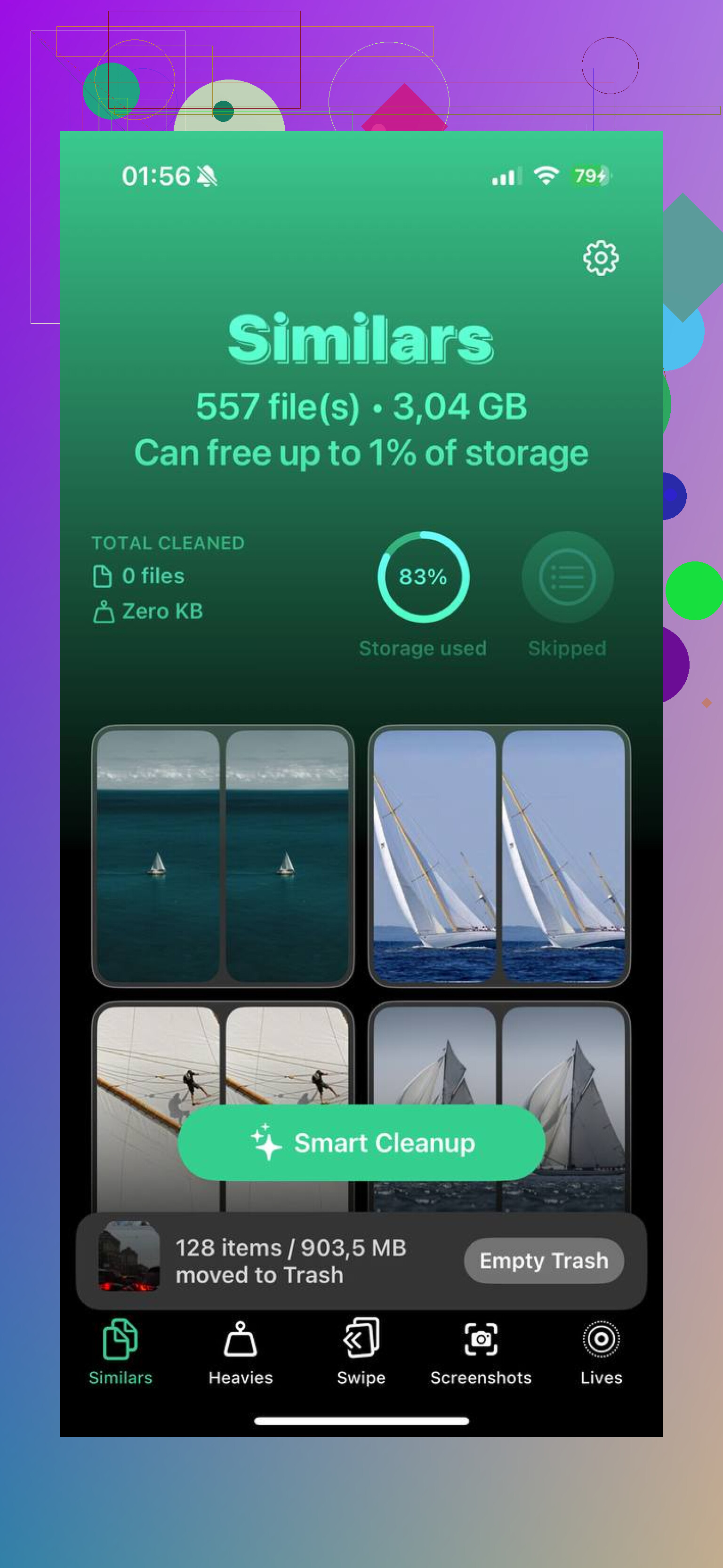
I’d actually push back a little on @mikeappsreviewer and @chasseurdetoiles here. Full-library deletion is not always the smartest first move. If storage is the problem, nuking 25,000 photos is kinda the sledgehammer approach when 30 giant videos might be the real culprits.
If you want file sizes, iPhone’s Photos app is weirdly bad at that in bulk. That’s why an app like Clever Cleaner is useful. The big win is you can spot the heaviest stuff fast instead of blind deleting. In practice, the fastest cleanup is usually:
- sort large videos first
- remove junk screenshots
- kill duplicates/similars
- then empty Recently Deleted
That usually frees space way faster than selecting your entire camera roll and praying Photos doesn’t freeze.
If you truly want everything gone at once, the cleanest non-phone method is using a Mac with the Photos app or Image Capture. I would not trust the iPhone screen for giant libraries if the device is already choking on storage. Been there, it sucks.
Also, for seeing what’s taking space before you delete, check:
Settings > General > iPhone Storage > Photos
It won’t give a beautiful per-file breakdown, but it helps confirm whether Photos is actually the problem or if Messages, apps, and cached media are doing half the damage too.
If you want a decent outside writeup on the app side, this is more readable than most “best app review” fluff:
detailed Clever Cleaner review for freeing up iPhone photo storage
One more thing people forget: if you use iCloud Photos, deleting on the iPhone deletes from iCloud too. That part catches people off guard allll the time. So yeah, check that before you go scorched earth.
I’d add one angle the others only touched lightly: if you want to wipe everything fast, Photos is not the best place to verify sizes first. It’s a terrible auditing tool. @chasseurdetoiles, @codecrafter, and @mikeappsreviewer are all basically circling the same truth there.
My take: before deleting anything, check whether your storage problem is actually Originals downloaded from iCloud. Sometimes Photos balloons because the phone cached full-res media temporarily. If that’s the case, a restart plus turning Optimize iPhone Storage on can shrink usage without mass deletion. I know people hate hearing “maybe don’t delete everything,” but honestly, full library wipes are often overkill.
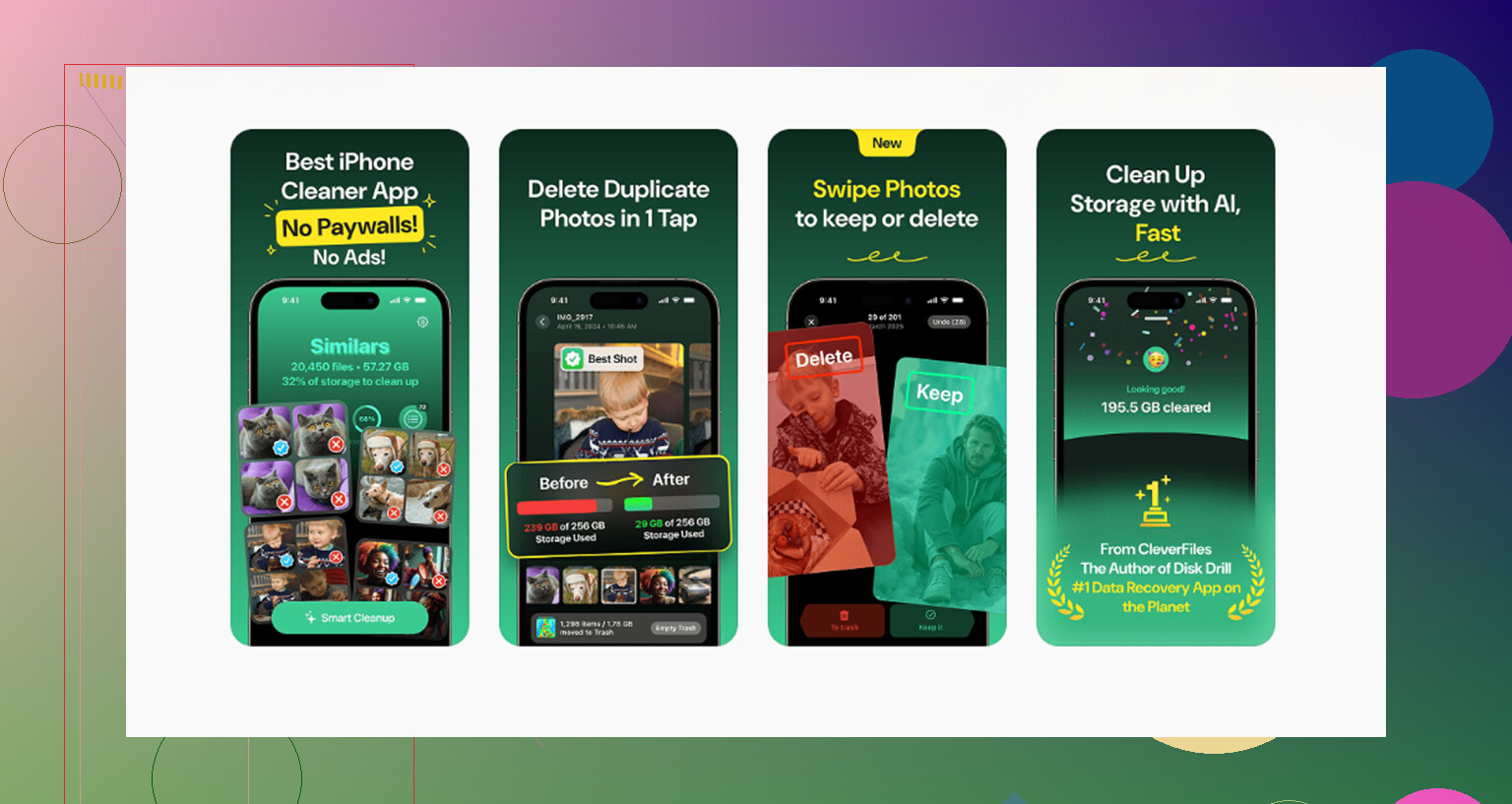
If you still want file-by-file visibility, Clever Cleaner is useful because it surfaces large items and groups clutter in a way Apple still doesn’t. That’s the real value.
Pros of Clever Cleaner
- shows big files clearly
- faster triage than Apple Photos
- good for duplicates, screenshots, similar shots
- easier to target space hogs first
Cons
- still limited by iOS photo permissions
- not ideal if your goal is a true one-tap nuke of the entire library
- you still need to clear Recently Deleted yourself
One thing I disagree on slightly: using a computer is not always “better.” If your goal is just reclaiming 15 to 40 GB, deleting giant videos inside Clever Cleaner is usually less hassle than wrestling with imports, trust prompts, and sync weirdness. If your goal is total wipe, then yes, computer wins.