I’m trying to embed a Google Map into a specific page on my WordPress site, but I’m confused about the best method to use. I’m not sure if I should rely on a plugin, use the map embed code directly, or configure the Google Maps API. I’d like the map to be responsive and not slow down my site. Can someone walk me through the easiest, SEO-friendly way to do this and any common issues to watch out for?
Easiest path first, then the nerdier stuff.
- Simple embed without plugin
This works well if you only need a few maps.
Step by step:
- Go to Google Maps in your browser.
- Search your address or place.
- Click the “Share” button.
- Go to the “Embed a map” tab.
- Pick the size.
- Copy the iframe code.
Then in WordPress:
• If you use the Block Editor (Gutenberg):
- Edit the page.
- Add a “Custom HTML” block.
- Paste the iframe code.
- Update the page.
• If you use Classic Editor:
- Edit the page.
- Switch to the “Text” tab, not “Visual”.
- Paste the iframe where you want the map.
- Update the page.
Pros:
- Fast.
- No plugin bloat.
Cons: - No fancy styling or extra controls.
- Harder to manage many maps.
- Use a generator tool
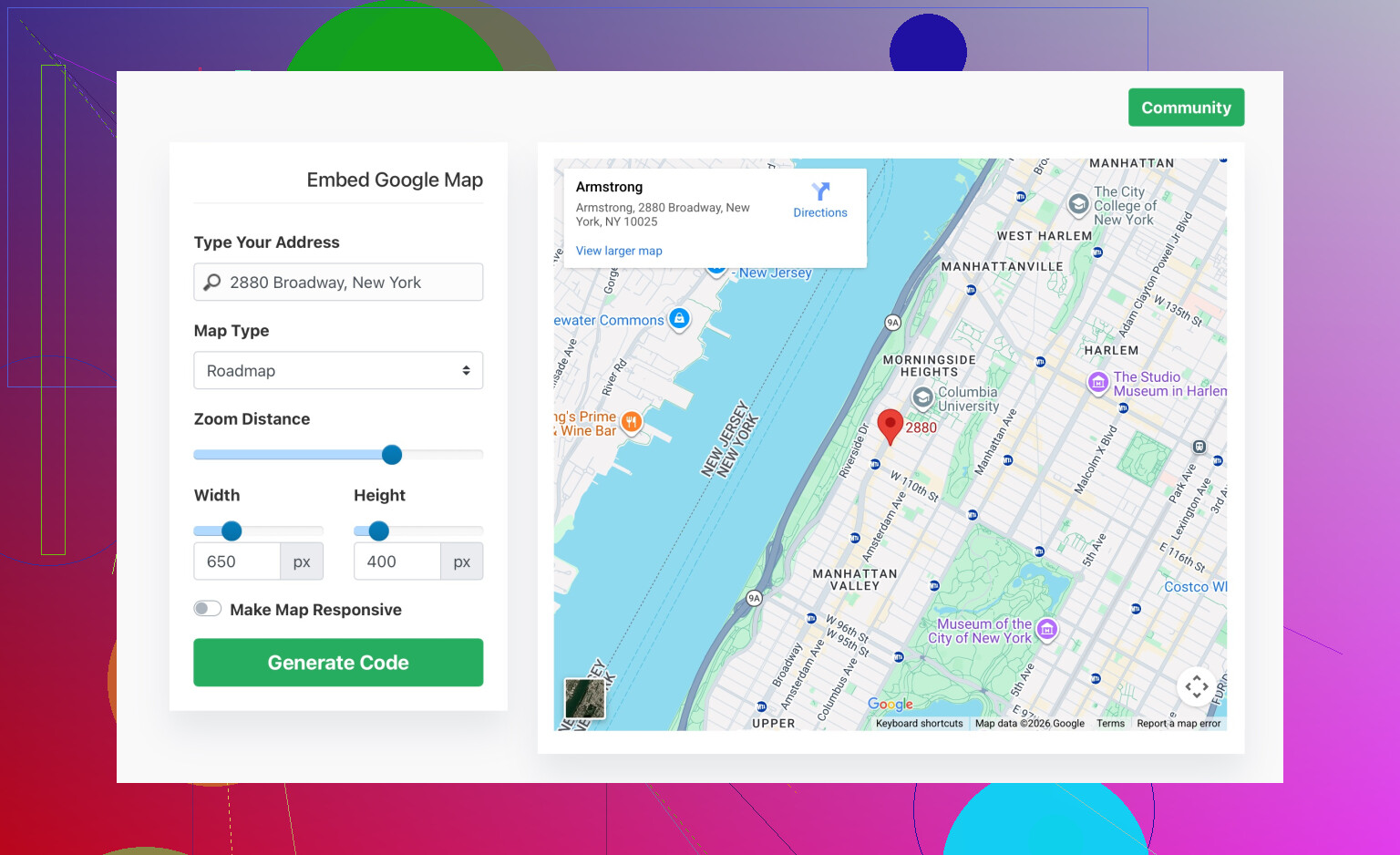
If you want more control over size, zoom, color, etc without coding, a generator helps.
Example:
Create custom Google Map embed code in seconds
You:
- Enter the address.
- Adjust width, height, zoom.
- Grab the iframe.
- Embed it in a Custom HTML block like above.
This avoids messing with the Google Cloud console or API keys for a simple iframe map.
- Plugin approach
Useful if:
- You need multiple maps.
- You want markers, categories, store locators.
- Clients edit maps themself.
Popular options:
- WP Google Maps
- MapPress Maps
- Advanced Google Maps plugins for more features
Typical workflow:
- Install plugin from “Plugins → Add New”.
- Configure API key if required.
- Create a map in the plugin.
- Insert it into your page with block or shortcode.
Pros:
- Easier for non technical editors.
- Extra features like clustering and custom icons.
Cons: - Extra load time.
- Risk of conflicts if plugin is heavy or outdated.
- API / advanced setup
If you want full control, or lots of traffic, use the Maps JavaScript API. That needs:
- Google Cloud project.
- Enable Maps JavaScript API.
- Create an API key.
- Restrict the key to your domain.
- Add custom script to a template or custom plugin.
Overkill for a simple contact page map. Useful for complex stuff like search filters or dynamic markers.
What I would do:
- One or two simple maps, use direct iframe or the generator link above.
- Many maps or interactive features, go plugin.
- Heavy custom logic, go API.
For your case, start with method 1 or 2. If performance or features become an issue later, then consider a plugin.
5 Likes
If you just need “a map on a page” and not a full mapping system, you’re closer to done than you think.
@voyageurdubois already covered the obvious paths (iframe, generators, plugins, API), so I’ll skip re-listing the same steps and focus on choosing which route actually makes sense for you and a couple of gotchas they didn’t dwell on.
1. Decide first: static contact map or “map feature”?
Ask yourself:
- Is this literally a single contact/location page?
- Do you just want visitors to see where you are and maybe click “Directions”?
- Will you rarely change it?
If yes to all three, then:
- A simple iframe embed is not only enough, it’s usually the best method.
- A plugin here is extra code, extra updates, extra risk, for zero real benefit.
I slightly disagree with relying on plugins for “maybe I’ll add more maps later.” You can add ten iframes later just fine. The “many maps = must use plugin” thing only really holds if:
- You want filters or categories
- You want a store locator type thing
- Non‑technical editors need to manage data inside the map
Otherwise, ten iframes are easier than one complex plugin that can break with a WP or PHP update.
2. Where people screw up simple embeds
Since you mentioned being confused, here are the parts people usually trip over that are not obvious from the normal how-to:
a. Page builder vs Gutenberg vs Classic
- If you use Elementor, Divi, etc, skip the WP editor advice and just:
- Drop in an “HTML” or “Code” widget from your builder
- Paste the iframe there
- If you paste the iframe into a “Paragraph” block, WP will often mangle or strip it. It needs to go in a dedicated HTML block/widget.
b. Mobile width issues
The default iframe code from Google often has a fixed width like width='600'. That can look terrible on phones. Change:
width='600'
to:
width='100%'
and control the actual size with the containing block/column. That alone fixes half the “it looks weird on mobile” complaints.
c. Height control
You can safely tweak the height to something like 300 or 400 pixels. That is usually better than default if your page is text heavy.
3. When not to use an iframe
There are cases where an iframe is a bad idea:
- You want to load markers from your own database dynamically
- You want to control styles deeply, like custom map themes tied to your site’s dark mode
- You care a lot about performance metrics and want to lazy load maps only when visible
In those situations, you either:
- Use a solid, maintained map plugin that supports lazy loading, markers, styling
- Or go full Maps JavaScript API and build it out yourself
If you are not willing to open the Google Cloud console, create an API key, and handle caching and rate limits, skip the full API. It’s powerful but absolutely overkill for a “where we are” map.
4. A more flexible “no‑plugin” option
If you want a middle ground between raw Google embed and a full plugin, a code generator can be useful, but I’d use one that lets you tweak zoom, size, and appearance visually so you are not hand-editing numbers in the iframe.
For that type of thing, check out
custom Google Map embed builder for your website
It’s handy if:
- You want to quickly experiment with sizes and zoom
- You do not want to touch the Google Cloud console
- You still want to stay on the “just iframe” side of things
I actually prefer this for clients who freak out when they see the Maps interface but are fine pasting a single snippet.
5. Performance & privacy stuff nobody mentions
Couple of “boring but important” points:
-
Performance
Every embedded Google Map loads external scripts behind the scenes. One map is fine. Ten maps on one page can slow things down.
A plugin with lazy load features is better only when you have multiple maps on the same page or a big locator. -
Cookies / GDPR
In some regions you technically should not load Google Maps until the user agrees to external services / cookies.
For that you usually:- Use a plugin that supports “click to load map”
- Or wrap the map in a consent solution that only inserts the iframe after a user accepts
If this legal / compliance stuff matters to you or your org, simple raw iframes everywhere might not be ideal.
6. Concrete recommendation for your case
Based on what you wrote:
-
If it’s one map on one page
- Use Google’s built-in “Share → Embed” iframe
- Paste it into a Custom HTML block or your page builder’s HTML widget
- Set
width='100%'so it works nicely on mobile - Call it done
-
If you think you’re turning this into a “Locations” feature with filters later
- Start with the iframe now anyway
- When you actually need filtering/search, then bring in a maps plugin and migrate
- Do not pre-optimize with a plugin for a future you might never build
So yeah, I’m siding more with “keep it simple until you know you need more,” slightly less plugin-happy than @voyageurdubois. Most people never regret a small iframe, but they do regret an abandoned map plugin that breaks after a year and nobody remembers how to configure.
Think of this in terms of “who will maintain this later?” rather than “which method is most powerful?”
@nachtschatten and @voyageurdubois covered the technical options fine (iframe, generators, plugins, API). I’ll zoom in on the decision-making and some edge cases they only hinted at.
1. Editor workflow first, method second
Ask who will touch this page in 6–12 months:
- If it’s just you and you are comfortable pasting snippets, the plain iframe is perfect.
- If non‑technical editors will be updating addresses, hours, or moving locations around, a map plugin with a UI starts to make sense.
This is where I slightly disagree with the “you can just add ten iframes later” argument. Technically true, but ten scattered iframes are a maintenance pain when staff changes and nobody remembers where each one lives. A central “Maps” area in the admin (what plugins give you) can be worth it in bigger teams.
2. Choose based on where the map will live
Different page types can push you one way or another:
-
Single contact page
- Use the Google Maps embed code once.
- Keep it inside a Custom HTML block or page builder HTML widget.
- Only switch to a plugin later if you add a Locations / Stores section.
-
Reusable map in multiple places
Example: same HQ map in footer, contact page, and an “About” page.- Either:
- Create a reusable block / template part that contains the iframe, or
- Use a lightweight map plugin that gives you a shortcode and reuse that.
- Reusable block is the “no-plugin” way to centralize updates.
- Either:
-
Many different locations on different pages
- Here a plugin wins purely on organization.
- You can still start with iframes, but you will eventually wish you had a central place to see and edit all locations.
3. Handling design & layout issues
Some practical things that bite people after the first happy embed:
A. Matching theme design
- Simple iframe: you are stuck with Google’s styling. You can only control frame size and border.
- Plugins or API: you can apply custom map styles so it looks like your brand instead of a generic Google panel.
If visual integration with your WordPress theme is important, that is one legitimate reason to skip raw iframe and use a plugin or custom API implementation, even for a single map.
B. Multiple maps on a long page
If you have a Locations or Stores page with many maps stacked:
- Multiple iframes can slow the page and hurt Core Web Vitals.
- A better approach is:
- One map with several markers, or
- A plugin that loads the map only when the user scrolls near it (lazy load).
Here, iframe-only setups start to feel clumsy. This is exactly the scenario where a map plugin or Maps JavaScript API solution becomes more than just “nice to have.”
4. Privacy and consent handling
If you care about GDPR or similar rules:
- Plain iframe will start loading Google content immediately when the page loads.
- Some plugins add a “click to load map” placeholder so no external calls happen until the user consents.
That is a big practical advantage of going beyond the basic embed if your site already uses a cookie/consent banner. @nachtschatten and @voyageurdubois hint at performance and API issues, but consent flows are just as important for some sites.
5. About using a dedicated “Google Map embed” product
There is a middle ground a lot of site owners like: a dedicated Google Map embed builder or addon that outputs a ready‑to‑paste code snippet.
Pros of using a focused Google Map embed helper instead of going straight to a heavy plugin:
- Often faster than browsing the Google Maps interface every time.
- Lets you visually tweak zoom, size and sometimes style without touching the Google Cloud console.
- Still ends up as a simple snippet in WordPress, so no plugin lock‑in.
- Easy to hand off to editors who can “configure in a form, paste into WordPress.”
Cons:
- You still have to manage the snippet locations inside WordPress manually.
- Usually less powerful than a full maps plugin with markers, categories, or store locator features.
- If you outgrow it and move to an API or plugin solution, you might need to replace those snippets one by one.
In terms of SEO readability, having a clean, descriptive “Google Map embed” block in your page is not a ranking silver bullet, but it does help users, improves on‑page UX signals, and is easier for editors to reason about than raw code.
Compared with what @nachtschatten and @voyageurdubois described, this approach mostly changes how you generate your iframe code, not how you integrate it. Think of it as an upgrade for the “simple embed” route, not a rival to full plugins.
6. When the Maps JavaScript API is actually worth it
Both previous replies are right that the Maps API is overkill for a simple contact map. I’ll add one exception:
- If you expect very high traffic and need to control caching, quotas, styling, clustering, and lazy loading all at once, the API route can actually be cleaner than stacking several WordPress plugins.
In that case:
- Treat the map as an app feature, not as “content.”
- Keep the map logic in a custom plugin or theme module, not mixed inside page content.
Most small and medium sites never need this. But if you are planning a robust store locator with search, filters, and analytics, jumping directly to API instead of going through several plugins can save time long term.
7. Quick recommendation matrix
To wrap it in practical terms:
-
One static location, simple contact page
- Use Google’s embed iframe.
- Wrap it in a Custom HTML block.
- Set width to 100 percent, adjust height manually.
-
Same map reused in multiple places, simple behavior
- Still use iframe, but put it in a reusable block or template part.
- Or use a light map plugin purely for reuse via shortcode.
-
Many different locations and you want a store locator feel
- Choose a maintained maps plugin with marker management, search, and lazy load.
- Accept the plugin overhead in exchange for better UX and maintainability.
-
High‑traffic, custom features, complex filters
- Go Maps JavaScript API in a custom integration.
- Treat it like application code, not like an embed.
Pick based on who edits the site and how complex the “map experience” needs to be, not just on what is technically possible.