Fixing corrupted video files can be quite the headache, but don’t give up just yet. If the usual online tools are letting you down, there are a few routes you might want to explore before giving up hope on those precious videos.
First off, a good starting point is trying VLC media player, which isn’t just a playback wizard. It can sometimes repair files automatically. Open VLC, and go to ‘Media’ > ‘Convert/Save’. Add the corrupted file, select ‘Convert/Save’ again, choose a profile, and set the destination file. It sometimes magically fixes things during conversion.
If VLC doesn’t do the trick, consider using tools designed specifically for video repair. There’s a tool called Stellar Repair for Video, which is popular and often mentioned. It’s not free, but it is quite comprehensive. You could also give Digital Video Repair a shot; it’s free but doesn’t always handle the newest formats well.
You mentioned online tools; I’d like to point out Clever Online Video Repair
if you missed that one. It’s a robust online tool for video repair, and the interface is simple. Just upload your corrupted file, and it tries to fix it for you. Make sure to check it out at Free Online Video Repair Tool.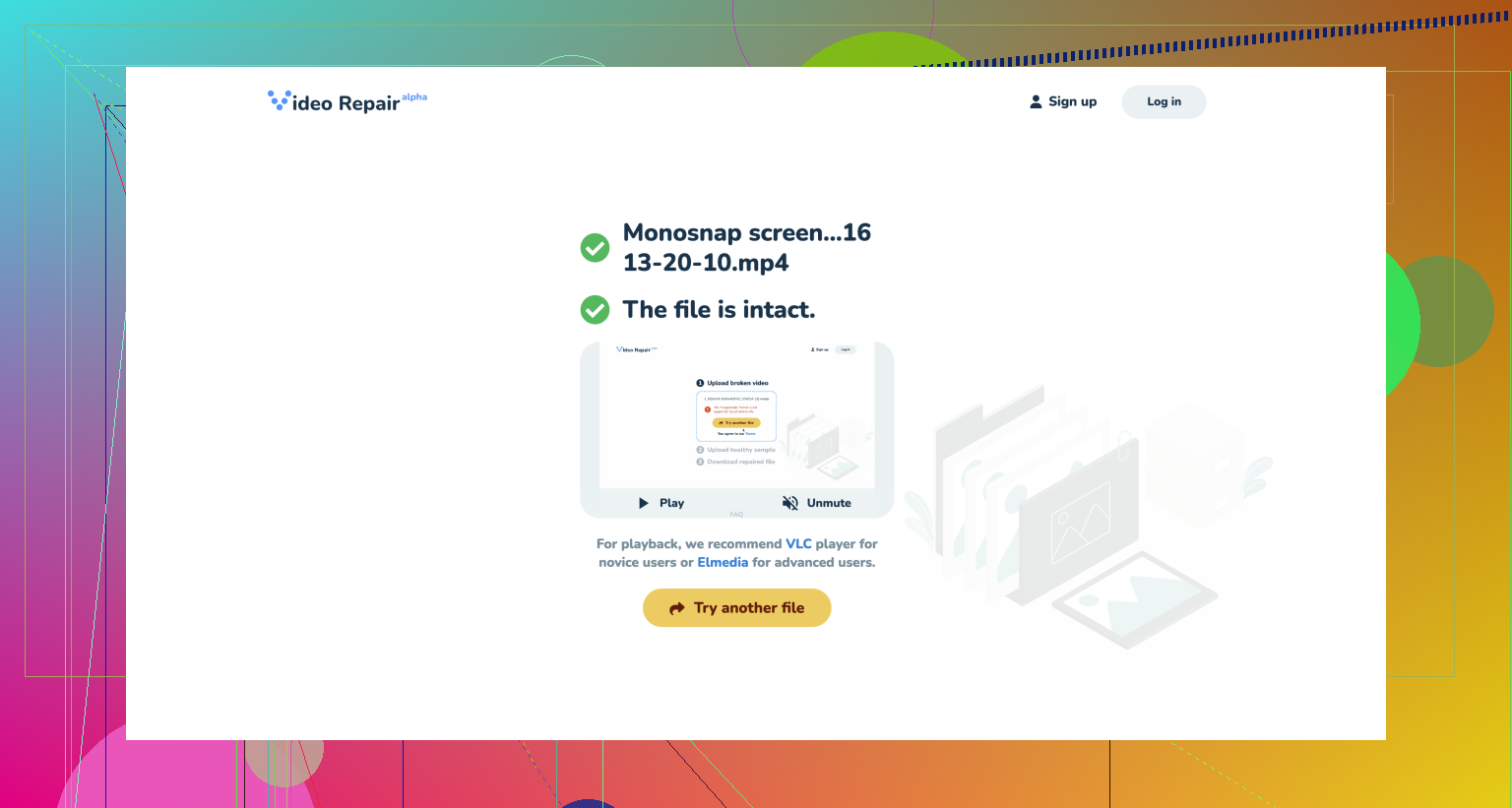
Another common recommendation is to use data recovery software like Disk Drill, which also has a feature to repair video files. Sometimes, it’s not actually the video file itself but the file system that got corrupted, so scanning your storage device might yield better results.
Lastly, a manual trick is to use a Hex Editor if you’re tech-savvy. You can try concatenating a working video file header onto your corrupted file. This is a bit advanced but worth a try if all else fails.
Corrupted video files are a real nuisance, but with a mix of these methods, you’ve got a good chance to get them back in working order. Keep experimenting with different tools, and hopefully, one of them will resolve the issue for you.