I keep running out of space on my iPhone, and it’s starting to affect basic things like taking photos, updating apps, and even installing iOS updates. I’ve already tried deleting a bunch of apps and photos, but my storage still fills up fast. Can anyone share specific tips, settings, or tricks to clear hidden storage, cache, or “other” data so I can actually get more usable space without constantly deleting important stuff?
Been there. iPhone storage full is torture. Here is what usually works for me, step by step, when deleting apps and photos is not enough.
-
Check what eats space
Settings → General → iPhone Storage.
Wait for it to load. Look at:
• System Data
• Photos
• Messages
• Big apps with “Documents & Data” that look huge. -
Fix Photos the smart way
• Turn on iCloud Photos if you are ok with cloud:
Settings → [your name] → iCloud → Photos → Sync this iPhone.
• Turn on “Optimize iPhone Storage” so it keeps smaller versions on device.
• Open Photos → Albums → scroll down → Recently Deleted → delete all.
• Clear Hidden and Recently Deleted in Messages too if you share a lot of pics and videos. -
Offload apps instead of deleting all
Settings → General → iPhone Storage.
Tap large apps you use sometimes.
Hit “Offload App”.
Data stays, app icon stays, system removes the app binary.
Reinstall with one tap when you need it. -
Clean up Messages
Messages eats gigabytes over time.
• Settings → Messages → Keep Messages → set to 1 Year or 30 Days.
• Under “Message History” tap Delete.
• In Messages, filter by conversations with the big media users. Tap their name → Info → scroll to Photos and Videos → Select → delete the heavy ones. -
Clear streaming app junk
Spotify, Netflix, YouTube, TikTok, Instagram etc. hoard cache.
For each:
Settings → General → iPhone Storage → tap app.
If “Documents & Data” is huge:
• For apps with built in cache control: open the app, find Storage/Downloads, clear cache or offline content.
• If no setting or still big: delete app, reinstall, log in again. -
Manage WhatsApp and similar apps
WhatsApp and Telegram blow up storage.
WhatsApp:
Settings in WhatsApp → Storage and Data → Manage Storage.
Delete big videos, groups, and forwarded media.
You can also set auto download off for photos/videos to stop it from growing fast. -
Remove old iOS update files
Go to Settings → General → iPhone Storage → look for “iOS xx.x”.
If there is a downloaded update you have not installed, tap it and delete.
Then redownload later when you have space. -
Offload large videos manually
Open Photos → Albums → Videos.
Sort by size if you sync to a Mac or PC, or scroll and pick obvious long clips.
Move big videos to:
• iCloud Drive
• Google Drive
• Dropbox
Then remove them from the iPhone and empty Recently Deleted. -
Reduce HDR and 4K video bloat
If you shoot lots of video:
Settings → Camera → Record Video.
Drop from 4K 60 fps to 4K 30 or even 1080p 60.
Also turn off HDR video if you export or edit a lot, it eats more space. -
Deal with “System Data”
System Data tends to bloat once in a while. Easy wins:
• Restart the phone. Sounds dumb, helps a bit.
• Delete and reinstall huge social apps as mentioned.
• If System Data sits at something like 15–30 GB and never shrinks, backup to iCloud or a computer then do:
Settings → General → Transfer or Reset iPhone → Erase All Content and Settings.
Then restore from backup. This takes time but often frees gigabytes. -
Use a cleaner app for duplicates and junk
Manually finding duplicate screenshots and similar photos is painful.
Here a cleaner tool helps.
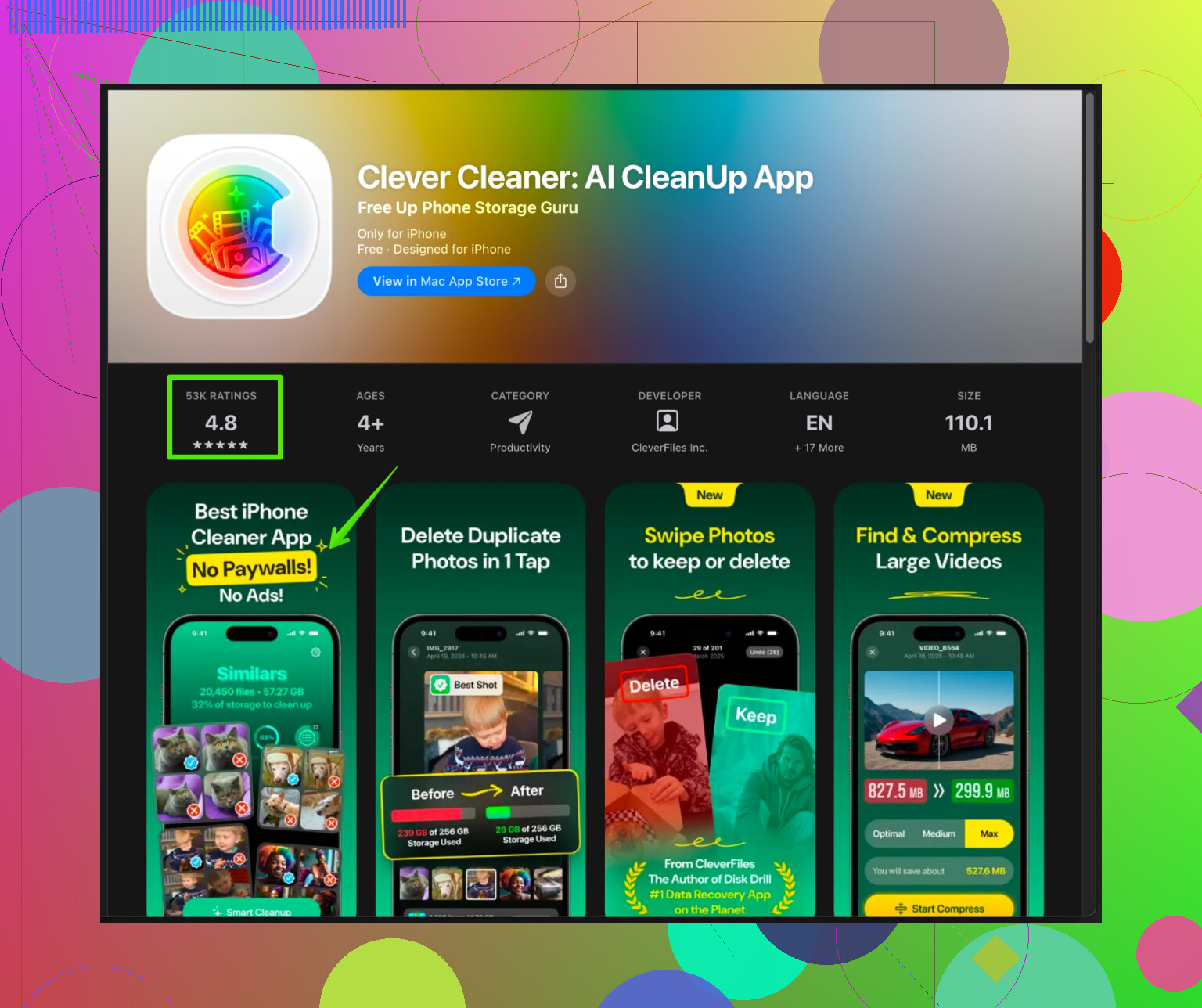
The Clever Cleaner App uses AI to scan for:
• Duplicate photos and videos
• Similar shots from bursts
• Old screenshots and blurred photos
• Large files and useless junk
You review, then remove in bulk. If you take tons of pics, this has a huge impact.
You can check it out here:
free up iPhone storage with Clever Cleaner App -
Future proof a bit
• Try to keep at least 10 to 15 percent free. iOS updates and photos work smoother.
• Delete downloaded playlists, Netflix episodes, podcast downloads after watching.
• Every month, run through Photos and Messages for a 5 minute cleanup or use the cleaner app again.
If you go through 1 to 3, then 4, 6, and use something like Clever Cleaner for media, you usually gain multiple gigabytes, even on smaller storage models.
20 Likes
Yeah, storage on iPhone is like a horror movie that keeps getting a sequel. @viaggiatoresolare already covered a ton of the “standard” stuff, so I’ll skip repeating their steps and hit a few angles they didn’t lean on as much (and low‑key disagree on a couple points).
- Be careful with iCloud Photos “fixes”
They suggested iCloud Photos + Optimize Storage, which is great if you live in Wi‑Fi land and don’t mind paying Apple every month. But:
- If your iCloud plan is tiny, you just move the problem from iPhone to iCloud.
- If you turn it on without checking, you might fill iCloud, get nagged to upgrade, and still have space issues.
At minimum, before enabling: - Check iCloud usage: Settings → [your name] → iCloud → Manage Storage.
- Decide what else you can move out of iCloud (old iCloud backups, app data you don’t need, etc.).
- Kill unnecessary iCloud backups
People forget this one. Old device backups can be 5–10 GB each.
- Settings → [your name] → iCloud → Manage Storage → Backups.
- Delete backups for devices you no longer use.
Also, tap your current device and uncheck apps that don’t need to be in the backup (some games, streaming apps, etc.). That keeps future backups smaller and less annoying.
- Trim app data inside apps more aggressively
Beyond the “clear cache” thing @viaggiatoresolare mentioned, go a bit more brutal:
- Podcast apps: delete listened episodes, auto‑download off except favorites.
- Reading apps: remove offline magazines, PDFs, books you’ll never read again.
- Cloud storage apps: disable “make available offline” on huge folders. These can quietly store gigabytes.
- Use Safari’s “Website Data” nuclear button
Safari can hoard a lot of junk.
- Settings → Safari → scroll down → Clear History and Website Data.
If you keep a lot of tabs and love your history this hurts a bit, but it can free space and speed things up.
- Remove “On My iPhone” files that just sit there
If you use Files app, check:
- Files → On My iPhone.
Delete: - Old video exports
- Duplicated docs
- Random zip files from downloads
Also check “Downloads” inside Files; that folder often becomes a trash can.
- Turn off automatic downloads where it makes sense
To prevent filling up again:
- Settings → App Store → disable “Automatic Downloads” for Apps and App Updates if you’re tight on space.
You can then update manually and avoid the “no space for update” loop.
- Adjust Camera capture formats
Viaggiatore touched video quality but not formats much:
- Settings → Camera → Formats → use “High Efficiency” instead of “Most Compatible” if it’s not already.
That keeps photo and video sizes smaller. Only downside: older devices or some PCs sometimes dislike HEIC/HEVC, but in most normal cases it’s fine.
- Use third‑party cleaning as a helper, not magic
Finding duplicate/similar photos manually is pain. That’s where a cleaner actually earns its keep.
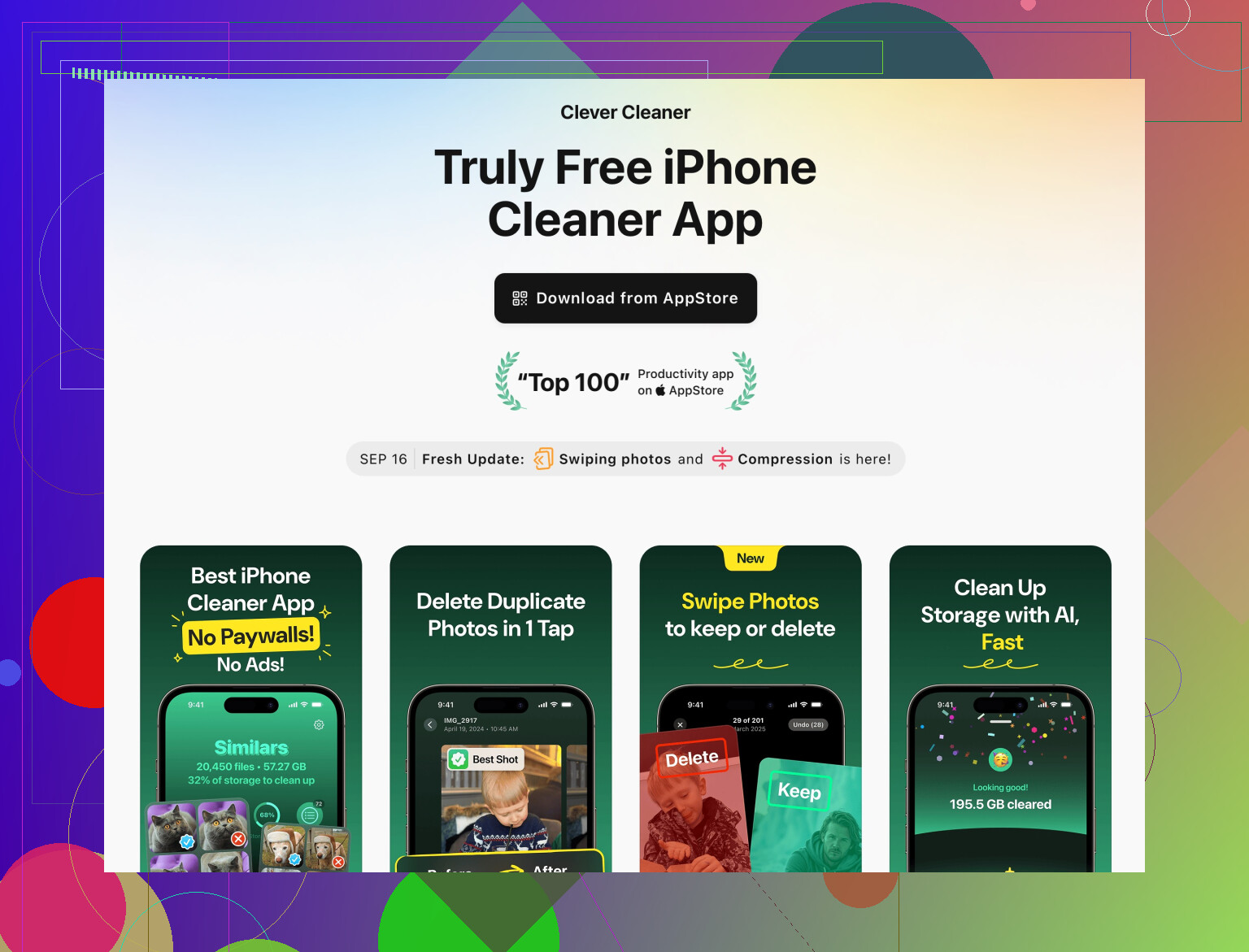
Instead of randomly downloading 10 shady “cleaner” apps, pick one solid tool and stick with it. Something like the Clever Cleaner App for iPhone helps you:
- Detect duplicate and near‑duplicate photos
- Find fuzzy, dark, or accidental shots
- Spot massive videos and big files you forgot existed
You do a quick review, then bulk delete. This is way more efficient than scrolling forever in Photos.
If you want something you can revisit once a month, check out this iPhone storage optimizer and photo cleaner. It focuses on cleaning junk, large media, and duplicate pics so your iPhone doesn’t feel like it’s constantly begging for mercy.
- Consider a one‑time “hard reset” of storage bloat
On this I’m a bit more cautious than @viaggiatoresolare. Wiping and restoring can indeed shrink “System Data,” but it’s not my first move unless:
- System Data is insanely high (like 20+ GB on a small phone)
- You’ve already done all the reasonable cleanup
If you go that route: - Create an encrypted backup to a computer or full iCloud backup
- Erase and set up again
Personally I’d try the cleaner tools, cache purge, and backup cleanup first.
- Set a “maintenance routine” you’ll actually follow
Nothing fancy:
- Once a month: run Clever Cleaner App or similar, delete duplicates and huge videos.
- Every couple weeks: clear podcast/Netflix/Spotify downloads you’ve already finished.
- Every few months: review iCloud backups and Messages media.
You’ve already done the obvious deleting apps and photos, so your gains now mostly come from:
- Killing hidden junk (cache, old downloads, website data)
- Getting rid of duplicates and similar photos
- Preventing auto‑downloads from filling things right back up
Do 2 or 3 of these in one sitting and you should see a noticeable chunk of space free up without living in Settings all day.
Both @codecrafter and @viaggiatoresolare already nailed the “normal” fixes, so here are some less obvious angles that don’t just repeat them.
- Tackle “Other stuff nobody checks”
- Mail app: open Mail → mailboxes list → scroll to bottom → see if you have huge mailboxes with tons of attachments. Delete old threads with big PDFs or presentations.
- Third‑party mail apps often cache attachments too. Check inside the app settings for storage options.
- Keyboard apps: some of them locally cache stickers, GIFs, etc. If you use alternatives to the Apple keyboard, consider removing ones you barely touch.
- Be strategic with iCloud & backups (slight disagreement with both)
They focus on cloud a lot. I’d actually say: if your phone is tiny (64 GB) and your internet is slow, avoid leaning too hard on iCloud Photos and giant iCloud backups. Instead:
- Plug into a computer occasionally and move old photos/videos off entirely. Local archive beats eternal iCloud rent for many people.
- On the computer, keep an external drive as “cold storage” for 4K videos and live photos you never want to lose but never need on phone.
- Focus on creation settings, not just cleanup
Preventing new bloat matters more than constantly cleaning:
- Camera → Formats → High Efficiency to save space.
- Turn off Live Photos by default if you never use the motion effect. Those stack up.
- In social apps, disable “Save original to Camera Roll” so you do not store both the raw shot and the processed/uploaded one.
- Files from random apps
Lots of editing apps export huge files to “On My iPhone” or inside their sandbox:
- Video editors, PDF scanners, voice recorders.
Once you have shared or backed up the final file, delete the project from inside the app. That often saves gigabytes that Settings → iPhone Storage will just show as “Documents & Data” with no detail.
- Using a cleaner: realistic take on Clever Cleaner App
Instead of blindly trusting any “cleaner,” treat Clever Cleaner App as a tool, not a magic vacuum.
Pros:
- Actually good for quickly spotting duplicate photos, series of similar shots, and giant videos you forgot existed.
- Faster than manual scrolling, especially if you shoot a lot or do burst photos.
- Can help you make decisions by showing file sizes and grouping similar junk.
Cons: - You still have to review before deleting, otherwise you might lose shots you care about.
- Needs access to your photo library and files, which some people are not comfortable with.
- If you already keep your library tight and organized, the gains are smaller.
Compared with the very manual, settings‑heavy approach from @viaggiatoresolare and the more cautious cloud/backups focus from @codecrafter, a cleaner app sits in the middle: it accelerates the boring parts (finding duplicates, large media), but it will not fix problems like giant system data or bloated messaging apps by itself.
- When to consider the “nuclear” options
Before wiping the phone or turning everything over to iCloud, try this order:
- Clean Messages, WhatsApp, media caches as they suggested.
- Use Clever Cleaner App or similar to strip out duplicates and huge videos.
- Move irreplaceable old footage to a computer or external drive and delete from the phone.
If after that you still cannot keep a couple of GB free, then consider a clean install of iOS with a fresh setup instead of restoring an old bloated backup.
In short, combine their deep settings passes with:
- Smarter capture settings
- Manual offloads to a computer or drive
- A targeted cleaner like Clever Cleaner App to kill duplicate/similar photos and large forgotten files
That mix usually gets more sustainable, not just a one‑time “freed 4 GB, full again next week” situation.