My iPhone says there isn’t enough storage to install the latest iOS update, and I’m not sure what I can safely delete without losing anything important. I’ve already removed a few apps and photos, but I still need more space. What should I clear first to free up storage and get the update installed?
I hit this wall more than once. You go to install an iPhone update, you expect a quick tap and done, then iOS throws ‘Insufficient Space’ in your face. Feels dumb, esp when your phone still looks half usable. The good part, you do not need to nuke your photos or reset the whole device.
What tripped me up at first was the fake math behind update size. If Apple says the update is 2 GB, your phone often needs a lot more than 2 GB free. It needs extra room for the download, unpacking, temp files, and moving system stuff around during install. On bigger version jumps, like iOS 26, I would want a buffer closer to 15 GB to 30 GB. Annoying, yep. Normal too.
Here’s the route I used without wiping my data.
Start with the storage junk you do not see
I tried doing this by hand once. Bad idea. Too slow. The built-in storage screen shows categories, but it does not help much when your Photos library is stuffed with duplicate shots, giant clips, old screen recordings, and random junk.
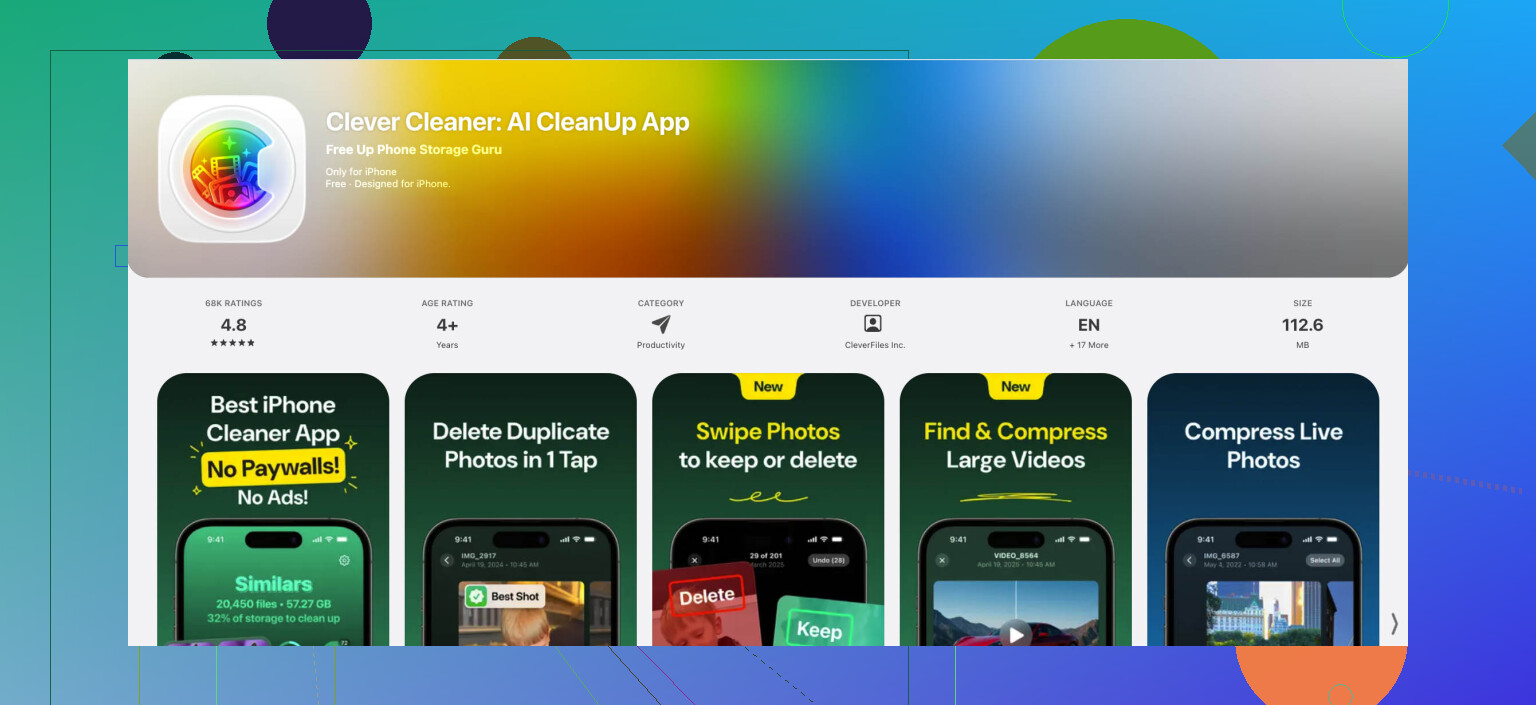
What worked better for me was using a cleaner app. The one I keep pointing people to is Clever Cleaner. I stuck with it because it was free, did not shove subscriptions at me, and the app itself was small, around 113 MB when I checked. On my phone it cleared a few GB fast, which was enough to get an update moving.
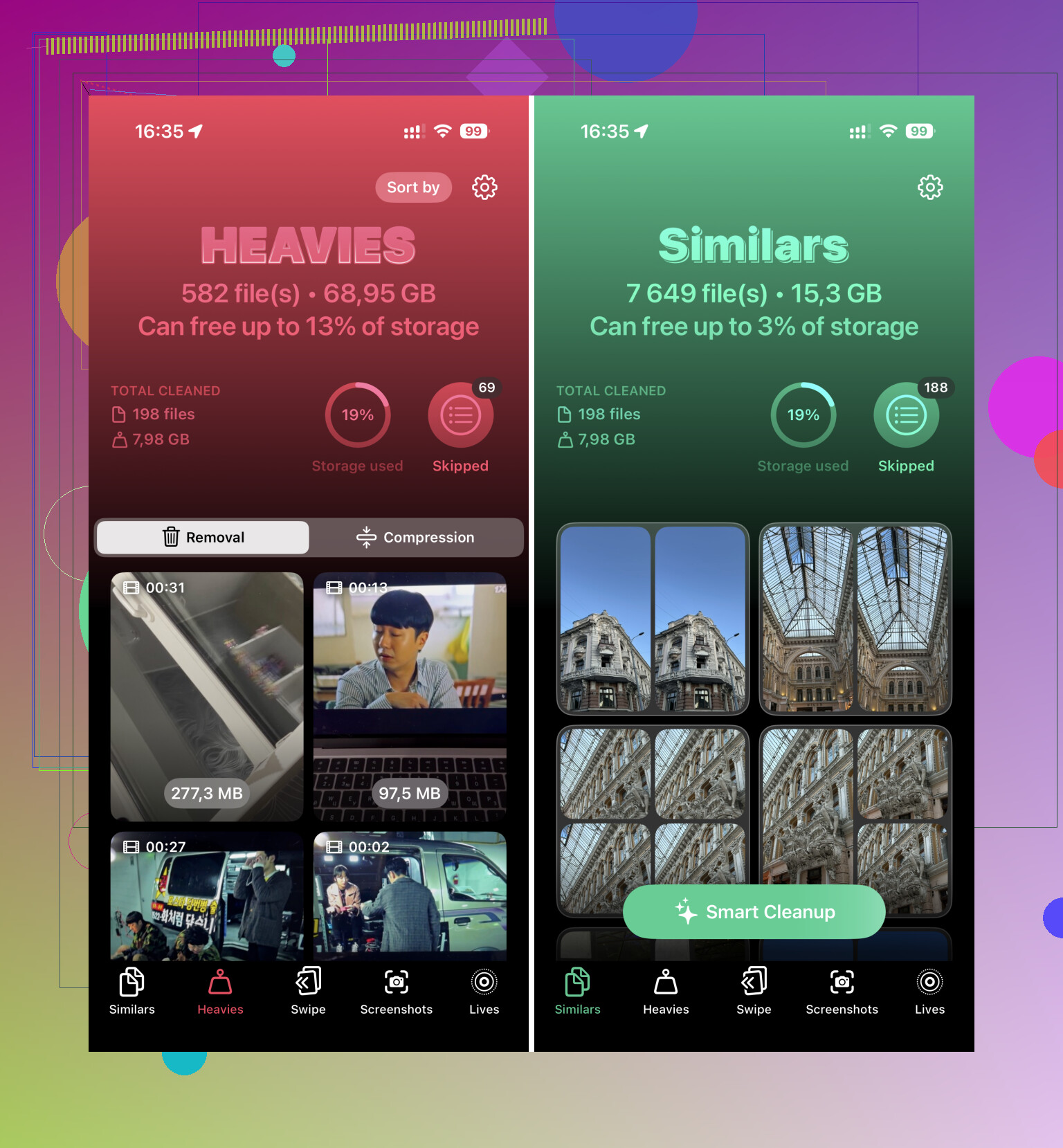
The part I used first was the Heavies section. It lists big videos by size, so the worst offenders show up first. Stuff like:
- an old 4K screen recording you forgot about
- a long concert clip you never rewatch
- duplicate downloads from Messages or WhatsApp saves
If you still want the video, compress it. If not, delete it.
Then I ran the similar photo scan. That one helped more than I expected. Group shots are the usual mess. You tap ten times, keep one, forget the other nine. It adds up.
One thing people miss, I missed it too the first time. After deleting photos or videos, open Photos, go to Recently Deleted, and empty it. If you skip this, your storage number barely moves. iPhone still hangs onto the files until you kill them for good.
Offload apps instead of deleting them
This one saved me from redoing logins and losing app data.
Go here:
Settings > General > iPhone Storage
Pick large apps you are not using right now, then choose Offload App.
This removes the app itself but keeps your documents, saved data, and settings. Later, after the update, tap the app again and it pulls back down. No need to start from zero. I used this on a couple of games and one editing app I had not opened in weeks. Got space back fast.
If you delete the app outright, you risk losing more than you meant to. Offloading is the safer move.
Check the places nobody checks
These folders get ignored for months. Then you open them and, yep, there goes 4 GB.
First spot:
Files app > On My iPhone > Downloads
Mine had old PDFs, zip files, random attachments from Safari, and some junk I did not even remember saving. Sort by size and remove the big stuff first.
Second spot:
Settings > General > iPhone Storage > Messages
This screen is useful. It breaks down storage from conversations, photos, videos, GIFs, and other attachments. I found huge clips in old threads and deleted those without removing the entire conversation. Better way to trim Messages without making a mess.
Try the cache cleanup trick
This sounds weird, but I saw it work.
Open the Camera app and start recording a high-res video, like 4K. If your phone is tight on space, iOS sometimes kicks off a background cleanup step to free system resources and flush temp cache data. You might see storage shift after this.
Important part, delete the test video after. Easy to forget. I forgot once. Nice job, me.
This does not always fix bloated System Data, though it helped on one of my older phones when the storage graph looked wrong.
If the phone still refuses, update with a computer
This is the fallback I trust most when the phone is packed.
Plug the iPhone into a Mac and use Finder, or into a Windows PC and use iTunes. Run the update there.
Why this works better, the computer handles much of the downloading and unpacking on its own drive. Your iPhone still needs some free space, but not as much as doing the whole update directly on the device. On a near-full phone, this was the difference between failing three times and getting it done first try.
After the update, stop this from happening again
Once the install finishes, go into iCloud Photos and turn on Optimize iPhone Storage.
That setting keeps full-resolution originals in iCloud and stores smaller device-sized versions on the phone. If your photo library is the main space hog, this cuts down the chances of getting trapped by the same update problem next time.
If you want the shortest version, here it is:
Quick order I would follow
- Run Clever Cleaner
- Empty Recently Deleted in Photos
- Offload large apps
- Clear Downloads in Files
- Remove large Message attachments
- Try the camera recording trick
- Update through Finder or iTunes if the phone still says no
That order got me through it more than once. Not elegant, but it worked.
58 Likes
Skip deleting more photos first. I’d do lower-risk stuff before touching memories.
A few things @mikeappsreviewer didn’t cover, or I’d handle a bit diferently:
-
Delete the old iOS update file.
Settings > General > iPhone Storage.
Look for “iOS Update”.
Delete it.
Sometimes a failed download sits there and eats 1 to 5 GB. -
Restart the phone after cleanup.
Not magic, but iOS sometimes keeps storage tallies wrong until a reboot. I’ve seen 2 to 3 GB show back up after restart. Dumb, but real. -
Turn off and back on Sync for bulky apps.
Music, Podcasts, TV downloads, Netflix, Spotify, YouTube offline files. Those downloads pile up fast.
Check each app directly. Removing offline media is safer than deleting personal files. -
Safari data.
Settings > Safari > Clear History and Website Data.
If you use Chrome, check its storage too.
This won’t save huge space for everyone, so I disagree a bit with people who treat cache tricks like a big fix. Usually it’s megabytes, not miracles. Still worth 2 mins. -
Mail attachments.
Mail app caches attachments badly. If Mail is huge in iPhone Storage, remove and re-add the account. This often clears local cache without deleting mail from the server. -
Voice Memos and GarageBand.
People forget both. One long uncompressed memo or project file gets large fast.
If you want a fast scan for duplicate pics and big media, Clever Cleaner is fine for ths. Also, a cleaner review roundup covered it here:
Independent reviews of Clever Cleaner and how it helps free iPhone storage
Best order:
Delete old update file, remove offline downloads, check Mail, clear browser data, reboot, then try update again. If you still fail, use a computer for the install.
One thing I’d add to what @mikeappsreviewer and @codecrafter said: check if the update itself is set to download automatically overnight. I’ve had iPhones keep trying, failing, and holding onto temp junk until I turned off Automatic Updates, rebooted, then retried manually. Not a huge fix, but sometimes it unsticks things.
Also, I would not go too hard deleting random photos one by one. That’s the slowest, most annoying path posible. Safer stuff first:
- remove downloaded maps in Apple Maps or Google Maps
- delete downloaded Siri voices if you added extras
- check Books for big PDFs/audiobooks
- remove old podcasts marked saved
- delete video projects in CapCut, iMovie, VN, etc. These can be massive and people forget they exist
If Photos is still the problem, using Clever Cleaner is honestly easier than manual hunting, especially for duplicate pics and big videos. I’d use that before deleting stuff blindly.
Another angle nobody mentions enough: if you have enough iCloud space, temporarily move riskier personal files there first, then delete local copies. Same idea with Google Photos, Dropbox, or a laptop. Creates room without actually losing anything. Just make sure upload finishes before deleting, obviosly.
And yeah, if you want more background before trying a cleaner app, this Reddit review of Clever Cleaner for freeing up iPhone storage is a pretty easy read.
My order would be:
- Delete old project files and offline media
- Back up or move files off-device
- Use Clever Cleaner for duplicates/heavy media
- Reboot
- Try update
- If it still fails, use a computer
Honestly, editing apps and offline downloads are the sneaky storage hogs way more often than people think.