My iPhone storage is almost full because I have thousands of old photos and screenshots. I need an easy way to bulk delete photos on iPhone without selecting each one individually. What’s the fastest method?
If you’re staring at something like 20,000 photos, don’t try to clean it up one tap at a time. That gets old fast, especially when half the mess is screenshots, duplicates, and five copies of the same photo where only one is worth keeping.
The easiest win is to stop working from the full “All Photos” view. In the Photos app, pinch inward to zoom out into Months or Years. From there, tap “Select” and drag across bigger groups instead of picking photos individually. It makes it much easier to clear out older chunks, like a vacation or a random month where you took way too many videos, without messing with recent stuff.
Start with the obvious junk
Screenshots are usually the fastest thing to clean up. Go to the Collections tab, scroll down to Media Types, and open Screenshots. Apple separates Screenshots, Bursts, Screen Recordings, and a few other types for you, which is actually useful here.
Inside the Screenshots album, tap “Select,” then use “Select All” if you want to wipe the whole batch. That button does not show up everywhere in Photos, but it does in some of these filtered albums, so it’s worth using.
For duplicates and near-duplicates, use a cleanup app
If the problem is mostly repeated photos or a bunch of almost identical shots, doing it manually is still painful. The best option I’ve found for that is Clever Cleaner. I’m usually pretty wary of “cleaner” apps because a lot of them push ads or subscriptions, but this one is free and it works better than expected.
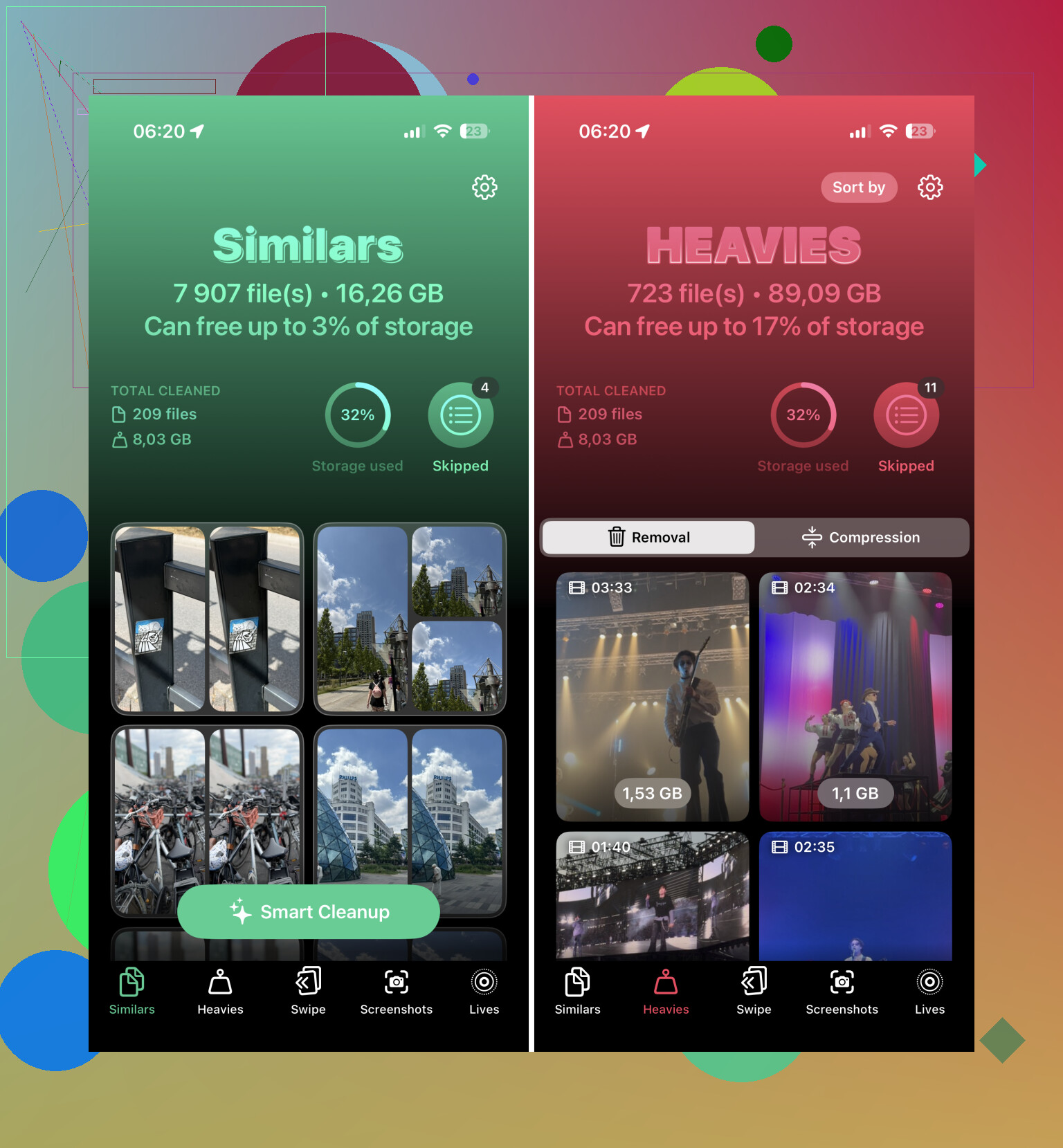
The useful part is the Similars feature. It groups photos that look nearly the same, like when you took several shots of the same people just to get one where everyone looks okay. It picks a “Best Shot” and marks the extras so you can review them before deleting. You still get the final say, then you use “Slide to Delete.”
Use a computer if the library is huge
If you’re deleting thousands of items, a phone screen is not the best place to do it. If you use iCloud Photos, open iCloud.com on a desktop browser instead.
From there, you can use the Shift key to select large ranges of photos much faster than dragging around on your iPhone. Delete them from there, and the changes should sync back to your phone.
Empty Recently Deleted or the space will not come back yet
This is the part people miss: deleting photos does not immediately free the storage. They go into Recently Deleted first, and they can sit there for 30 days.
Go to the bottom of the Collections tab, look under Utilities, open Recently Deleted, tap “Select,” then choose “Delete All” if you’re sure. If you need space right now, this step matters.
One more place to check: the Files app. Images downloaded from Safari or saved from emails may be sitting in “On My iPhone” or “iCloud Drive” without showing up in your normal Photos library.
I’d start with Screenshots, then use Clever Cleaner for duplicates and similar shots. That should get most of the clutter under control pretty quickly, probably 90% of it in around ten minutes if your library is mostly junk and repeats.
21 Likes
If iCloud Photos is turned on, deleting on your iPhone deletes from iCloud and your other Apple devices too, so don’t treat it like “clear phone only.”
If your real goal is storage, try Settings > Photos > Optimize iPhone Storage first. Then bulk-delete only the junk you’re sure about, because mass deleting synced photos is easy to regret.

Photos has no magic nuke button.
If you want the fastest method on the phone itself, don’t start in the main photo grid. Start with the stuff that is huge. A few videos or screen recordings can take more space than hundreds of normal photos, so mass deleting old pictures first may feel like you did a lot and still barely moved the storage number.
Go to Photos and hit these first:
Videos
Screen Recordings
Screenshots
Bursts
Duplicates, if that album shows up for you
For each album, tap Select, then drag-select rows instead of tapping one by one. If you’re in a filtered album that gives you Select All, use it, but check what album you’re actually in before deleting. “Select All” in Screenshots is very different from selecting a giant mixed range in Recents.
The fastest rough cleanup I’d do is:
- Open Videos and delete anything obviously useless.
- Open Screen Recordings and wipe old ones.
- Open Screenshots and mass select by chunks.
- Open Duplicates and merge/delete what Apple finds.
- Then go back to Recents/Library and drag-select old date ranges.
I agree with @nachtschatten on the iCloud warning. If iCloud Photos is enabled, deleting is not the same as “remove from this iPhone.” It is deleting from the synced library. If you only need phone storage back, Optimize iPhone Storage is the safer first move.
The caveat with cleanup apps is that they’re better for similar photos than for storage triage. Clever Cleaner or anything similar can help with ten nearly identical selfies, food pics, burst-like shots, etc. But if your problem is storage, videos should come before duplicate photos. Deleting 800 duplicate images might free less than deleting three long 4K clips.
If you have a Mac, the less annoying way is often to plug the iPhone in and use the Photos app or Image Capture to import/archive first, then delete in bigger batches with a mouse and keyboard. On Windows, copying the DCIM folders off the phone first can work too, but I’d be more careful because the folder layout is messy and it’s easier to lose track of what you already backed up.
And yes, after deleting, empty Recently Deleted. Until you do that, the phone is basically holding the files in a trash bin. If you’re trying to free storage tonight, deleting alone may not be enough.
If you need the storage number to change right away, don’t panic if it still looks full after deleting a huge batch. Empty Recently Deleted like others said, then restart the phone or give Settings > General > iPhone Storage a few minutes to recalculate, because that screen can lag behind the actual cleanup.