Getting Google Drive Into File Explorer: The Way It Really Works
Alright, I’ve run into this a million times, so here’s the real scoop — straight from the trenches.
Streamlining Google Drive on Windows
First, forget the days of uploading and downloading files through your browser like it’s 2006. Google pretty much expects you to use their app these days.
Step-by-step Breakdown (With Zero Gloss)
-
Grab the Installer:
Head to the official Google Drive page and snag the “Google Drive for Desktop” program. Don’t trust sketchy sites — use Google’s own Google Drive download page. -
Launch and Log In:
Run the installer. It’ll promptly hit you with the “log in to your Google Account” screen. Usual two-factor stuff, nothing fancy. -
Check File Explorer:
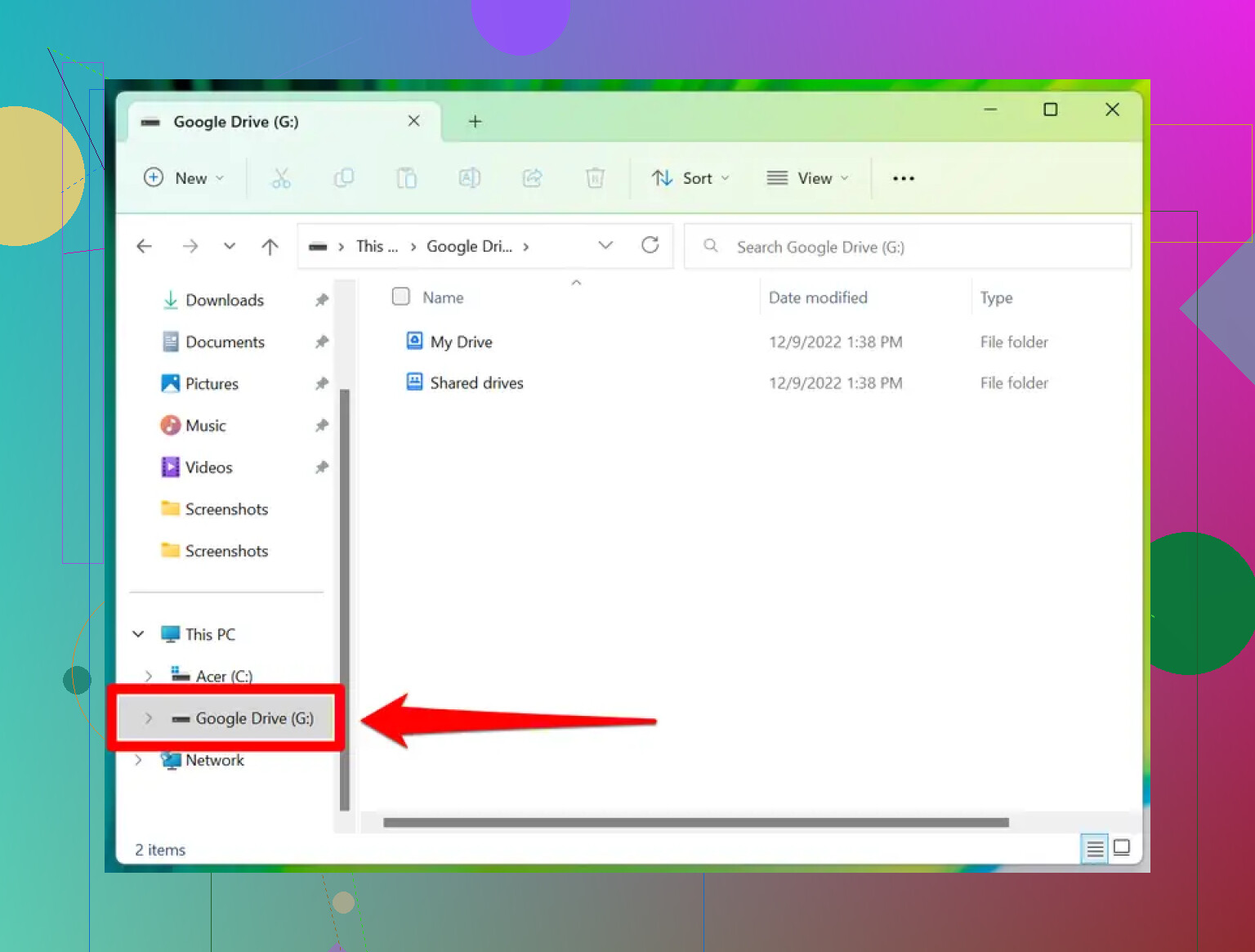
If the stars have aligned, you’ll suddenly see a fresh drive pop up, sometimes as G:, but I’ve seen folks end up with D:, E:, or whatever free letter you’ve got. It looks and acts like another hard drive. -
Start Managing:
Drag, drop, right-click, delete, rename — all those classic Windows moves work directly from File Explorer, except now they’re linked to your cloud stash.
Here’s what it should look like (image below):
When It All Goes Offscript
Ever look for the Drive in Explorer and… nothing? Welcome to the club. Usually, it means the app quit, you’re not logged into your account, or Windows just forgot to update the view. Double-check:
- Is Google Drive running? Look in the system tray near your clock for the little Drive triangle icon.
- Signed in? If not, you’re staring at empty folders.
In Case You Prefer More Control (Or Hate Syncing Everything)
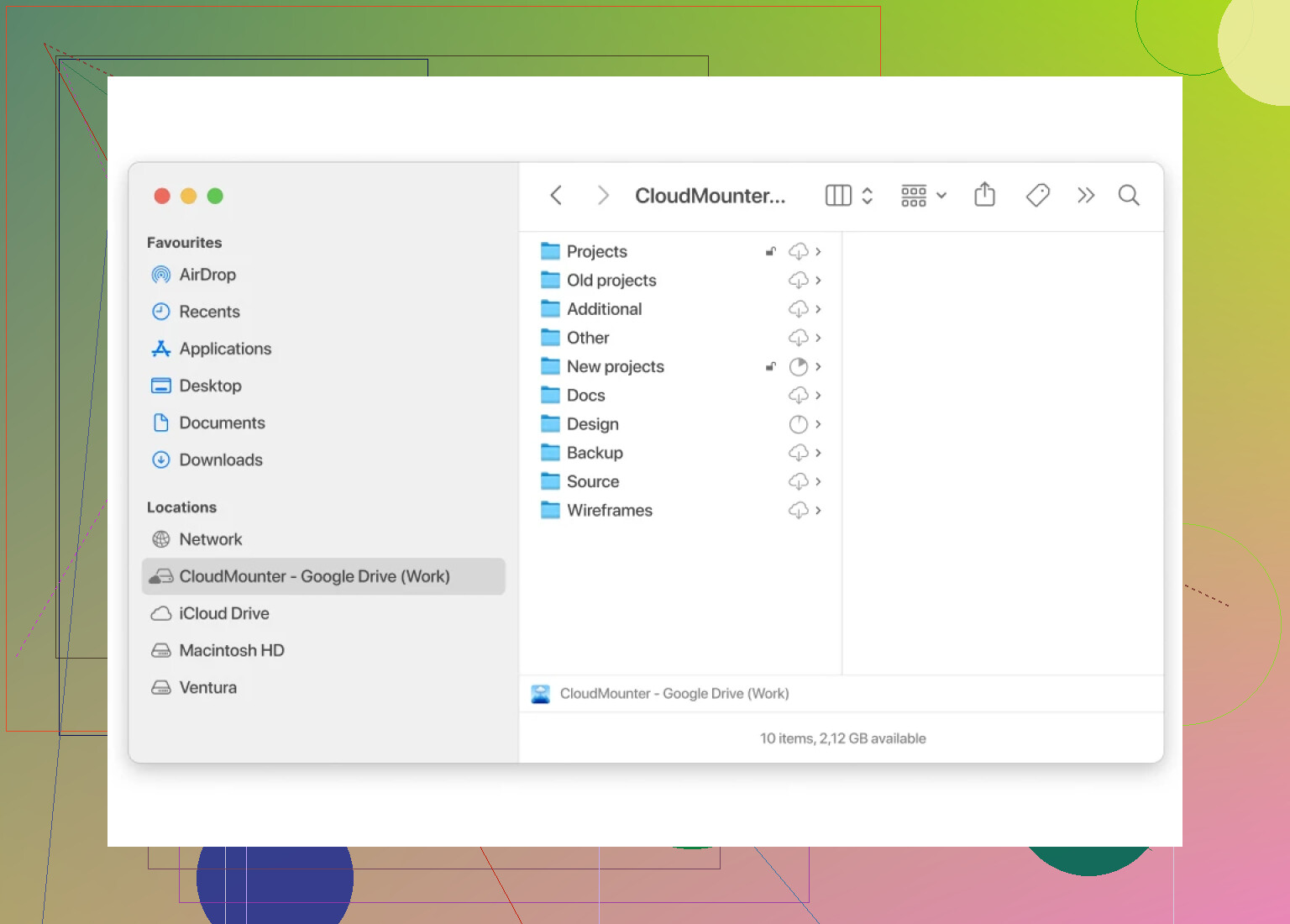
Not everyone wants to mirror their entire cloud world onto their laptop. There’s a third-party alternative out there that skips the bulk downloads: CloudMounter. What’s the appeal? It wedges your Google Drive (plus Dropbox, OneDrive, and others) into your system, so you access files on-demand. Think of it as a magic portal — no need to clog your SSD with a massive sync folder.
- Connect once, and it stays “plugged in.”
- You manage multiple cloud vaults from one spot.
- You stay signed in, so you skip the login song-and-dance with every reboot.
Here’s the kind of interface you’ll work with:
TL;DR
- Download Google Drive for Desktop, sign in, and your Drive acts like any other folder/drive on Windows.
- If it disappears, check the tray and the app status.
- For multi-cloud juggling or zero local sync, CloudMounter is worth a peek.
If you’ve got your own rant or tweak, toss it in. Jankiness welcome — Google’s good at surprising us all.