My iPhone storage is almost full and it’s slowing everything down. I’ve deleted a bunch of apps, photos, and videos, but the “System Data” and other hidden files still take up a lot of space. I’m not sure which settings to tweak or what to safely remove without risking my backups, messages, or photos. Can someone walk me through the best ways to optimize iPhone storage and keep it running smoothly?
Short version. Your iPhone is bloated mostly from cached data, old messages, and app leftovers, not only photos and apps. Here is what tends to work best.
- Check what is actually huge
Settings > General > iPhone Storage.
Wait a minute for it to load.
Look at:
- Top apps by size
- “System Data” size
If System Data is under 10–12 GB on a 128 GB phone, that is normal. If it is like 20+ GB, you need cleanup tricks.
-
Offload apps, do not delete data
Settings > General > iPhone Storage > pick a big app > Offload App.
iOS removes the app itself, keeps your documents and data.
You get space back and keep your stuff.
Tap the icon later to reinstall when you need it. -
Tame Photos without losing anything
a) Turn on iCloud Photos with “Optimize iPhone Storage”
Settings > Your Name > iCloud > Photos > iCloud Photos ON.
Then choose “Optimize iPhone Storage”.
Full‑res photos go to iCloud, smaller versions stay local. You keep all photos, free a lot of space over time.
Make sure you have Wi‑Fi and enough iCloud storage.
b) Clear “Recently Deleted”
Photos app > Albums > Recently Deleted.
Delete All.
Until you do this, nothing is really freed.
c) Remove giant video files
In Photos > Albums > Videos, sort by size if you sync to a Mac or use Finder.
Offload or move big videos to a computer or external drive.
- Clean Messages and their media
Messages eats space from years of photos, vids, and attachments.
a) Auto delete old threads
Settings > Messages > Keep Messages > switch to 1 Year or 30 Days.
This removes old threads, including their media, after that period.
b) Manually remove big attachments
Settings > General > iPhone Storage > Messages.
Tap Photos, Videos, GIFs, Stickers, etc.
Sort by size and delete big ones you do not need.
You keep the text thread but lose heavy files.
-
Clear Safari junk
Settings > Safari > Clear History and Website Data.
This removes cached files and cookies, frees some space, and can help speed. -
Deal with streaming apps
Netflix, Spotify, YouTube, Podcasts, etc store a ton of offline stuff.
- Open each app, look for Downloads / Offline cache.
- Remove old episodes, playlists, or movies.
Some podcast apps store hundreds of episodes by default.
-
Email cleanup
If you use Mail app with large accounts:
Settings > Mail > Accounts > choose account > Mail Days to Sync.
Set a smaller window, like 1 Month.
Remove big attachments from old mails through your webmail on a computer. -
Lower System Data a bit
System Data is mixed caches, logs, Siri data, etc. There is no magic button, but these help:
- Restart the iPhone after doing large deletions.
- Update to latest iOS in Settings > General > Software Update.
If System Data is still insanely high after all that, the nuclear option is: - Backup to iCloud or Finder.
- Settings > General > Transfer or Reset iPhone > Erase All Content and Settings.
- Set up as New, then manually install apps you use.
If you restore from backup, some junk returns, so a clean setup works better but takes time.
-
Use a cleaner app for quick wins
If you do not want to dig in each app, a dedicated cleaner tool helps with obvious stuff like duplicates and blurry pics.
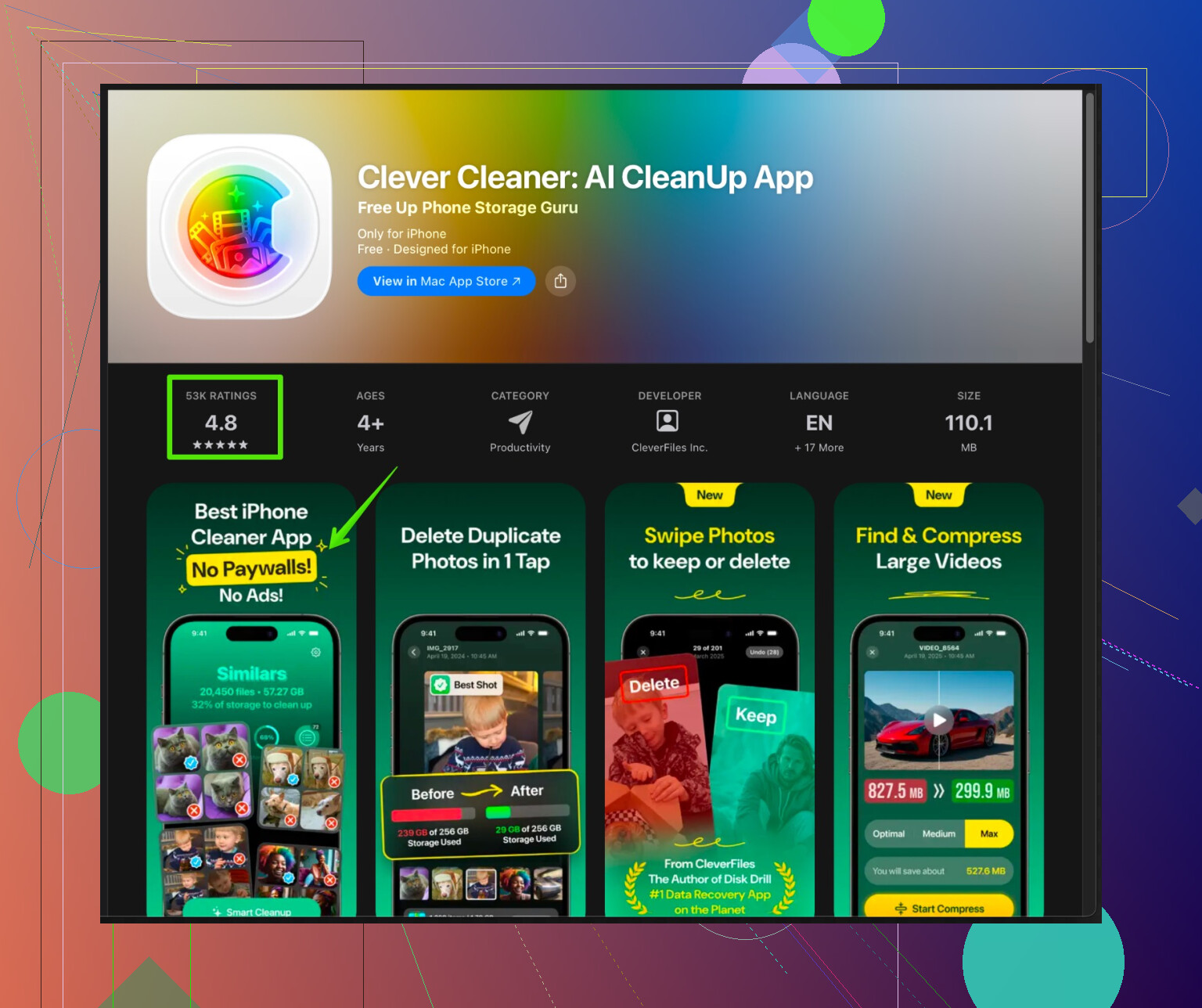
The Clever Cleaner App for iPhone focuses on removing duplicate photos, near‑identical shots, large videos, and old screenshots, so you reclaim storage without messing with system files.
You can check it out here:
smart iPhone cleanup with Clever Cleaner App
Run it, clean duplicates and junk media, then re‑check Settings > General > iPhone Storage. -
Speed tips once you have space
- Try to keep at least 10–15 percent of storage free.
- Close huge games or editing apps you are not using.
- Restart the phone once in a while after large changes.
If you post a screenshot of your iPhone Storage screen, people here can point at the exact hogs so you do not lose important stuff.
78 Likes
@caminantenocturno pretty much nailed the obvious stuff, so I’ll skip the “delete photos, offload apps, clear messages” checklist and hit a few extra angles + push back on a couple of things.
- Don’t blindly nuke Messages history
Auto‑deleting everything older than 30 days or 1 year (like they suggested) is fine for some people, but it’s risky if you rely on old convos for codes, work, or family stuff.
Better tactic:
- Go to Settings > General > iPhone Storage > Messages
- Check “Top Conversations” and “Large Attachments”
Delete specific massive threads or just the attachments, not all your history. Slower, but you don’t lose that important 2‑year‑old text from your bank or boss.
- Seriously audit iCloud vs local storage
A lot of people flip on iCloud Photos or iCloud Drive and then end up with both local and cloud copies for a while. That’s where the “System Data” bloat can get ugly.
Check:
- Settings > Your Name > iCloud > Manage Account Storage
Compare that with: - Settings > General > iPhone Storage
If an app is huge in both places (Photos, WhatsApp, Files), you’re probably holding duplicates or unsynced stuff. Move old files out to a Mac, PC, or external drive instead of letting iOS juggle them forever.
- Third‑party chat apps are silent hoarders
WhatsApp, Telegram, Signal, etc often take way more space than Messages.
Inside each app:
- Look for “Storage and Data” / “Data and Storage Usage”
- Clear cached media, especially in large group chats
I’ve seen WhatsApp alone using 15+ GB on people’s phones while they swear “I don’t have any files.”
- Manage Files app and “On My iPhone” junk
People forget this completely.
Open Files app:
- Tap “On My iPhone”
- Look for downloaded PDFs, zip files, VLC folders, document scanner leftovers, etc
Delete what you don’t need or move it to iCloud Drive or a computer.
Some scanner apps save every document locally forever, which is… generous.
- iCloud Drive & “Downloads” folder cleanup
If you use Safari or Mail to download stuff:
- Files > Browse > Downloads
Clean it out.
Also check large folders in iCloud Drive. If space is tight on the device, turn off local sync for folders you rarely use, or move archives to external storage.
- Don’t obsess over every GB of “System Data”
System Data is basically caches + logs + “we swear this is important” stuff.
I’d only start worrying if:
- It’s > 20–25 GB on a 128 GB device
or - It’s clearly growing for no reason over time
Quick reality check: iOS will re‑create a lot of caches after a full reset, so the “erase and set up as new” solution is kinda overkill unless your System Data is insane and you’re okay with a half‑day of reconfiguring. I’d treat that as a genuine last resort, not a normal tip.
- Focus on what regrows vs what stays gone
Some space hogs come back fast, some don’t:
Slow regrowth (good to delete):
- Old videos and photos you truly don’t need
- Huge Messages / WhatsApp attachments
- Old document scans, downloaded files, zip archives
Fast regrowth (annoying to chase constantly): - Streaming caches (Spotify, YouTube, TikTok)
- Social media app caches (Instagram, Facebook)
For these, sometimes it’s simpler to uninstall/reinstall a couple of the worst offenders once a month than keep poking their in‑app settings.
- Use a smarter cleaner instead of random “junk cleaners”
Most “iPhone cleaner” apps are trash, tbh. They can’t touch real system files and try to scare you with “critical junk.”
The more useful type is one that helps you target media logically: duplicates, near‑identical shots, 10 screenshots of the same meme, etc.
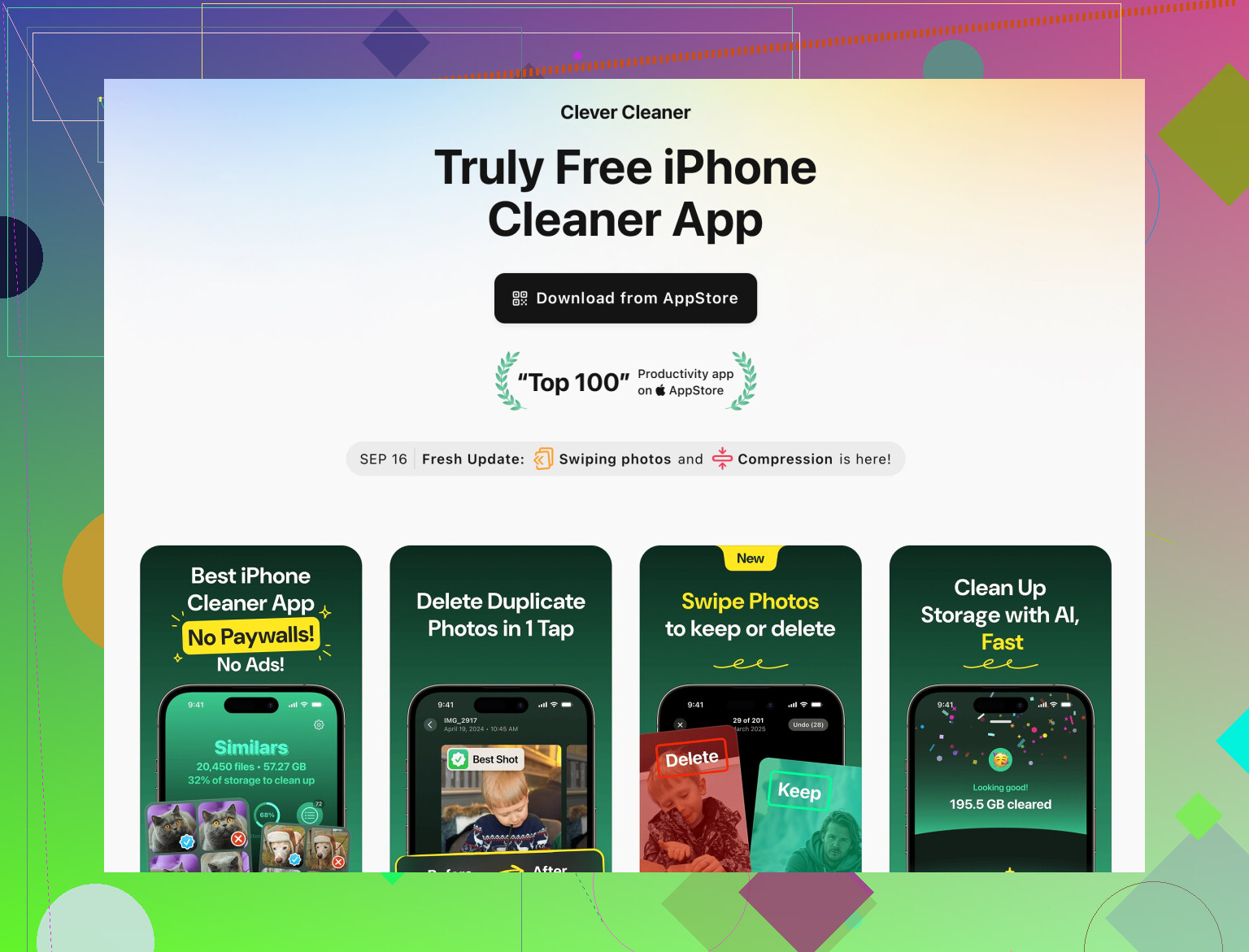
If you’re drowning in photos/videos, something like the smart iPhone storage optimizer Clever Cleaner App can actually save time. It focuses on:
- Duplicate & similar photos
- Old screenshots
- Large or forgotten videos
That’s the stuff that really sticks to your storage and doesn’t silently rebuild the next day.
- Once you clean, lock in better habits
Otherwise, you’ll be back in red storage hell in 2 months. At minimum:
- Set Messages and chat apps to not auto‑save every single photo to Photos
- Turn off auto‑download of media in chats where people spam memes
- Clean Downloads and big chat threads once a month
- Try to keep 10–15% storage free so iOS can breathe, or it’ll feel laggy no matter what
If you want more targeted advice, the most useful thing you can post is a screenshot of Settings > General > iPhone Storage with the top few apps and the System Data number. That’s usually enough to see who the real villain is.
Skip the usual “delete photos and apps” checklist for a second. At this point you need precision, not just more nuking.
1. First, figure out whether you actually have a storage issue or a system glitch
If your phone is slow and also almost full, storage is a suspect, but not always the main culprit.
- If you have less than 2–3 GB free: yes, iOS will feel sluggish. Free up space.
- If you have 10+ GB free and it is still laggy: look at background stuff.
- Settings > Battery > Battery Health & Charging > scroll to see which apps hammer the CPU.
- A single misbehaving app (e.g. a social app stuck syncing) can cause heat, lag and cache bloat that shows up as “System Data”.
In that case, force quit or temporarily delete and reinstall those high‑usage apps first.
2. Stop iCloud from working against you
Both @hoshikuzu and @caminantenocturno are right that iCloud Photos with Optimize helps, but there is a catch people hit:
- After enabling iCloud Photos, iOS can spend days uploading and reindexing. During that time, “System Data” may spike.
- Spotlight, Photos “Memories” and Face Recognition all build indexes that temporarily pump up storage.
If you just turned iCloud Photos on recently and your phone is plugged in and on Wi‑Fi a lot, give it 24–48 hours before you panic about System Data. Only if it stays huge after that do more extreme steps make sense.
3. Target the “invisible hogs” that look small in the main list
In Settings > General > iPhone Storage you see app totals, but some categories under the same app grow quietly:
- WhatsApp / Telegram / Signal backups inside iCloud can mirror many gigs already on your phone. If you use iCloud backups inside those apps, consider:
- Exporting truly important chats as text or email.
- Deleting old backups inside each app.
- Voice Memos and old call recordings are easily forgotten:
- Open Voice Memos, sort by longest or oldest, move the important ones to a computer, delete the rest.
These do not always show clearly as “System Data” but trimming them prevents future bloat.
4. About a full reset: when it actually makes sense
I slightly disagree with how casually the “erase and set up as new” trick gets tossed around. It is useful, but only in pretty specific cases:
Do it only if:
- System Data is huge (like 25+ GB on a 128 GB phone)
- You have already cleaned Photos, Messages, chat apps, Files and caches
- And the size still does not budge after a restart and update
If you go this route, the key is:
- Make a backup first
- After erasing, resist auto‑restoring every single thing.
- Reinstall apps manually and sign in to only what you actually use.
Restoring a full backup often drags some of the junk right back.
5. Use a cleaner, but know exactly what it can and cannot do
About the Clever Cleaner App that was mentioned: it is in the category of “smart media organizers,” not magic system cleaners, and that is actually a good thing.
Pros of Clever Cleaner App
- Very good at surfacing duplicate or near‑duplicate photos where you took 8 almost identical shots.
- Helps find massive forgotten videos and old screenshots, which are real long‑term hogs.
- Safer than sketchy “phone booster” tools, because it does not mess with system files, only user media.
- Saves you from manually scrolling thousands of items in Photos.
Cons of Clever Cleaner App
- Cannot directly shrink “System Data” or OS caches. iOS does not let third‑party apps touch those.
- If you do not review suggestions carefully, you may delete pictures that are technically similar but emotionally important. Always scan before confirming.
- Works best for people with a huge camera roll. If your issue is mostly big apps or Mail, it will not solve that.
It fits nicely on top of what @hoshikuzu and @caminantenocturno suggested: use their system and settings tips to stop new junk from building, then run something like Clever Cleaner App periodically to trim the photo and video bloat without digging for hours.
6. Make your future self’s life easier
After you clean up:
- Turn off automatic media saving in chats that spam memes into your Photos.
- Review once a month:
- Files app > On My iPhone and Downloads
- Largest chat threads, especially groups
- Recently Deleted in Photos and Files
- Try to keep at least 10 to 15 percent of storage free so iOS does not choke every time it updates or indexes.
If you post a screenshot of your iPhone Storage page (showing the top apps and System Data size), you can get super focused suggestions beyond generic “delete this and that.”
You covered diagnosis vs storage, iCloud indexing patience, trimming chat media and memos, when a full reset helps, limits of cleaners, and monthly hygiene.
Alternative, simpler path:
- Turn on Offload Unused Apps. Settings, App Store, Offload Unused Apps.
- Trim iMessage in bulk. Settings, General, iPhone Storage, Messages, Review Large Attachments, delete top offenders.
- Clear hidden downloads. Files, On My iPhone, sort by Size, remove leftovers.
- Restart, then leave on charger and Wi‑Fi overnight.
This frees 3 to 8 GB for many users. Aim for 10 percent free. Quick, low risk. I reccomend it.