My iPhone storage is almost full and it’s starting to slow everything down and block updates. I’ve already deleted a few apps and photos, but the “Other” and system data still take up a lot of space. What are the most effective ways to free up iPhone storage without losing important photos, messages, or app data? Any step‑by‑step tips or hidden settings I should check would really help.
Short version, you need to attack 3 things fast: photos, app junk, and message/cache data. “Other” and System go down only when you clear the stuff that feeds them.
Here is a step by step that usually frees several GB.
- Check what eats space
Settings > General > iPhone Storage.
Look at:
- Photos
- Messages
- Big apps like social, streaming, games
- “System Data” / “Other”
-
Offload apps, not delete everything
Settings > General > iPhone Storage.
Enable “Offload Unused Apps”.
This removes the app, keeps the icon and your data.
You tap it later to reinstall if you need it.
Good for big games or apps you rarely open. -
Clean Photos quickly
- Settings > Photos
- Turn on “Optimize iPhone Storage”. This keeps smaller copies on your phone, full versions in iCloud. Needs iCloud space though.
- Open Photos
- Delete big stuff first: long videos, screen recordings, duplicates, bursts.
- Go to Recently Deleted and empty it, otherwise you keep the space blocked for 30 days.
This often gives back 2 to 10 GB for heavy photo users.
- Clear Messages “Other” bloat
Messages data sits inside “Other” and grows forever.
Go to Settings > Messages:
- Under “Message History”, set “Keep Messages” to 1 Year or 30 Days.
- Under “Photos”, “Videos”, etc, use “Review Large Attachments”. Delete big old ones.
This alone can drop a huge chunk from “Other”.
- Cut app cache from big offenders
Open Settings > General > iPhone Storage > pick apps by size.
For common apps:
- Safari
- Settings > Safari > Clear History and Website Data.
- Instagram / Facebook / TikTok / Reddit
- No proper “clear cache” toggle. Best method:
- Offload the app in iPhone Storage.
- Or delete, reinstall, log back in.
These apps often collect 1 to 4 GB each.
- No proper “clear cache” toggle. Best method:
- WhatsApp / Telegram
- In the app, go to Storage/Data settings.
- Clear large videos, gifs, and old chats.
- Manage downloads
- Apple Music / Spotify / Netflix / YouTube
- Remove offline downloads you do not listen to or watch.
In each app, find “Downloads” or “Offline” and clear.
Downloaded content often beats everything else in size.
- Remove offline downloads you do not listen to or watch.
- iCloud and local backups
- Settings > Apple ID > iCloud > Manage Storage > Backups.
- Delete old device backups for phones you no longer use.
- Connect to a computer and check backup size in Finder or iTunes.
Big backups do not always fix “Other”, but cleaning them stops issues later.
- System Data still huge
If “System Data” stays crazy high after all this, you have two heavy options.
Option A: Full backup then restore
- Backup to iCloud or computer.
- Settings > General > Transfer or Reset iPhone > Erase All Content and Settings.
- Restore from backup.
This often shrinks Other/System by combining and cleaning cache junk.
Option B: Fresh setup
If the phone feels slow and cluttered, set up as new and install apps again from scratch.
More work, best result, biggest drop for “Other”.
-
Use a helper app for quick cleanup
If you do not want to dig through everything manually, use a cleaner tool for photos, videos and duplicates.
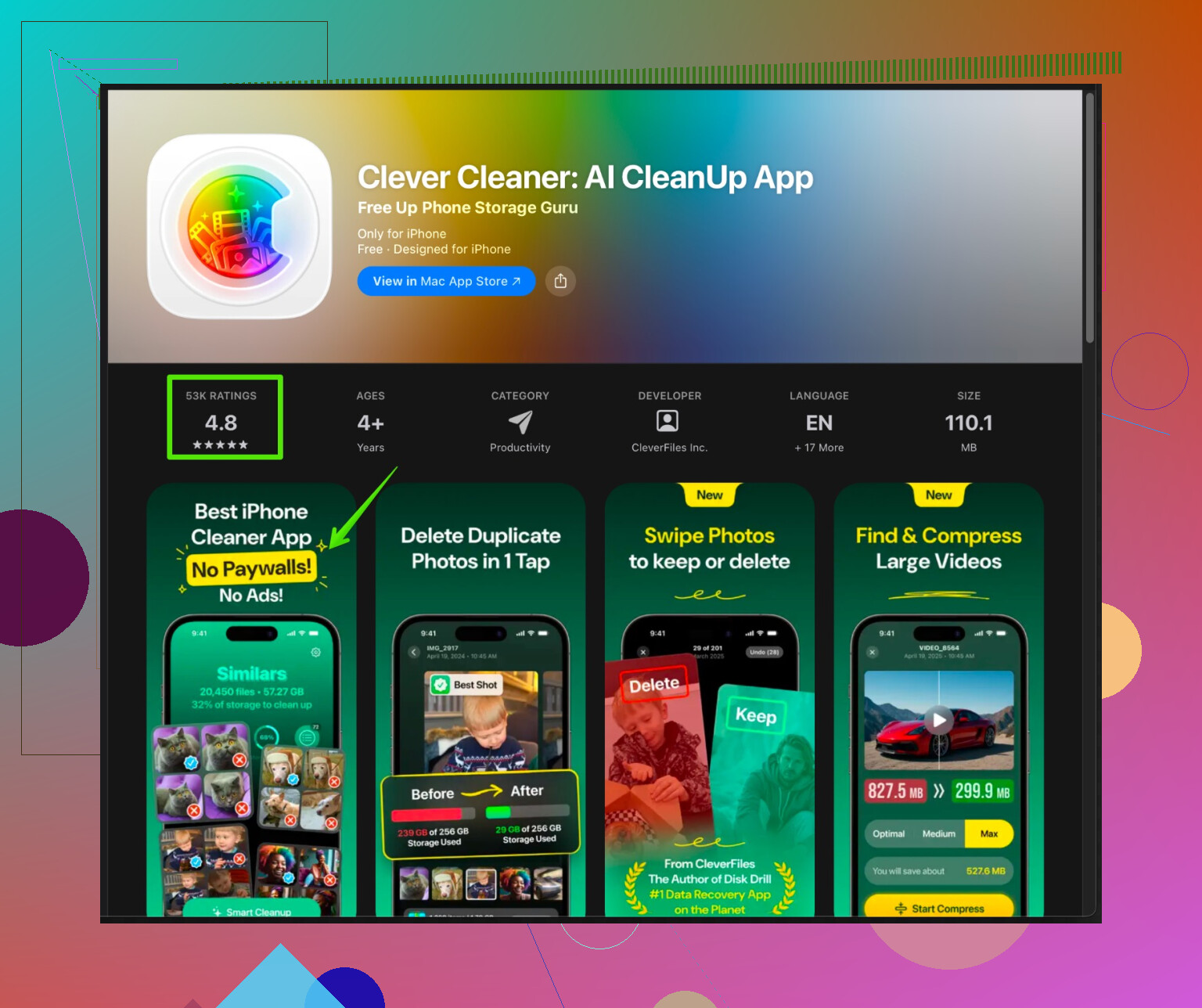
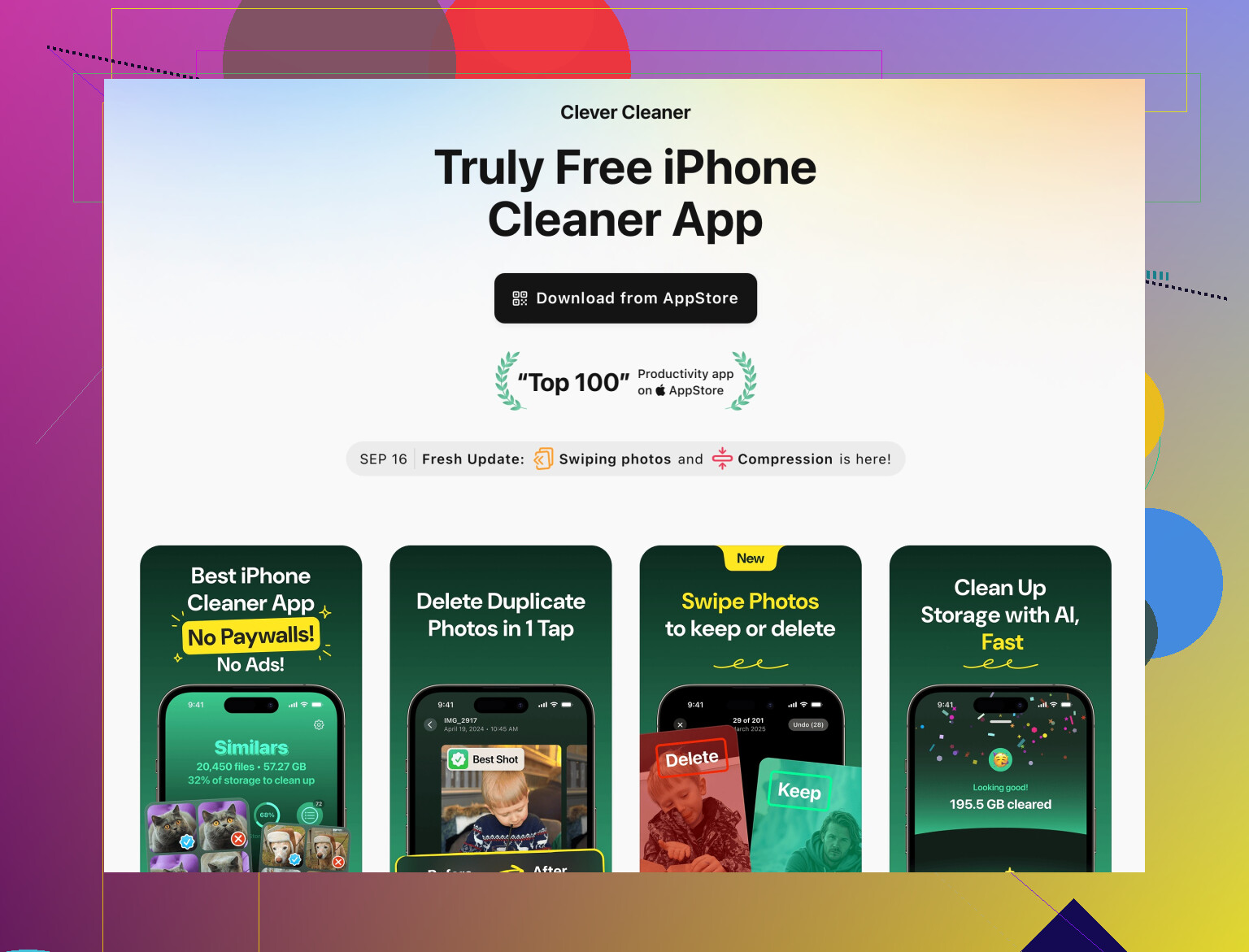
The Clever Cleaner App for iPhone focuses on smart cleanup of duplicate photos, large videos, burst shots and similar media. It helps organize your gallery and free up storage with a few taps, so you avoid scrolling through thousands of files yourself.
You can check it here:
clean up iPhone storage with Clever Cleaner.
Good if your main problem is photos and videos. -
A few settings to stop future bloat
- Settings > Photos
- Turn off auto saving from apps if they spam your gallery.
- In WhatsApp / Telegram
- Turn off automatic media saving if you get many group memes.
- Keep “Keep Messages” at 1 Year or 30 Days, not “Forever”.
If you work through iPhone Storage top to bottom and then reset or restore only if “Other” still looks insane, you usually clear enough space for updates and stop the slowdowns.
You’ve already done the “delete a few apps and photos” thing, which is basically like throwing a cup of water out of a sinking boat. @techchizkid covered a lot of the obvious stuff (photos, messages, app junk), so I’ll skip rehashing those steps and hit angles that actually move the needle when “System” and “Other” feel stuck.
1. Stop feeding “Other” in the background
Some of that “Other” bloat grows silently:
- Go to Settings > App Store
- Turn off Auto-downloads for Apps and Updates if storage is critically low.
- Go to Settings > Photos
- Turn off Automatic transfer in full resolution from other Apple devices if you’re using iCloud Photos and have multiple devices syncing tons of stuff.
This doesn’t free space immediately, but it stops the bleeding.
2. Attack iCloud messages the right way
Everyone says “set Messages to 30 days,” which helps, but if you use Messages in iCloud, there’s an extra trick:
- Settings > [your name] > iCloud > Show All > Messages
- Tap Manage Storage
- Sort by Top Conversations and nuke old group chats with memes and videos.
This cleans up both device space and cloud bloat, and it can indirectly help with that Other chunk after a while. I actually disagree a bit with just blindly switching “Keep Messages” to 30 days if you rely on old convos; this targeted delete is safer.
3. Use Files and hidden crap you forgot
A lot of people miss this:
- Open Files > On My iPhone
- Check folders for PDF hoards, offline maps, downloaded ZIPs, random exports from apps.
- Check inside individual apps for “Downloads” sections:
- Email apps, browser apps like Chrome, document scanners, etc.
Deleting a few huge PDFs or offline map packs can free more than uninstalling 5 small apps.
4. Mail app: the sneaky hoarder
If you use Apple Mail with IMAP accounts:
- Settings > Mail > Accounts > [your account] > Mail Days to Sync
- Set to a shorter window (like 1 month) if you’re desperate.
- Worst case:
- Temporarily delete the Mail account, restart the phone, then re-add it.
This clears local mail cache that lives in Other.
- Temporarily delete the Mail account, restart the phone, then re-add it.
5. System & Other still high? Try the “soft reset + space trick”
Before going nuclear with a full erase like @techchizkid suggested, try this combo:
- Restart the phone. Sounds dumb, but System / Other sometimes recalculates.
- Then try the “almost full” trick:
- Make sure you have ~1–2 GB free.
- Start a big app download or movie rental from iTunes that barely fits.
- Let it try and fail a couple times.
Sometimes iOS aggressively clears cached data to make room. It’s not magic, but I’ve seen Other drop after this.
6. Think external instead of deleting everything
If you’re running out because of media but don’t want to trash stuff:
- Move older photos/videos to:
- Mac/PC via cable
- External storage with a Lightning/USB‑C flash drive and a companion app
- After confirming they’re safely backed up, delete them from Photos and clear Recently Deleted.
iCloud is nice, but if your iCloud storage is also full or you don’t want a subscription, this is more under your control.
7. Use a dedicated cleaner when Photos is the main villain
If your storage screen shows Photos as the giant bar from hell, a specialized cleaner is actually worth it because doing it manually inside Photos is torture.
A solid option is the Clever Cleaner App for iPhone. It focuses on:
- Finding and removing duplicate and similar photos
- Detecting large, space-hogging videos
- Cleaning out burst shots and screenshots you don’t need
Instead of tapping around forever, it gives you smart groupings so you can clear gigabytes quickly. If you want a more streamlined way to clean and organize your gallery, check out fast iPhone cleanup with Clever Cleaner. That’s especially useful if Photos + Videos are the main reason everything else is squeezed.
8. When you finally give up: choose the right type of reset
If nothing fixes that bloated “System Data”:
- Restore from computer backup
- Connect to a Mac (Finder) or PC (iTunes)
- Make an encrypted backup
- Erase iPhone, then restore from that backup
This often shrinks Other more reliably than iCloud-only restore.
If the phone feels cursed and years of junk are baked in, then yeah, setting up as new is brutal but gives the cleanest results. Just don’t jump to it before trying the lighter stuff above.
TL;DR:
You’ve already removed the obvious stuff. Now focus on:
- Files app junk and hidden downloads
- Messages + iCloud messages storage
- Mail and app caches that only clear when you reset or re-add accounts
- External backup for old media
- A targeted cleaner like Clever Cleaner App when the Photos bar is the main problem
That combo usually knocks “Other” and “System” down enough to install updates and stop the constant “storage almost full” nagging.
24 Likes