My iPhone storage is almost full and it’s slowing everything down. I’ve already deleted a bunch of photos, apps, and messages, but the storage bar still shows system and other data taking up a lot of space. What are the most effective ways to clear iPhone storage without losing important data, and are there any hidden settings or tricks I should try?
Had the same problem on my iPhone a few weeks ago. Photos gone, apps gone, still “System” and “Other” eating half the phone. Here is what helped, in order, without wiping the whole thing.
- Check where storage is stuck
Settings > General > iPhone Storage.
Wait a minute for it to load.
Look at:
- System
- iOS version
- Large apps with “Documents & Data” bigger than the app itself.
-
Offload apps instead of deleting
In iPhone Storage, tap an app you use sometimes.
Hit “Offload App”.
This removes the app but keeps your data.
Redownload from the App Store when you need it.
Great for games and social apps over 1 GB. -
Clear Safari and other app caches
Safari:
Settings > Safari > Clear History and Website Data.
You lose website logins, but you free storage.
Other apps:
- Instagram, TikTok, Reddit, etc grow huge over time.
- Delete the app.
- Restart iPhone.
- Install it again.
You free the cache that iOS will not show clearly.
-
Shrink Messages storage
Settings > Messages.
Set “Keep Messages” to 30 Days or 1 Year.
Under “Photos” and “Videos”, tap “Review Large Attachments” and remove old ones.
Group chats with lots of media eat gigabytes. -
iCloud Photos settings
Settings > Your Name > iCloud > Photos.
Turn on iCloud Photos if you have space in iCloud.
Enable “Optimize iPhone Storage”.
Your phone keeps small versions and stores full ones in iCloud.
You need internet to fetch the full photo though. -
Delete “Recently Deleted”
Photos app > Albums > scroll down to “Recently Deleted”.
Empty it.
Files app > Recently Deleted, empty that too.
Until you clear those, storage does not free up. -
Force “Other/System” to shrink
This part is annoying. A few things help:
A. Restart and charge
- Power off the phone.
- Power on.
- Leave it on Wi‑Fi and charging for a while.
iOS often cleans some system data during idle time.
B. Update iOS
Settings > General > Software Update.
New version often rebuilds system caches.
Sometimes it goes down by 2 to 5 GB after update.
C. Backup and restore
Most effective, a bit of work.
- Backup to iCloud or to a computer via Finder or iTunes.
- Settings > General > Transfer or Reset iPhone > Erase All Content and Settings.
- Set up iPhone again and restore from backup.
“Other” usually drops a lot after this.
On my 128 GB iPhone, System + Other went from 30 GB to about 14 GB.
- Clean up videos and downloads
- Check TV app, Netflix, YouTube, Spotify.
Delete offline downloads. - Open WhatsApp or Telegram > Storage and Data > Manage Storage.
Delete huge video packs from chats.
-
Use a cleaner app to speed this up
If you do not want to dig through every app manually, try a storage cleaner.
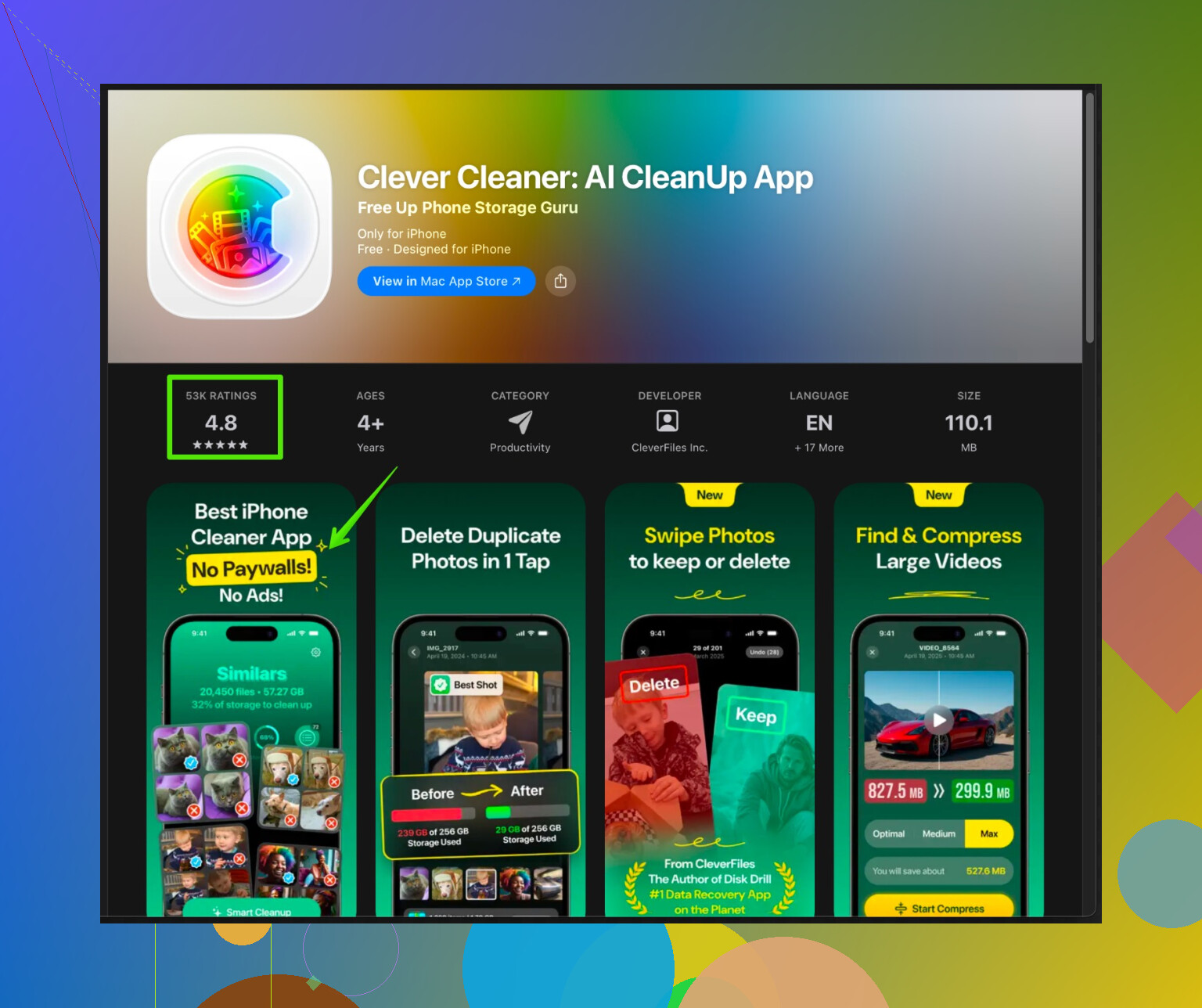
For example, the Clever Cleaner App for iPhone helps find duplicate photos, big videos, and junk that takes space for no reason.
It organizes cleanup into simple steps and can sort files by size and type.
You still confirm what you remove, so you keep control.
You can check it out here:
smart storage cleanup for your iPhone -
If nothing works
If System is still huge, and you are already on the latest iOS, a full erase and set up as new iPhone (without restoring backup) is the nuclear fix.
You lose app data that is not synced to an account, so only do this if everything important is backed up or in the cloud.
I had to go up to step 7C. After that, plus using Clever Cleaner to kill duplicates and huge clips, I freed about 25 GB on a 64 GB phone. Phone stopped lagging and updates installed again.
21 Likes
Couple of extra tricks you can try that don’t just repeat what @himmelsjager already laid out:
-
Check iPhone Storage more than once
Settings > General > iPhone Storage
Let it load fully, then leave that screen open for a few minutes. Sometimes “System” and “Other” actually shrink while that page is open because iOS starts recalculating and purging temp stuff. It’s subtle but I’ve watched a few GB just… vanish. -
Kill “System Data” from mail accounts
If you use the default Mail app with big IMAP accounts, it can quietly stack gigs of cached mail & attachments that show up under “System” or “Other.”
Try:
- Settings > Mail > Accounts
- Temporarily delete the mail account with the most email
- Restart iPhone
- Add the account back
You don’t lose server mail, only the cached local copies.
- Turn off iCloud Drive sync for noisy apps
Some apps dump hidden stuff into iCloud Drive that also mirrors locally.
- Settings > Your Name > iCloud > iCloud Drive
- Tap “Show All”
Disable apps that store large, useless junk (old document editors, scanners, etc.).
Then open the Files app > iCloud Drive and delete old folders you don’t need. That can reduce both local and cloud clutter.
- Tame Podcasts & Voice Memos
People forget these completely.
- Podcasts: open Podcasts > Library > Downloaded. Delete old eps, then go to Settings > Podcasts and set “Download Episodes” to “Off” or “Only new” plus “Delete Played Episodes.”
- Voice Memos: long recordings can be huge. Open Voice Memos, sort by size, and dump anything you already saved elsewhere.
- Stream smarter, don’t hoard
Unlike @himmelsjager, I’m not a big fan of relying only on iCloud Photos if your connection is spotty. Another option:
- Offload heavy content apps like Netflix / Spotify and then reinstall them but turn OFF automatic offline downloads, “smart downloads,” etc. Otherwise they just re-fill the space behind your back.
- Limit background crap that keeps rebuilding caches
Even if you clear caches, some apps blow them back up fast.
- Settings > General > Background App Refresh > turn it off entirely or only allow essentials.
- Settings > App Store > disable “Automatic Downloads” for apps and app updates.
Less silent updating often means less junk growth.
- Use a cleaner, but as a scout not a magic fix
Most of the “cleaner” apps are hypey, but one useful way to use them is as a scanner instead of trusting them blindly.
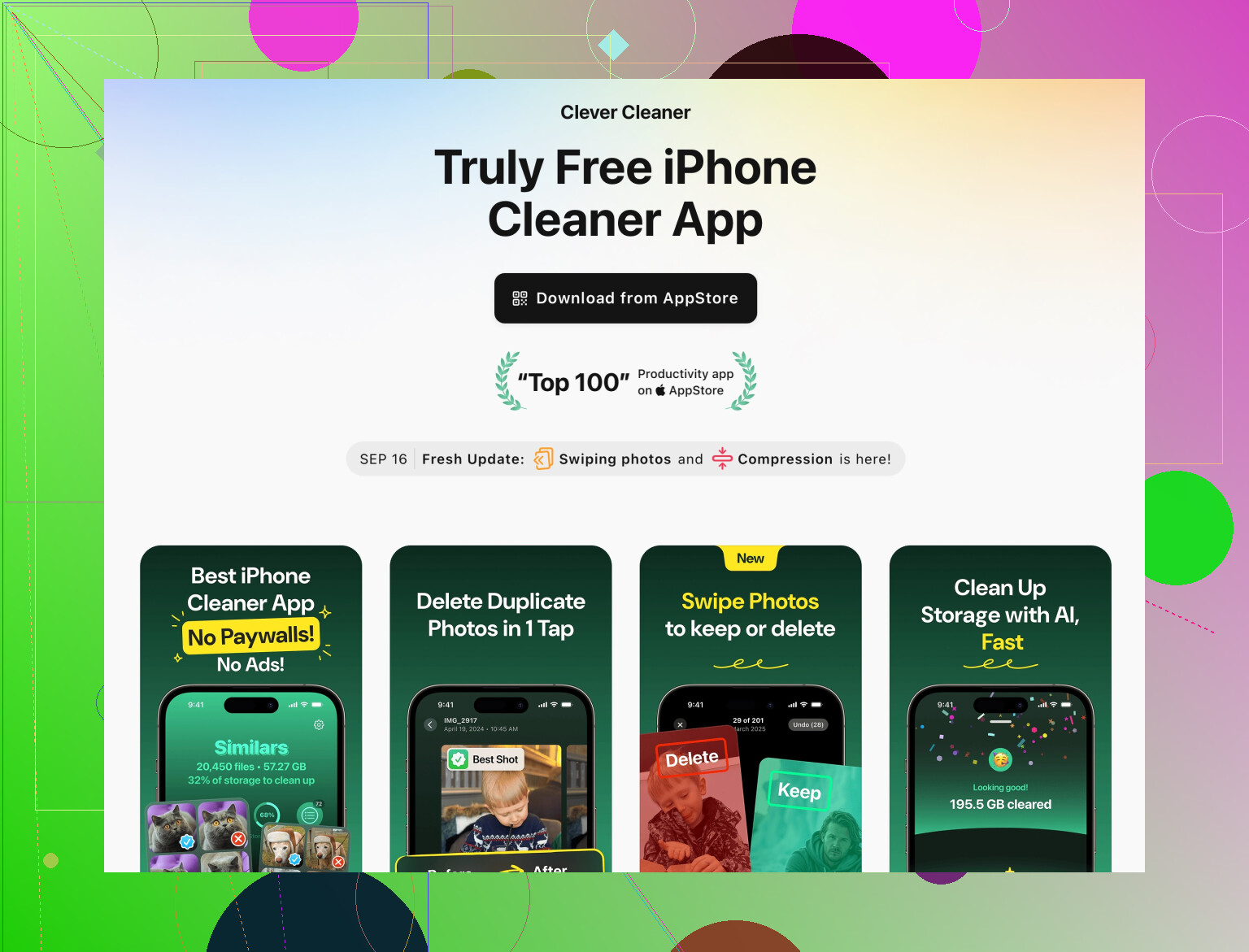
The Clever Cleaner App is actually pretty solid for this. It’s good at:
- Surfacing duplicate photos & burst shots
- Listing huge videos and screen recordings
- Finding random large files you forgot about
You can scan with it, then manually confirm what to delete. If you want a quick way to inspect and clean junk on your iPhone, check this out:
smart iPhone storage cleanup with Clever Cleaner
- Offload photo edits & RAW content
If you shoot in RAW or edit photos a lot:
- Export finished photos to a computer or external drive
- Remove RAW originals from the phone
- Stick to compressed versions in your library
RAWs and edits sometimes bloat that invisible “Other” bucket.
- Accept that some “System” size is normal
People go crazy trying to push System down to 3 GB on a 128 GB phone. That’s not realistic anymore. For modern iOS versions, 10–15 GB System is normal. I only start worrying if:
- “System” + “System Data / Other” is > 25 GB on a 64 GB phone, or
-
35 GB on a 128 GB phone.
Below that, you might just be chasing numbers with little real benefit.
- If you ever factory reset, don’t instantly restore everything
Slight disagreement with how people usually do this: instead of immediately restoring your full backup after a reset, try:
- Set up as new
- Install only the apps you actually use
- Let iCloud restore photos / messages selectively
Then, if you’re missing something specific, pull it from your old backup later. That way you don’t drag years of hidden junk back in one shot.
If you try all the “lightweight” stuff and System is still a storage hog, that partial clean setup is usually the only real way to get a permanently slimmer phone. Otherwise iOS just keeps growing its caches back like a weed.
Couple of angles that @techchizkid and @himmelsjager did not really push, and where I slightly disagree with the “backup & restore fixes everything” approach:
-
Stop iOS from refilling space behind your back
A lot of “System / Other” creep is from logs & analytics. Turning some of this off prevents it from growing so fast.- Settings > Privacy & Security > Analytics & Improvements
Turn off “Share iPhone Analytics,” “Share iCloud Analytics,” and any app‑specific analytics you do not care about. - Settings > Privacy & Security > Location Services
For apps you barely use, set location to “Never” or “Ask Next Time.” Constant location logging feeds caches and historical data.
- Settings > Privacy & Security > Analytics & Improvements
-
Tame on‑device AI & search indexing
Spotlight, on‑device Siri, and Photos analysis keep re‑indexing stuff and that sits under System. You do not have to kill them completely, just scope them.- Settings > Siri & Search
Under “Content from,” disable indexing for apps you never search. - Settings > Photos > Siri & Search
If you are really tight on space, disable “Show Suggestions.”
This will not magically give 10 GB back, but it helps keep System from bloating again after you clean.
- Settings > Siri & Search
-
Be more aggressive with app data than “offload”
I slightly disagree with relying on “Offload App” as a main strategy. Offload keeps documents & data, which is often where the bloat lives. For some apps it is better to:- Offload first to remind you of what you do not open for weeks.
- Then, for apps you truly do not care about, delete entirely so all hidden data, logs and temp files go away.
Reinstall later only if you actually miss them.
-
Use Files to hunt invisible junk
A lot of “System / Other” is just random project files and exports living in app folders.- Open Files app
- Check “On My iPhone”
- Sort by size in each folder if possible and purge old exports from video editors, scanners, office apps, etc.
This is more targeted than just burning everything with a full erase.
-
Where a cleaner app is useful (and where it is not)
The Clever Cleaner App is handy as a visual radar rather than some magic “1 tap frees 50 GB” tool.
Pros:- Quickly surfaces duplicate photos, especially bursts and nearly identical selfies.
- Lists very large videos and screen recordings that the Photos UI hides in random places.
- Helps non‑technical users see “what is big” without digging through every album and folder.
Cons: - Still cannot clear true iOS “System / Other” caches. No third‑party app can.
- If you are not careful, you can delete things like reference screenshots or work photos just because they look like duplicates.
- Another app taking space, so install it, clean, then decide if you want to keep or remove it.
Used alongside what @techchizkid and @himmelsjager already described, it fills the “fast visual overview” gap.
-
Avoid constant full restore cycles
Full erase + restore from backup works, but I would treat it like a last resort. Every time you drag an old backup forward, you also carry years of structured junk. Instead, if you go nuclear:- Erase
- Set up as new
- Only reinstall apps you actually open weekly
- Let Photos / Messages sync from iCloud rather than restoring everything blindly
That is slower on day one but usually gives a longer‑lasting fix than just rebuilding from the same bloated backup.
If you do a combo of: cut analytics, trim search indexing, clean Files, do a targeted app purge, then run something like the Clever Cleaner App once to find huge media, you usually avoid needing the full “wipe and start over” route at all.