My hard drive suddenly stopped showing up, and I’m trying to recover important files like family photos and work documents before anything gets worse. I’m looking for the best hard drive data recovery steps, software, or repair options that actually work without risking permanent data loss.
I’ve seen this go sideways fast, so the first move is boring but important. Stop writing anything to the drive. No installs, no downloads, no moving folders around. If you keep using it, your old data gets replaced bit by bit, and recovery odds drop.
Before running any tool, watch how the HDD behaves. I’d check for stuff like this:
repeating clicks
spin up, spin down, over and over
grinding or scraping sounds
random disconnects
the drive vanishing from Windows or macOS
painfully slow reads
If you hear loud clicking, I’d treat it as hardware trouble until proven otherwise. A normal hard drive does not sit there click-click-clicking like a dying metronome.
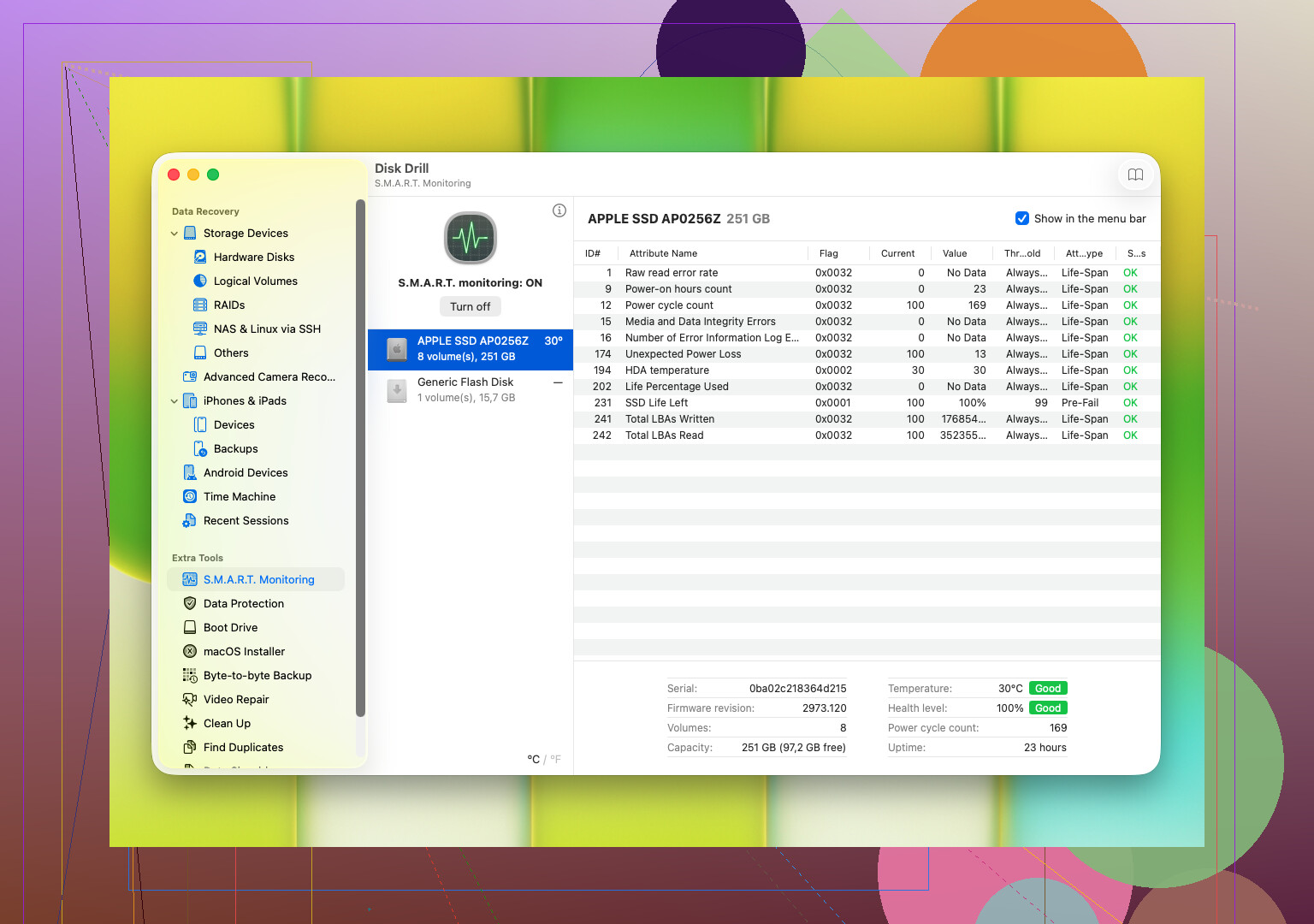
One thing worth checking early is the drive’s S.M.A.R.T. data. This is the health log built into the disk. I’ve used it to spot bad sectors, read errors, reallocated sector counts, heat issues, and other signs the disk is wearing out. A lot of disk tools read this info.
If the drive looks physically sick, especially with clicking or S.M.A.R.T. values getting worse, don’t hammer it with repeated scans. Don’t run CHKDSK. Don’t try random repair steps from old forum posts. I did that once years ago on a failing drive and it made things worse, fast. At that point, the safer path is either:
make a byte-for-byte image right away, if the drive still reads
send it to a pro if the files matter enough
If the drive still responds in a stable way, then I’d move to recovery software soon, before the condition changes. One option people tend to start with is Disk Drill. It’s usually simple enough for deleted files, formatted drives, broken partitions, RAW volumes, and disks your system suddenly refuses to open.
What stood out to me with Disk Drill was the workflow. It rolls multiple scan methods together, works with common Windows and macOS file systems, and lets you preview files before recovery. That preview step matters more than people think. If your photos or docs open in preview, you’ve got a better signal they’re still intact. It also reads S.M.A.R.T. info and lets you build a byte-to-byte backup image, which helps when a drive is getting flaky but hasn’t fallen over yet.
If you’re going this route, the process is pretty plain:
Hook up the HDD.
Install Disk Drill somewhere else, not on the bad drive.
Pick the problem disk from the list.
Run the scan.
Let it finish, or look through found files while it runs.
Preview what you want back.
Recover everything to a different drive.
Small but important detail, do not restore files back onto the same HDD. I know it feels easier. It’s a bad idea.
If the software stops seeing the drive, the scan hangs, or the noises get worse while reading, stop there. I wouldn’t keep poking it. At that stage, software recovery starts looking unsafe, and the problem is often physical damage instead of file damage.
15 Likes
If the drive is not showing up, I’d split this into 3 buckets.
-
Connection issue.
Try a new USB cable, new port, new power supply if it’s an external HDD, and a diffrent computer. I’ve seen dead enclosures hide a healthy disk. On desktop drives, the USB bridge board fails a lot more than people think. -
System sees the disk, but not the files.
Check Disk Management on Windows or Disk Utility on Mac. If the drive shows as unallocated, RAW, or with no drive letter, stop trying random fixes. @mikeappsreviewer is right about avoiding write activity, but I’d add one thing. Even repeated unplugging and rebooting is rough on a failing HDD, so keep testing tight and limited. -
Hardware failure.
If BIOS or Disk Management never sees it, or capacity shows as 0 MB, software won’t do much. That’s lab territory.
For software recovery, Disk Drill is a solid first pass if the disk still appears in the OS. I like it more for file system damage than for dead hardware. R-Studio and UFS Explorer are stronger for weird partition cases, but they are less beginner friendly and easier to mess up if you’re panicing.
Best order I’d use:
Clone the drive first, recover from the clone second.
Use a large spare drive.
Run recovery on the image, not the original.
Save recovered files to a third drive if possible.
For photos and docs, file preview matters more than scan speed. If previews work, your odds are beter.
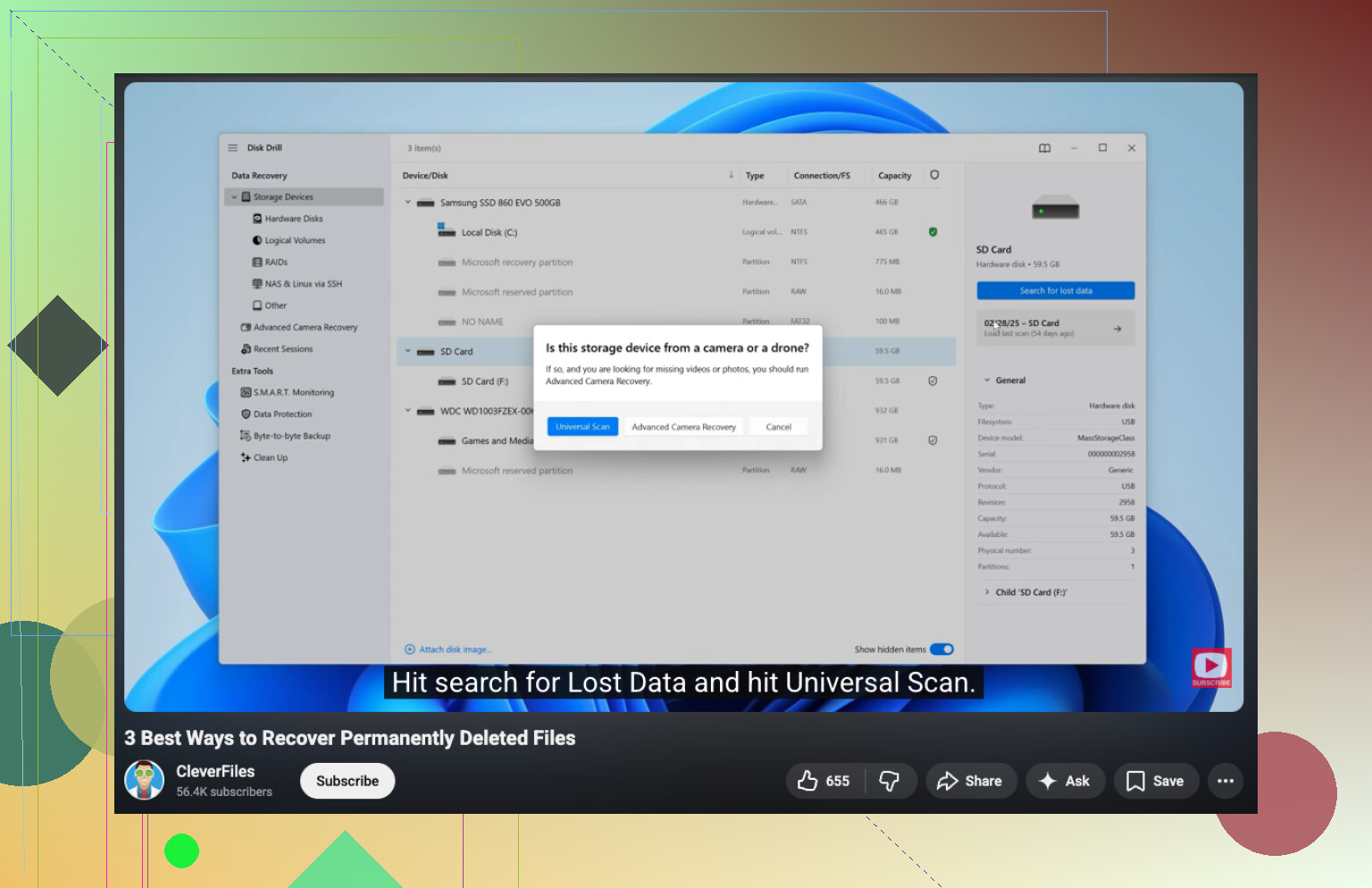
If you need a clean guide on how to recover deleted or lost files from a hard drive, this video is decent:
watch this hard drive file recovery walkthrough
Simple SEO-friendly phrasing for your issue:
recover deleted or lost files from a hard drive
One thing I disagree on a bit with the usual advice. People jump to pro recovery too fast for non-clicking drives. If the disk is stable, readable, and cool, a proper clone plus Disk Drill is often the smart first move. If it clicks, grinds, drops offline mid-read, stop.
I’d add one thing to what @mikeappsreviewer and @hoshikuzu said: check whether the drive is failing because of the enclosure, not the disk itself. External drives love to fake a “dead drive” when it’s really the USB-SATA board being dumb. If it’s an external HDD and you’re comfortable opening it, sometimes pulling the actual drive and connecting it directly by SATA or a known-good adapter is the move.
Also, I’m gonna mildly disagree with the “scan ASAP” instinct. If the drive is barely hanging on, even a normal scan can be too much. My order is:
- See if BIOS / Disk Management detects it
- If yes, clone or image first if possible
- Then run recovery tools on the copy
- Recover to another disk only
If the partition is gone but the drive size shows correctly, that’s usually more hopeful than people think. If it shows 0 bytes, clicks, or disappears every few mins, stop messing with it.
For software, Disk Drill is fine for a first pass on a readable drive, mostly because the preview is useful for photos/docs. I’d also keep DMDE in mind for partition reconstruction stuff, though the interface is kinda ugly tbh.
And do not use CHKDSK if the files matter. People keep doing this and then act shocked when the folder structure gets nuked.
If you want more community tips, this thread has some decent hard drive recovery advice:
hard drive recovery tips from real users

I’d add one angle the others only touched lightly: power and thermals. A weak PSU, flaky USB hub, or overheating external enclosure can make a healthy-ish drive vanish. If it appears for a minute and drops, feel the enclosure. Hot enough to feel sketchy is a bad sign.
Where I slightly disagree with the “open it and try stuff” crowd: if it’s a modern external with hardware encryption on the USB board, removing the disk can actually complicate recovery. So before shucking it, check the model.
For actual recovery, Disk Drill is fine when the drive is still readable.
Pros
- easy preview for photos/docs
- simple UI
- decent first-pass scan
- can work well for RAW/lost partitions
Cons
- not my first pick for really damaged drives
- deep scans can take forever
- less surgical than tools like R-Studio or DMDE
My order would be:
- Test with direct power/cable/port, avoid hubs
- Check whether the exact capacity appears correctly
- If yes, image it first
- Run recovery on the image
- Save files elsewhere
If the drive clicks, disappears, or crawls at KB/s, stop DIY. @hoshikuzu, @sternenwanderer, and @mikeappsreviewer are all basically pointing in the same direction there, and that part is dead right.