My USB drive was working fine, but now it shows up as empty even though it says space is still being used. I had important photos and work files on it, and I really need help figuring out if the data is hidden, corrupted, or still recoverable. Looking for advice on safe USB file recovery steps before I make things worse.
Deleted files from a USB drive, what I’d do first
Yeah, I’ve had this happen. You open the flash drive, stuff is gone, and your stomach drops for a second.
The main thing is simple. Stop writing anything to the USB right now.
Do not move files onto it. Do not format it. Do not save recovered files back to it. On most USB drives, deleted files do not land in the normal Windows Recycle Bin. The file system marks the space as free, but the old data often stays there until new data replaces it. If you caught it early, your odds are still decent.
Quick checks before recovery software
I’d spend two minutes on these before scanning:
- In File Explorer, enable hidden items and look through the USB again.
- Check for hidden folders named
$RECYCLE.BIN,RECYCLER,RECYCLED, or.Trashesif the drive was plugged into a Mac before. - Look in any sync or backup location where the files might have been copied earlier.
- Leave repair tools alone for now, unless the drive won’t open and you already gave up on anything still sitting there.
I’ve seen files look deleted when they were only hidden by bad attributes, malware junk, or a file system hiccup. The recycle-folder trick does not hit often on flash drives, but it’s fast, so I’d still check.
If the files are gone, scan the drive
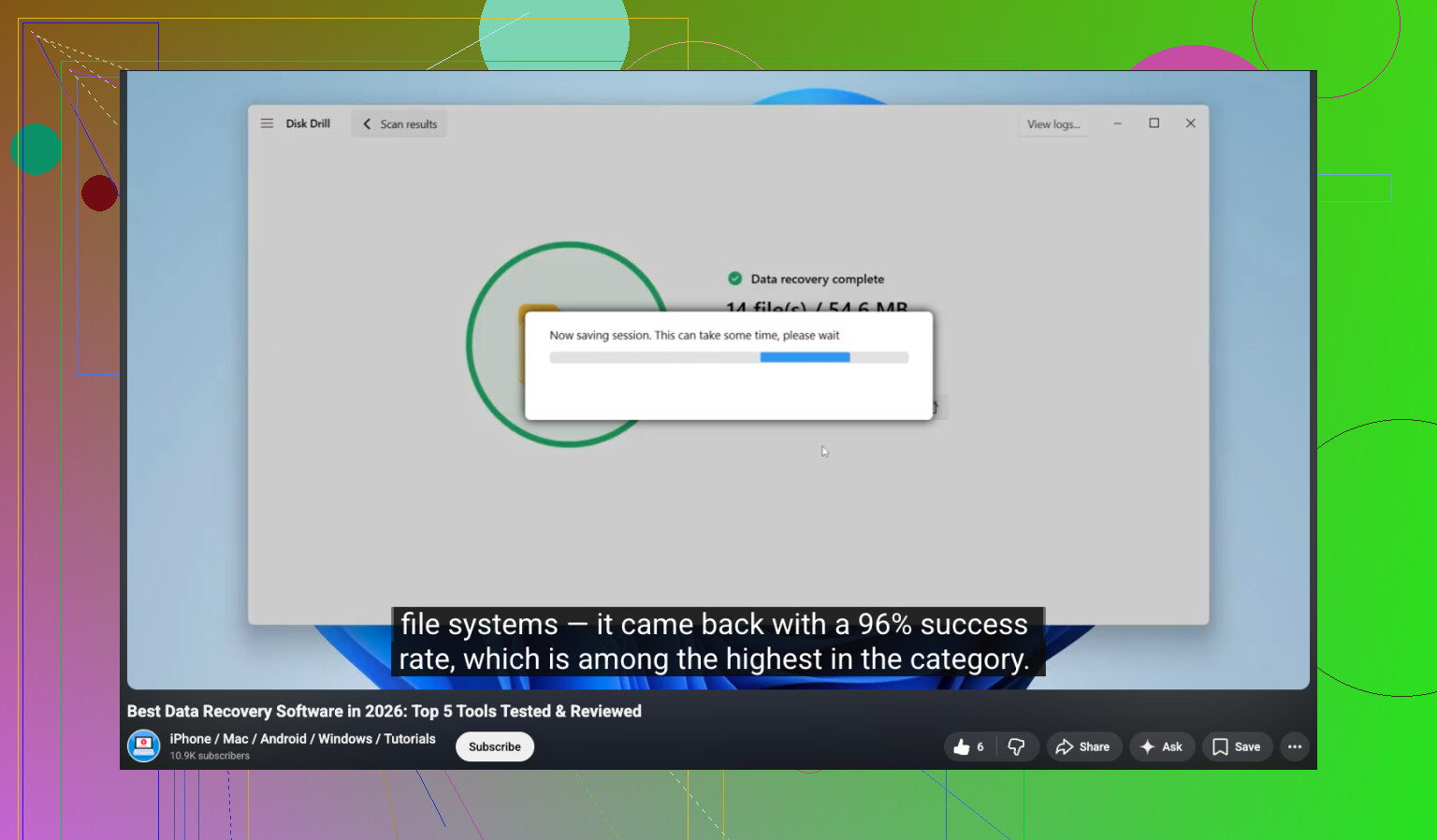
At that point I’d move to recovery software. I’ve had decent results with Disk Drill for USB recovery, mostly because it does not make you fight the terminal for an hour. It reads common USB formats like FAT32, exFAT, and NTFS, and the preview step helps sort out what is worth recovering.
The steps are plain:
- Install Disk Drill on your computer, not on the USB stick.
- Connect the USB drive.
- Pick the USB in the app.
- Start the lost-data scan.
- Preview what turns up.
- Recover the files to your PC or to another drive, never to the same USB.
That last step matters more than people think. If you restore files back onto the same stick, you might overwrite other deleted data you have not recovered yet. I did this once years ago and, yep, bad idea.
How to judge the scan results
The preview feature is the part I’d pay attention to.
If a file opens in preview, your chances are usually better. If you still see original names and folder paths, even better. When the software only shows rebuilt files with generic names, recovery still might work, but sorting through it gets annoying fast.
About Windows File Recovery
Microsoft has its own tool, Windows File Recovery. It works, but I would only touch it if you’re fine using command-line tools. The output tends to feel messy, and it takes more patience. If you want the shortest path, Disk Drill is easier.
One tool I would not run first
I would skip CHKDSK at this stage.
CHKDSK is for file system problems, not for safely restoring deleted files. It might repair corruption, sure, but it also changes things on the drive. I’d recover first, repair later. I’ve seen Windows try to ‘fix’ a disk and leave less behind to recover.
The short version
If this were my USB, I’d do this:
- Stop using the drive.
- Check hidden files and recycle-type folders.
- Scan it with Disk Drill.
- Save recovered files somewhere else.
If you have barely used the USB since deletion, your chances are a lot better. If you kept copying stuff onto it after the mistake, things get uglier pretty fast.
15 Likes
If the drive looks empty but used space is still there, I’d treat it like a file system problem first, not a deletion case. Small disagreement with @mikeappsreviewer on one point, I would not spend much time hunting recycle folders on a USB stick. Hidden files and damaged directory entries are more common.
Do this in order.
-
Try the USB on another PC.
If it shows files there, your first system has a Windows, driver, or USB port issue. -
Check Disk Management.
If the partition shows RAW, unallocated, or no file system label, the data is often still present but the file table is damaged. -
Run this command before repair tools:
attrib -h -r -s /s /d X:*.*
Replace X with your USB letter. This unhides files changed by malware or bad attributes. I’ve seen this fix “empty” flash drives in like 2 mins. -
If files still do not appear, make a byte-for-byte image of the USB first, then scan the image, not the stick. This matters if the USB is failing. USB flash memory tends to die without much warning. If reads are slow, freeze, or disconnect, stop messing with it.
-
Then use Disk Drill on the image or the USB if the drive is stable. Focus on photos and docs first. Recover to your PC, not back to the USB.
-
After recovery, run chkdsk only if you want to try making the stick usable again. Not before. CHKDSK often “fixes” the folder structure into oblivion. Seen it happen, sadly.
If you want a visual walkthrough, this USB data recovery video guide for hidden or missing files covers the basics well.
If the USB clicks, drops offline, or shows 0 bytes, skip software and go straight to a pro. At tht point, every extra read hurts your odds.

If the USB shows empty but used space is still there, I’d treat that as a directory/file-system visibility problem before assuming the files are fully gone. Slight disagreement with @mikeappsreviewer and @chasseurdetoiles on one thing: I would also check the drive in Linux if you can. A live Ubuntu USB sometimes reads folders that Windows acts weird about, especially on exFAT/FAT sticks.
A couple things they didn’t really get into:
- Check Properties > Tools and look at the file system type first, but don’t hit repair yet.
- Open Event Viewer and see if Windows is logging disk/USB I/O errors. If yes, that points more to hardware flakiness than hidden files.
- Use a tool like USBDeview or Device Manager to remove the device entry, then reconnect. Sounds dumb, but I’ve seen stale mount info cause odd behavior.
- If photos matter most, try a file carving pass, not just normal recovery. Sometimes folder structure is toast, but JPG/RAW/PDF files still come back.
If the drive reads normally and stays connected, Disk Drill is still a solid pick for USB recovery because it can scan for lost partitions plus deleted/hidden data. I’d call it one of the top USB and flash drive data recovery software options for regular users. Preview first, then recover to your internal drive.
Also, this step by step USB data recovery walkthrough is worth a look.
If the stick starts disconnecting, gets super slow, or hangs Explorer, stop. That’s where ppl make it worse real fast.