My iPhone storage is almost full, and I realized my videos are taking up most of the space. I’m trying to find the biggest video files first so I can delete or move them, but I can’t find a way to sort iPhone videos by size in the Photos app. Is there a built-in option or another easy method that works?
I ran into the same dumb wall on iPhone. There still isn’t a real way inside Photos to sort videos by file size. I looked for it again on iOS 26, still nothing.
If you only keep a few clips, you can brute-force it. Open a video, swipe up, or hit the little “i” button. The size shows there. I did this for a while. It gets old fast. Once your library has a few hundred videos, it turns into pure tedium.
Sorting by duration inside Photos helps a little, but it misses the point. Length and size are not the same thing. I had a short 4K 60fps clip eat more space than a much longer 1080p recording. So if you use duration as your filter, you’ll catch some big files, and miss others.
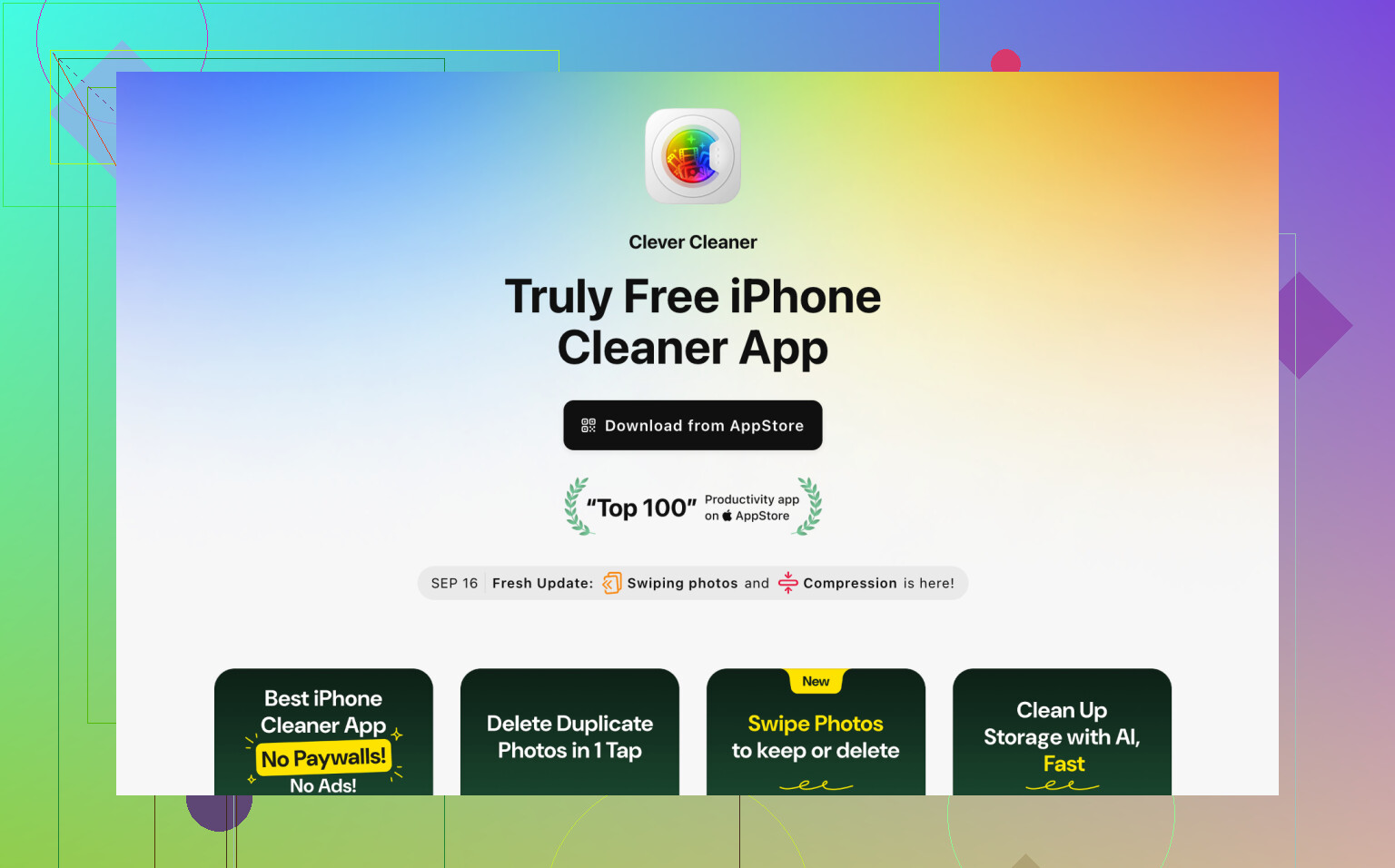
What worked better for me was using Clever Cleaner. I usually avoid cleaner apps because a lot of them feel like bait for subscriptions, but this solved the one thing Photos still refuses to do.
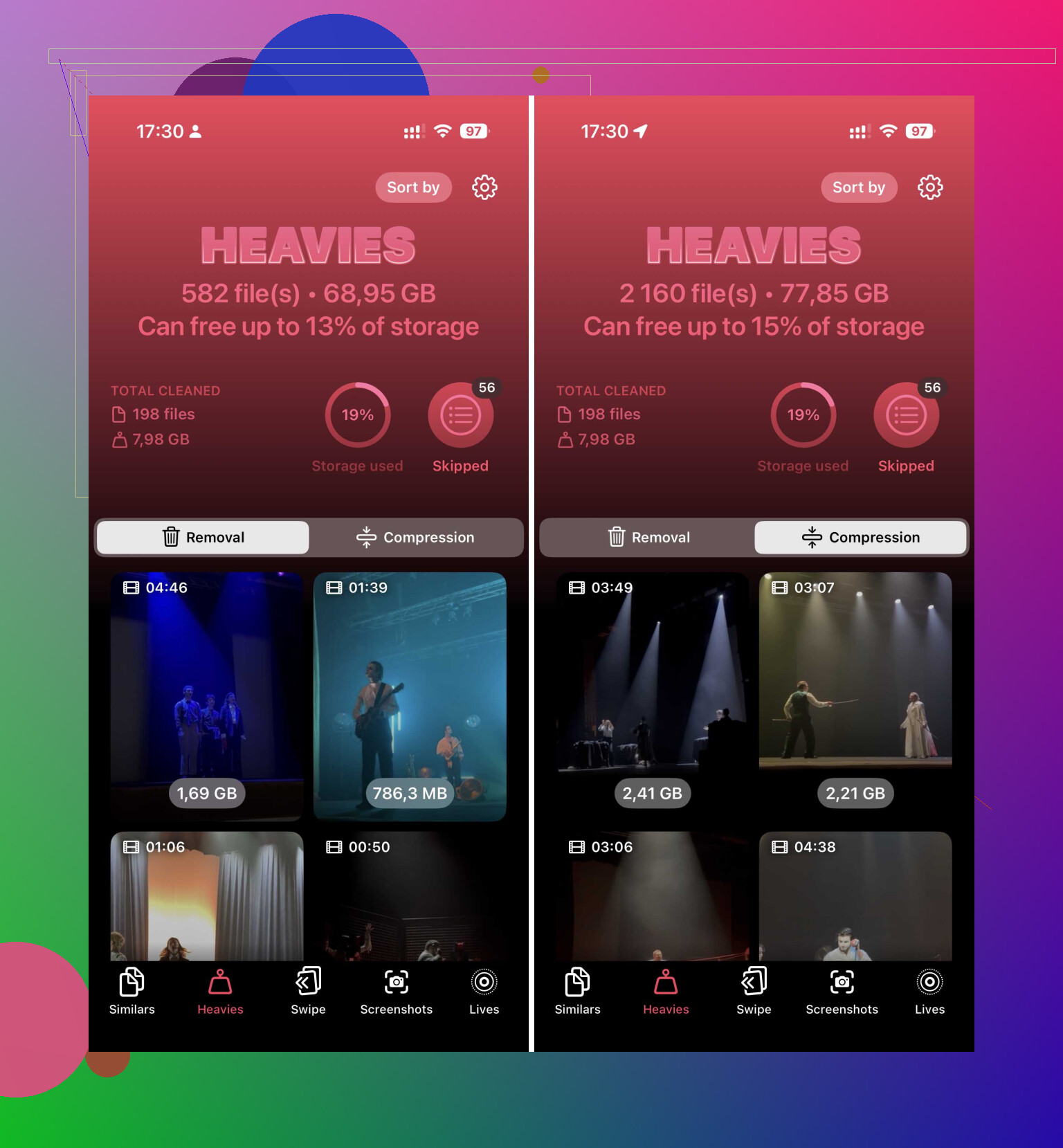
After I gave it access to my library, I went into the Heavies section. That part lists videos from largest to smallest, with the file size shown right next to each one in MB or GB. No guessing. No opening every clip one by one. I scrolled, picked the worst offenders, and cleared them out in batches.
If you don’t want to erase stuff outright, there’s also a Compress option. I tried it on a few videos I wanted to keep. The files got smaller, and on a phone screen they still looked fine to me.
If you want to stay as close to Apple’s own tools as possible, there are a few workarounds. None of them are clean.
Check Settings, General, iPhone Storage. Sometimes iOS shows a “Review Large Videos” suggestion. When it appears, it’s useful. When it doesn’t, you’re out of luck.
Use Shortcuts if you don’t mind tinkering. In the Shortcuts app, build something with “Find Photos,” set “Media Type” to Video, then filter by duration, like longer than 5 minutes. After that, sort by duration with the longest first. It still isn’t sorting by file size, but it gets you closer than Photos does.
Use the Files app for videos saved outside the camera roll. If a video lives in “On My iPhone” or iCloud Drive, open the folder, tap the three dots, and sort by Size. This works natively. The catch is obvious. It won’t show the videos sitting in your Photos library. You could move videos out of Photos into Files, sort them there, clean up, then move them back. I tried thinking through that route once and gave up. Too messy.
So yeah, if your goal is finding the biggest storage hogs fast, Clever Cleaner was the least annoying route I found. The Heavies view does the job in seconds.
One last thing, and this part trips people up. Deleting videos from any of these routes still leaves them in Recently Deleted inside Photos. They sit there for 30 days and keep using storage until you empty it yourself. If you want the space back now, go clear that folder manualy.
48 Likes
iPhone Photos still does not give you a clean size sort for videos. I disagree a bit with @mikeappsreviewer on one point, duration sort is not useless. It is sloppy, but if your clips are mostly from the same camera mode, longer clips often track close enough to size to help you triage fast.
If you want a better Apple-first route, use a Mac. Plug in your iPhone, open Image Capture, sort the import list by file size, then delete the biggest ones from the phone after you verify them. It is faster than tapping info on each clip, and it shows the data you need.
If you use Windows, import from DCIM and sort by size in File Explorer. Same idea.
If you want it done on the phone, Clever Cleaner is still the cleaner option. Its large-video view is easier than fighting Photos. I also found this roundup useful for comparing tools: best free iPhone cleaning apps for clearing storage fast.
One more tip. Turn off Keep Originals for camera transfer if you use Photos on Mac or PC a lot. HEVC files stay smaller. Saved me a few GB, easy. Also empty Recently Deleted or the space wont come back.
No clean native way on the iPhone itself, annoyingly. Photos still won’t just let you sort your video library by file size like a normal file manager.
I’d actually push back a little on @mikeappsreviewer and @hoshikuzu here: Mac/PC export tricks are fine, but if your goal is to free space fast, that’s more hassle than most people want. By the time you import, sort, verify, and delete, you could already be done.
What is worth checking that they didn’t really lean on is this:
- Settings > Camera > Record Video
If you’ve been shooting in 4K/60, Cinematic, or ProRes, that’s usually the real storage killer. Even before deleting anything, switching future recordings to 1080p can stop the problem from coming right back. - Settings > Photos > Optimize iPhone Storage
Not a true size-sort fix, but if you use iCloud Photos, this can claw back space pretty quicky without deleting videos. - Screen recordings
These are sneaky huge. Albums > Media Types > Screen Recordings. People forget about them all the time.
If you want an actual on-phone way to spot the biggest videos, Clever Cleaner is probably the most practical option because it groups heavy files visually instead of making you dig through Photos one by one. That’s the part Apple still refuses to do. If you want a broader feature walkthrough, this is a decent overview: see all Clever Cleaner features for freeing up iPhone storage.
So the short version:
- Check Screen Recordings
- Lower future video recording quality
- Turn on Optimize iPhone Storage if using iCloud
- Use Clever Cleaner if you specifically need biggest videos first
That combo is way less pain than manually inspecting every clip, tbh.
I’d add one angle the others barely touched: use Albums to narrow the hunt before you start deleting. Not size sorting, but still useful. Check Media Types > Videos, then also Screen Recordings, Slo-mo, and Cinematic if you use them. Those categories often hide the fattest files.
I also disagree a bit with the “just use duration” idea from @hoshikuzu and @mikeappsreviewer. It helps, sure, but HDR, frame rate, and codec can make short clips absurdly large. Duration is only a rough clue.
If you want actual size-based triage on the phone, Clever Cleaner is the practical shortcut.
Pros
- shows large videos directly
- faster than tapping Info on every clip
- easier batch cleanup
Cons
- another app getting photo access
- results still need human review before deleting
- not everyone likes cleaner apps on principle
@byteguru is right that changing future recording settings matters too, but for your current mess, I’d start by checking hidden-heavy albums first, then use Clever Cleaner for the real size pass, then empty Recently Deleted. That last step is where people think storage is freed when it actually isn’t.
An easier option is Google Photos. Install it, back up your library, then open your profile picture, Manage storage, Large photos and videos. It groups storage-heavy files without checking each clip.
Review the biggest vidoes, confirm the backup opens, then remove the originals from your iPhone. Use Free up space to clear backed-up copies in bulk. This also gives you an online copy, so you avoid moving files through a Mac, PC, or external drive. Keep full orginal quality selected during backup.
Google Photos only sounds free until you hit the 15GB cap, and that fills up fast with 4K clips. So @zeroengineer5252lab’s route works, but for a lot of people it just trades an iPhone storage problem for a nagging ‘buy more storage’ popup. Worth knowing before you rely on it as your backup.
Honestly the whole thread already covers the real answer: Photos still won’t sort by size, so you either drag everything to a computer or use something like Clever Cleaner to spot the heavy videos on the phone. I’d pick based on patience. If you just want the biggest files gone today, the on-phone route is less fuss. Just don’t forget to empty Recently Deleted or none of it actually frees space.