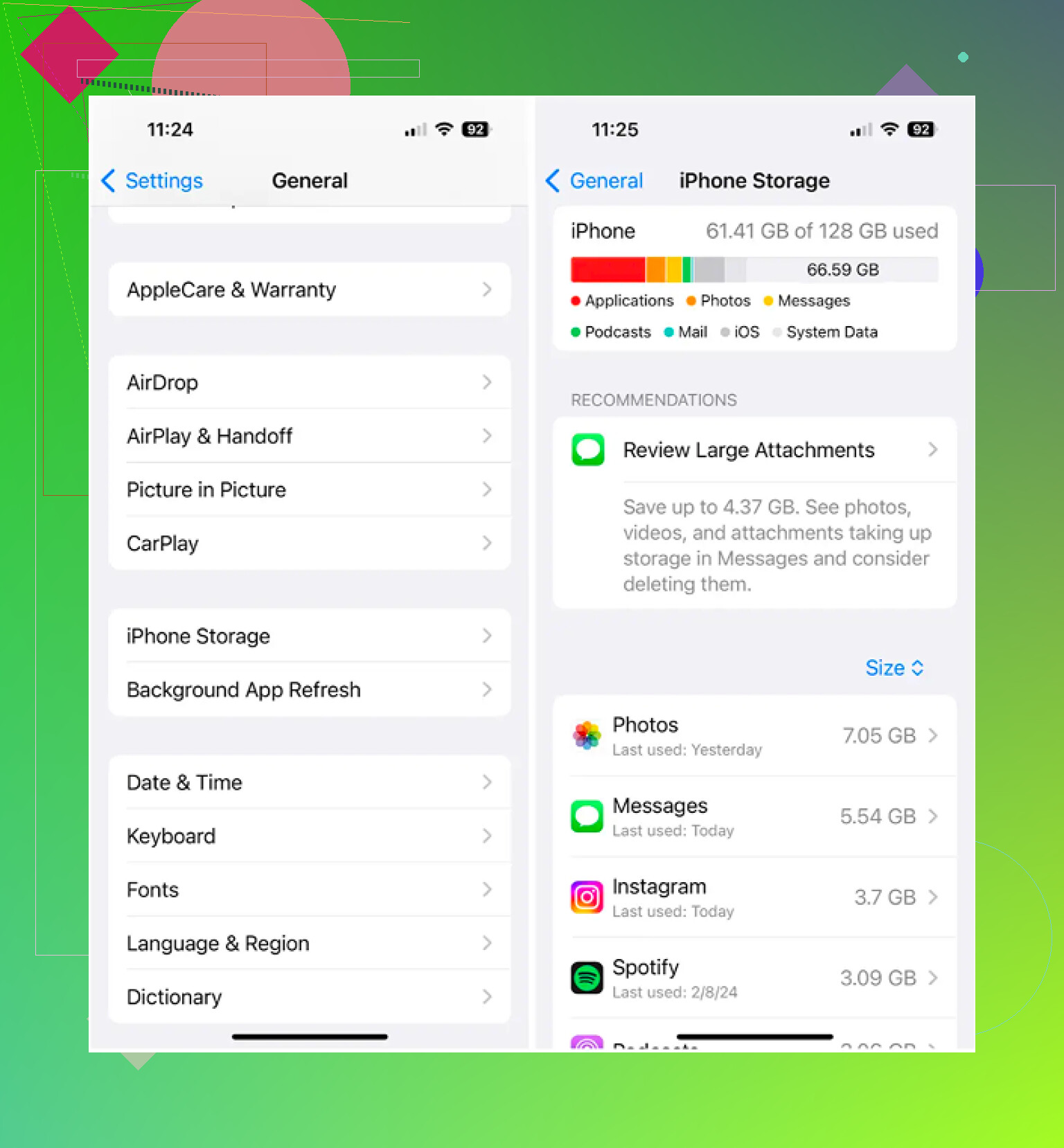
My iPhone storage is almost full, and I’m not sure which files I can safely delete without losing anything important. I’ve already removed some apps and photos, but I still keep getting low storage warnings. I need help figuring out the best way to clear files, free up space, and make my iPhone run normally again.
I always found iPhone file cleanup weirdly hidden. Once I learned where Apple puts stuff, it stopped feeling random.
Deleting files in the Files app on iPhone
The Files app is where I kept seeing PDFs, ZIP archives, Safari downloads, and attachments saved from Mail.
If you're removing one file or one folder:
- Open the Files app, then go to the item
- Press and hold the file or folder until the menu pops up
- Scroll down. On iOS 18, Delete often sits near the bottom in red with a trash icon
- Tap Delete
If you're clearing a bunch of items at once:
- Tap the three-dot button in the top-right corner, then pick Select
- Tap each file you want gone
- Hit the trash icon at the bottom
Deleting a folder in Files
Folders work the same way. I pressed and held the folder, scrolled down to Delete, then tapped it. If you want the folder to stay but want it emptied, open it first, use Select All, then remove the contents from inside.
When a file refuses to delete
I ran into this more than once. The file looked like it was still there, but iCloud had already moved it or synced it out. The Files app hadn’t caught up yet, so the icon stayed on screen like a leftover.
- Close the Files app fully, then open it again
- If the file still shows up, restart your iPhone
- After a reboot, iOS usually refreshes the local file list and clears the fake entry
Freeing local space without removing the file from iCloud
If you see a cloud icon next to a file, it lives in iCloud too. Deleting it removes it from every device tied to your Apple ID. I learned this the hard way once, so I stopped hitting Delete unless I meant it.
If your goal is space, look for Remove Download instead. That strips the local copy off the phone but leaves the file in iCloud Drive. Later, when you tap it again, it downloads back.
Why storage still looks full after deleting files
This part tripped me up. iOS doesn’t erase deleted files right away. They go into Recently Deleted for 30 days, and they still count against storage until you clear them out.
To wipe them now instead of waiting:
- Open the Browse tab in Files
- Scroll down to Recently Deleted under Locations
- Tap the three dots, choose Select, then Delete All
The Photos app does the same thing. Deleted photos and videos sit in its own Recently Deleted folder, so you need to empty that separately too.
Why Files app cleanup often barely moves the storage number
On my phone, documents were almost never the real problem. Photos and videos were. One old 4K clip ate more space than a pile of PDFs. Same with burst photos. You think you're deleting a lot, then storage barely budges. Annoying, but yep.
Apple’s built-in Duplicates section only catches exact copies. Clever Cleaner checks further than that and is free, with no ads or subscription.
I liked the part where the Heavies tab lists items from biggest to smallest and shows the size up front. It made large videos easy to spot. The Similars tab groups near-matching photos and picks a Best Shot, which helped me clear messy burst sets fast. There’s also a swipe view for sorting month by month, left for delete, right for keep. The processing stays on the phone, so nothing gets sent out.
After I cleaned the Files app by hand and ran Clever Cleaner on my photo library, I still had to empty both Recently Deleted folders, one in Files and one in Photos, before the iPhone storage number changed. If you skip that step, it looks like nothing happened. Kinda dumb, but that's how it works.
6 Likes
Start with Settings, not Files. That’s where iPhone tells you what is eating space.
Go to Settings > General > iPhone Storage. Wait 20 to 30 seconds. You’ll see the biggest categories first. Focus on these:
-
Messages
If you send or get lots of photos, videos, memes, voice notes, this section gets huge.
Open iPhone Storage > Messages. Delete large attachments first. A few long videos in chat threads often eat 1 GB to 5 GB by themselfs. -
Safari
Safari stores offline reading data, history, and website cache.
Go to Settings > Safari > Clear History and Website Data.
If Safari is using 1 GB+, this often frees space fast. -
Downloads from streaming apps
Netflix, Spotify, YouTube, Podcasts, Prime Video. Offline downloads stay hidden inside each app.
Open each app and remove downloaded episodes, playlists, and movies. I’ve seen Spotify alone hold 10 GB on some phones. -
Mail
The Mail app keeps attachments and cached message data.
If Mail is bloated, remove and re-add the account, or delete old emails with big attachments. Search terms like “has attachments” help a lot. -
Offload apps instead of deleting them
I disagree a bit with @mikeappsreviewer on where to spend your time first. Files cleanup helps, but on most iPhones, app data and media caches are the bigger problem.
Use Offload App in iPhone Storage. This removes the app, keeps your documents and settings. -
Check voice memos and GarageBand
These are easy to forget. One long recording or project file takes a lot more space than people expect.
If photos are still the main issue, Clever Cleaner is worth a look for duplicate and large media cleanup. Also read Apple’s storage guide here, best Apple guide for freeing up iPhone storage.
Big tip, restart the phone after cleanup. iOS sometiems updates storage totals slowly.

I’d actually start with the stuff iPhone hides from you, not just Files or app deletion. @mikeappsreviewer and @voyageurdubois covered the obvious places already, but there are a few storage hogs people miss all the time.
Check this first:
- Messages app storage: old videos, GIFs, voice notes, stickers
- Downloaded music/podcasts you forgot were offline
- WhatsApp/Telegram/Discord media since those apps hoard junk quietly
- Books/PDF apps with offline files
- Editing leftovers from CapCut, iMovie, Lightroom, etc. These apps keep exported copies and project cache
One thing I kinda disagree on: restarting helps, sure, but if storage is still full after that, it’s usually not a “refresh issue.” It’s hidden media or app cache.
Also check Settings > Accessibility > Spoken Content > Voices. Downloaded Siri voices and accessibility voices can weirdly take a lot of space.
If photos are still the main problem, Clever Cleaner is probly the fastest way to spot big videos, duplicate shots, and similar pics you don’t need. That’s usually where the real cleanup happens, not random PDFs.
And if you want a fast visual walkthrough, this is more useful than Apple’s menus:
see a quick iPhone storage cleanup demo
One more thing people forget: if you use iCloud Drive, deleting a file may delete it everywhere. If you need it later, move it to a computer or external cloud first. Easy mistake, ask me how I know lol.