My iPhone says the storage is full, and now I can’t download apps, take photos, or install updates. I’ve deleted a few things, but the full storage warning keeps coming back. What’s the best way to free up iPhone memory and figure out what’s taking up so much space?
That low storage alert on an iPhone feels worse than it is. I’ve seen it pop up when the phone still had room left, and I’ve also seen it show up because I deleted the wrong stuff first. The first thing I’d do is check what is taking space before touching anything else.
Start with the storage screen
Open Settings, then General, then iPhone Storage. Wait a bit. The colored bar takes a moment to finish loading, and if you look too early you get a half-baked view. Once it settles, you’ll see where the storage went. Photos, apps, messages, system data, all of it. If you skip this screen and start deleting random things, you’re guessing.
The fake warning people fall for
I’ve run into this while browsing on Safari. A page suddenly throws up a message saying storage is full, your SIM is damaged, your phone has a virus, there’s a timer counting down. That is junk. It is not an Apple system alert.
Real iPhone storage warnings show up through iOS itself, usually as a system notification or inside Settings. If it appeared inside a web page, close the tab and move on.
Why deleting files sometimes changes nothing
This trips people up all the time. On iPhone, deleting photos and videos does not remove them right away. They go into Recently Deleted and sit there for 30 days, still using the same space.
If you want the storage back now:
- Open Photos
- Tap Albums
- Scroll down to Recently Deleted under Utilities
- Tap Select
- Tap Delete All
Do the same thing in the Files app. Check Downloads, then Recently Deleted there too. Those are separate places, and both keep deleted files around.
If the warning started after an iOS update
This one is common. During an update, iOS downloads install files and temp data. Sometimes the cleanup after the update is sloppy. I’ve had phones look packed for an hour or two after updating, then settle later.
First step, restart the iPhone. A reboot often forces iOS to recalculate storage and drop temp update files. If the warning stays, go back to iPhone Storage and look at System Data. If that section grew a lot after the update, the extra junk is often sitting there.
Places where storage piles up quietly
Messages is a big one. Old videos, photos, memes, GIFs, voice clips, years of group chat junk. It adds up fast.
Go to:
Settings > Messages > Keep Messages
If it says Forever, switch it to 1 Year or 30 Days if you’re okay with older stuff being removed. If you want faster results, go to:
Settings > General > iPhone Storage > Messages
Then check Review Large Attachments. You’ll usually find giant video clips and old junk sitting there.
Safari is another easy cleanup.
Go to:
Settings > Safari > Clear History and Website Data
For apps like Instagram or TikTok, cache builds up over time and some of those apps give you no clean way to wipe it. In those cases, I’ve had the best results by deleting the app and installing it again.
When the built-in tools stop being enough
Apple shows totals, but not much detail. You don’t get a clean list of the biggest videos. You don’t get help with near-duplicate photos. Screenshots from two years ago just sit there unless you hunt them down yourself.
https://www.youtube.com/shorts/qUVkfQqrwsk
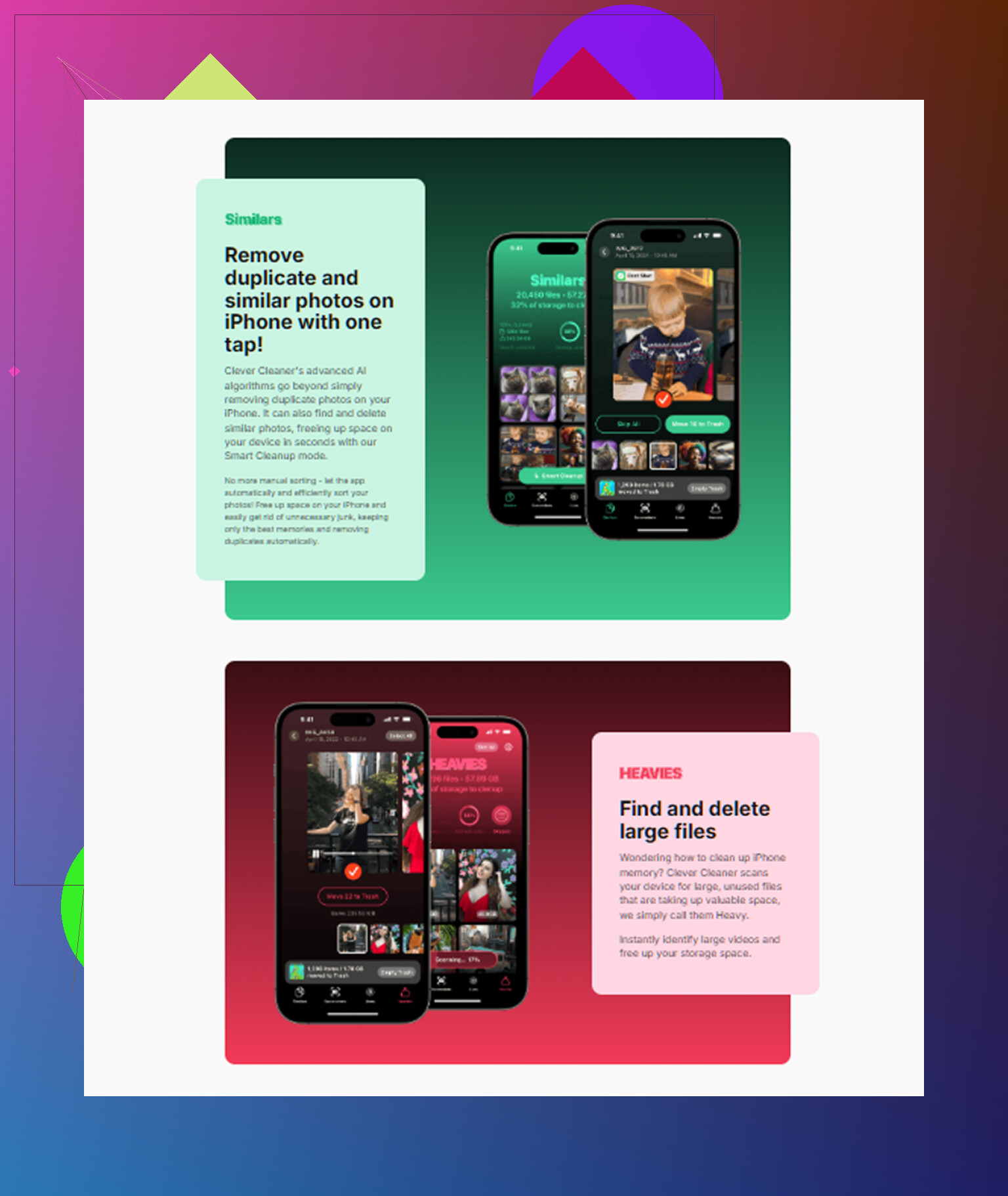
What stood out to me was the file sorting. The Heavies section puts your largest files at the top, so the space hogs show up fast. Usually it’s old 4K clips, screen recordings, or giant downloads you forgot about. The similar photo sorting is also useful if your library is full of burst shots and three tries of the same picture. It groups them and picks a best shot, which saves time.
On one cleanup run, I cleared about 12GB. The warning stopped after I emptied Recently Deleted, and the phone stopped lagging so much too. So yeah, deleting alone was not enough. Finishing the delete was the part I missed the first time.
If the warning keeps showing even when space is free
I’ve seen this too. Settings shows available storage, but the alert keeps coming back like the phone didn’t get the memo. At that point, it’s often a bad storage count.
Try a full restart first. Not sleep and wake, a real restart. That fixes phantom storage errors pretty often.
If it still won’t quit, back up the phone to iCloud or a computer and reset it. That’s the annoying option, but when iOS gets its storage math wrong deep in the system, a reset is the thing that tends to fix it for good.
15 Likes
Stop deleting random small stuff. That rarely fixes it.
I agree with @mikeappsreviewer on one point, emptying Recently Deleted matters. I disagree on one part though, a full reset is not where I’d go early unless your phone is glitching hard. There are a few cleaner wins first.
Do this:
-
Offload apps, don’t delete them.
Settings > App Store > Offload Unused Apps.
This removes the app, keeps its docs. I’ve seen people free 5GB to 15GB fast this way. -
Check downloaded media.
Spotify, Netflix, YouTube, Podcasts, Audible. Offline downloads eat tons of space and people forget them. One trip or gym playlist stash can be 2GB to 20GB. -
Mail attachments.
If the Mail app is huge, remove and re-add the account. iPhone often hangs onto cached attachments longer than you’d expect. -
Voice Memos and GarageBand.
These are sneaky. Long recordings get big fast. Screen recordings too. -
Lower photo capture size going forward.
Settings > Camera > Formats > High Efficiency.
Settings > Camera > Record Video > 1080p at 30 fps.
4K video kills storage fast, like 350MB+ for 1 minute at higher settings.
If your photo library is the mess, Clever Cleaner is worth a look for finding duplicates, large videos, and old screenshots faster. Faster than hand-sorting, imo.
Also, if you want a simple guide for free iPhone storage cleanup, this is decent:
watch how to free up iPhone storage for free
One more thing, turn on Optimize iPhone Storage in Photos if you use iCloud Photos. People skip this and keep full-res files on-device for no reason. That one setting fixes a lot of ‘why is my iphone full again’ posts tbh.
One thing I’d add to what @mikeappsreviewer and @viaggiatoresolare said: stop thinking only about what to delete, and start thinking about what is constantly re-filling the phone. That’s why the warning comes back.
A few spots people miss:
- Notes app with scanned PDFs
- WhatsApp/Telegram media storage
- downloaded Maps areas
- Books/PDFs in Apple Books
- browser downloads in Chrome/Firefox, not just Safari
- edited photos/video projects in iMovie or CapCut
I kinda disagree with jumping to reset unless the phone is acting totally cursed. Usually the repeat offender is an app hoarding data. Go to iPhone Storage, tap the app, and compare App Size vs Documents & Data. If Documents & Data is huge, that app is the pig.
Also, if iCloud Drive is syncing badly, toggle it off/on after making sure stuff is uploaded. Seen that clear weird storage loops before.
If photos are the main issue, Clever Cleaner is useful because it finds duplicate pics, similar shots, giant videos, and screenshot clutter faster than doing it manualy. If you care about safety first, here’s a decent read on whether Clever Cleaner is safe and trusted by security researchers.
And tiny but important: after freeing space, leave 5 to 10GB open if you can. iPhones run like garbage when they live at 99% full. That part gets ignored alot.
One thing I’d push back on a bit from @mike34 and @mikeappsreviewer: if storage keeps filling back up, it’s not always “junk files.” Sometimes iOS is just trying to finish a stalled task like syncing Photos, indexing Messages, or downloading an update again and again.
A few things I’d check that weren’t really covered:
- Delete old iOS update files: Settings > General > iPhone Storage. If you see an iOS update listed, remove it.
- Check Podcasts specifically. The app can auto-download episodes forever if you let it.
- Turn off message history for audio/video messages. Those can pile up quietly.
- In Photos, search by “Screen Recordings” and “Videos” instead of browsing manually. Faster way to find the real space hogs.
- If you use Apple Music, check downloaded lossless tracks. Those are huge.
Also, if your iPhone is under 1GB free, plug it in, connect to Wi-Fi, and leave it idle for a while. iOS sometimes cleans caches only when charging and locked.
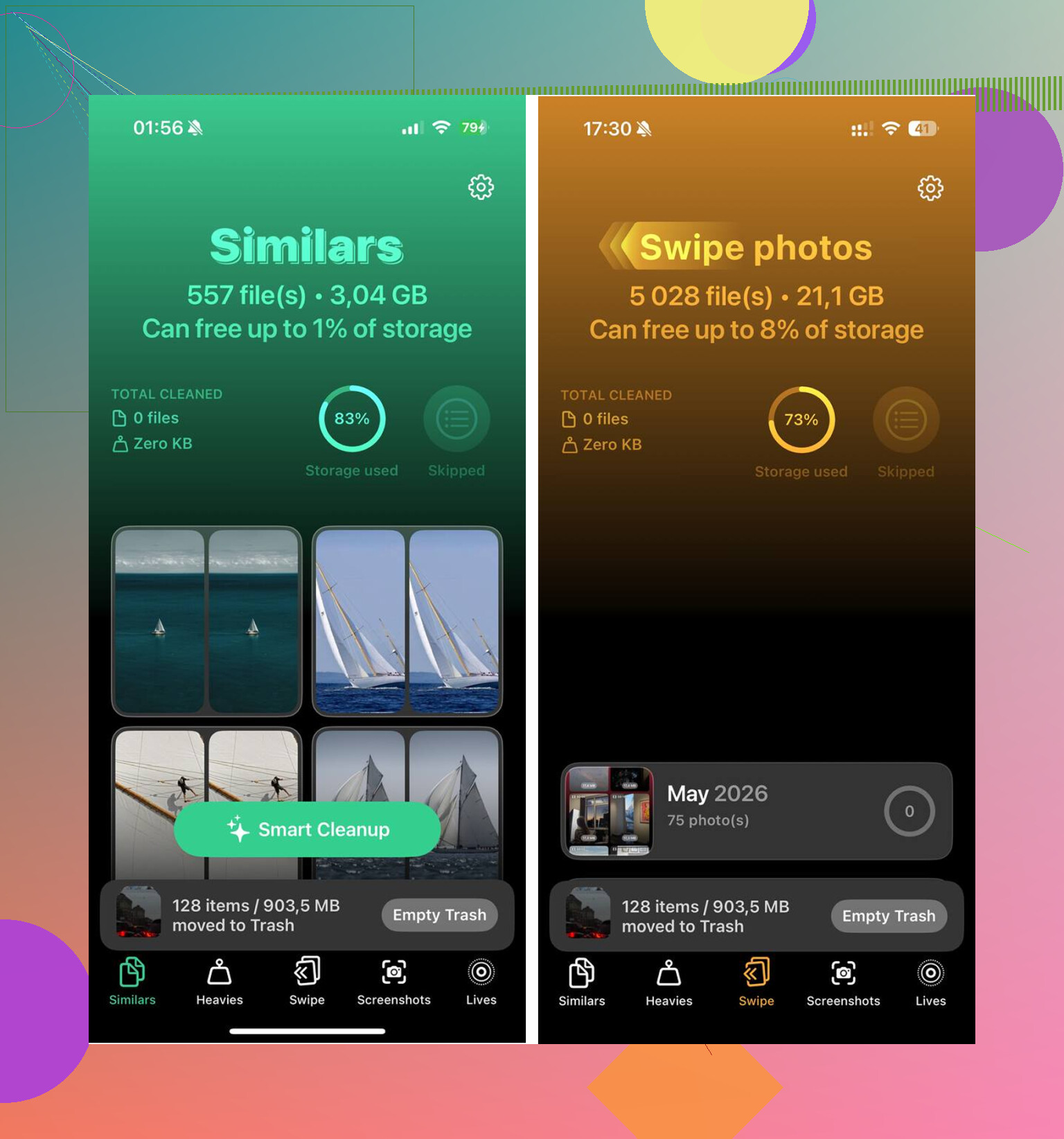
On cleaner apps, Clever Cleaner is decent for photo clutter.
Pros:
- good for duplicates, similar shots, large videos
- faster than hand-cleaning
- useful if screenshots are the main problem
Cons:
- won’t fix bloated app data outside your photo library
- you still need to review before deleting
- less useful if Photos is not what’s filling storage
So yeah, @viaggiatoresolare was right to focus on what keeps re-filling the phone. I just wouldn’t jump to reset unless the storage graph looks obviously broken.