My iPhone storage is almost full, and I think temporary files or app cache are taking up space. I can’t find a clear way to manually delete temporary files on iPhone without removing important data, so I need help figuring out the safest steps to free up storage.
iPhone ‘System Data’ taking up gigs, what moved the number for me
That big System Data chunk on iPhone is one of those storage problems Apple barely explains. I ran into it when my phone said I was low on space, but the categories didn’t add up in any useful way. There isn’t one clean button for it. I only saw progress after doing a few specific cleanup steps in order.
Stuff I tried that barely changed anything
I kept seeing the same weak advice posted around forums. Turn off iCloud. Disable location services. Clear notifications. I tried some of it. The storage graph barely twitched.
Those settings don’t do much for temporary junk files. If you want space back, you need to hit the places where cached data piles up.
What I used from the built-in iPhone settings
1. Clear Safari’s cache first
On iPhone, go to:
Settings > Apps > Safari > Clear History and Website Data
This one usually gives the fastest result. Cached site images, scripts, cookies, old session data, all of it goes. On my phone, this was one of the few steps that gave me space back right away.
If you use Chrome, do it inside Chrome itself:
Settings > Privacy and Security
2. Check app caches one by one
Some apps hide huge amounts of junk locally. Telegram, Spotify, TikTok, those usually have cache controls in their own settings.
Others don’t. Instagram and Facebook were the worst for me. No proper clear-cache button, lots of silent buildup. I deleted the app, reinstalled it, signed back in. Annoying, yes. But it cut out old video scraps, thumbnails, and other leftover files the app had been hoarding.
If an app is huge in Settings > General > iPhone Storage, I’d look there first.
3. Open the Files app and look in Downloads
This one gets missed all the time.
Go to Files > Browse > On My iPhone
Then check Downloads. I found old PDFs, zip files, random docs, things I grabbed once and forgot. They sit there forever if you don’t go looking.
4. Stop Messages from keeping everything forever
Go to:
Settings > Messages > Keep Messages
If yours is set to Forever, you’re probably carrying years of attachments. Videos in text threads pile up fast. Same with GIFs, screenshots, voice notes.
I changed mine to 1 Year. If you want to be more aggressive, use 30 Days.
5. Restart the phone after cleanup
A reboot by itself didn’t fix much for me. Still, after clearing caches and deleting leftovers, restarting helped iOS flush out some temporary logs and lower-level junk.
I started doing it weekly. Sounds dumb, but the storage graph stayed calmer after I made it a habit.
If the problem showed up right after an iOS update
This happened to me once after a major iOS update. System Data jumped and stayed high for days.
First thing I did was restart the phone. If it still looked bloated after a bit, I went into:
Settings > General > iPhone Storage
Then I checked which apps had the largest footprint. Deleting and reinstalling the biggest offenders worked better than waiting for iOS to sort itself out. My guess is old cache files from before the update stuck around and never got cleaned.
Where the built-in tools stop being useful
Here’s the part I ran into fast. The manual cleanup helps, but it doesn’t give you much control over your photo library. And for most people, photos and videos are the real storage hogs.
iPhone doesn’t give you a good built-in way to:
- sort photos by file size
- find near-duplicate shots
- spot giant screenshots and screen recordings fast
So you clean System Data, feel good for two days, then your library keeps eating the space again.
The part outside Settings that helped
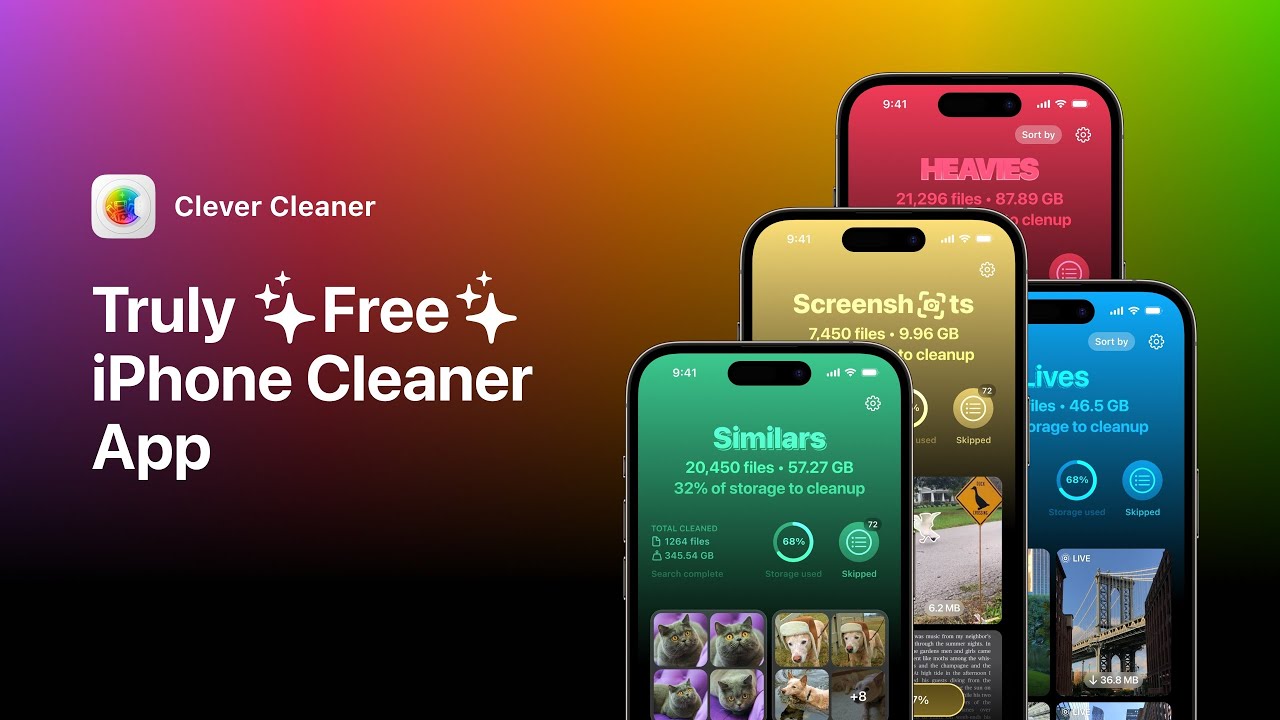
Clever Cleaner covered the gap for me. What I liked was how direct it felt. No ad spam. No sub wall popping up every second.
The Heavies section puts the biggest files first, largest to smallest. I found screen recordings and videos I forgot existed in under a minute.
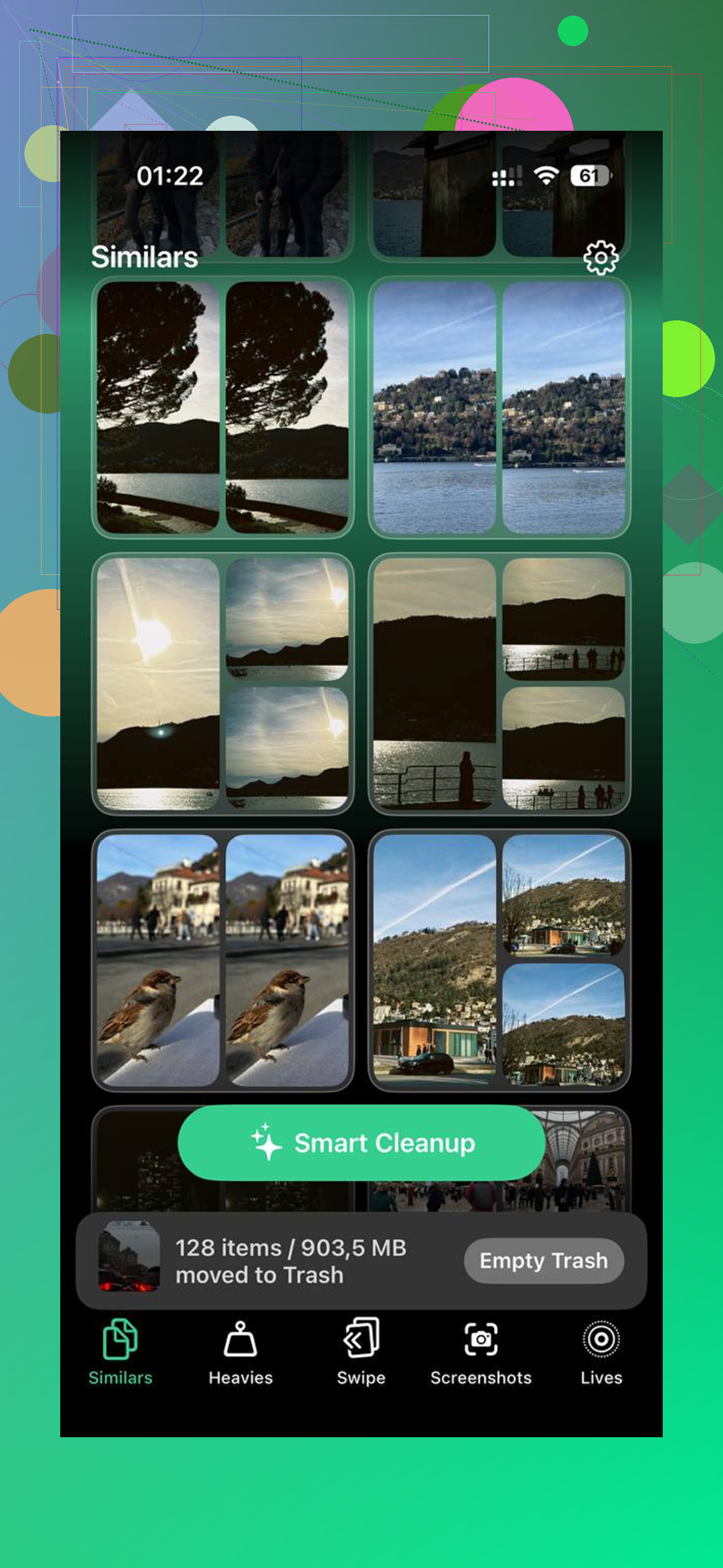
The Similars section was the other useful bit. It grouped near-matching photos, not only exact duplicates. Burst shots, three attempts at the same pic, tiny angle changes, all of those showed up together. It also marked a Best Shot in each set, which made cleanup faster.
I also liked seeing file sizes before deleting anything. And the app keeps processing on the device, so nothing gets shipped off somewhere else.
What didn’t work for me
A few things sounded good and did almost nothing.
- Restarting without clearing app and browser cache first
- Offloading apps instead of deleting them
- Clearing Safari while leaving social apps full of junk
- Ignoring photos and videos while chasing System Data
Offloading frees some space, sure, but it doesn’t wipe the temporary mess the same way a full delete and reinstall does. I learned this the annoying way.
What finally gave me lasting space back
For me, the fix wasn’t one trick. It was the stack:
- clear Safari or Chrome cache
- clear app caches where possible
- delete and reinstall apps with bloated local data
- clean out Downloads in Files
- shorten message retention
- restart after all of it
- deal with the photo library too
If I skipped the photo library part, the storage problem came back fast. If I skipped app cache cleanup, System Data stayed weirdly high. Doing both was the first time my free space stayed stable longer than a week.
15 Likes
iPhone does not give you a true temp-files folder like Android or Windows. Apple hides most of it. So manual cleanup means finding the places where cache and temp data collect.
I agree with part of what @mikeappsreviewer said, but I disagree on one point. Weekly restarts are not some magic storage fix. They help a little. The bigger wins come from hidden downloads, mail data, offline content, and app documents.
Try this.
-
Check app size split.
Settings > General > iPhone Storage
Tap a big app.
Look at App Size vs Documents & Data.
If Documents & Data is huge, that is your clue. Streaming apps, podcast apps, map apps, and messaging apps do this a lot. -
Remove offline content inside apps.
Spotify, Netflix, YouTube, Podcasts, Google Maps, Audible.
Delete downloaded songs, videos, episodes, maps.
I’ve seen people free 5 GB to 20 GB here. Easliy. -
Clear Mail junk.
Mail apps cache attachments.
In Apple Mail, the fastest fix is removing and re-adding the account.
Settings > Mail > Accounts
Delete account from phone, then add it back.
Your mail stays on the server for IMAP accounts, so you are not wiping your inbox. -
Delete old iOS update files.
Settings > General > iPhone Storage
If you see an iOS update file listed, delete it.
Those files sit there and eat space for no good reson. -
Check Files app better.
Not only Downloads.
Look in On My iPhone, iCloud Drive, and app folders.
Some apps dump edited videos, PDFs, zip files, or exports there. -
Review voice memos and GarageBand.
These get missed all the time.
Long recordings are huge. -
Use Offload App only when you need the app data.
People trash this feature too much. It does help in the right case.
If an app itself is large but its data matters, offload it.
If Documents & Data is the problem, delete the app fully. -
Photos cache is weird.
Deleting pics does not free space until you empty Recently Deleted.
Photos > Albums > Recently Deleted
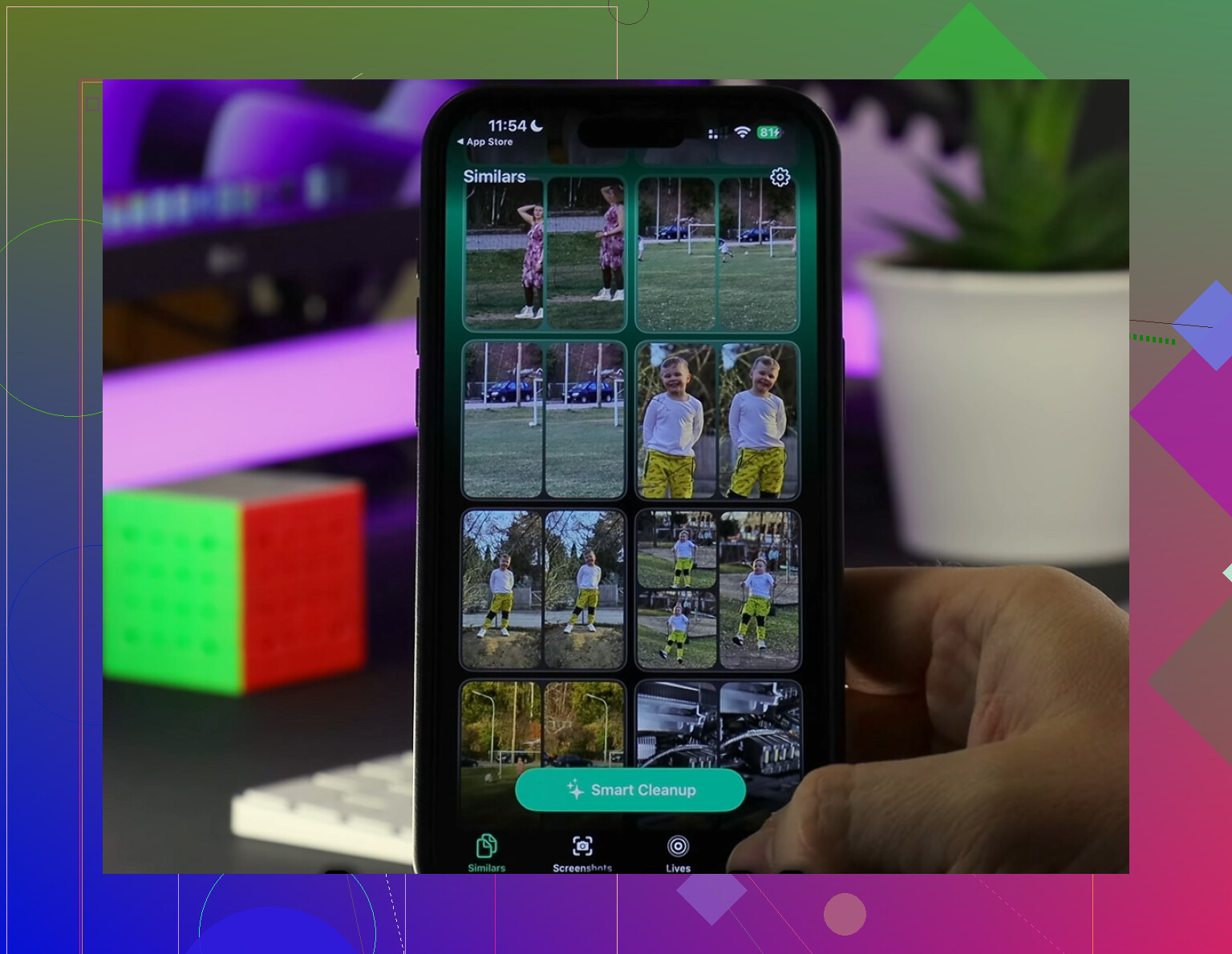
If your storage issue is mostly media clutter, Clever Cleaner is worth a look for duplicate photos and large videos. This is the part iPhone handles badly. Their quick video for cleaning duplicate photos and large files on iPhone is here:
see how to clean duplicate photos and large files on iPhone fast
Short version, look for Documents & Data, offline downloads, mail attachments, update files, and Recently Deleted. That is where the hidden junk usuallly sits.
There really is no normal “Temp” folder on iPhone, which is why this gets so annoyng. iOS hides most temporary files inside apps or system processes, so “manual delete” mostly means flushing specific problem areas without nuking your stuff.
A couple things I’d add beyond what @mikeappsreviewer and @ombrasilente already covered:
- Check Settings > Accessibility > Spoken Content > Voices. Downloaded Siri and voice files can be weirdly large.
- Look in Settings > General > VPN & Device Management if you ever installed beta profiles or work profiles. Those can leave update junk or logs behind.
- In Podcasts, remove auto-downloaded episodes. People forget this one constantly.
- If you use WhatsApp, manage storage inside the app itself. It keeps media copies forever if you let it.
- For photo/video cleanup, I actually disagree a bit with the “just handle System Data first” mindset. If your library is huge, that’s often the main issue, not temp files.
Also check this Apple feature:
Settings > App Store > Offload Unused Apps
I know some people hate it, but for lightly used apps it’s fine.
If you want a faster way to find duplicate photos, large videos, and space hogs, Clever Cleaner is one of the better options. I found this hands-on Clever Cleaner review with real storage test results useful because it shows what it actually cleans.
Biggest truth: on iPhone, “temporary files” are mostly app cache, downloads, attachments, and media leftovers. There’s no secret delete-all button, sadly.
One angle the others did not really stress: attachments databases. In Messages, deleting a whole conversation is overkill. Instead go to Settings > General > iPhone Storage > Messages and review the categories like Photos, Videos, GIFs, Stickers, and Other. You can wipe the fattest attachment types without losing every text thread. That is usually safer than broad cleanup.
I’ll also mildly disagree with the “delete and reinstall lots of apps” habit. It works, but it is annoying and can break logins, offline settings, and saved drafts. I’d save that for apps that are clearly bloated, not as a first move.
A few less-mentioned spots:
- Books app: downloaded PDFs and audiobooks
- TV app: offline purchases and preloaded streams
- Notes: scanned documents can get big
- Voice notes in third-party apps: not just Voice Memos
- Photo editing apps: they often keep exported copies plus project files
Also, if System Data stays absurdly high after cleanup, the practical fix is sometimes just making an encrypted backup, then restoring the phone. Annoying, yes, but it can clear stubborn junk iOS never exposes.
On cleaner apps, Clever Cleaner is decent if your real problem is photo/video clutter rather than temp files.
Pros
- good at spotting duplicates and large videos
- quicker than manual photo review
- useful when Photos is the main storage hog
Cons
- will not truly clear all hidden iOS cache
- less useful if your storage issue is Mail, Messages, or app documents
- you still need to review before deleting
So I’d combine what @ombrasilente, @kakeru, and @mikeappsreviewer said with a more targeted check of Messages categories and oversized media libraries, then only go nuclear with restore if System Data refuses to shrink.