I’m trying to locate my WordPress media library through FTP because I need to download and check some uploaded images, but I can’t tell which folder stores them. I looked through the site files and got confused about the uploads path. Can someone explain where the WordPress media library files are usually kept in FTP and what folder structure I should look for?
If you’re looking for the WordPress Media Library through FTP, the first thing to understand is that there is no separate folder called Media Library inside your website files. The Media Library you see in WordPress is created from uploaded files stored on the server and managed through the WordPress dashboard.
When accessing your site through FTP, the files from the Media Library are usually stored in the following location:
/wp-content/uploads/
This is the main folder where WordPress saves images, videos, PDFs, audio files, and other uploaded media.
How to Find the Media Library in FTP
Step 1: Connect to Your Website with FTP
Open your FTP client and log in using your FTP hostname, username, password, and port. These details are usually provided by your hosting company.
Step 2: Open the WordPress Installation Folder
After connecting, locate the folder where WordPress is installed. This is often named:
- public_html
- www
- htdocs
It depends on your hosting provider.
Step 3: Open the wp-content Folder
Inside your WordPress root folder, open:
wp-content
This folder contains themes, plugins, and uploads.
Step 4: Open the uploads Folder
Now open:
wp-content/uploads
This is the folder that stores all files visible in your WordPress Media Library.
Step 5: Browse by Year and Month
Most WordPress websites organize uploads automatically into folders by date. For example:
/wp-content/uploads/2026/04/
That means files uploaded in April 2026 will be stored there.
What You Can and Cannot Do in FTP
Using FTP, you can:
- upload files
- download files
- move files
- rename files
- delete files
- organize folders
However, FTP does not show Media Library settings such as:
- image thumbnails
- captions
- alt text
- titles
- descriptions
- attachment settings
To manage those details, log in to WordPress and go to: Media > Library
There you can switch between Grid View and List View, search files, and filter by media type or upload date.
Why FTP Tools Make WordPress Work Easier
If you only upload one image once in a while, FTP may not be necessary. But when working with many files, backups, migrations, or large media folders, a dedicated FTP client saves time.
Good FTP tools make it easier to:
- transfer many files at once
- drag and drop folders
- reconnect quickly
- compare local and server files
- manage permissions
- speed up repetitive tasks
This is especially useful for developers, freelancers, and website owners managing larger WordPress sites.
Popular FTP Clients for WordPress
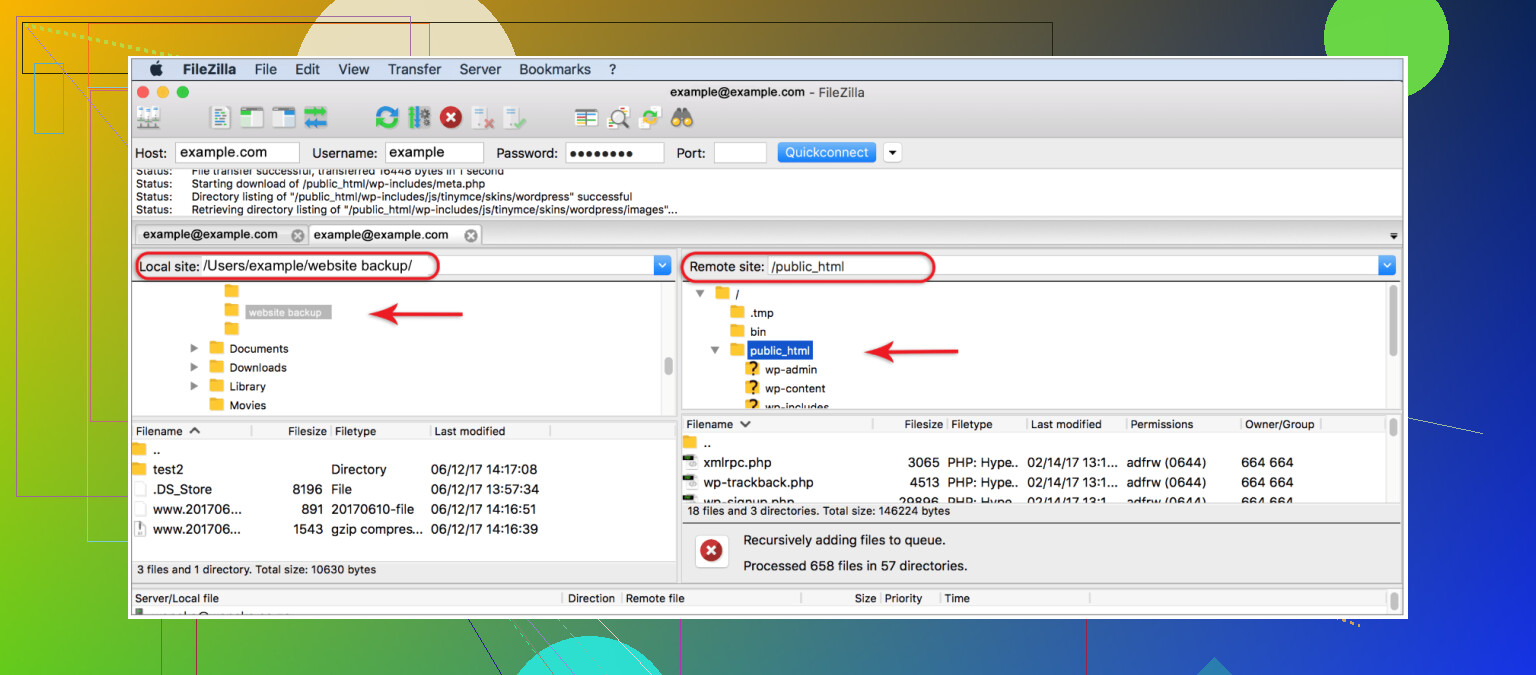
FileZilla
FileZilla is one of the most common FTP programs because it is free and works on Windows, Mac, and Linux. It is simple to use and a common starting point for beginners.
Its drawback is performance. When handling very large files or thousands of files, it can become slow and less responsive.
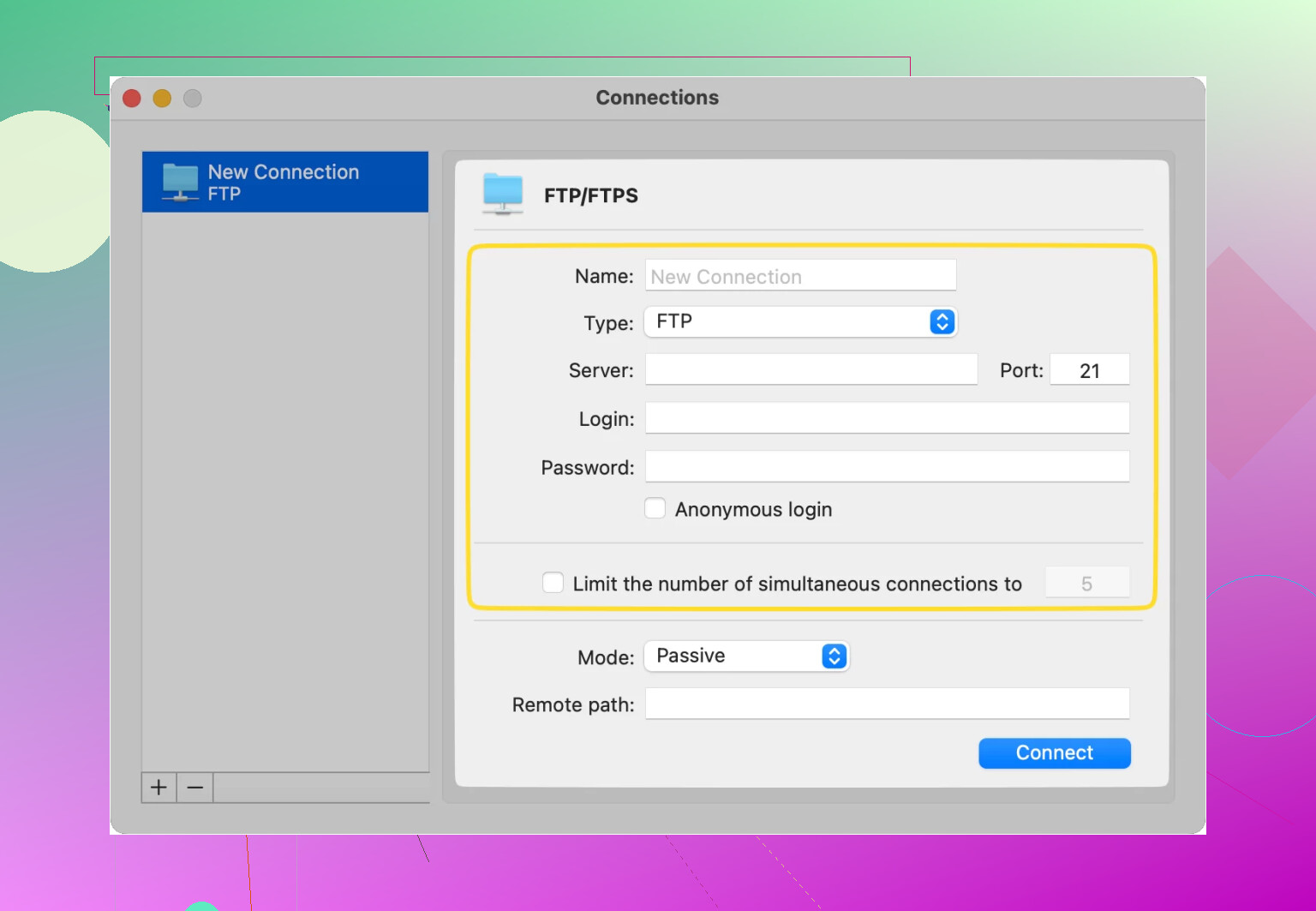
Commander One
For Mac users, Commander One is a strong option. It is paid software and offers more advanced functionality, including FTP and SFTP support.
It also supports archive files, which helps when compressing folders and uploading them to a server. This can be very useful for developers or people working with backups.
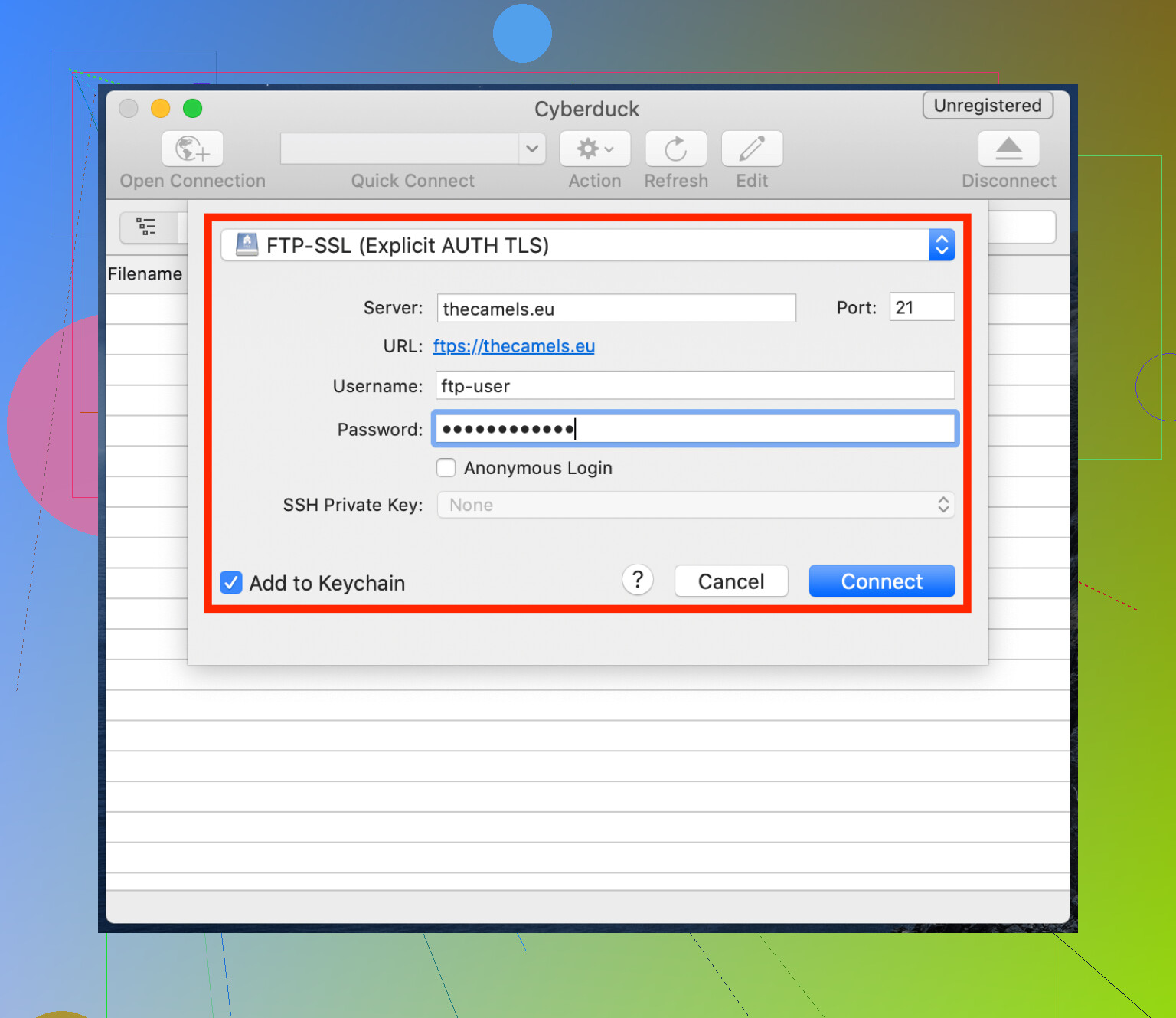
Cyberduck
Cyberduck is a free and open-source FTP client with a clean interface. It is also known for supporting cloud storage connections. Some users, however, report issues with basic file operations such as moving, deleting, or transferring files reliably.
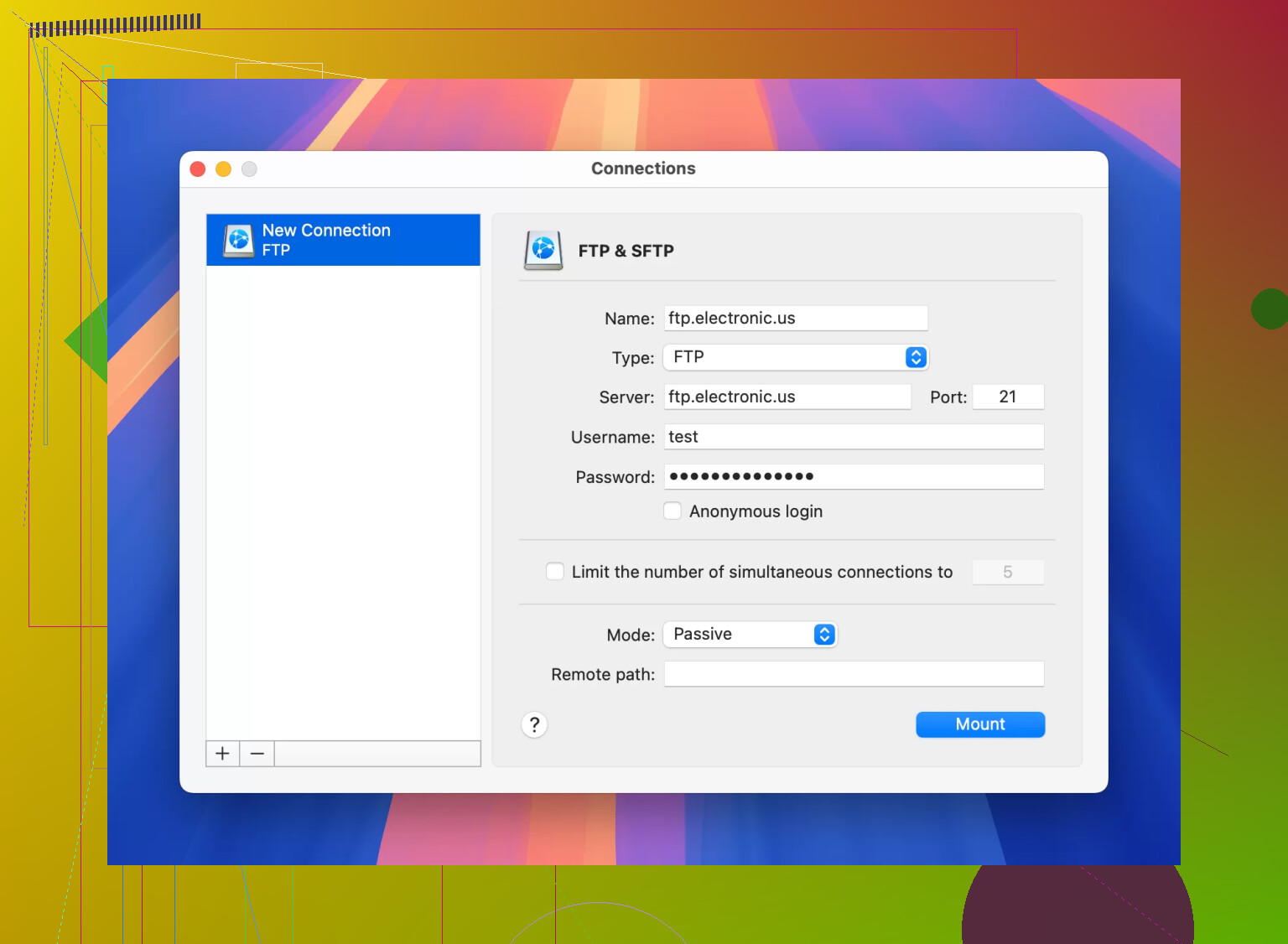
CloudMounter
CloudMounter works on both Windows and Mac. It is especially friendly for beginners because it lets you connect FTP servers directly inside File Explorer or Finder.
This means your server behaves almost like another hard drive, making file transfers feel more natural and easier to manage.
Final Answer
If you want to find the WordPress Media Library in FTP, go to:
/wp-content/uploads/
That is where your uploaded media files are stored. If you need to edit captions, alt text, search files, or use filters, use the WordPress dashboard under Media > Library. For easier file management, using a dedicated FTP client is usually the smarter option.
18 Likes
The folder you want is usually /wp-content/uploads/, sure, and @mikeappsreviewer covered the normal path. But the part people miss is this, WordPress does not always keep things where you expect.
A few checks I’d do:
- Open Settings > Media in wp-admin first. Some sites use a custom upload path.
- Look for offloaded media. If the site uses S3, Cloudflare R2, or a plugin like WP Offload Media, FTP won’t show the full library at all.
- Check for image sizes. One upload often creates 5 to 20 extra files. Example:
image.jpg
image-150x150.jpg
image-768x512.jpg
image-scaled.jpg
So if you’re downloading files to inspect, grab the original and the generated sizes. - Search by filename in your FTP app. Faster than clicking through year/month folders forever.
Small warning, if you move or rename files in FTP, WordPress still keeps the old file path in the database. Then images break. Easy mistake, I’ve done it too.
If you’re on Mac, Commander One makes this less annoyng because searching and previewing files is cleaner than in a lot of basic FTP clients. For quick media checks, it’s solid.
If uploads/ looks empty, your site is using a custom setup or remote storage. Then FTP is the wrong place to check.
Yep, the actual files are usually in /wp-content/uploads/, and @mikeappsreviewer / @shizuka already covered the obvious part. I’d push it a little further though, because FTP can be misleading.
What you see in Media Library is not just a folder view. WordPress is reading attachment records from the database, then matching those to files on disk. So if you only use FTP, you’re seeing the storage side, not the full library logic.
A few things that trip people up:
- Not every image is in one neat spot. WordPress often splits uploads into
year/monthfolders. - The “real” image may not be the file you think. Newer WP versions may create
-scaledcopies and use those. - Missing in FTP doesn’t always mean missing on the site. CDN/offload plugins can move media elsewhere.
- Extra thumbnails clutter everything. One upload can spawn a pile of resized versions.
If you need to verify a specific image, the fastest way is often:
- Open the image in WP admin
- Copy the file URL
- Strip the domain
- Match that path in FTP
That’s way faster than digging around blind, tbh.
Also, tiny disagreement with the usual “just use any FTP client” advice: if you’re doing lots of image checking, previewing, and searching, a basic FTP app gets annoying real fast. On Mac, Commander One is actually pretty handy for this because you can search filenames faster and preview files without as much fumbling around.
One warning, and this is the part people learn the hard way: don’t rename or move media in FTP unless you also fix the database references. Otherwise the Media Library still points to the old path and stuff breaks. Looks fine in the folder, broken on the site. Super fun.
So, short version:
- Usually:
/wp-content/uploads/ - But the Media Library itself is partly database-driven
- If
uploadslooks wrong or empty, check for custom paths, multisite, or offloaded storage