My iPhone storage is filling up because synced media is taking a lot of space, and I’m not sure what can be safely removed without losing my music, photos, or videos. I need help figuring out how to reduce synced media on iPhone and free up storage.
After my iPhone updated, I saw “Synced Media” eating a huge chunk of storage. It looked random at first. It isn’t random.
What “Synced Media” means on iPhone
This category is for stuff you moved onto the phone from a computer with a cable, using Finder on a Mac or iTunes on Windows. I mean music, photos, books, and similar files you synced by hand.
Before iOS 17, Apple hid those files inside their usual apps. Music showed under Music. Books stayed under Books. After iOS 17, Apple split those files into a separate storage label called Synced Media.
Stuff downloaded straight from the App Store stays under its own app. Stuff pushed from your computer gets counted in Synced Media.
You’re safe to remove it if the original files still live on your computer. One annoying part, though, is you usually need the same computer route to remove it. On the phone itself, there’s often no delete button for this.
Why the number looks inflated
On iOS 17, I kept seeing storage totals that didn’t add up. There’s a bug where the same synced files seem to get counted twice, once in the app and again in Synced Media. So your phone looks more full than it should.
Bad part is, iPhone still behaves like storage is gone. App installs fail. Updates stall. You get storage warnings even when the displayed math feels off.
How I removed synced media
Method 1, remove it from Finder or iTunes
- Plug the iPhone into your Mac and open Finder, or use a Windows PC and open iTunes.
- Select the iPhone.
- Open the tab for the content type, usually Music or Photos.
- Uncheck whatever you no longer want on the phone.
- Hit Sync or Apply.
Once the sync finishes, the unchecked items should come off the device.
Method 2, use an empty folder for stuck synced photos
I had better luck with this when old synced photos refused to leave.
- Make a new empty folder on your computer.
- In Finder or iTunes, choose that empty folder as the source for photo syncing.
- Run Sync.
The phone checks the folder, sees nothing in it, and wipes the previously synced photo set. For stubborn synced photos, this was the cleanest fix I found.
Method 3, remove and reinstall Apple Music
If the storage blob is tied to synced music, deleting the Apple Music app and installing it again from the App Store sometimes clears leftover synced data the normal sync process misses.
Why fixing Synced Media didn’t solve all of it
Even after I cleaned this part up, the phone still needed breathing room. iPhone storage gets ugly when you run too close to full. From what I saw, keeping around 5GB to 6GB free helps the system handle updates, temp files, camera processing, and background tasks.
When free space drops too low, the phone starts acting rough. Lag. Random app quits. Camera warnings. Slow saves. Same old mess.
Also, Synced Media is often one part of the problem, not the whole thing. On mine, near-duplicate photos, old screen recordings, and forgotten videos were taking up more space than I thought.
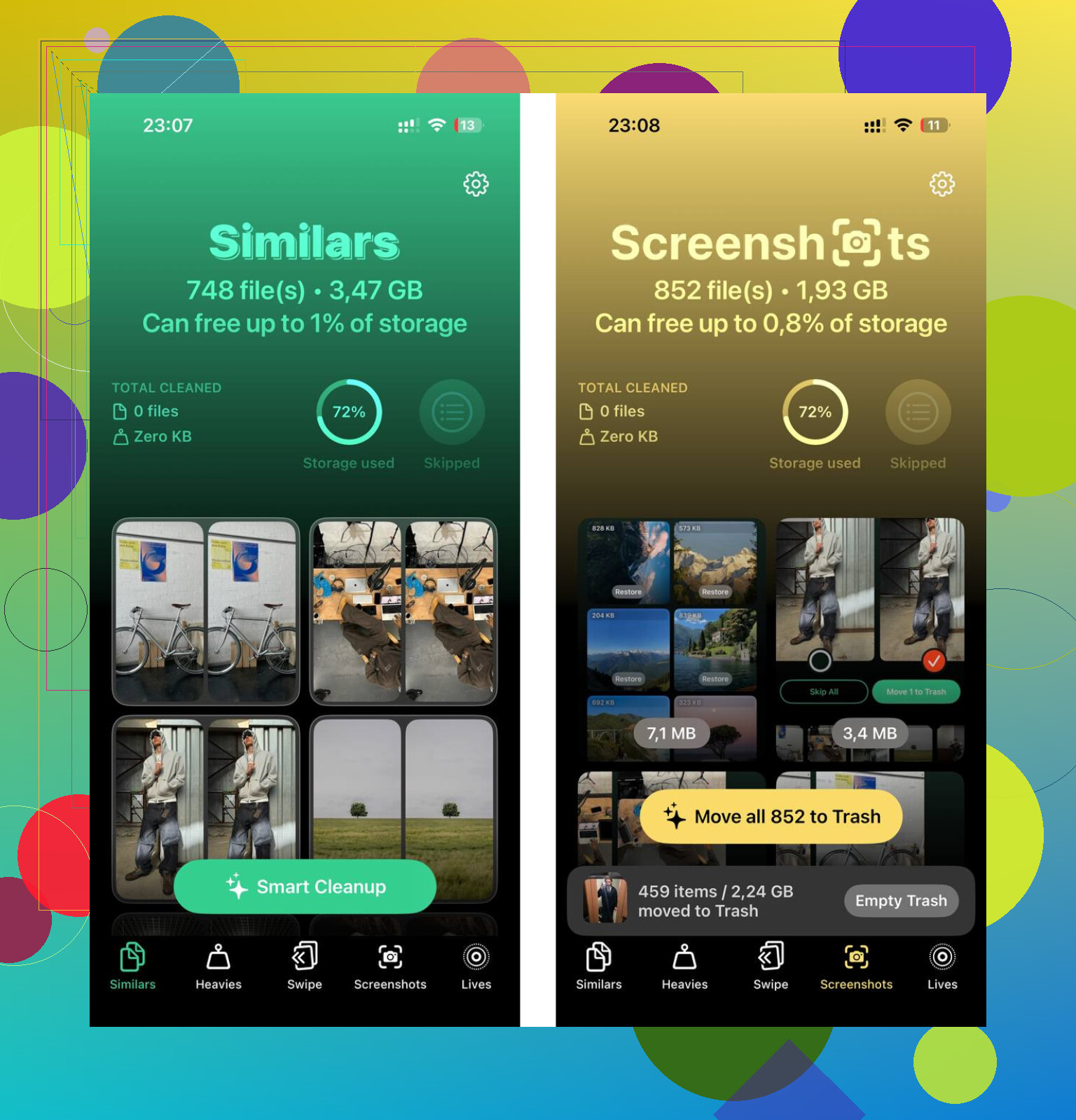
Clever Cleaner helped sort through those extra files. I used the Similars tab to group near-matching shots and burst photos, and the Heavies tab to spot the biggest files fast. It also keeps processing on the device, which I liked.
What worked for me was doing both parts. First, I removed the synced files in Finder. Then I cleaned the photo library. After tha,t the lag dropped off and I had enough room to install the next iOS update without a fight.
21 Likes
If you want to reduce Synced Media without losing stuff, first figure out what is replaceable.
Safe to remove:
- Music copied from a computer, if the songs still exist on your Mac or PC.
- Photos synced from a computer folder, if the originals are still there.
- Videos added by sync, same rule.
- Books or audiobooks transferred by cable, if you still have the files.
I slightly disagree with @mikeappsreviewer on one part. I would not rush to delete the Music app to fix this. That feels like a cleanup hack, not a first move. Better to verify what is local, what is streamed, and what is backed up first.
Do this on the iPhone:
Settings > General > iPhone Storage.
Wait 30 to 60 seconds.
See if Synced Media changes after storage finishes calcualting. iOS sometimes reports junk numbers at first.
Then check your apps:
Music app, look for downloaded tracks.
Photos app, look for old imported albums.
TV or Books, same idea.
If your goal is storage, not preserving offline copies, switch from local files to cloud versions where possible. Apple Music or iCloud Photos usually take less device space over time, since you keep optimized copies instead of full ones.
Also check this. Settings > Photos > Optimize iPhone Storage. If off, turn it on. For large libraries, this saves gigabytes.
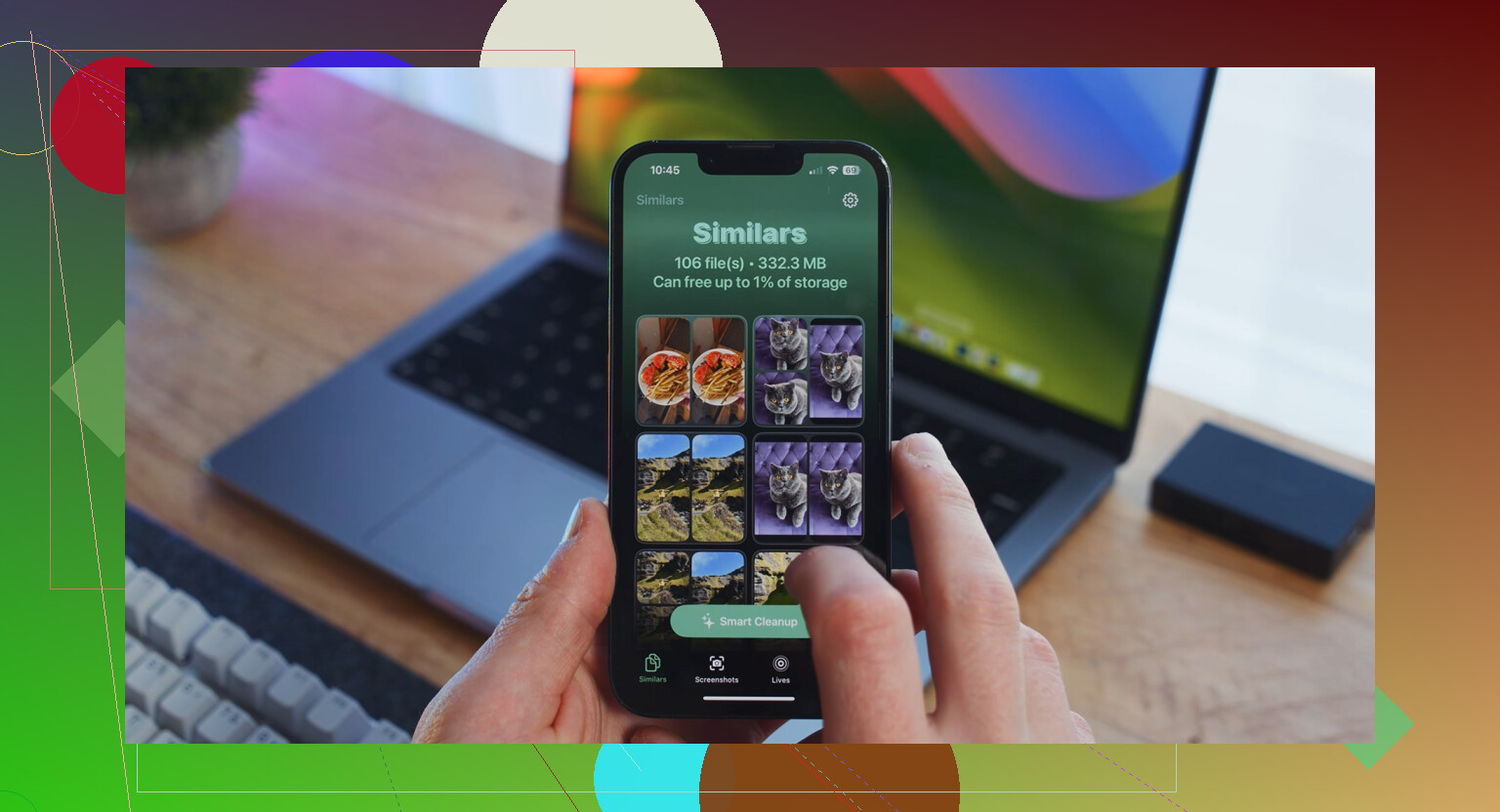
If your photo library itself is the bigger issue, use Clever Cleaner to find duplicates, similar shots, and heavy files. That helps after you deal with Synced Media, becuase both often pile up together. For a detailed outside review, see NY Weekly’s Clever Cleaner review for iPhone storage cleanup.
Short version, remove only items you still own elsewhere. Keep 5 GB free if you want iPhone storage to stop acting dumb.
Synced Media is usually stuff you manually put on the iPhone from a computer, but I think the bigger question is: do you still need local copies on the phone at all?
@nachtdromer is right about checking what still exists elsewhere first. I also kinda agree with @mikeappsreviewer that iOS storage labels can be wonky, but I would not obsess over the category name too much. I’d focus on reducing what the phone must keep offline.
What I’d do differently:
- Stop syncing entire libraries. Sync only selected albums, playlists, or folders.
- For videos, convert giant old files to smaller versions on your computer before re-syncing.
- In Music, turn off automatic downloads if they keep piling up.
- If you use iCloud Photos, let iCloud handle your library instead of cable-synced photo folders. Mixing both gets messy fast.
- Check Messages too. People forget saved videos there, and storage gets blamed on “Synced Media” when it’s really not.
Big thing: do not remove anything unless the original is confirmed on your Mac, PC, external drive, or cloud backup. If it exists in only one place, that place is not “safe to clean.” Learned that the dumb way lol.
If photos/videos are the real storage hogs after that, Clever Cleaner is worth a look for duplicate pics and large files. Also saw a useful look at a free iPhone cleaner app for clearing storage that explains why people like it.
Also, reboot after cleanup. Sounds basic, but iPhone storage numbers sometiems don’t update right away.