I need to scan a few paper documents on my iPhone and turn them into clear PDFs, but I can’t figure out where the scan option is or which app to use. I’m trying to send them for work today, so I need quick help finding the easiest way to scan documents with an iPhone.
I had to turn a stack of paper into PDFs on my iPhone a while back, and the built-in tools were enough. No extra app, no watermark mess, no trial screen asking for money after page three.
Scan documents with Notes or Files
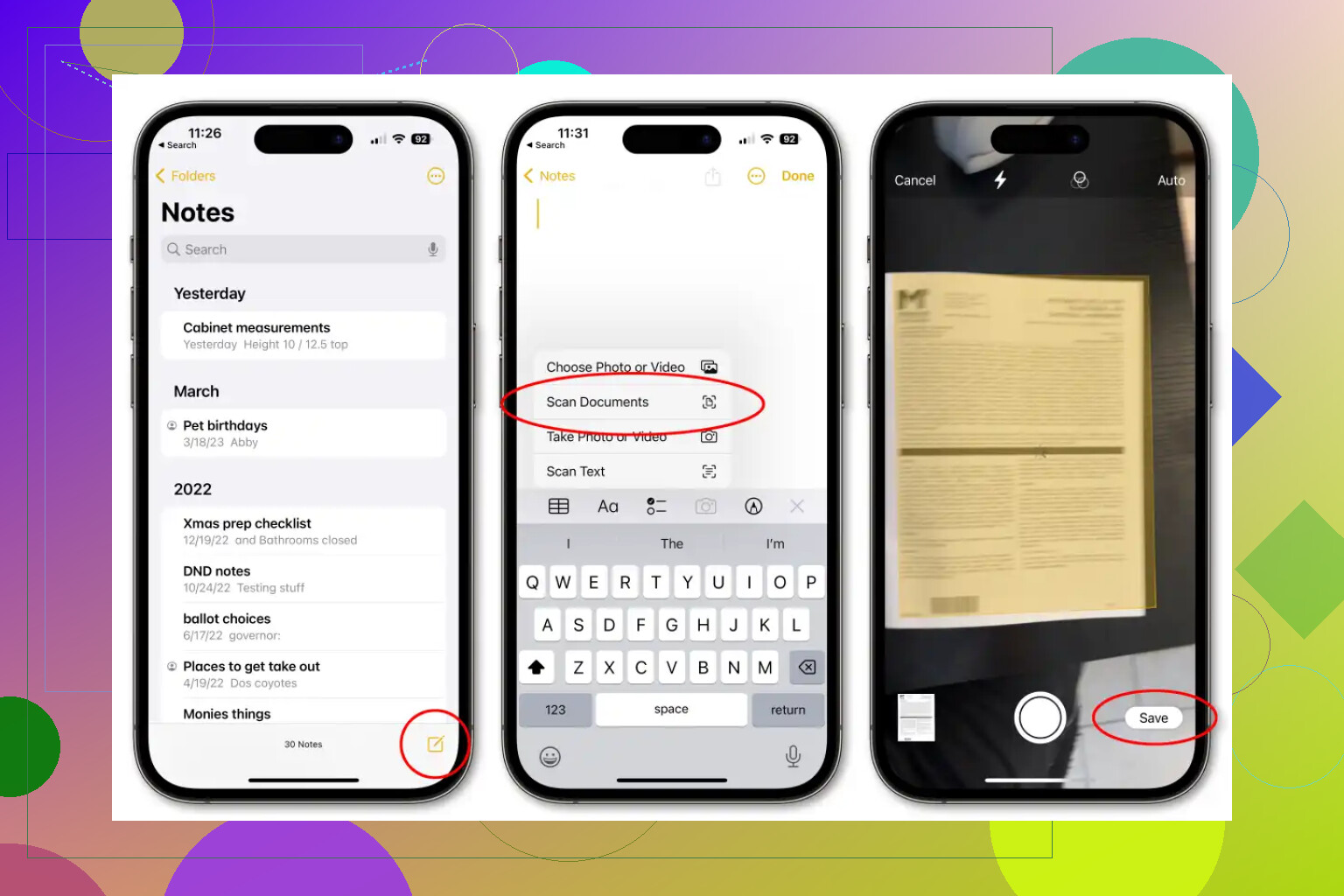
Most people use Notes first. It works fine. You open a note, tap the camera icon, then pick Scan Documents.
I ended up liking Files more. It felt cleaner for storage. Open Files, hit the three-dot menu in the top right, or the Browse view menu on some versions, then tap Scan Documents.
Once the camera sees the page, it usually grabs the edges on its own and snaps the shot. If you have a few pages, keep going. It puts them together into one PDF when you save. I did this with tax forms and a signed lease, and both came out readable enough to send without touching a scanner.
If the page looks gray or the room light is bad, tap the filter after scanning. Black & White or Grayscale tends to fix messy contrast fast. Small print usually looks better after that.
Moving the PDF without doing anything dumb
If the document stays on your iPhone or in iCloud, Apple already wraps it in device encryption, plus two-factor protection on the account side. For most people, ths is enough.
Here’s the short version on transfer options:
-
Local storage and iCloud
Saved files on the phone or in iCloud get Apple’s usual protection. If your account security is set up right, this is the easy path. -
AirDrop
For sending a scan to a Mac, iPad, or another iPhone nearby, AirDrop is the fast move. It uses TLS during transfer, so you are not tossing the file over in plain text. -
FTP and SFTP
If your file needs to land on a server, pay attention here. Plain FTP is old and exposed. I would skip it for anything sensitive. Use SFTP or FTPS instead. The Files app doesn’t do much on its own for FTP uploads, so people usually lean on a third-party client such as FTPManager or FileZilla. You pick the PDF, connect to the server, and upload over an encrypted session.
One Reddit thread worth reading
I ran into a pile of user tips on Reddit while figuring this out - How do I scan documents on my iPhone?. Some people still prefer dedicated scanner apps, mostly for OCR or batch workflows, but a lot of them said the built-in iPhone scanner handled normal paperwork fine.
For basic scans, Apple’s built-in option does the job. Edge detection works. Perspective correction is decent. And you avoid the usual App Store nonsense like subscriptions, export limits, and watermarks.
9 Likes
Skip extra apps unless you need OCR or signatures.
One fast option @mikeappsreviewer did not mention is the Mail app trick. Start a new email, tap in the message body, tap the right arrow on the menu, then tap Scan Document. Scan all pages, save, and it drops in as a PDF attachment. If your goal is sending docs for work today, this is often the fastest route becuase you are already in email.
A few tips so the PDF looks clean:
- Put the paper on a dark surface.
- Use window light, not yellow room light.
- Hold the phone straight above the page.
- If auto capture keeps messing up, switch to manual.
- Reorder or delete pages before sending.
I disagree a bit on Files feeling cleaner. For quick work stuff, Mail is faster, Notes is fine, Files is better only if you need to keep copies organized.
If you need text search after scanning, Adobe Scan or Microsoft Lens are worth it. Both do OCR better than Apple’s built-in tool in my expereince.
If you need this done fast today, I’d skip hunting around Notes or Files and just use the camera from the Lock Screen with Live Text, then turn it into a PDF from the share sheet. Slightly different route from what @mikeappsreviewer and @voyageurdubois suggested.
What I mean:
- Open Camera
- Point it at the document in decent light
- Make sure the page is flat and fills most of the screen
- Tap the little Live Text icon if it appears, or just take the photo
- Then open the image in Photos
- Tap Share
- Choose Print
- On the print preview, do the two-finger zoom-out thing on the preview
- That converts it into a PDF
- Tap Share again and send via Mail, Messages, Slack, save to Files, whatever
Why I mention this: sometimes the built-in scanner over-crops weirdly, especially on receipts or wrinkled paper. I actually disagree a bit with the “scanner is always best” take. For single-page docs, a clean photo converted to PDF can look totally fine.
If you want it to look less janky:
- use daylight or bright white light
- turn off shadows from your hand
- put white paper on a darker background
- crop before exporting
- if text looks soft, retake it instead of trying to “fix” it later
If you have multiple pages, then yeah, the built-in scan tools are easier. But for 1 to 3 pages and a fast send, the photo-to-PDF trick is stupidly quick and kinda hidden, which is probly why nobody finds it.
If you’re on iOS 17 or newer, there’s one hidden shortcut nobody mentioned clearly: the Action button / Shortcuts route if you do this often. Not for today’s emergency, but useful later.
For right now, my quick take is: @mikeappsreviewer is right that built-in tools beat subscription scanner apps for normal paperwork, but I’d push back on the photo-to-PDF trick as a default. It’s fine in a pinch, yet text usually looks softer than a real document scan.
A practical option besides Notes, Files, or Mail is this:
- Open Shortcuts
- Make a shortcut using Scan Documents
- Add Save File or Send Email
- Run it from your Home Screen or share sheet
That turns scanning into basically one tap next time.
If your scan already looks uneven, don’t rescan immediately. Open the scanned page and check for:
- wrong color mode
- aggressive cropping
- page order
- page rotation
Those fixes usually save the document.
Pros of built-in iPhone scanning
- free
- fast
- exports clean PDFs
- no watermark nonsense
Cons
- OCR is only okay
- edge detection can be flaky on receipts
- fewer edit tools than dedicated apps
So yeah, @voyageurdubois and @kakeru covered the main paths, and @mikeappsreviewer covered the quick-send angle. My addition is: if this is a recurring work task, set up a Shortcut once and stop hunting for the scan button forever.