My iPhone says storage is almost full, but I’m not sure where to see the total space left or what’s using it. I need help finding the iPhone storage settings so I can free up space and avoid issues with photos, apps, and updates.
I always have to look this up because Apple hides the useful part behind two menus.
Where I checked it
Open Settings, then General, then iPhone Storage. That screen gives the full picture. At the top, there’s a colored bar split into categories like apps, photos, system data, and a few others. Under it, you’ll see the used amount against total capacity, something like 54 GB of 256 GB used.
Scroll a bit and you get the app-by-app list with storage numbers beside each one. On most phones I’ve handled, Photos sits near the top and eats the most space.
If you only want the raw storage size of the phone, skip the dashboard and go to Settings, General, About. Look for Capacity. That’s the built-in storage your iPhone shipped with.
Why the storage total looks different every time
I noticed the number jumps around even when I did nothing. iOS keeps writing temp files, clearing caches, reindexing stuff, and moving things around in the background. System Data is the worst for this. It swells, shrinks, then swells agian.
If your total looks off, restart the phone and check again after it settles for a minute. I’ve seen the reported number look cleaner after a reboot than during normal use.
iCloud is separate, full stop
Your iPhone storage and your iCloud storage are two different buckets. A 64 GB iPhone stays a 64 GB iPhone even if you pay for 2 TB of iCloud. The cloud plan gives you somewhere else to store stuff, it does not add local room inside the device.
To see iCloud storage, tap your Apple ID at the top of Settings, then open iCloud.
Low free space slows the phone down
This part gets overlooked. When the phone is packed, performance drops. I saw apps hang, the camera take longer to open, and scrolling get choppy once free space got too low. iOS needs breathing room for cache files and background work. When there’s no room left, the whole thing feels cramped.
So checking storage isn’t only about making space for photos or a new app. It affects how your phone feels every day.
What helped me free up space
The suggestions built into iPhone Storage are fine for removing unused apps, but on my phone the big mess was media. Photos, videos, screenshots, duplicate junk. That’s where the number moved.
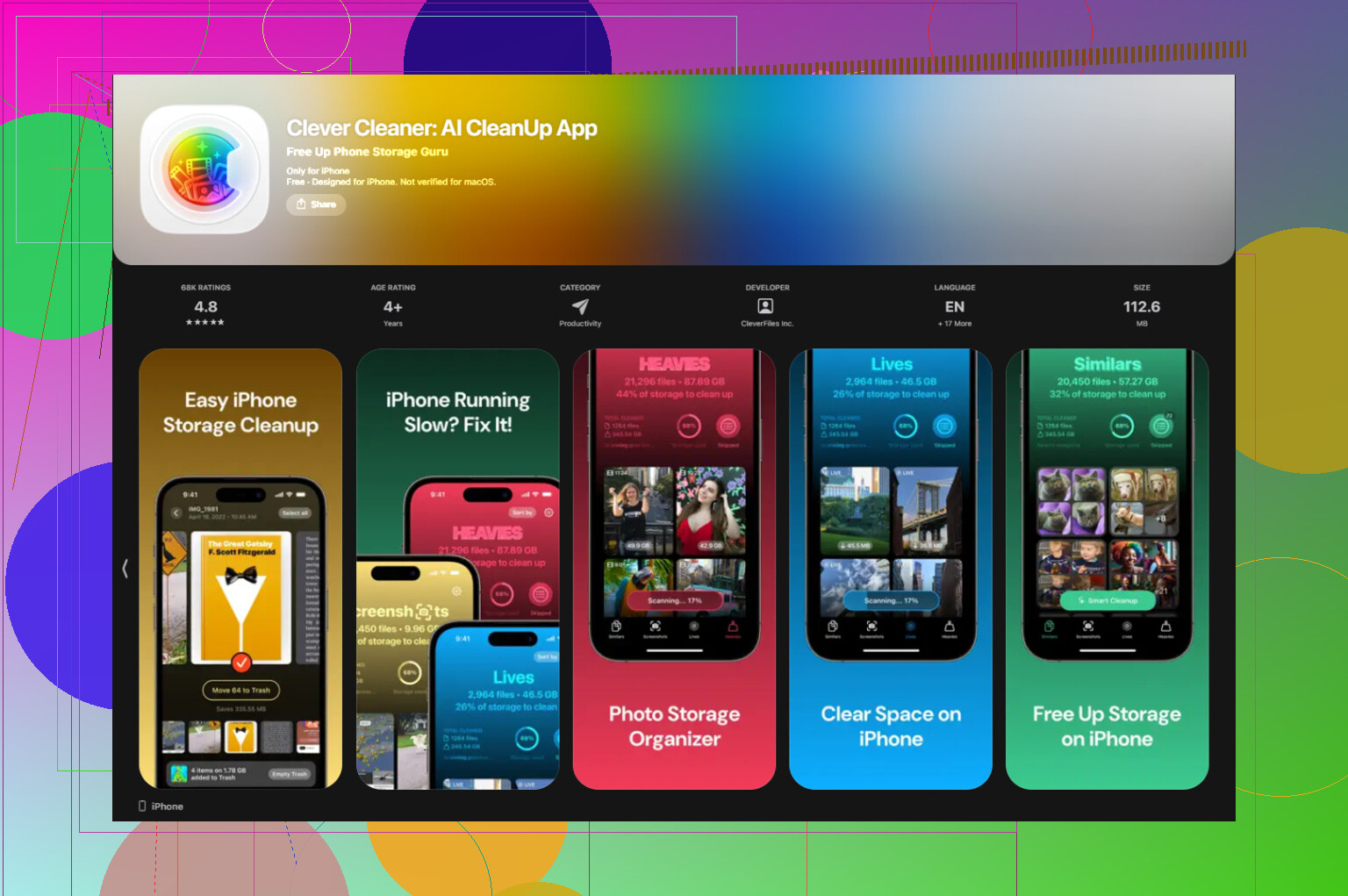
Clever Cleaner was the tool mentioned for this, and the useful part was how it sorted things in a way Apple doesn’t.
The Screenshots section shows the file size of each screenshot before you delete it. I liked seeing the numbers first because some screenshots were tiny and not worth touching, while others had piled up into a few gigabytes.
The Heavies section puts the biggest files at the top. If your phone is full of long videos, screen recordings, or giant clips from 4K mode, this finds them fast.
The Similars section groups near-duplicate photos and picks a best shot. I’ve had burst photos where ten images looked the same, and clearing those in batches saved more space than I expected. Processing stays on the device, which I prefer.
After I cleared about 15 GB, the lag I was seeing mostly stopped and the storage figure quit bouncing around so much.
What System Data means
This is the vague bucket Apple doesn’t explain well. It includes cached app data, Siri files, Safari history, temp files, streaming leftovers, and other system clutter. You usually can’t wipe all of it from one menu.
A restart trims some of it. Clearing Safari data helps too. Go to Settings, Safari, then Clear History and Website Data.
I’ve also seen social apps store a stupid amount of local cache. Deleting and reinstalling those apps cuts their stored junk, and some of it ends up reducing the System Data total too.
23 Likes
If you want the number fast, check two places.
Settings > General > About.
This shows your iPhone’s total Capacity and Available space. I prefer this page for the plain numbers because it’s less cluttered than the storage chart.
Then go to Settings > Privacy & Security > App Privacy Report if you think apps are bloated from background activity. Not a storage page, but it helps spot apps you forgot about and don’t need. Deleting 2 or 3 dead apps often frees more space than messing with tiny files.
I disagree a bit with @mikeappsreviewer on one point. A restart sometimes changes the storage reading, but if your phone says it’s full, the main problem is usuallly large media and old apps, not the number bouncing around.
Best places to cut space fast:
- Messages, old videos and photo attachments pile up.
- Downloads in streaming apps like Netflix, Spotify, YouTube.
- Safari Reading List offline files.
- Voice Memos, if you record audio.
- GarageBand, iMovie, and other Apple apps you never touch.
For photos, a cleaner app helps if your library is messy. Clever Cleaner is worth a look, and this write-up explains it well: free iPhone cleaner for clearing duplicate photos and large files.
One more thing. Try to keep at least 5 to 10 GB free. iPhones get weird when storage drops too low.
I’d check one place people weirdly skip: Files and offline downloads. @mikeappsreviewer covered the main storage menu, and @yozora mentioned some hidden hogs, but if your iPhone feels “full for no reason,” open the Files app > Browse > On My iPhone and look for giant leftovers from edits, ZIPs, downloads, or app folders. Stuff can sit there forever.
Also, for photos, don’t just delete them and walk away. Empty Recently Deleted in Photos or the space won’t come back right away. That trips up a lot of ppl.
One small disagreement: I don’t think About is the best page if you’re trying to fix the problem. It’s fine for numbers, sure, but iPhone Storage is where the useful cleanup recommendations live, especially app offloading.
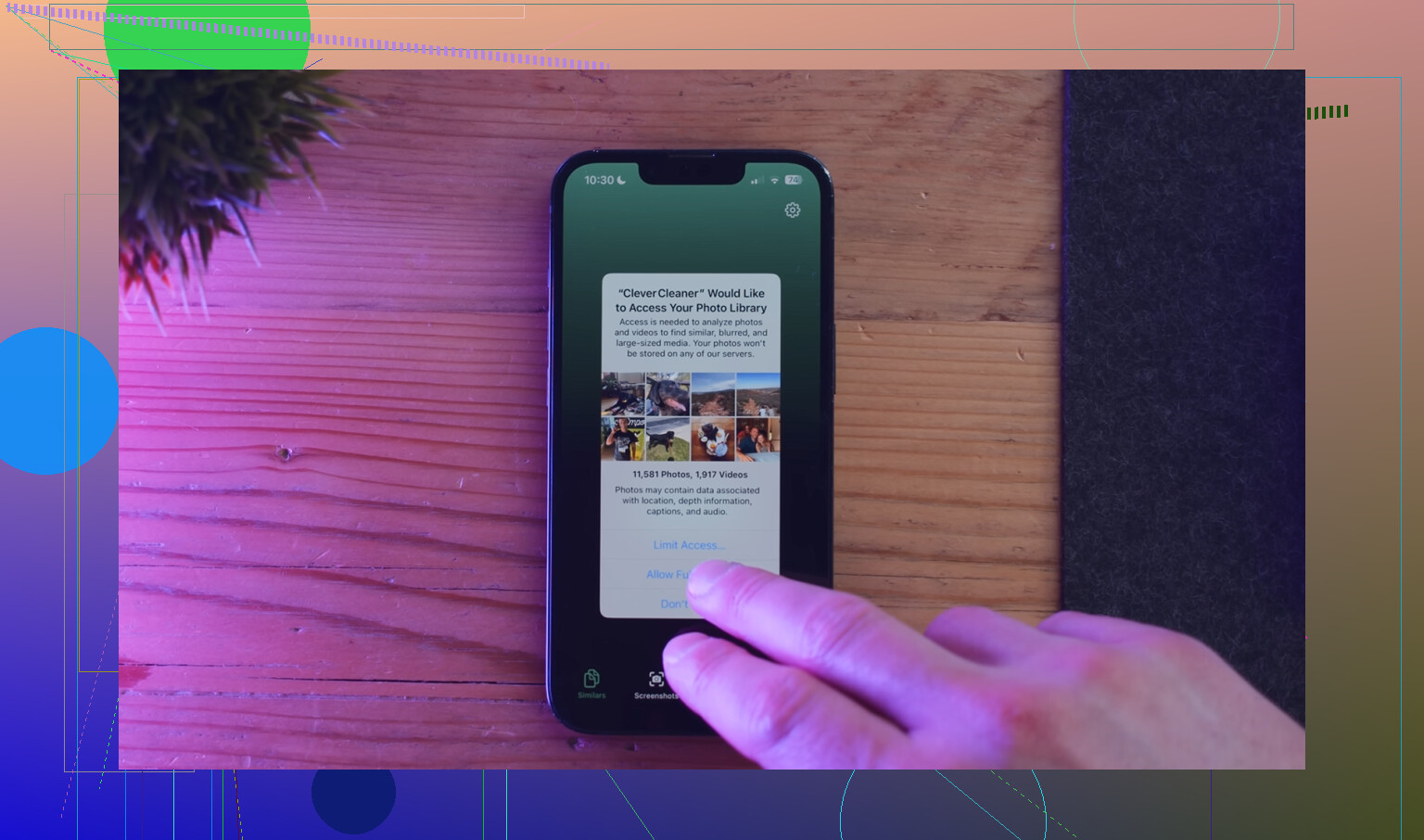
If your photo library is a mess, Clever Cleaner is actually one of the more useful options for finding duplicates, similar shots, screenshots, and large videos without digging forever. If you want a quick look at it, this is a decent watch: see Clever Cleaner clear duplicate photos and large files on iPhone
One more thing, if mail is huge, remove and re-add your Mail account. Sounds dumb, works more often than it should. Apple storage managment is kinda a circus sometimes.
I’d skip one thing people obsess over: the exact “available” number. It can wobble all day because iOS is constantly caching, indexing, and purging temp junk. What matters more is which category is growing.
My shortcut is this:
- Watch the storage bar in Settings > General > iPhone Storage
- Then tap the categories that don’t look obvious
- Especially check:
- Messages for giant attachments
- TV/Music/Podcast apps for offline downloads
- Files for leftover ZIPs and exports
- Recently Deleted in Photos and Files
Small disagreement with @yozora and @mikeappsreviewer: a reboot can help the number look cleaner, sure, but if storage is truly tight, restarting is more of a sanity check than a fix.
Also, if you use iCloud Photos with Optimize iPhone Storage, your phone may look fuller or emptier depending on what’s been downloaded recently. So don’t panic if the reading shifts.
About Clever Cleaner:
Pros: fast for duplicates, similar photos, screenshots, big videos. Easier than hunting manually.
Cons: you still need to review results carefully, and cleaner apps are most useful for photo clutter, not every storage problem.
@viajeroceleste was right to call out Files and Recently Deleted. That’s where “mystery missing space” often hides.