Facebook Messenger is taking up a lot of storage on my iPhone, but I don’t want to delete and reinstall the app because I’m worried about losing settings or recent chats. I’ve tried checking iPhone Storage and Messenger settings, but I can’t find a clear cache option. Is there a safe way to clear the Messenger cache on iPhone without reinstalling the app?
Messenger taking up a few gigabytes on an iPhone is pretty normal, and annoyingly, iOS doesn’t give you a simple “clear cache” button for it. If you actually want that space back, there’s really only one method that fully works.
Deleting Messenger does not delete your chats
Your Messenger conversations are stored on Facebook’s servers, not only on your iPhone. So clearing the app’s local data removes things like cached thumbnails, temporary video pieces, and other files Messenger keeps around to make stuff load faster. When you install the app again and sign in, your chats and contacts sync back.
The one thing to keep in mind is downloaded media. If you saved certain photos or videos inside Messenger for offline access, deleting the app removes those local copies. You can usually download them again from the chat, but they won’t just come back automatically.
The iPhone settings options are not the same
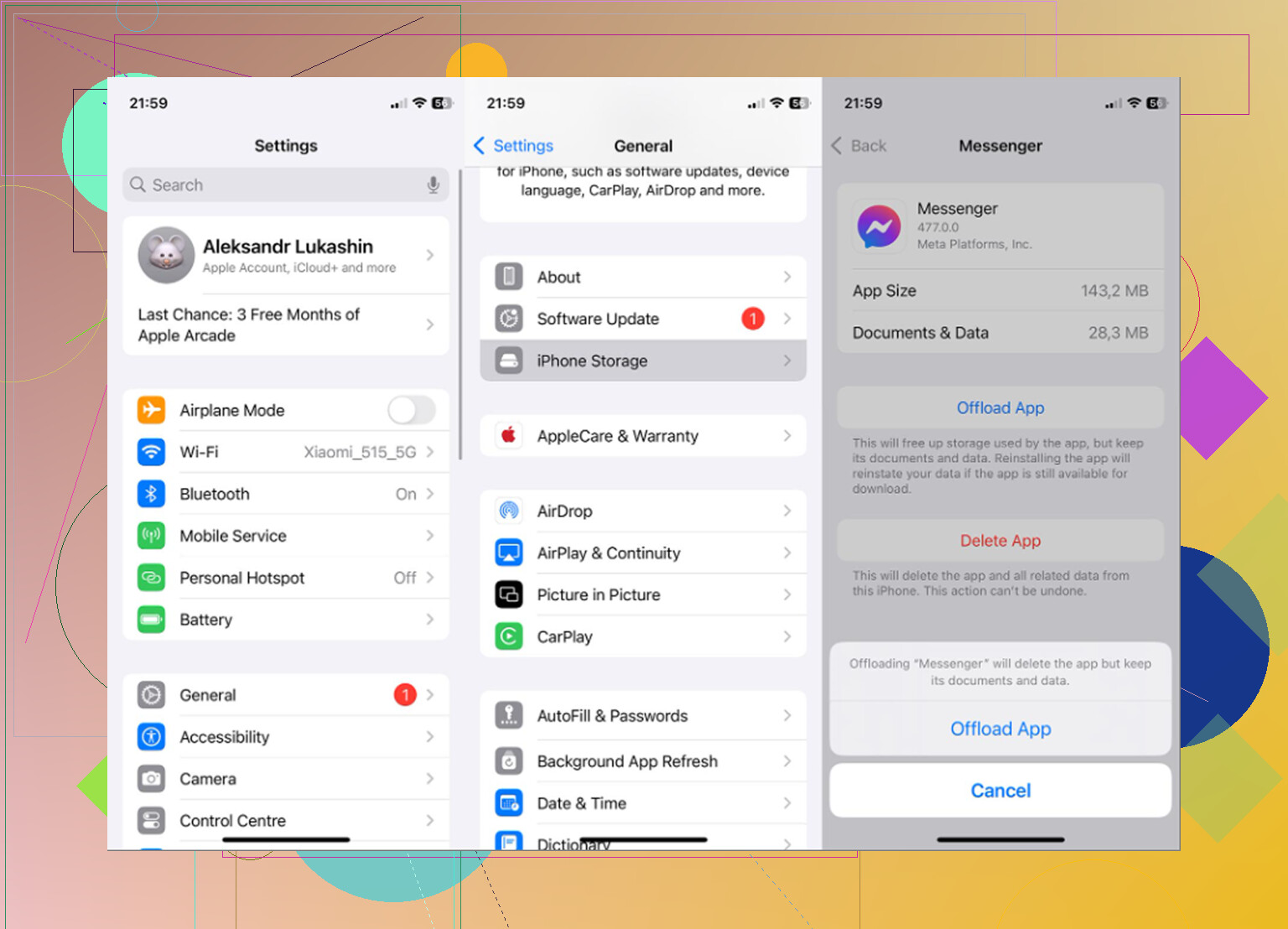
Go to Settings > General > iPhone Storage > Messenger and you’ll see two choices:
Offload App removes the app itself but keeps its Documents and Data. That can help if Messenger is crashing or acting weird, and you usually won’t have to log in again after reinstalling. But it does not really solve the storage issue, because the local data is still sitting there.
Delete App removes the app and its local data, including cache, temporary files, and downloaded media. After reinstalling Messenger, you’ll need to log in again, but your conversations should sync back from the server. This is the option that actually clears the large cache buildup.
If the storage number still looks wrong after offloading or deleting, restart the iPhone. Sometimes iOS just needs to recalculate the app storage.
Messenger cache usually is not the whole problem
Clearing a couple gigabytes from Messenger can help, but if the phone is still sluggish, the bigger issue is usually overall storage. iOS needs free space for temporary files and background tasks. Once the phone gets close to full, everything starts feeling slower no matter which app cache you clear.
Photos and videos are usually where the real storage loss is hiding. Burst shots, repeated screenshots, old screen recordings, and big 4K videos can eat way more space than Messenger cache.
What helped with the bigger storage issue
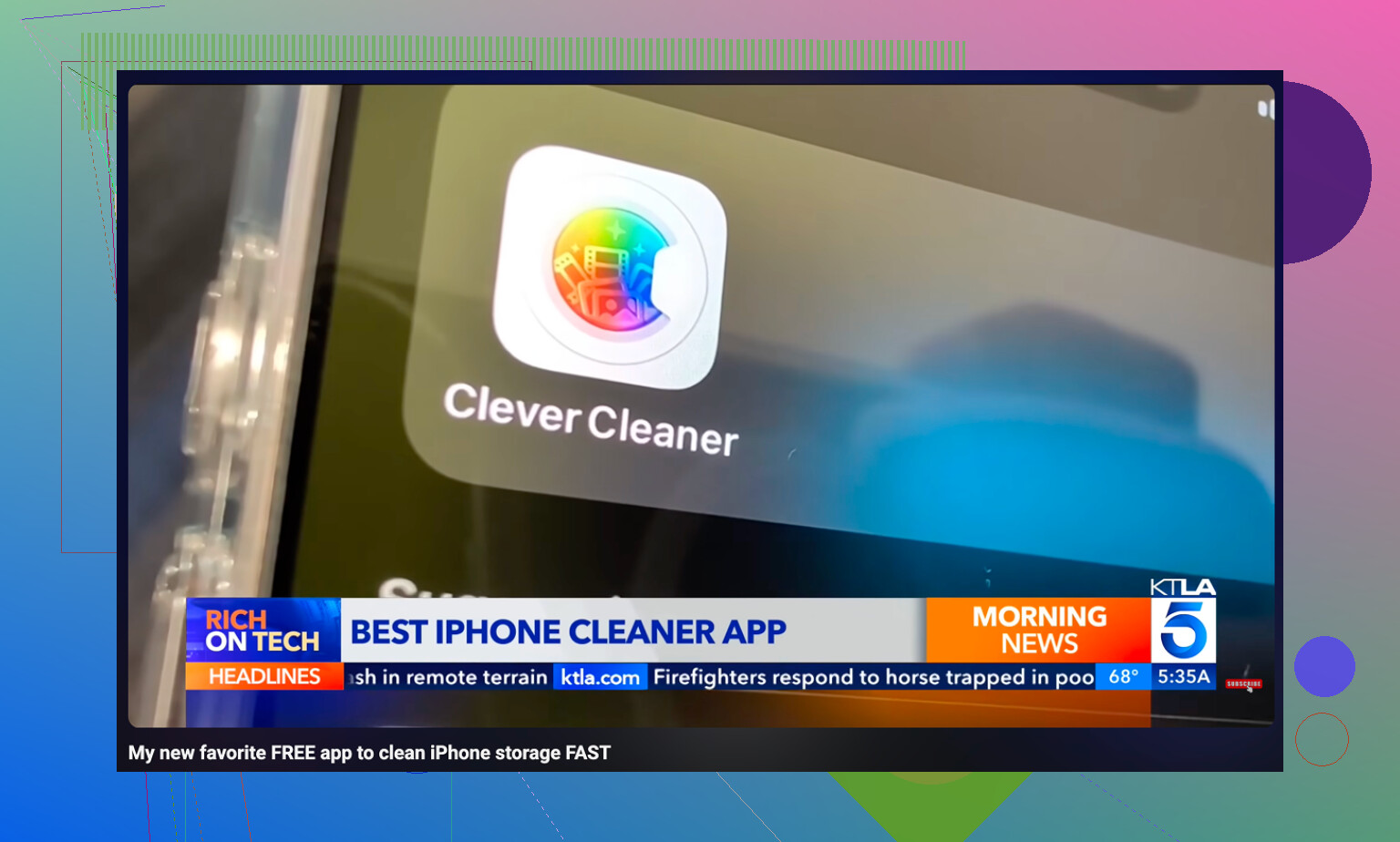
After clearing Messenger, the photo library was still the main thing taking up space. Clever Cleaner helped make that cleanup manageable. It does not clear Messenger cache or touch Messenger data, so you still need to delete and reinstall Messenger for that part. Its job is finding the photo and video clutter that is usually causing the bigger storage problem.
It’s free, with no ads and no subscription.
The Heavies tab sorts files from largest to smallest and shows exact file sizes. A few old 4K videos near the top can take up more space than months of Messenger cache.
The Similars tab groups photos that are almost the same and marks a Best Shot, so you can clear a bunch of repeat shots without checking every single one by hand.
It also shows file sizes on screenshots before you delete them, which makes it easier to see what is actually worth removing.
All processing happens on the device, so nothing gets uploaded to an outside server.
The practical order
First, delete and reinstall Messenger if you want the cache gone. Then clean up the photo library if the iPhone is still low on space. After deleting photos or videos, go to Photos > Recently Deleted > Delete All, otherwise the storage number will not drop right away.
19 Likes
If you use encrypted Messenger chats, check that your Messenger PIN/secure storage is set up before wiping the app. Normal chats should come back after sign-in, but encrypted chat history can be more annoying if your backup setup is incomplete or you forget the PIN.
For the exact question, though: there isn’t a real “clear Messenger cache” button on iPhone. Offload App is usually a trap for this problem because it keeps the Documents & Data, which is the part taking the space. So if you refuse to delete/reinstall, the best you can do is reduce some storage around the edges: delete big conversations you don’t need, remove saved/downloaded media, clear old attachments where possible, and restart the phone so iOS recalculates. It may help a bit, but it probably will not take Messenger from several GB down to a few hundred MB.
I’d be more cautious than “just delete it” only because people forget about login access. Before deleting Messenger, make sure you know your Facebook password, have access to your 2FA method, and aren’t relying on the app as your only logged-in session. Losing chats is unlikely. Getting locked out for an hour because your code goes to an old phone number is the more realistic headache.
Don’t delete conversations as a “cache clear.”
That’s the bit I’d be careful with here. In Messenger, removing a thread or deleting photos inside a chat is not the same as clearing temporary files. You may be deleting your copy of the conversation or removing messages/media you actually wanted to keep. It can reduce storage in some cases, but it is a messy way to solve a cache problem.
For Messenger on iPhone, the annoying answer is still: there is no proper cache reset button. If you want the app’s local junk gone while keeping your account and chats, the clean method is deleting the app and reinstalling it. Offload App sounds safer, but for this exact problem it usually misses the point because iOS keeps the app’s documents/data.
If you absolutely refuse to reinstall, your realistic options are small ones:
Check Messenger settings for anything that saves media automatically to your phone and turn that off if enabled.
Look in the Photos app for Messenger-saved photos/videos and delete the ones you don’t need.
Check Files app downloads if you manually saved attachments there.
Restart the iPhone after cleanup, because iPhone Storage can lag or show stale numbers.
Do not expect those steps to shrink Messenger from 8 GB to 800 MB. They might trim some space, but they won’t flush the hidden cache the way a reinstall does.
The fear about losing chats is usually bigger than the actual risk, but the login risk is real. Before deleting Messenger, make sure you can sign back into Facebook. That means password, email or phone access, and 2FA. If you use encrypted chats, make sure your PIN or secure storage is set up first. That is the part that can bite people, not the normal chat list.
I would treat it like this: if Messenger is taking a silly amount of space, delete/reinstall is the maintenance step. If the phone is low on storage overall, Messenger is probably only one slice of the problem. Photos, videos, screen recordings, and old downloads usually matter more. A cleaner app can help with the camera roll side, but it will not clear Messenger’s private app data. That YouTube short for Clever Cleaner may be useful if you want to see what photo cleanup looks like, but it is separate from fixing Messenger itself.
So the direct answer is: without reinstalling, no, not in a full useful way. You can nibble around the edges. To actually clear the Messenger cache on iPhone, you delete the app, reinstall it, and sign back in.
If the number you’re looking at is mostly “Documents & Data,” there isn’t a magic iPhone setting that targets only Messenger’s cache. That category is Messenger’s private storage area, and iOS does not let you go in and delete only the harmless temporary bits. Offloading keeps that area, so it often looks like it did nothing because, for storage purposes, it basically did nothing.
I agree with the others on not using chat deletion as a cache cleaner. I’d go even further: I wouldn’t delete any conversation just for storage unless you already wanted that conversation gone. It’s too easy to confuse “removing content from my account/chat list” with “clearing local junk.” Same with clearing Safari history or website data. That won’t meaningfully clean Messenger’s app storage.
The only halfway workaround before reinstalling is to remove things Messenger saved outside Messenger: camera roll copies, downloaded files, screen recordings, duplicate videos, etc. That may free up phone storage, but it won’t shrink Messenger’s own storage much. If Messenger itself is the problem, delete app and reinstall is still the real fix. Before doing it, check your Facebook login, 2FA method, and encrypted chat PIN/secure storage. That matters more than the reinstall itself.
Offloading isn’t always useless here, since a fresh reinstall of Messenger often lands smaller than the offloaded copy, so it can indirectly trim some bloat. But @stellacadente is right that it won’t touch the Documents & Data, which is the real hog. If you want that gone, deleting and reinstalling is still the only honest answer.