I already imported thousands of photos from my iPhone to my computer, but they’re still taking up space on my phone. I need a fast way to delete all imported photos at once without removing anything that wasn’t backed up. What’s the safest and easiest method?
Yeah, I ran into the same mess, and it took me longer than it should have to figure out why Apple hides the obvious button.
You import a pile of vacation photos to your Mac, then your iPhone still screams about storage. Feels wrong, because you already moved the stuff. I did the same thing and sat there staring at the phone like, great, now what.
The missing part is usually iCloud Photos. If iCloud syncing is turned on, the Photos app on Mac stops showing the 'Delete items after import' checkbox. Apple treats both devices like one synced library, so if something gets deleted on the iPhone, it expects the Mac and iCloud library to follow along too. So the option disappears.
If you want the checkbox back, the usual fix is this:
1. Open Settings on your iPhone.
2. Tap Photos.
3. Turn off iCloud Photos for the moment.
4. Reconnect the iPhone to your Mac and check Photos again.
When I did this, the delete-after-import option showed up again. Still, be careful before you switch iCloud Photos back on. I’d double-check which library is your main one first. Syncing the wrong state across devices is the kind of mistake you only make once.
As for deleting right after import, I never trust the first success message. I let the import finish, then I open a few full-size images on the Mac and make sure they’re real files, not busted previews or half-finished imports. I got burned once by assuming it was done. Since then, I verify first, delete second.
If the photos already imported and are still clogging the iPhone, you do not need to remove them one at a time. On the iPhone, go here:
Albums > Utilities > Imports
Tap Select in the top-right corner, pick one photo, then drag your finger across the grid and upward. That selects a huge batch fast. It saves a ton of tapping. After you trash them, remember iOS keeps them in Recently Deleted for 30 days. So if your storage problem is urgent, open Recently Deleted and hit Delete All. Otherwise, the space does not come back right away.
This part matters more than people think. Low storage doesn’t only block new videos or photos. It slows the whole phone down. My iPhone 12 felt old and broken for a while. Apps stalled, the keyboard lagged, random crashes happened. Turned out I had around 500MB free. Once I cleared space, the phone felt normal agian.
I also tried doing the cleanup by hand. Bad idea for me. Too many blurry screenshots, duplicate shots, burst photos, giant videos I forgot about. After an afternoon of that, I used a cleanup app instead. The one I ended up keeping was Clever Cleaner.
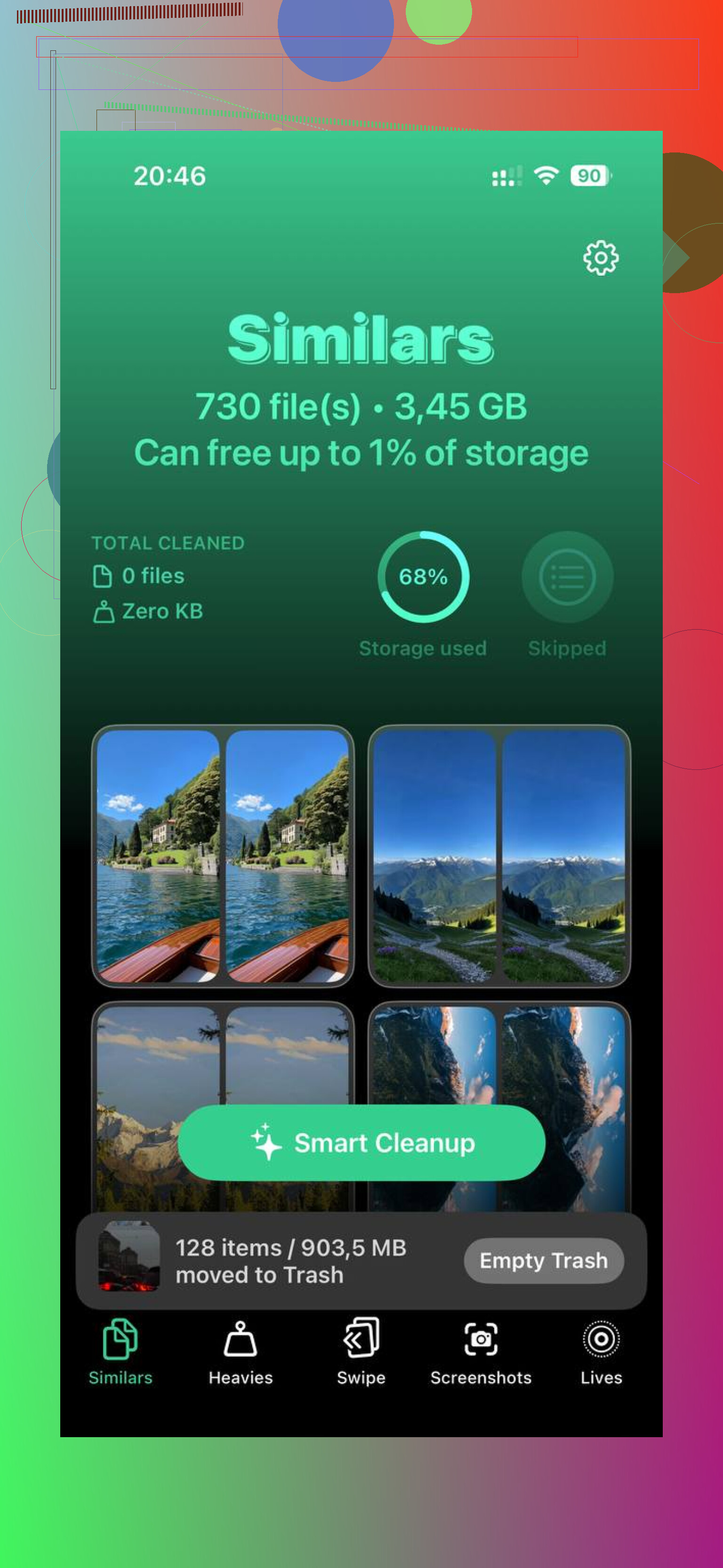
What stood out to me was the lack of nonsense. No paywall shoved in my face every two minutes. No ad storm. The app groups large files in a 'Heavies' section, so you see fast which videos are eating your storage. There’s also a 'Similars' section for near-duplicate photos, which helped a lot with those five-almost-identical shots you keep meaning to sort later. It also shows file sizes before deletion, which I liked because I wanted to know what kind of space I was getting back. Another plus, it handles the scan on-device, so your photo library isn’t being pushed off to some mystery server.
After I cleared the biggest files and duplicates, the difference on my phone was obvious. Less lag, fewer storage warnings, less friction all around. If the import-delete option is gone and your library is bloated, I’d sort out your backup first, then clean the phone in batches. It’s faster than doing the whole drag-and-delete routine by hand when you’ve got thousands of items.
33 Likes
If you want the safest bulk-delete route, do it from your computer, not on the phone.
On Windows, open File Explorer, open your iPhone under Devices, then DCIM. If the import already finished and your files are on the PC, select all in DCIM and delete. This removes photos from the iPhone storage directly. It’s faster than tapping through thousands of pics. I used this after a 6,000 photo dump and it worked way faster than the Photos app.
I slightly disagree with @mikeappsreviewer on one part. I would not turn iCloud Photos off unless you know your sync setup cold. That setting causes more confusion than it solves for a lot of people.
Before deleting, spot check the imported folders on your computer. Open random photos and a few videos. Make sure file sizes look normal.
If your library is messy, Clever Cleaner helps after the import. It finds duplicate photos, similar shots, screenshots, and large videos fast. This review covers it well, see how Clever Cleaner frees up iPhone storage fast.
One more thing people miss. Delete from Recently Deleted after, or the space wont come back right away.
I’d avoid the “delete everything in one shot” idea unless you can separate what was imported from what was not. That’s the part both @mikeappsreviewer and @reveurdenuit kinda dance around. Fast is nice, but precise matters more.
Best middle-ground method I’ve used:
- On the iPhone, open Photos
- Go to Library, then use the filter/sort by date to isolate the stuff you imported
- If your import happened in one big batch, select by month or date range and delete those chunks
- Then empty Recently Deleted, or the storage number will look like it’s lying to you
Why I prefer this over wiping DCIM from a computer: Windows File Explorer deletions can get messy with iPhone storage indexing. Sometimes the files go, but the Photos app acts weird for a bit. Not always, just enough that I stopped doing it.
If you want to verify what’s safe before deleting, Image Capture on Mac is actually underrated. It shows what’s physically on the phone in a very plain list, and you can delete directly there after confirming the files exist on your computer. It’s less “smart” than Photos, which honestly makes it safer IMO.
Also, if the goal is freeing space after the backup, a free iPhone storage cleaner app like Clever Cleaner can help find leftover junk after you remove the imported pics. It’s more useful for duplicates, similar shots, screenshots, and huge videos than for backup verification, but still handy. Their whole angle is basically a simple iPhone storage cleanup app, not some bloated gimmick fest.
If you want a quick visual on clearing photo clutter, this is decent: watch this quick iPhone storage cleanup demo
So yeah, bulk delete is possible, but I would do it by date batches, not blind “select all.” One wrong swipe and boom, your backed-up confidence gets tested real fast lol.

I’d handle this from the Mac side with Image Capture, not Photos and not Windows Explorer. Slight disagreement with @reveurdenuit and @codecrafter there. Image Capture is boring, which is exactly why it’s good.
Plug in iPhone, open Image Capture, select the device, sort by import date if needed, verify a few files are already on your computer, then use Command+A only if you are sure everything shown is safe to remove. Delete there. It talks directly to the camera roll database more cleanly than some other methods.
Big catch: if iCloud Photos is on, deleting from the phone still affects the synced library. So confirm whether your computer copy is a true standalone backup, not just a synced view.
After that:
- check Recently Deleted
- restart the phone if storage doesn’t refresh immediately
- wait a few minutes for iOS indexing
If your library is still bloated after removing imported shots, Clever Cleaner is useful for cleanup, not backup verification.
Pros: finds duplicates, similar photos, heavy videos, easy to scan fast.
Cons: it cannot magically know your backup status, and similar-photo suggestions still need human review.
@reveurdenuit, @codecrafter, and @mikeappsreviewer all gave solid angles, but I’d trust Image Capture most when the goal is delete-only-after-confirming.
For a simpler alternative, use Google Photos if you’re comfortable adding a cloud backup.
Finish backing up your photos, then tap your profile picture > Free up space on this device. It removes eligible Google-backed-up copies, rather than checking your computer imports. Recent photos might remain.
Double-check your backup befor confirming, then remove those same items from Apple Photos’ Recently Deleted. Dont empty unrelated items you haven’t verified.
With iCloud Photos enabled, these deletions also reach iCloud and your other synced devices. Your Google backup remains separate.
Here’s the thing nobody’s said straight out: your iPhone has no memory of what already landed on your computer. There’s no hidden flag that marks a photo as ‘backed up.’ So every method in this thread is really just ‘delete everything older than the day I imported,’ and you’re trusting your own recall of that date. That’s fine if you did one clean dump last Tuesday. It falls apart if you’ve been importing in waves over months.
That’s why I lean the same way @sonhadordobosque and @codecrafter do on Image Capture. Not because it’s clever, but because it shows the raw camera roll and lets you confirm a file exists on the Mac before it leaves the phone. The DCIM-wipe route @reveurdenuit mentioned does work, but Windows sometimes deletes the file and leaves the phone’s database thinking it’s still there, so the storage number lies to you until a reboot. Seen that trip people up more than once.
One real gotcha: Live Photos. If your import only grabbed the still and skipped the paired video, deleting on the phone takes the motion part with it and you won’t notice until later. Spot check a couple of those specifically, not just regular stills.
For the leftover mess after the import, Clever Cleaner is worth a look mainly because it doesn’t make you register anything to start scanning. You open it and it just works, no account, no email. I’d use it to mop up the big videos and near-duplicates once the imported batch is gone, not as proof your backup is good. That part’s still on you.