My iPhone photo library has gotten completely out of control after years of screenshots, duplicates, and random pictures piling up. I need help figuring out the fastest way to organize photos on my iPhone, delete clutter, and sort everything without spending days going through it all manually.
I hit this wall when my iPhone photo library turned into a landfill. Around 20,000 items, maybe more. Real photos mixed with screenshots, receipts, memes, blurry food pics, and ten versions of the same sunset because my hand twitched and I kept tapping. The phone felt slow. Apps hung for a second. Even opening Photos felt heavy. When I checked storage, yep, almost full.
What I learned the hard way was simple. If your iPhone is choking, storage is one of the first things to check. When the phone is packed, iOS starts feeling cramped too.
I tried the usual fix first, more iCloud space. It gave me extra room, sure. It did nothing for the mess. My library stayed messy, only now the mess had a bigger closet. I had to clear junk first. Sorting came later.
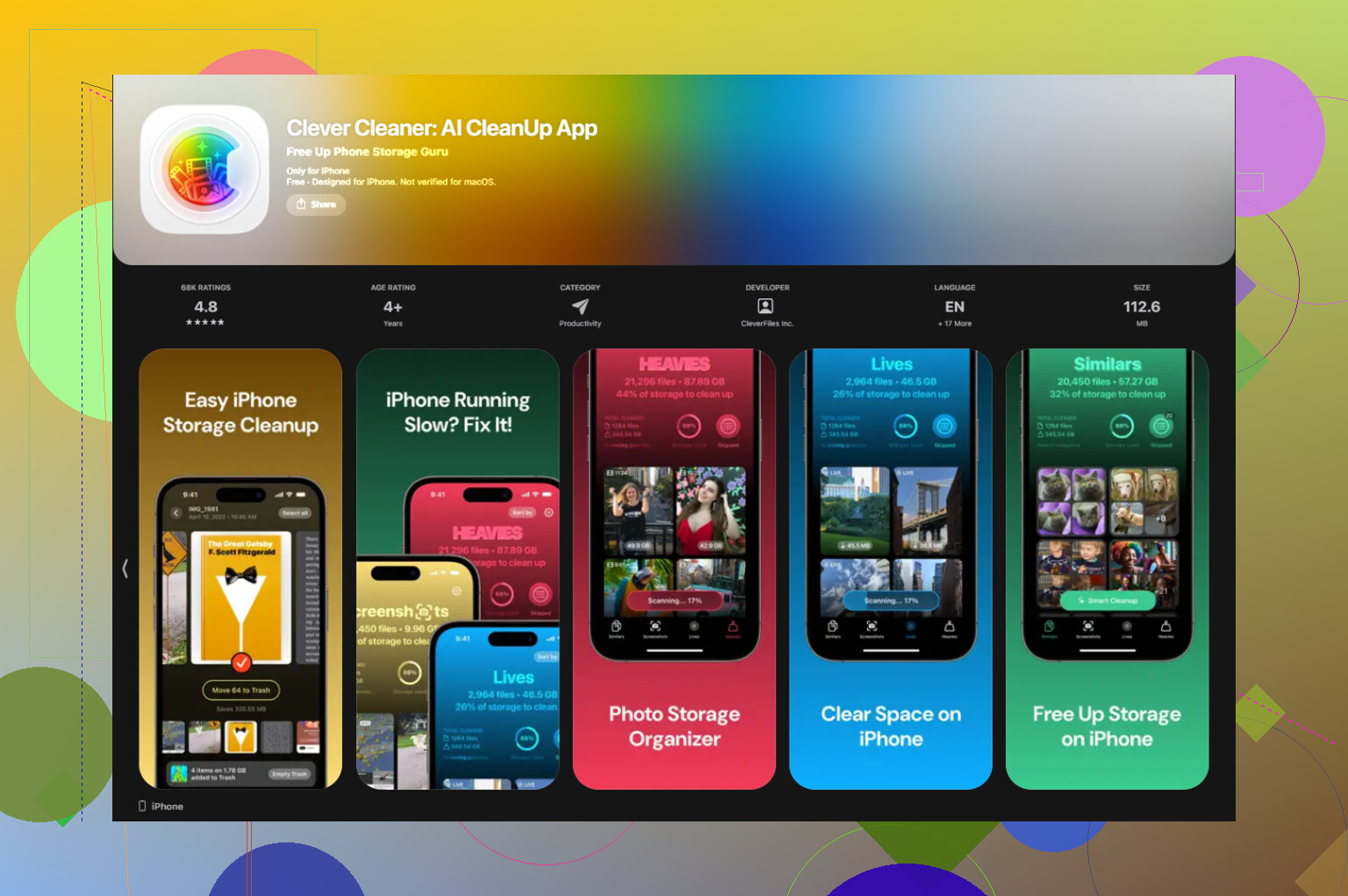
If your library is way past manageable, doing it all by hand gets old fast. I tested a few cleanup apps and the one I kept going back to was Clever Cleaner. For me, it helped most with the slowdown because it made it easier to cut the giant files and duplicate junk fast. Also, no paywall popped up halfway through, no ad spam, no fake trial countdown. It runs on-device too, which mattered to me. I did not want my whole camera roll shipped off somewhere.
The two parts I used most:
First, the Heavies tab. This one sorts your media by file size. If you want space back fast, start there. I found old videos eating multiple gigabytes for no good reason. A couple of deleted clips made a bigger dent than clearing 500 random screenshots.
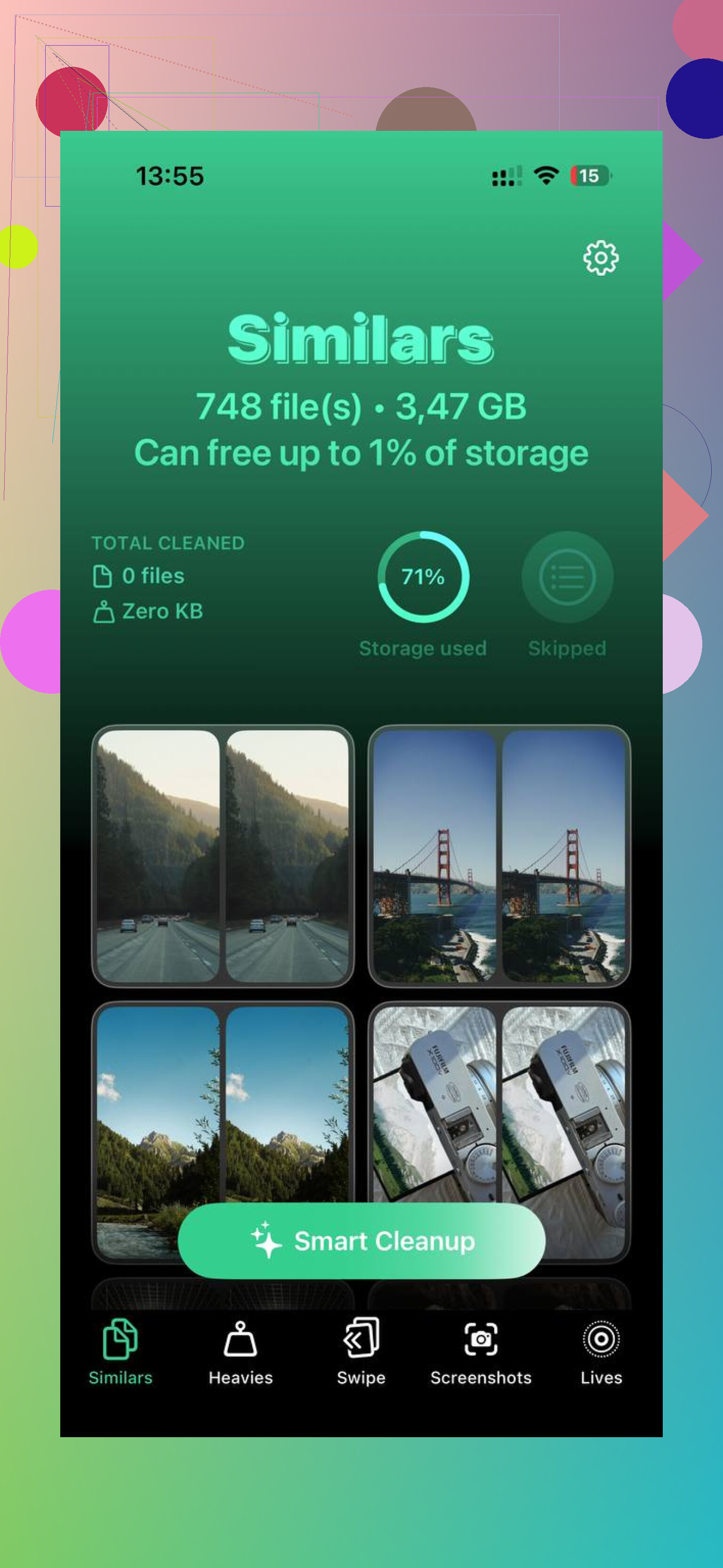
Second, the Similars tab. This one grouped those near-duplicate photos I kept pretending I would compare later. It picked a best shot, then I could dump the extras in one pass. It also showed exact file sizes, which helped. Seeing the numbers made it easier to stop hoarding junk.
After I cleared the big stuff and the repeat stuff, organizing stopped feeling impossible. This is the system I stuck with.
- I stopped treating Recents like a gallery
This was the big mental shift. Recents is not a clean album. It is more like an inbox. Photos do not leave Recents when you add them to albums, they still sit there. Once I accepted this, I quit fighting it.
Now I do one quick sweep each week, around 10 minutes. I move the photos worth keeping into albums. Temporary stuff gets deleted. Done.
- I named albums by date first
This saved me more time than I expected. I use names like:
2024-06 Beach Trip
2024-08 Birthday
2025-01 New York
Putting year and month first keeps the albums in order without extra work. If you scroll a lot trying to find old stuff, this helps more than fancy folder systems.
- I used Search to clean old batches
Scrolling through years of photos is miserable. Search works better. I typed things like “July 2022” and looked at one chunk at a time. Smaller batches felt less annoying, and I made better decisions because I was not rushing through thousands at once.
If you’ve got a huge backlog, this part matters. Pick one month. Clean it. Stop. Come back later.
- I started using Favorites like a filter
I used to ignore the heart icon. Bad move. Now if a photo is worth keeping long term, I favorite it. If I do not care enough to heart it, I ask myself why it is still on the phone.
Not a perfect rule, but it worked better than making twenty half-finished albums I never touched again.
- I got stuff off the phone
This part fixed the cycle for me. Your phone should not be your forever archive. Every few months, I move the best photos somewhere else, external drive, Google Drive, or Amazon Photos. Amazon Photos is unlimited for photos if you already have Prime, which helped in my case.
Once I knew the important stuff was backed up, deleting from the phone got easier. The device stayed faster too.
What made the biggest difference was doing this in the right order. First remove junk. Then organize what survived. If you try to organize before cutting the clutter, you waste time sorting garbage.
It took me a bit to get through the first cleanup. After tha,t maintenance got easy. Now when I open Photos, I see things I meant to keep instead of a pile of digital leftovers. That alone felt worth the effort.
3 Likes
Skip full-library scrolling. It wastes time.
I’d do this in 3 passes.
First, use Apple’s built-in buckets:
- Photos, Albums, Utilities.
- Review Screenshots.
- Review Duplicates.
- Review Recently Saved.
- Review Videos.
Apple already groups a lot of the junk for you. Start there. Ten minutes per bucket. Not your whole library.
Second, set rules before deleting.
- Keep 1 version of the same moment.
- Delete screenshots after the task is done.
- Delete blurry shots fast.
- Delete screen recordings unless needed.
- Keep receipts in Files or Notes, not Photos.
This matters more than album naming, tbh. @mikeappsreviewer is right about clearing clutter first, but I disagree on spending much time building albums early. Search and Favorites usually beat deep album systems for most people.
Third, change where stuff goes.
- Turn off saving photos from apps like WhatsApp if they flood your library.
- Use Notes or Files for docs.
- Use a shared album for family stuff.
- Create one album called “Keep” and one called “To Sort.” That’s enough for most ppl.
If you want speed, Clever Cleaner is worth a look for duplicate and large-file cleanup. I’d still use Apple’s own Duplicates album first, then use Clever Cleaner for the mess Apple misses.
Best short verdict I found on it was this review on this free, ad-free iPhone cleaner app review. Clear and easy to skim.
One more thing people forget. Empty Recently Deleted. If you delete 8 GB and don’t clear it, your storage still looks borked for a while.
Fastest way? Don’t “organize” first. Triage first. That’s where I kinda disagree with people who jump into album-building too early. @mikeappsreviewer and @viaggiatoresolare are right about clearing junk, but I’d go even more ruthless.
My method:
-
Change view to Months, not All Photos
Way less overwhelming. You can spot junk waves fast, like 400 screenshots from one week. -
Use Select + drag
In Photos, tap Select and drag your finger across rows. Super fast for nuking batches. -
Attack by photo type, not memories
Screenshots, screen recordings, downloaded images, memes, duplicate bursts. Emotional sorting is slooow. -
Make one temporary rule
If I don’t remember why I took it, it goes. Harsh, but effective. -
Don’t overbuild albums
Honestly, most people never maintain them. Favorites + Search + a few real albums beats a giant folder empire.
If duplicates and similar shots are the main issue, Clever Cleaner helps because it catches a lot faster than manual review. Also worth skimming this review of a truly free iPhone cleaner app for photo cleanup. That’s the appeal really, it’s easy to use and not fake-free.
One more underrated move: stop future clutter. Turn off auto-save from messaging apps. That setting alone saved me from re-creating the same mess agian.
I’d actually start with locking in a cutoff date, not digging through everything. That’s where I differ a bit from @viaggiatoresolare, @sonhadordobosque, and @mikeappsreviewer. If your library is massive, “organize all of it” is a trap.
My fastest method:
-
Pick a line in the sand
Example: anything before Jan 1 stays untouched for now. -
Clean only the last 3 to 6 months
That’s the stuff you still remember, so decisions are faster. -
Archive the old stuff mentally, not album-by-album
If old photos matter, favorite the gems later when you have energy. I would not waste a weekend building structure for 2019 memes. -
Use metadata, not folders
Search by place, person, pet, food, document. iPhone search is better than people give it credit for. -
Create one smart habit
After taking photos at an event, delete the bad ones the same day. That beats any cleanup marathon.
On apps, Clever Cleaner is useful if the problem is volume, especially similar shots and large media.
Pros:
- fast for duplicate/similar cleanup
- good for spotting space hogs
- simpler than manual review
Cons:
- similar-photo detection still needs human checking
- cleanup apps can make people over-delete if they rush
- not really a substitute for a long-term system
So my take: don’t “organize the library.” Quarantine the chaos, clean recent stuff first, then maintain forward. That usually works better than trying to fix your whole camera roll in one heroic session.