My Windows drive suddenly shows a missing GPT partition after a reboot, and I can’t access some important files. I’m trying to find the safest way to recover the lost GPT partition without formatting the disk or making the data harder to restore.
First thing: don’t try to “fix” the drive yet. If Windows says the disk needs to be formatted, cancel it. If the drive shows as Unallocated, RAW, or GPT Protective Partition, that does not automatically mean the files are gone. A lot of the time the data is still there, but the partition info Windows uses to find it is damaged or being read wrong.
Do not write anything to that disk. No formatting, no Diskpart clean, no quick repair tool that makes changes in place. Even copying new files onto it can overwrite the stuff you’re trying to recover. If this is the computer’s main drive, stop booting from it and use a recovery USB or another machine.
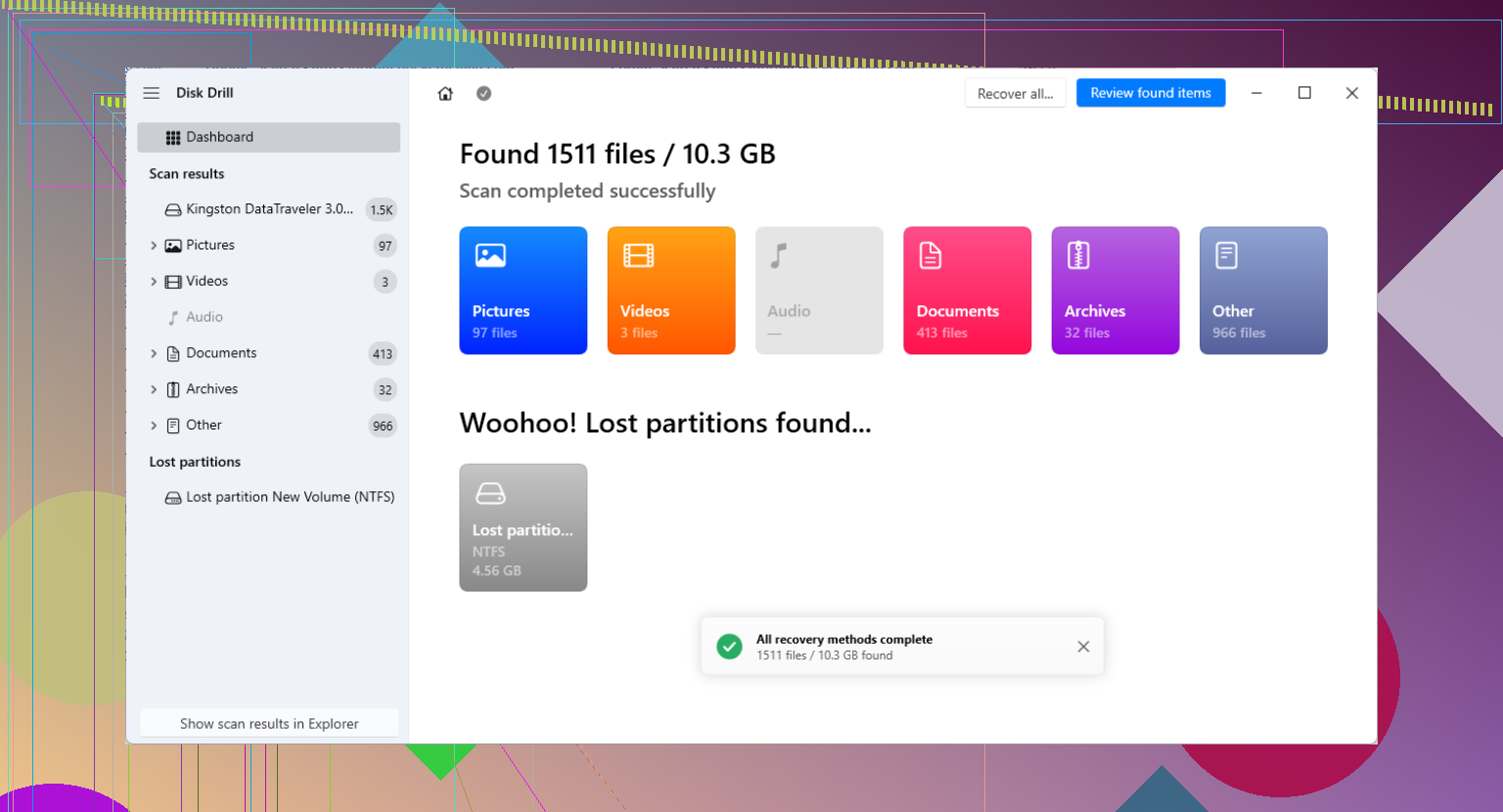
The safer move is usually to recover the files first, then worry about rebuilding the partition table later. Trying to repair GPT in place can work, but it’s easy to make the situation worse. A recovery app that scans the whole physical drive is a better first step because it can look past the broken partition map and find files by signatures.
One option for that is Disk Drill. The basic process is:
- Select the actual physical disk, not the missing or damaged partition.
- Run a deep scan and let it look for lost or reconstructed partitions.
- Use preview before recovering anything, so you can check whether the files look intact.
- Recover the files to a different physical drive. Never save them back onto the problem disk.
If you’re comfortable with command-line tools, TestDisk is another route. It’s free and open-source, but it is not very beginner-friendly. GPT disks normally have a main header at the beginning of the drive and a backup header at the end, so tools like TestDisk or gdisk may be able to rebuild the layout if only the primary GPT data is damaged. Just be careful, because wrong choices there can make recovery harder.
Also watch out for the external-drive weirdness. A “GPT Protective Partition” message can happen when a drive was used in a USB enclosure or dock and then moved directly to SATA, or the other way around. Some docks/enclosures handle sector sizes differently, so Windows may read the same disk incorrectly. If that sounds like your case, put the drive back into the original enclosure or dock and check whether the partitions show up again.
Whatever you do, don’t run Diskpart’s clean command unless you have already recovered what you need. That wipes the partition table and takes away one of the things recovery tools might still be able to use.
19 Likes
Check the disk’s health before you scan it for hours. A lost GPT partition can be logical damage, but it can also be the first sign of a failing drive, and a deep scan on a dying disk may finish it off. If the drive is making noise, disconnecting, freezing Windows, or showing bad SMART values, clone it first with something like HDDSuperClone or ddrescue and work from the clone. If SMART looks clean and the disk is stable, then recovery software is fine, but still save recovered files somewhere else. I’d treat “repair partition table” as step two, not step one.
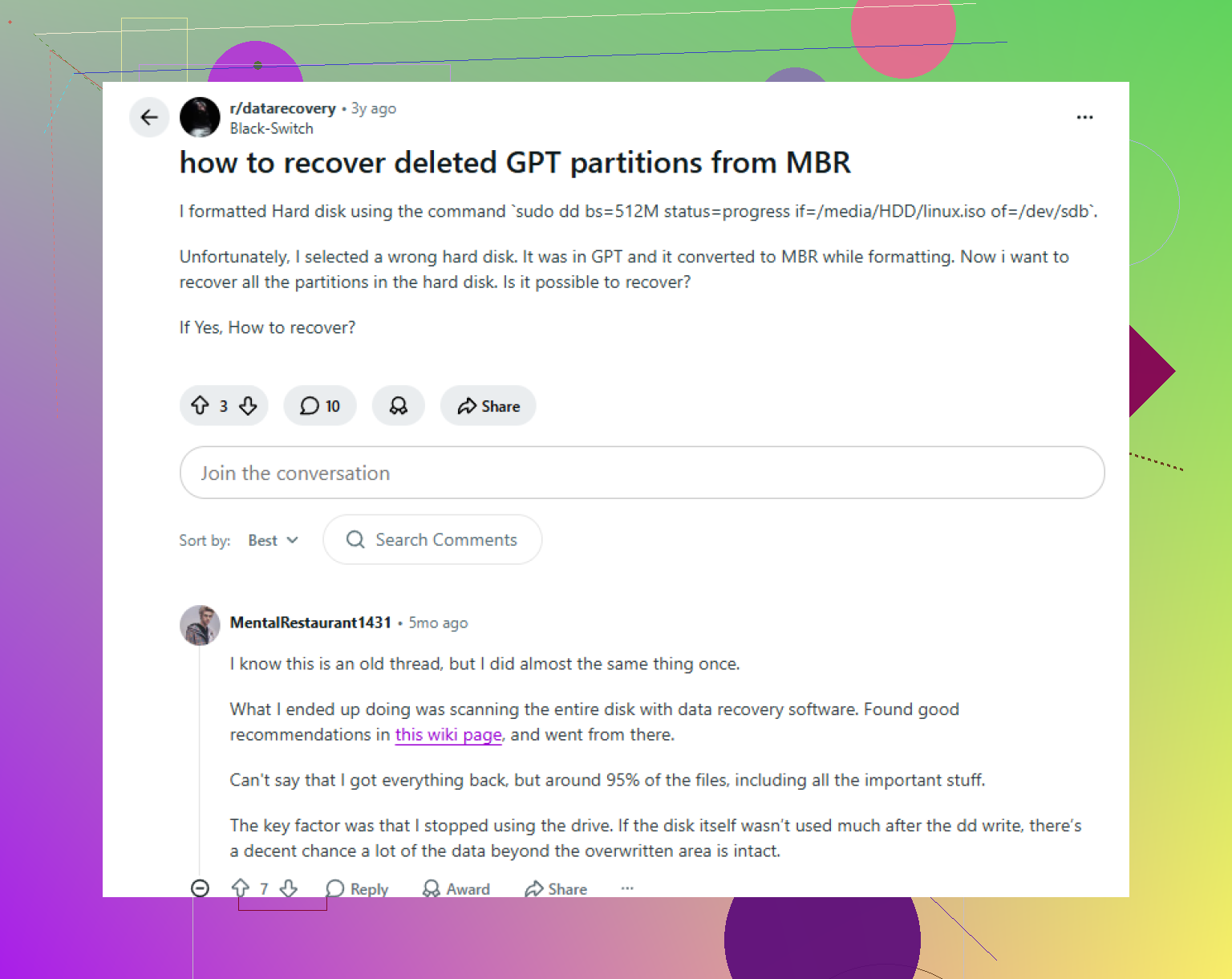
Expect recovery to be more like “get the files off safely” than “click a button and the partition comes back exactly as before.” Sometimes the GPT entry can be rebuilt cleanly, but you should assume you only get one clean chance before Windows tools or repair utilities start changing things.
A small thing people skip: make sure it is really a lost partition and not a mount/encryption problem. Open Disk Management and look at the physical disk layout. If the partition is still there but has no drive letter, that is a very different problem from the whole space showing as Unallocated. If it says RAW, do not run chkdsk on it. Chkdsk is for fixing a recognized file system, not for guessing your old partition layout.
If BitLocker was enabled, that changes the whole situation too. A recovery program may “find” files but not be able to preview anything useful until the volume is unlocked or you have the recovery key. Before doing deep scans, check your Microsoft account or wherever you stored the BitLocker recovery key. People forget this and think the scan failed, when the data is simply encrypted.
I agree with the earlier advice about not writing to the disk, but I would be extra strict about Windows itself. If this is an internal secondary drive, go into Disk Management only to inspect it, not to initialize, convert, format, or create a new simple volume. If Windows pops up “you need to format this disk,” close it. If it asks to initialize the disk as GPT or MBR, cancel. Those dialogs are not recovery steps.
For a safer workflow, I’d do it in this order:
- Photograph or screenshot Disk Management so you have the disk number, size, and current state.
- Check SMART status if the drive is acting odd.
- If the drive is unstable, clone/image it first and work from the copy.
- If the drive is stable, scan the physical disk with recovery software.
- Recover files to another drive.
- Only after that, consider rebuilding the GPT/partition table.
That last part matters. Repairing the GPT first is tempting because it feels cleaner, but it is the higher-risk move. If you rebuild the wrong partition start or end point, Windows may see a volume and still not read it properly. Worse, some “partition repair” tools make changes before you fully understand what they found.
Disk Drill, TestDisk, R-Studio, DMDE, etc. can all scan past a broken partition table in different ways. Disk Drill is easier if you mainly want previews and file recovery without learning partition geometry. TestDisk is good when the lost partition boundaries are obvious, but it is much easier to make the wrong write decision if you are clicking through without understanding what it found. DMDE is very capable too, but not friendly for beginners.
If you do use a recovery app, select the whole physical disk, not just the broken volume shown by Windows. That is how it can look for old partition starts, NTFS records, and file signatures. And do not judge the result only by folder names. Preview a few important files, especially large documents, photos, archives, and videos. A scan can list filenames from old metadata even when the actual file contents are partly overwritten or damaged.
There is one cheap check worth doing before a long scan: try the drive through the same connection path it used when it worked. If it was in a USB dock, use that same dock. If it was internal SATA, put it back on SATA. Some enclosures translate sector size, and that can make a perfectly valid GPT disk look wrong somewhere else. It is annoying, but it happens.
After your files are copied somewhere safe, then you can decide whether to repair the partition table or just wipe and repartition the disk. For a disk that suddenly lost a partition after reboot, I would not trust it again until it has passed a full health check. If the files matter, recovery first. Making the drive look tidy again can wait.
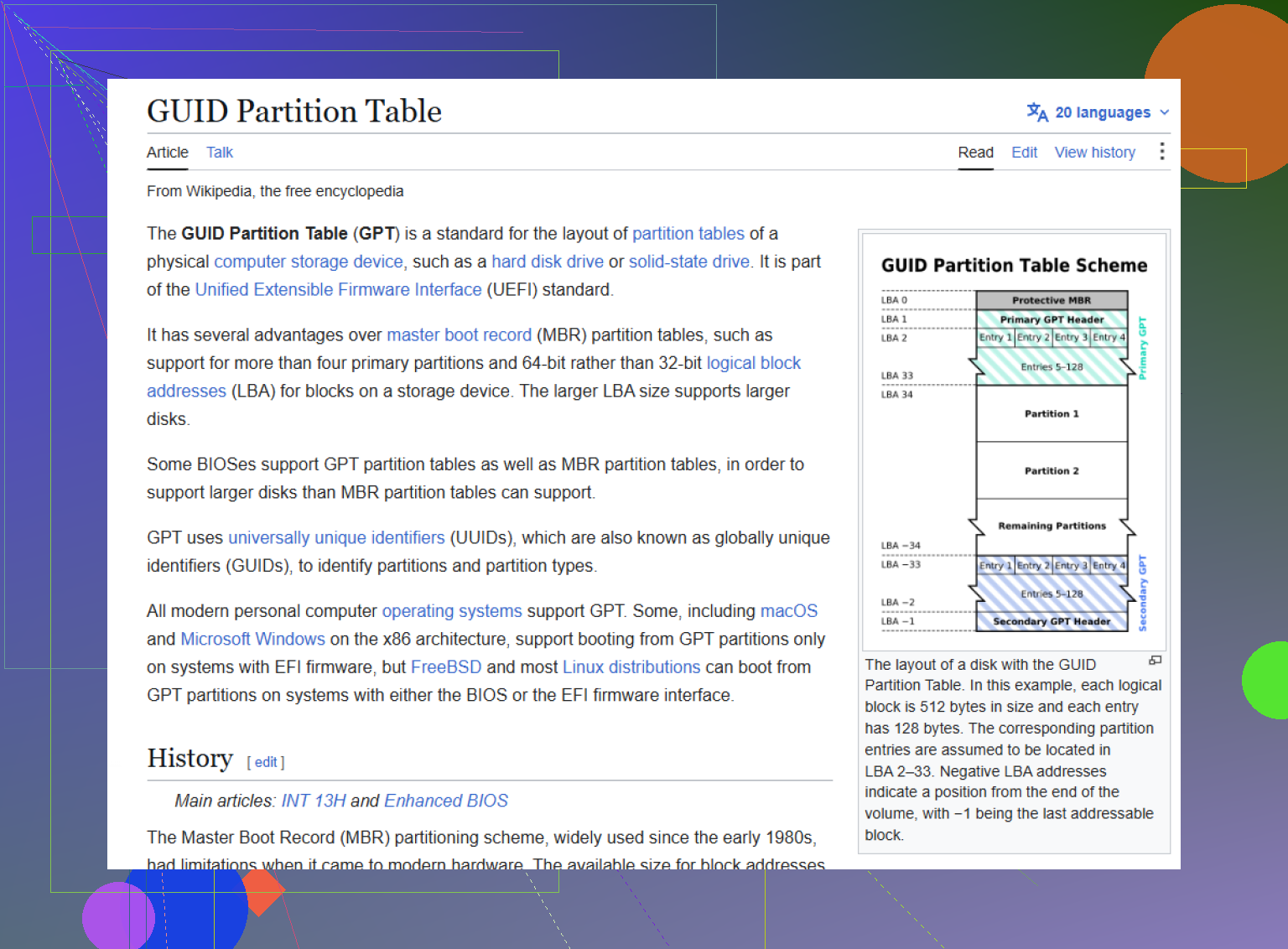
Expect the best result to be a clean copy of your files, not a magically restored C: drive with everything exactly where it was. Treat the missing GPT entry as a map problem until proven otherwise, but don’t forget that the “map” may have gone missing because the disk, cable, controller setting, or enclosure changed.
Since you said it happened after a reboot, I’d check the boring hardware/firmware stuff before doing a long recovery scan. Go into BIOS/UEFI and see whether the drive is detected with the right size. If the machine has Intel RST/VMD, RAID mode, or AHCI settings, make sure they didn’t change after an update or reset. A wrong storage mode usually causes boot problems, but it can also make people think the disk layout is gone when Windows is just seeing the drive through a different path. Same with moving an NVMe/SATA drive between machines or USB adapters.
If Windows still sees the disk with the correct capacity, then do recovery from another boot drive or another PC. Don’t install Disk Drill, R-Studio, DMDE, or anything else onto the affected Windows drive. Installing software writes a lot of small files, temp files, browser cache, update files, and logs. That can overwrite exactly the metadata or file contents you’re trying to recover. Disk Drill is fine as a beginner-friendly scanner if you want previews, but run it from a separate system and save recovered data to a different physical disk.
I’d avoid “repair” buttons until you know what the scan finds. A found NTFS volume with the right folder tree, dates, and previewable files is a good sign. A scan that shows thousands of generic files like file000123.jpg with no folder structure means the partition metadata may be badly damaged, and restoring the GPT entry might not give you much. In that case, copying out the important files matters more than making Disk Management look normal.
After the data is safe, then decide whether to rebuild the partition table or wipe the drive and start over. If this was an SSD, check the manufacturer’s health tool too, because sudden partition loss after a reboot is not something I’d ignore. Even if recovery works, I wouldn’t put important files back on that disk until it has passed health checks and you have a separate backup.