My PST file suddenly disappeared from Outlook, and now I can’t access important emails, contacts, and folders I need for work. I’m not sure if the file was moved, deleted, or disconnected from my Outlook profile. I need help figuring out how to recover the missing PST file in Outlook and restore my email data as quickly as possible.
I’ve hit this one before, and yeah, Outlook throws that “file cannot be found” error like it wants to ruin your afternoon on purpose.
First thing I’d do, stop using the PC for anything extra. No random downloads, no browser tabs piling cache everywhere, no Windows update if you can avoid it. When a file gets deleted, Windows often only removes the index entry and marks the space as reusable. Your PST might still be sitting there. The bad part is every write to the drive risks stomping on it.
Here’s the order I’d go in.
1. Check the easy spots first
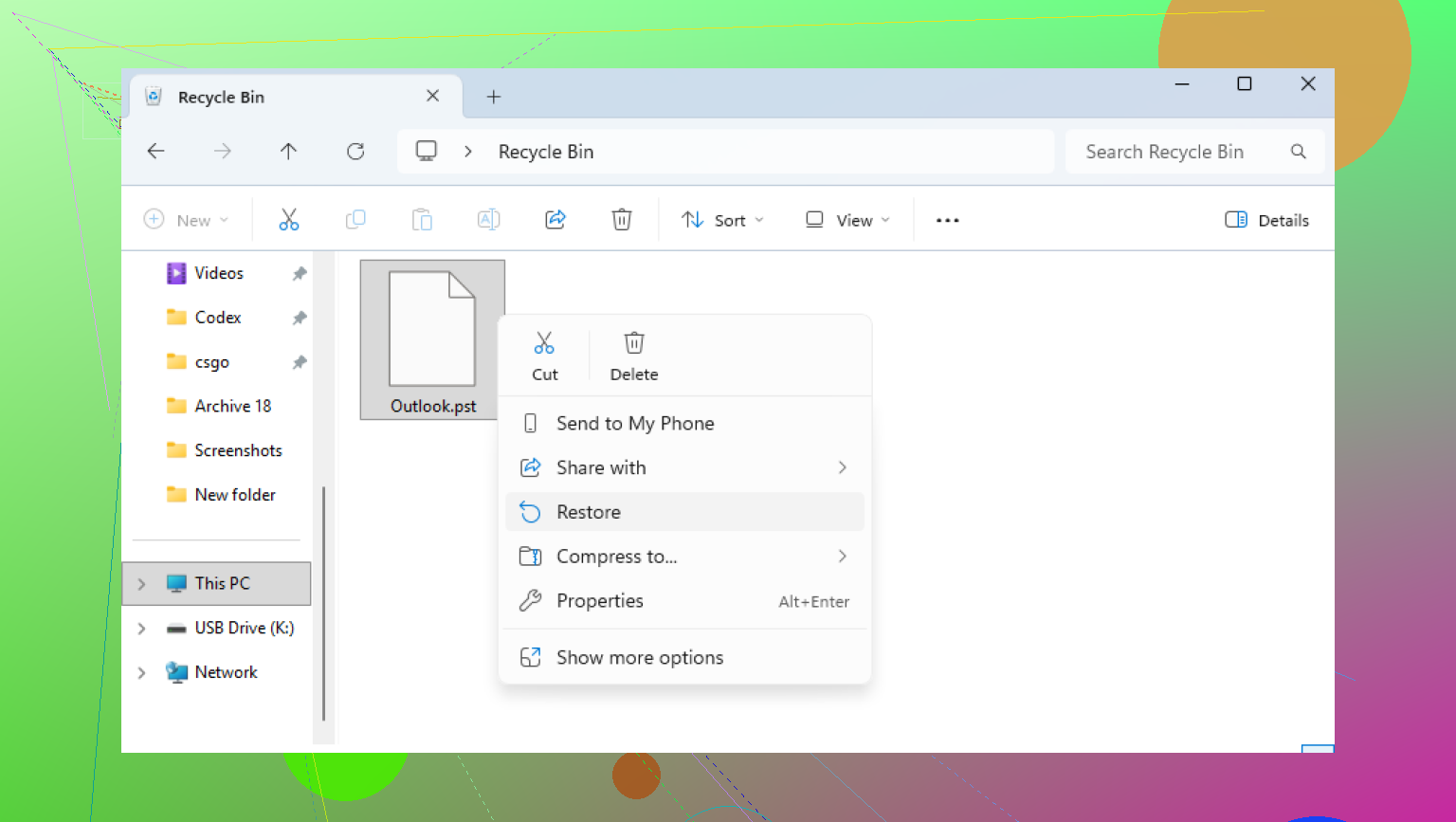
Open the Recycle Bin. If you deleted the PST the normal way, it might still be sitting there. Restore it and you’re done. If you used Shift+Delete, then yeah, it skipped the bin.
I’d also check your cloud accounts from the browser, not from the synced folder on the PC. Look in OneDrive, Dropbox, or Google Drive trash areas, deleted items, and version history. I’ve seen files turn up there when I swore they were gone.
2. Try Windows previous versions
This part depends on whether System Restore or shadow copies were active, but it takes a minute so it’s worth the shot.
Go to the folder where the PST used to live. A common path is:
C:\Users\YourName\Documents\Outlook Files
Right-click the folder, pick “Restore previous versions,” then look for a copy dated before the deletion. If you find one, open it and copy the PST out to a safe place first. Don’t restore over stuff blindly. I learned that one the dumb way.
3. Use recovery software if the file is gone gone
If the bin is empty and previous versions show nothing, I’d move to file recovery software.
Disk Drill is one option people use for this. The point is to scan the drive directly and look for deleted entries Windows no longer lists. PST files are often easier to spot than tiny junk files because the real ones tend to be big.
The way I’d handle it:
Install the recovery tool to a different drive if you have one. USB drive is better than writing more data to C:.
Scan the system drive, usually C:.
Search for .pst in results, or filter by file type.
Look at file sizes before restoring anything. An empty replacement PST from Outlook might be a few hundred KB. Your old mail archive is more likely in the hundreds of MB or into GB territory.
Recover the file somewhere else. Desktop, external drive, second partition, whatever is not the original folder.
4. Outlook might have made a new empty data file
This trips people up. Outlook often builds a fresh blank file after it loses the old one. So you open Outlook, see an empty mailbox structure, and think the old stuff got wiped inside Outlook. Nah, sometimes it only means Outlook started over with a new file.
Once you recover the old PST, open Outlook and go here:
File > Open & Export > Open Outlook Data File
Load the recovered PST. If the recovery worked, your old folders should show up in the left pane. After you confirm your mail is there, head into Account Settings and switch the default data file back to the recovered one if needed.
5. If your account uses IMAP, don’t mix up mailbox sync with local archives
If this is Gmail, Yahoo, Comcast, or another IMAP account, your inbox mail might still exist on the server. Re-adding the account in Outlook often rebuilds the OST and pulls server mail down again.
But here’s the catch. Local-only folders, archives, old exports, custom folders, stuff stored only on your machine, those might have lived only inside the deleted PST. So even if email starts syncing again, the PST still matters.
After you get it back
I’d move the PST into a place your backup system covers, or at least copy it to an external drive on a schedule you’ll stick to. These files get huge and end up holding years of mail, receipts, attachments, random work history, all the boring stuff you suddenly need at 11:40 p.m.
If your scan turns up a large PST, I’d take that as a good sign. Not a promise, but a good sign.
19 Likes
If the PST “disappeared,” I’d spend a minute proving whether it is gone or Outlook lost track of it. @mikeappsreviewer covered deletion and recovery well. I’d start one step earlier.
In Outlook, go to File, Account Settings, Data Files. Look at the full path. If Outlook shows the old PST path, copy it. Then open Windows search and search for *.pst across your whole PC. Sort by Date modified and Size. I’ve seen Outlook point to a dead path while the same PST was sitting in Documents, Downloads, or an old OneDrive folder.
Also check Control Panel, Mail, Data Files. Sometimes the Outlook profile is the broken part, not the file. If the PST exists, add it there or create a new Outlook profile and attach the file. New profile fixes a lot of weird Outlook stuff, more than people think.
One place I disagree a bit with @mikeappsreviewer, I would not rush straight into recovery tools if Outlook recently updated or your Windows user profile changed. A disconnected PST is more common than people think.
If the file is damaged after you find it, run ScanPST.exe first. Microsoft ships it with Office. Typical path is under Program Files\Microsoft Office\root\OfficeXX. Repair the copy, not the original. Outlook PST corruption often shows up after a crash or forced shutdown.
If the file is gone, then yes, Disk Drill is a solid route for PST recovery. It tends to find large deleted mail archives better than Windows built-in options. Recover to a different drive, not the same one. Small step, big differnce.
If you want a simple walkthrough, this Disk Drill PST file recovery tutorial for Outlook data is easy to follow.
One more thing. If your mail account is POP, your PST matters a lot more. POP often stores mail locally only. If it is Exchange, Microsoft 365, or IMAP, your server mail may still be safe, but your local folders, old archives, and contacts saved only in the PST are the part to chase first.

I’d check one thing neither @mikeappsreviewer nor @nachtschatten really leaned on enough: Outlook’s navigation pane can bug out and make a PST look “gone” when it’s just not mounting properly.
Try this first:
- Close Outlook
- Press Win + R
- Run:
outlook.exe /resetnavpane
That rebuilds the left-side folder pane. I’ve seen archived PSTs magically reappear after that, which is annoyngly stupid but very Outlook.
Also, open Outlook in Safe Mode:
outlook.exe /safe
If the PST shows there, an add-in may be interfering, not the file itself. Disable add-ins under File > Options > Add-ins.
Another angle: check if Outlook is hiding the file because of permissions. Right-click the PST in File Explorer if you find it, Properties > Security, and make sure your Windows account still has access. This happens after profile migrations or company IT “cleanup.”
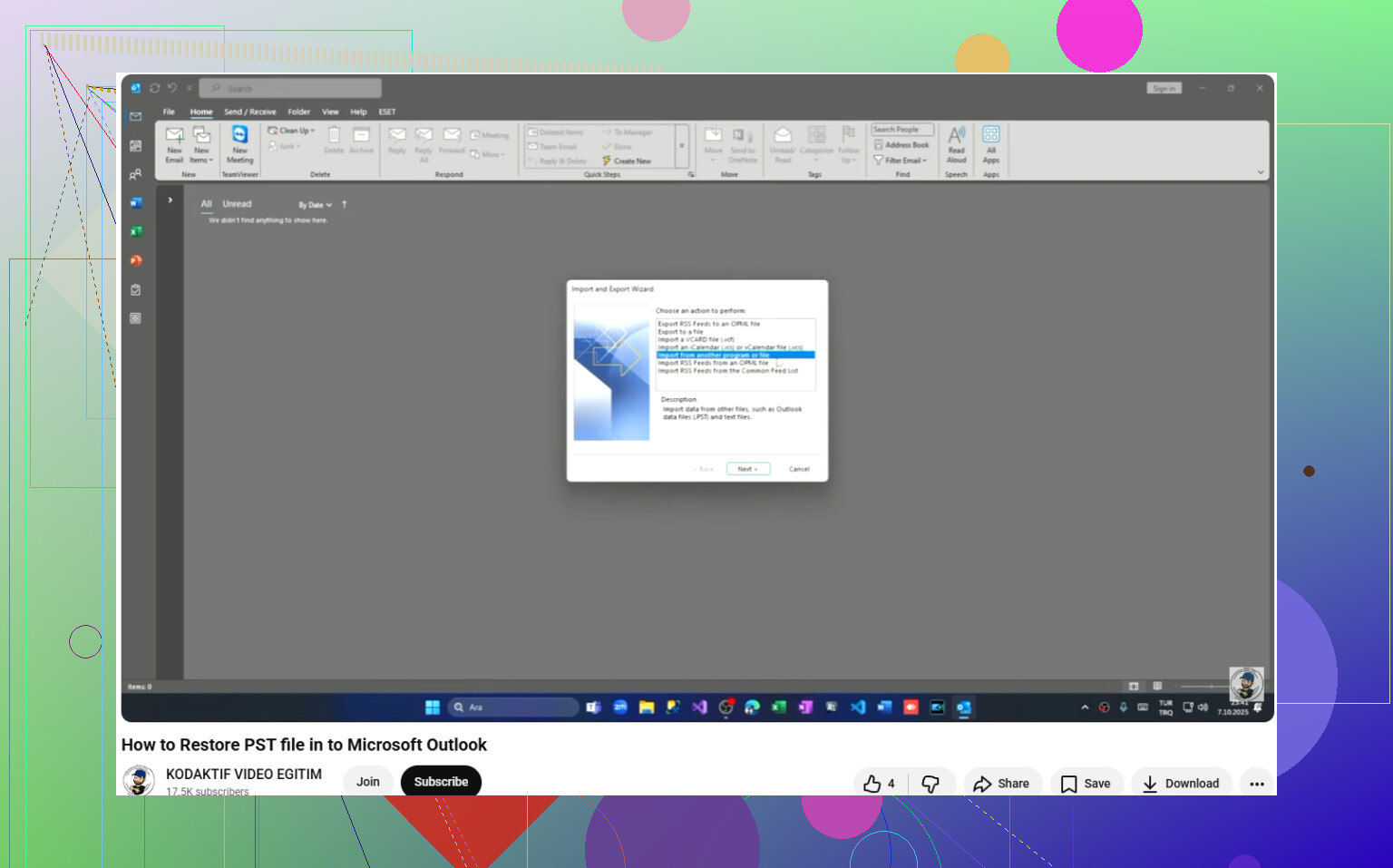
If the PST was recovered already and you need to put it back into Outlook, this easy guide to restore a recovered PST file in Outlook walks through it pretty clearly.
If the file is truly deleted, yeah, Disk Drill makes sense. But honestly, I’d rule out profile corruption, nav pane issues, and permissions before going full recovery mode. A lot of “missing PST” cases are just Outlook being weird, not actual deletion. Classic Outlok stuff.
I’d add one angle @nachtschatten, @mike34, and @mikeappsreviewer only touched indirectly: AutoArchive and export mix-ups.
Sometimes the PST did not vanish at all. Outlook may have:
- switched you to a new blank PST
- auto-archived older mail into a different PST
- imported the data once, then disconnected the source file
What I’d check:
- In File Explorer, enable Hidden items and File name extensions
- Search not just
*.pst, but also sort by folder path - Look in:
Documents\Outlook FilesAppData\Local\Microsoft\Outlook- old desktop folders
- external drives you may have disconnected
Also, right-click any found PST and check:
- Size
- Date modified
- Read-only attribute
A zero-ish or tiny PST is often just a replacement file. Your real one is usually much larger.
One small disagreement with the “repair first” instinct: if the PST is important, copy it before doing anything, including ScanPST. Repair tools can help, but they also modify the file structure.
If the file is truly deleted, Disk Drill is a reasonable option.
Pros of Disk Drill
- good at finding large deleted PST archives
- filters make PST results easier to spot
- recovery is straightforward
Cons
- recovery is not guaranteed if the drive was heavily used
- scanning big drives can take a while
- best results usually require saving recovered data to another drive
Last check: if Outlook opens but only the folder list is missing, go to View > Folder Pane and make sure it is not minimized. Sounds dumb, but Outlook loves dumb problems.