I’m trying to delete downloads on my iPhone, but some files keep reappearing or won’t go away at all. I’ve already tried deleting them from the Files app and checking storage, but nothing is working. I need help figuring out why these iPhone downloads won’t delete and how to remove them for good.
I ran into this on my own iPhone and lost way too much time on it.
There is no single wipe button for downloads on iOS. Apple scatters them around. Safari saves one thing in Files, photos land in Photos, offline stuff sits inside each app. So if your downloads keep hanging around, you need to check each spot.
First stop is the Files app. Safari usually drops downloads there.
Open Files, hit Browse, then check both of these:
On My iPhone
iCloud Drive
In a lot of cases, both locations have a Downloads folder. Open each one, tap the three-dot menu, choose Select, then remove what you do not want.
The part people miss is Recently Deleted. This is where the fake cleanup happens. You delete a file, it looks gone, then it sits there for 30 days unless you wipe it again.
In Files, go to Locations, open Recently Deleted, then delete everything from there too.
If deleted files seem to return, iCloud sync is often the reason. I saw this when one device removed a file and another device still had the old state. The file showed up again like nothing happened. Annoying, yep.
If a file refuses to go away, try this stuff in order:
- Force close Safari.
- Restart the iPhone.
- Go back into Files and delete it again.
- Empty Recently Deleted.
- If it still sticks, long-press Recently Deleted in the sidebar and try clearing from there.
That odd last step worked for me once when the normal delete route did nothing. Felt dumb, still worked.
Another messy part is Safari’s download list.
When you tap the download arrow in Safari and press Clear, you are only clearing the list in the browser. The files stay on the phone. So if you want the storage back, you still need Files.
You can at least keep Safari’s list from piling up:
Settings > Safari > Downloads > Remove Download List Items
Set it to:
After One Day
or
Upon Successful Download
This cleans the history list. It does not remove the downloaded file itself.
Photos and app downloads are separate.
If you saved an image or video from a site or social app, check Photos. It often never touches Files at all. Delete it there, then empty Recently Deleted in Photos too.
For apps like Netflix, Spotify, or Podcasts, downloaded content stays inside those apps. Files will not show it. You need to open each app and clear offline data there. If you want the closest thing to a central view, go here:
Settings > General > iPhone Storage
I use this screen a lot. It shows which apps are eating space, and some apps let you remove their stored data from there.
One thing I noticed on my own phone, once storage got packed, the whole thing slowed down. Apps took longer to open. Typing lagged. Photos stuttered. I found almost 40GB tied up in old media, duplicate images, and saved junk I forgot about.
So the short version is:
Check Files
Check Downloads in On My iPhone and iCloud Drive
Empty Recently Deleted in Files
Check Photos
Empty Recently Deleted in Photos
Clear offline downloads inside apps
Review iPhone Storage for space hogs
I also used a cleanup app for the media mess because doing it by hand got old fast. The one I ended up sticking with was https://www.youtube.com/shorts/qUVkfQqrwsk
What helped me most was its size-based sorting. I could see huge videos fast instead of scrolling forever. It also grouped similar photos, which caught a pile of repeat screenshots and near-duplicates my phone had kept around.
Big thing to remember, if you skip Recently Deleted, you did not free the space yet. That part trips up a lot of people.
13 Likes
One extra place to check, Spotlight indexing gets weird when a file is deleted but the entry stays cached. You tap it, it looks like it still exists, then iOS tries to pull it back from iCloud. Annoying bug.
I’d do this instead of repeating the Files steps @mikeappsreviewer already covered.
Go to Settings > Apple ID > iCloud > iCloud Drive. Turn it off for a minute, restart, then turn it back on. This forces a fresh sync pass. If the file keeps reappearing, this is often the fix.
Then check the app that created the file. PDF from Chrome, Telegram doc, WhatsApp video, Adobe download, VLC import. A lot of these apps keep their own copy. You delete one copy in Files, the app writes it back. Seen this a lot with Telegram and PDF apps.
Also try this:
Settings > General > iPhone Storage > Files
If Files shows data but your folders look empty, offload nothing yet. First delete the Files app, then reinstall it. Sounds extreme, but it clears stuck local document indexes on some iOS builds. I disagree a bit with the “restart and retry” loop because if the source app still has the file, it will re-sync no matter how many restarts you do.
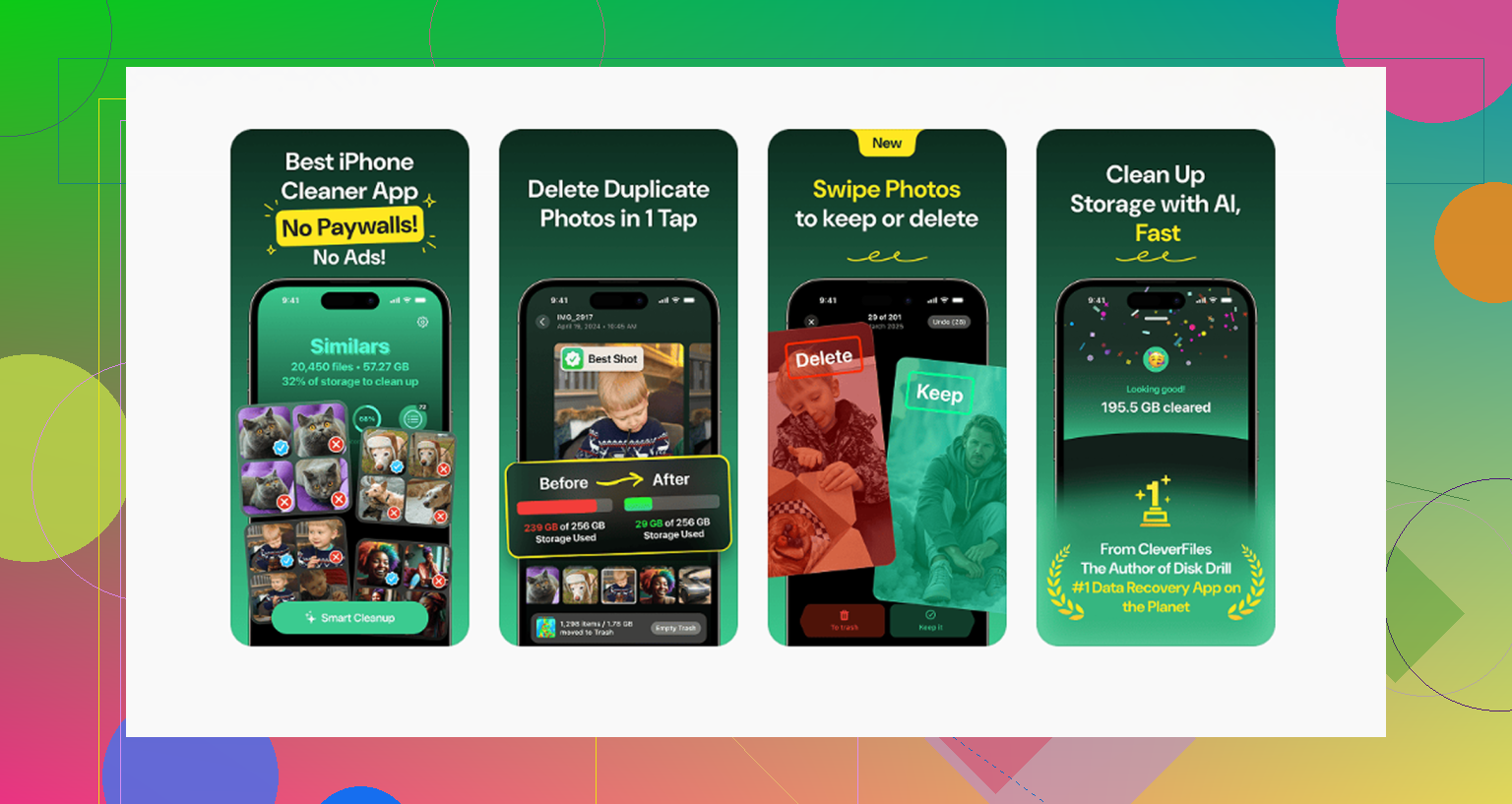
If your issue is photos or videos eating storage, Clever Cleaner is worth a look for sorting large media and dupes faster. This iPhone storage cleanup walkthrough helped me compare options too:
best video guide for clearing iPhone storage and duplicate files
If one file name keeps coming back, post which app made it. That part matters a lot.
One angle I’d add to what @mikeappsreviewer and @sterrenkijker said: check whether the file is actually being held by the app that opened it, not the app that downloaded it. iOS loves making this confusing.
A few things that can cause the “won’t delete” loop:
- Open-in-place cache: PDF readers, Word, VLC, Telegram, Dropbox, even Gmail can keep a local copy after you delete the original.
- Read-only source: if the file lives in a synced folder with weird permissions, Files may look like it deleted it, then it comes back.
- Low storage bugging out: when iPhone storage gets super tight, deletions can lag or fail silently. Annoying but real.
What I’d do differently:
- Put the iPhone in Airplane Mode
- Delete the file again
- Wait 30 seconds
- Restart
- Check if it’s gone before turning network back on
Why? If it disappears offline but returns once you reconnect, sync is the culprit. That narrows it down fast.
Also check Settings > [the app name] for any “keep downloaded files” or cache setting. Some apps basically undelete your stuff for you. Super helpful, Apple.
If the problem is really storage clutter and not one stubborn file, Clever Cleaner is decent for finding giant videos, duplicates, and random media junk faster than poking around manually. Also worth reading this on free iPhone cleaner apps for clearing storage fast.
I slightly disagree with deleting the Files app too early though. I’d test offline first, becuase if sync is the real problem, reinstalling Files just wastes time. If you know which app created the file, post that part. That usually gives away the actual cause.

One thing I’d check that @sterrenkijker, @himmelsjager, and @mikeappsreviewer only touched indirectly is Screen Time restrictions and file provider extensions.
Sometimes deletion fails because:
- Content & Privacy Restrictions are blocking account changes or app activity
- a third-party storage provider like Google Drive, OneDrive, Dropbox is exposing the file inside Files, but the real copy is remote
So I would look here first:
Settings > Screen Time > Content & Privacy Restrictions
Temporarily disable it and test deletion again.
Then in Files, tap Browse and look carefully at the file’s location. If it sits under Google Drive or Dropbox, deleting inside Files may not fully remove the synced item if the provider app is lagging or offline. Open that actual app and delete it there, then clear its trash if it has one.
I slightly disagree with jumping to deleting the Files app early. If the source is a cloud provider, reinstalling Files usually changes nothing.
Another sneaky fix:
- Rename the file
- Move it to a different local folder under On My iPhone
- Then delete it
Sounds dumb, but it can break a stuck sync reference.
If you’re mainly trying to recover storage from media clutter, Clever Cleaner is useful for surfacing big videos and duplicates fast.
Pros: fast scanning, easy duplicate detection, helpful for photo/video mess
Cons: not really a fix for sync bugs, less useful for documents/PDFs, still need manual review so you do not delete something important
So my order would be: check restrictions, confirm the true storage provider, delete from the source app, then try rename/move/delete. That tends to catch the weird cases.