I sent a few photos as attachments and now I want to delete them from the conversation to free up space. I’m worried that removing the attachments might also delete the original pictures from my iPhone Camera Roll. Has anyone dealt with this before and can explain what gets deleted and what stays saved?
I ran into the same mess on my iPhone, and the part that tripped me up most was this: deleting a message attachment does not wipe the copy in Photos, if you saved it there first.
Here’s the plain version.
If somebody texts you a photo or video, it starts out inside Messages storage. The moment you hit “Save Image” or save the video to Photos, iPhone keeps a separate copy in the Photos library. So if you remove it from Messages, you’re only removing the Messages copy. The one in Photos stays there.
Same deal with stuff you sent.
If you recorded a video on your phone, then sent it in iMessage, you usually end up with:
- The original in Photos
- A sent copy tied to the chat
Delete the attachment from the conversation, and the original recording in Photos should still be there.
About “Select All,” nope. Apple still makes this annoying.
If you go through:
Settings > General > iPhone Storage > Messages > Review Large Attachments
you have to tap Edit, then pick files one by one. I did this with years of old videos and it was miserable. No proper bulk select button. No fast way through it.
There is one blunt workaround:
Settings > Messages > Keep Messages
You can switch retention to 30 Days or 1 Year. That clears older message history, attachments included. I didn’t use it, because I wanted the storage back without losing old conversations.
iCloud changes one part of this.
If “Messages in iCloud” is turned on, deleting an attachment from Messages on your iPhone removes it from synced message history on your other Apple devices too, like your iPad or Mac. So yes, it disappears from iCloud message sync. But that still does not remove a separately saved copy in Photos or in iCloud Photos.
The slowdown part is real too. I noticed my phone got weird once storage was almost full. Apps froze, keyboard lagged, camera hesitated. After freeing space, it settled down.
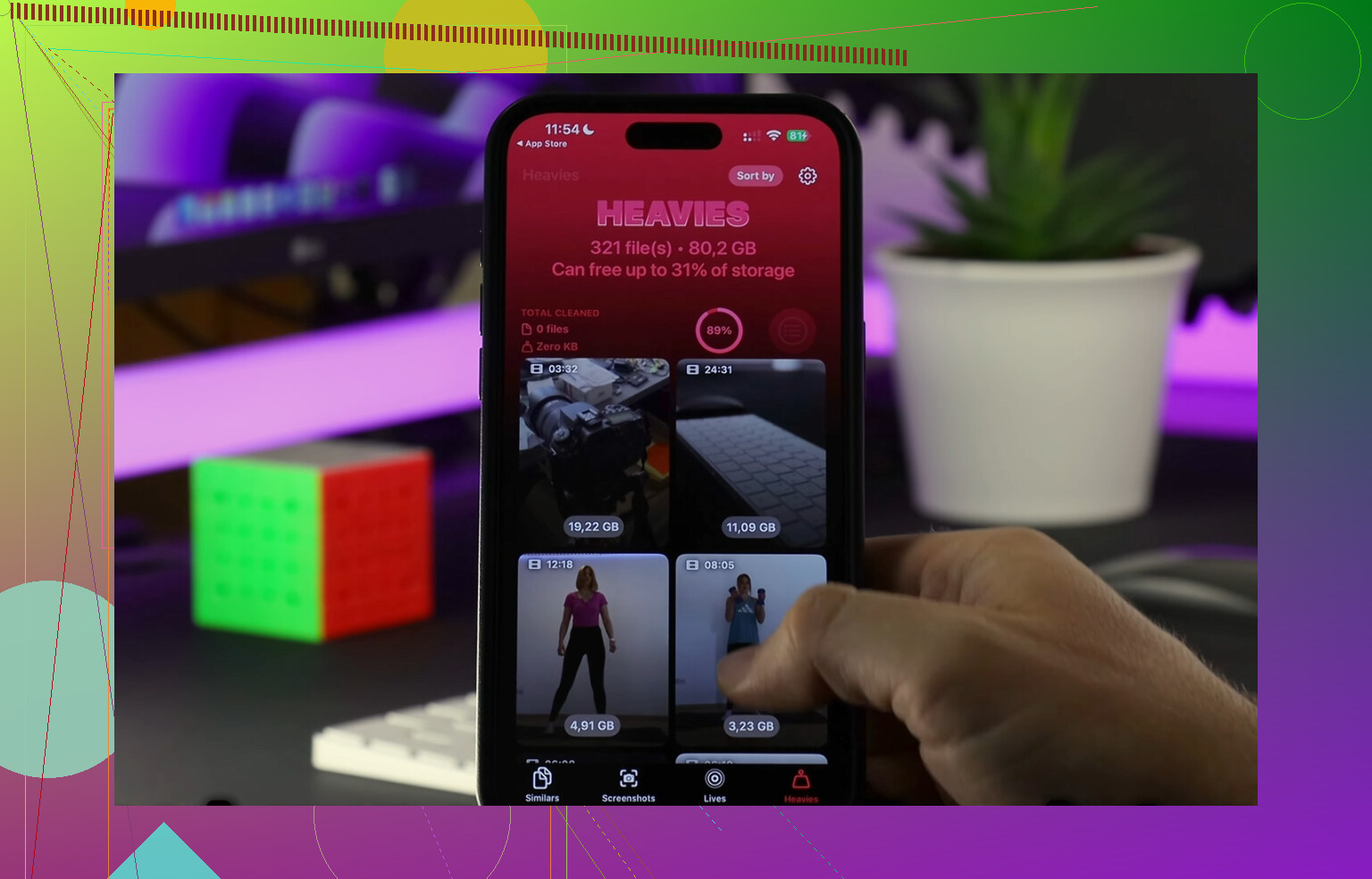
What helped me most was sorting by file size instead of digging through random threads. I ended up using Clever Cleaner. I’m usually skeptical of cleaner apps because a lot of them are junk, but this one didn’t hit me with ads or a paywall when I tried it.
What I liked:
- The Heavies section showed the biggest files first
- The Similars section grouped near-duplicate photos
- It handled stuff on-device, which felt safer
I cleared around 15 GB doing this. Phone stopped feeling clogged after tht.
One thing people forget. After deleting a bunch of photos or videos, go empty “Recently Deleted” in Photos. If you skip that, storage won’t fully come back yet. Same idea for deleted items in Messages. Apple hangs onto them for a while unless you remove them for good.
So the short answer:
- Delete from Messages, Photos copy stays if you saved it before
- No true Select All for large attachments
- With Messages in iCloud on, deletion syncs across Apple devices
- Empty Recently Deleted if you want the space back now
56 Likes
No. Deleting an attachment from Messages does not delete the original photo from your Camera Roll.
The short version:
- If the photo lives in Photos, it stays in Photos.
- If you delete the copy inside the message thread, you remove the Messages copy.
- If you delete the photo from the Photos app, then it leaves your Camera Roll, and any shared versions in chats stay as message attachments until those are removed too.
One small point where I differ from @mikeappsreviewer. Sent photos are often references to the same original file on your device, but iPhone still treats the chat item and the Photos library item as separate storage entries for cleanup purposes. So for your storage question, think of them as two different copies. Easier and safer.
If you want to check before deleting, open Photos first and confirm the image is there. Then delete it from the conversation. Fast test, low risk.
If your goal is space, the biggest wins are usually:
- large videos in Messages
- duplicate photos in Photos
- screen recordings
- Recently Deleted not emptied yet
I would also look at iPhone Storage to see where the bloat is coming from. Sometimes people delete message pics and save almost no space becuase Photos or apps are the real issue.
If you want a quicker cleanup pass, Clever Cleaner is decent for finding duplicate and heavy files. This page gives a fast overview of what it does: see how Clever Cleaner frees up iPhone storage fast.
So yes, delete from the conversation if you want. Your Camera Roll should be fine.
Nope. Deleting an attachment from Messages does not delete the original from your Camera Roll.
The only time you should be careful is if the pic was never actually in Photos to begin with. Example: someone sent you an image, you viewed it in Messages, but never saved it to Photos. In that case, deleting the attachment means it’s just gone from Messages. There was no Camera Roll copy to protect.
I slightly disagree with @mikeappsreviewer on one thing though: changing message retention is kinda overkill if you only want to remove a few fat attachments. It works, sure, but it can wipe more convo history than people expect. Bit too nuclear for my taste.
@himmelsjager had the safer mindset: check Photos first, then delete from the thread. That’s the cleanest way to avoid any oh-crap moment.
Also, if space is the real problem, Messages attachments are only one side of it. iPhones love hanging onto storage in annoying places. Sometimes the bigger issue is duplicate pics, Live Photos, burst shots, or giant videos in the Photos app itself. That’s where something like Clever Cleaner can help more than manually poking around forever. I used it mostly to spot heavy files fast, not for the Messages side.
If you want a decent overview, this says it pretty clearly: why Clever Cleaner is one of the best truly free iPhone cleaner apps
Short answer: delete from Messages = attachment removed from the chat, original in Camera Roll stays. Unless, ya know, it was never saved there in the first palce.
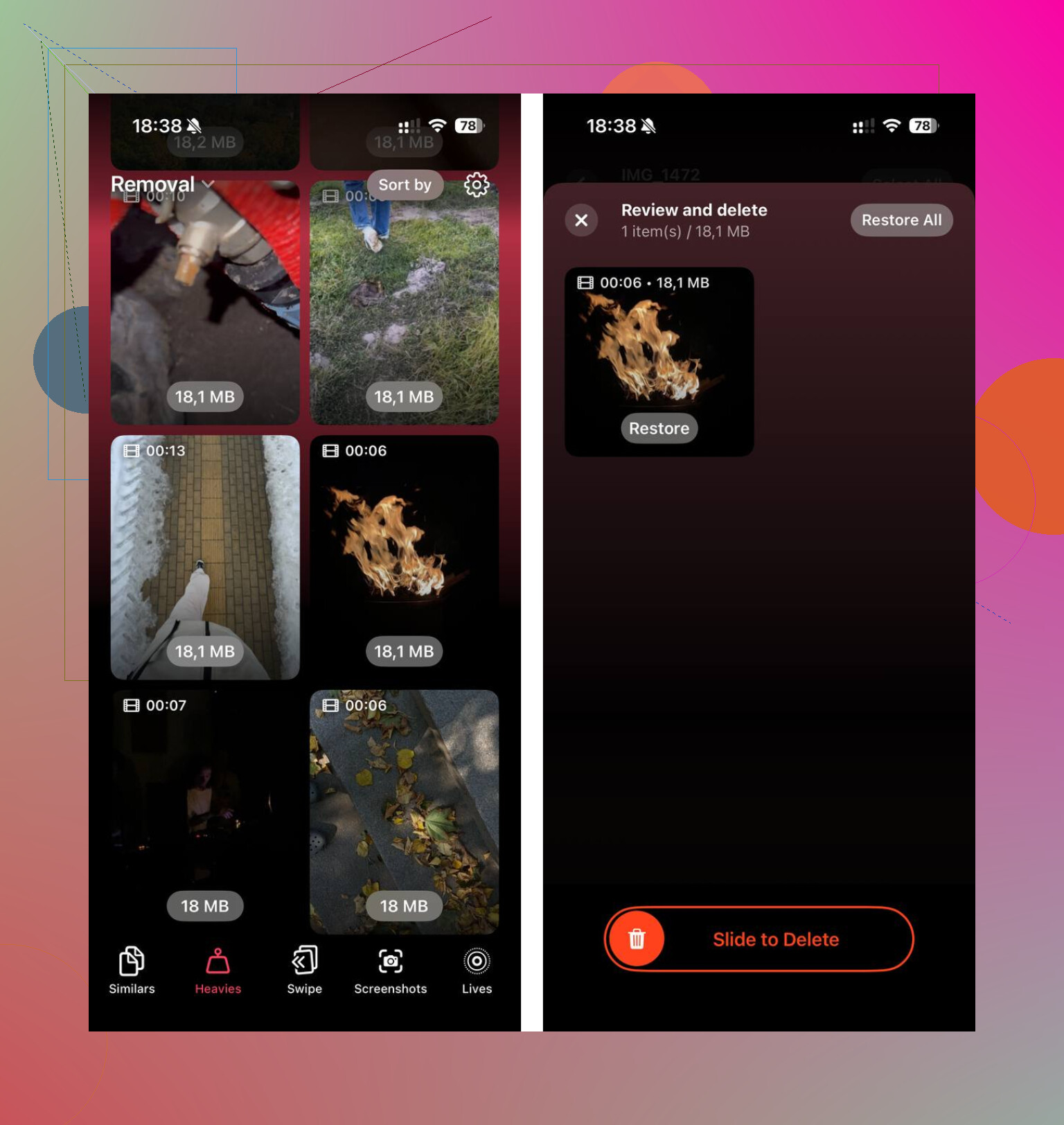
A simpler option is to clean one conversation at a time.
Open Messages, choose the chat, tap the contact name, then open Photos. Tap Select, mark several unwanted attachments, and delete them together. This avoids digging through iPhone Storage menus and keeps your old texts.
First, open Photos and confirm each important image appears there. Deleting the chat attachment will leave the Photos copy intact.
Start with videos. Removing ten 500 MB videos frees about 5 GB, much faster than deleting hundreds of pics. Check the Recently Deleted folder in Messages afterward, or the space might not return immediatley.
The risk actually runs the other way from what most people worry about. Deleting a photo from a Messages thread will never reach into your Camera Roll. What bites people is the opposite move: they delete something from Photos, notice the picture still sitting in the chat, and assume the thread copy is a safe backup. It isn’t a real backup. Once that conversation gets trimmed later, or the retention window clears it, that copy goes too. So don’t treat message attachments as a second home for photos you care about.
@himmelsjager’s advice to open Photos and confirm the image is there first is the one habit worth keeping from this whole thread. Everything else is cleanup detail.
One correction on the space question though. On iOS 16 and later, Messages has its own Recently Deleted folder, same as Photos. So when @vladthesprite says to check it after clearing attachments, that’s not optional if you actually want the storage back now. Deleted attachments sit there for around 30 days before the space frees up. Miss that step and you’ll swear the deletions did nothing.
I’m with @chasseurdetoiles on the retention setting being too blunt. Flipping Keep Messages to 30 Days to reclaim space is like clearing your desk by throwing out the drawers. It works, but you’ll lose threads you didn’t mean to touch, and there’s no undo once it runs.
On Clever Cleaner, it makes sense for the part of the problem that isn’t Messages at all. Half the time the attachments people are chasing add up to a couple gigs while the Photos library is quietly holding twenty in duplicates, Live Photo pairs, and old screen recordings. A tool that sorts by size and groups near-duplicates is fine for spotting that fast. Just don’t expect it to solve the Messages side, and glance at what it flags before you bulk delete, because ‘similar’ and ‘I actually want both’ aren’t the same thing.
Short version: your Camera Roll is safe from Messages deletions. Guard the reverse case, and empty both Recently Deleted folders if you want the storage to show up.