I accidentally deleted files from my external hard drive and I’m thinking about using Recuva to recover them. Before I do, I want to know if Recuva is safe for an external hard drive, if it can make data loss worse, and what steps I should take to avoid overwriting anything important.
People ask this all the time, and the short answer is still yes. Recuva is safe to run. It is not malware, it is not a trojan, and it is not built to wreck your PC. Still, “safe” means more than “not a virus.” I’d split it into three parts: whether the installer is clean, what data the company collects, and whether you’ll hurt your own deleted files by using it the wrong way.
I’ve tested a pile of recovery apps over the last year, including a few where I made the classic mistake and wrote new data onto the same drive I was trying to recover from. Bad move. So here’s the plain version of how Recuva looks in 2026.
About the malware rumors
A lot of the fear traces back to the 2017 CCleaner mess. Same developer, Piriform. Their CCleaner update got hit in a supply chain attack, and the official package shipped with malware. Huge story at the time, and people still bring it up.
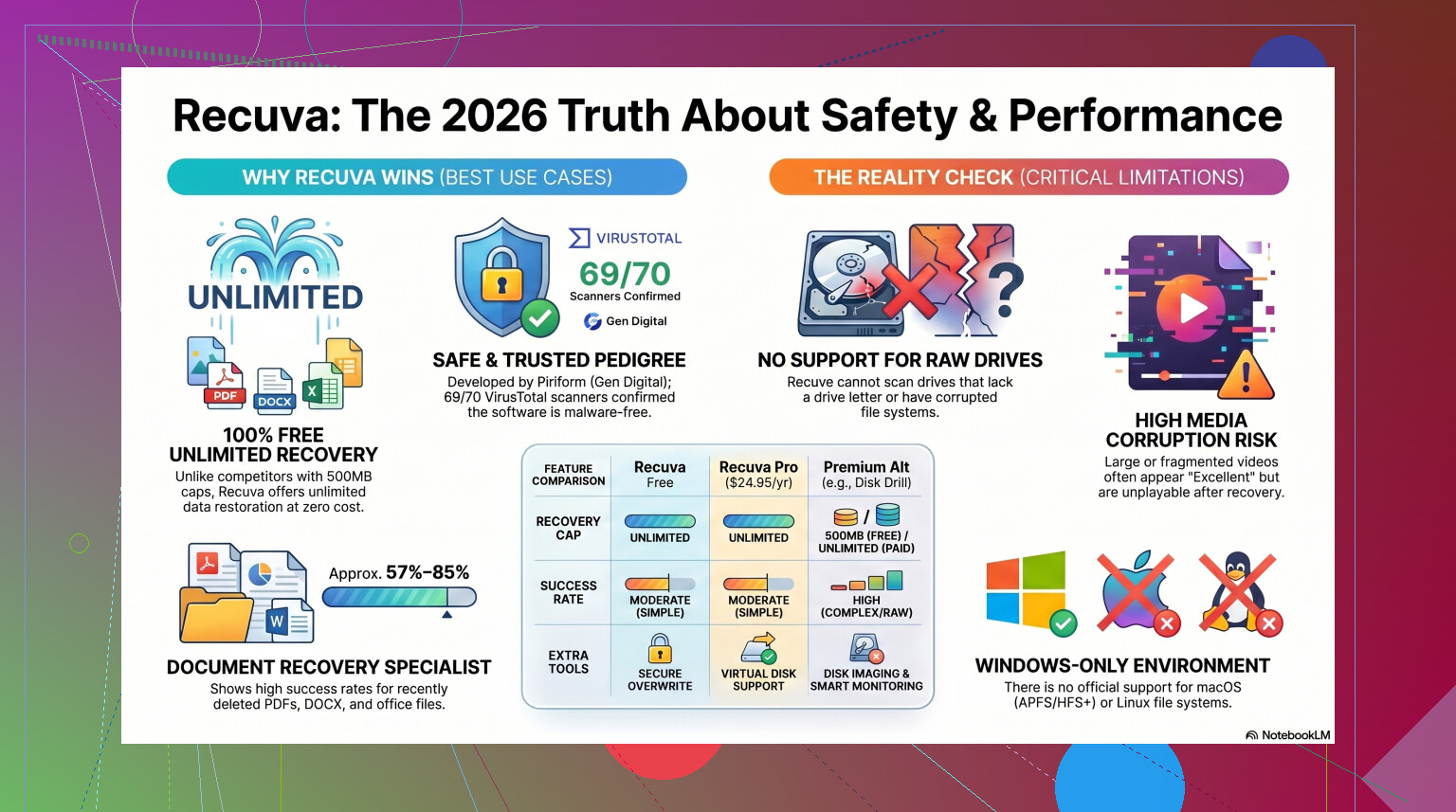
Since then, Piriform changed hands. It ended up under Avast, then Gen Digital, which also owns Norton. The current Recuva installer is routinely checked, and if you scan it with VirusTotal you’ll usually see a clean result or one stray detection from some tiny antivirus engine. I saw this myself a few times. Those single hits tend to be heuristic noise because recovery software pokes around the file system in ways security tools don’t always like.
If you get Recuva from the official source, the virus risk is low. Stick to the official CCleaner or Piriform download page. Don’t grab it from some random software mirror from 2019 with a neon green “Download Now” button.
Privacy is a separate issue
This part gets skipped too often. Recuva itself is not spying in some dramatic movie way, but the company does collect some standard device and usage info. Their policy mentions things like IP address, device identifiers, OS details, and location used for licensing or fraud checks.
If you hate extra telemetry, go straight into the settings after install. Open Options, then Privacy, then turn off Help improve our other apps by sending usage data. I do this on day one with tools like this. It cuts down on the extra reporting.
One detail worth knowing, they keep IP data for 36 months before anonymizing it. Some people won’t care. Some will. I’d rather know up front.
The bigger risk is what you do next
Here’s where people nuke their own recovery odds.
Do not install Recuva onto the same drive where the deleted files were sitting.
Windows usually doesn’t erase deleted data right away. It removes the reference and marks the space as free. If you save the installer to that same drive, your new files might land on top of the old ones you were trying to rescue. I’ve seen people lose photos this way and then blame the app. The app didn’t do it. The write did.
The safer move is the portable version. Put it on a USB stick. Run it from there. Then save any recovered files to a different disk, external drive, or at least another partition. Not the source drive. Never the source drive.
How well it works in real use
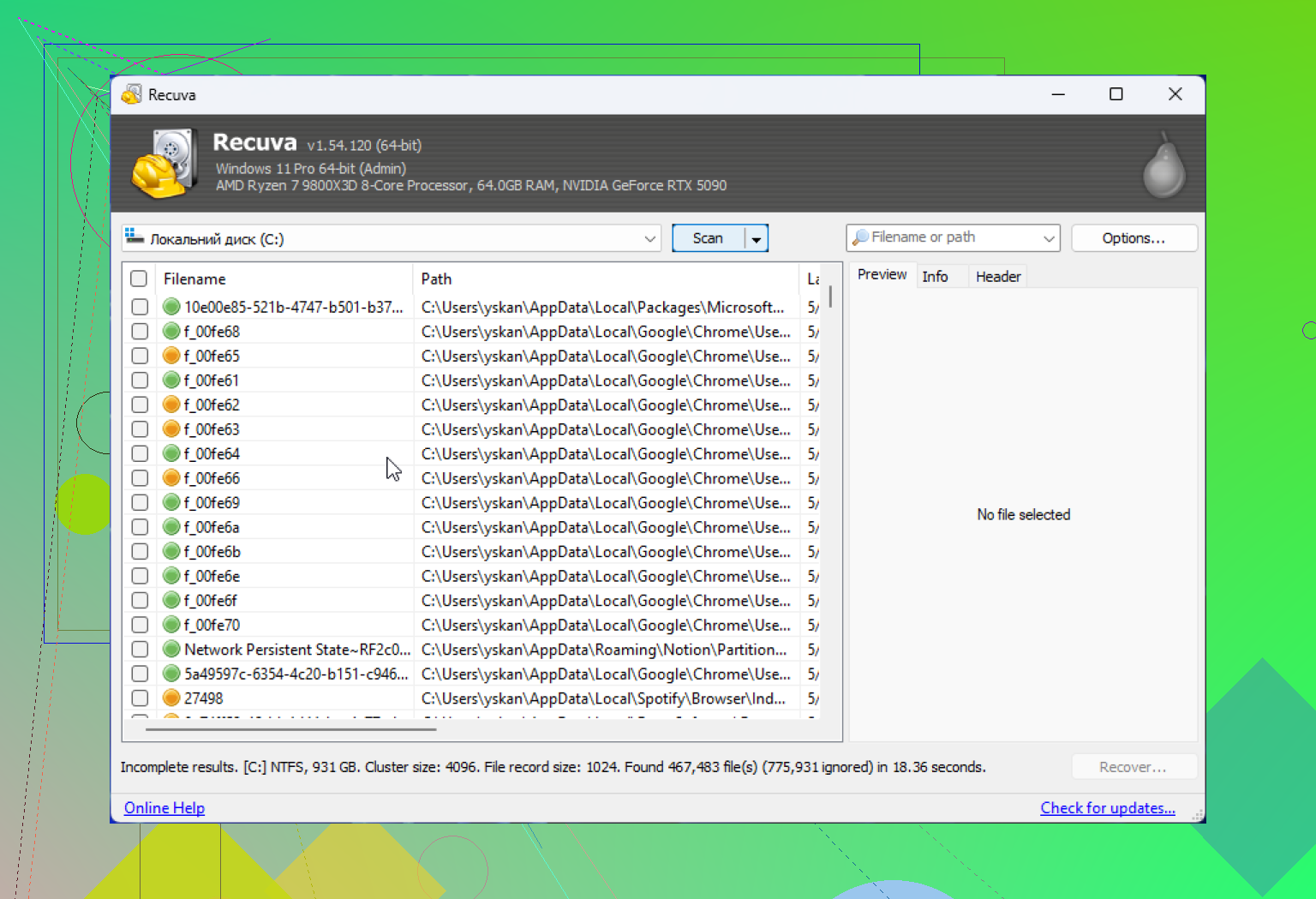
Recuva still works fine for simple jobs. If you emptied the Recycle Bin ten minutes ago on a healthy Windows drive, it has a decent shot. It’s small, fast, and free with no recovery cap, which is rarer than it should be.
Past that, things get shaky.
The software feels old because it is old. The core design hasn’t changed much since around 2016. There were later fixes so it kept running on Windows 11, sure, but it still behaves like an undelete tool from another era, not a full recovery platform.
When I used it on clean, recently deleted files, it was fine. On messier jobs, formatted flash drives, damaged partitions, or drives showing up as RAW, it started falling apart. In those cases, it often misses the drive entirely or spits out file lists that look good until you open them and get corruption errors.
Numbers vary by test setup, but on formatted USB media it tends to land around a 63% to 67% recovery rate. Even when it reports a file as recoverable, the result isn’t always usable. I’ve recovered JPEGs marked “Excellent” that opened as garbage. Same with video clips. Folder structure is another weak spot. You might get thousands of files dumped into one directory with names like 000123.jpg and no useful context. If you’re sorting family pictures, that gets old fast.
When I’d stop using it
If the deleted files matter in a serious way, I wouldn’t spend too long hoping Recuva pulls off a miracle.
Examples:
- your only wedding photos
- client files
- tax records
- a drive Windows wants to format
- camera RAW files or long video clips
Once a drive starts showing signs of file system damage or hardware trouble, time matters. Every scan adds wear, and a failing drive does not owe you a second chance. I learned this one the hard way with an old external HDD. I kept rescanning with free tools, heard more clicking, then lost the chance to image it cleanly.
If Recuva misses the files, or the drive is RAW, or you need support for Mac file systems and more complex cases, I’d move to something stronger. From what I’ve seen, Disk Drill tends to do better when the job is no longer “oops, deleted one folder.”
It handles damaged partitions and RAW volumes Recuva often ignores. Recovery rates on formatted drives are often reported in the 95% to 97% range, which lines up with some of the better comparison tests floating around. Another big difference is Byte-to-Byte Disk Imaging. This matters more than people think. You clone the failing drive first, then scan the clone. If the original dies halfway through, you still have a full image to work from. Recuva doesn’t give you that safety net.
Media work is another rough area for Recuva. Fragmented video files, camera RAW formats from Nikon or Canon, and larger project files tend to expose its limits fast. If your work depends on photos or footage, I wouldn’t count on Recuva as the only plan. For a side by side look, this Recuva review is worth a watch.
So, should you use it
Yeah, for the right job.
If you deleted files on a healthy Windows system and need a free first try, Recuva is a fair pick. It’s easy to use, beginner friendly, and it doesn’t bury recovery behind a paywall.
The safe way to handle it looks like this:
- Download it from the official site.
- Use the portable build if you can.
- Turn off data sharing in the privacy settings.
- Recover files to another drive.
- Don’t expect much from damaged, RAW, or formatted drives.
If it finds nothing, or the files come back broken, stop writing to the drive. Don’t keep installing tools onto it, don’t keep copying stuff around, and don’t rerun random cleaners or repair apps. Switch to a stronger recovery tool or clone the disk first if the hardware looks unstable.
My take, Recuva is safe enough. It’s also limited. Good for small mistakes. Not the one I’d trust with irreplaceable data.
7 Likes
Yes, Recuva is safe for an external hard drive in the normal sense. It does not damage the drive by itself. The risk comes from what you do before and after the scan.
Big point. If the deleted files are on the external drive, stop using that drive now. Do not copy files to it. Do not install anything on it. Do not run repair tools on it. Deleted data gets overwritten fast, and your own writes do the damage, not Recuva.
I agree with @mikeappsreviewer on the main part, Recuva is fine for simple deletes. I differ a bit on one thing. I would not keep trying multiple deep scans on an aging external HDD if it starts lagging, disconnecting, or clicking. At that stage, free undelete tools are the wrong move.
My take:
- Safe for healthy external drives.
- Unsafe if you recover back onto the same external drive.
- Weak on damaged file systems, RAW drives, and big video/photo recovery jobs.
- Better first choice for serious cases is Disk Drill, mostly because it supports disk images and handles more file systems.
If your files matter, read this list of top data recovery tools first:
best data recovery software for deleted files, external drives, and formatted disks
Short version. Recuva is safe. Your actions are the part thta makes recovery better or worse. If the drive is healthy, try it from another disk or USB. If the drive looks unstable, skip the free-tool loop and move to Disk Drill or a pro sevice.
Yep, it’s generally safe for an external hard drive, but “safe” has a catch. Recuva itself usually won’t harm the drive. What hurts recovery chances is continuing to use that external drive like normal, or restoring recovered files back onto the same disk. That’s the part people get wrong.
I mostly agree with @mikeappsreviewer and @viajantedoceu, but I’m a little less optimistic about Recuva as a first pick in 2026. For very basic accidental deletion on a healthy external HDD or SSD, sure, try it. But if the drive is acting weird, disappearing, making noises, showing RAW, or asking to be formatted, I would skip Recuva and go straight to something with better imaging and broader filesystem support like Disk Drill. Recuva is more “simple undelete tool” than “serious recovery platform.”
One thing I’d add that they didn’t really stress enough: external SSDs can be trickier than old spinning HDDs because TRIM may wipe deleted blocks faster than people expect. So if your “external hard drive” is actually an SSD in a USB enclosure, recovery odds can drop fast. Not always, but often enough to matter.
Also, don’t confuse “scan is read-only” with “whole process is risk-free.” Even connecting a flaky drive over and over, running multiple long scans, or letting Windows auto-fix stuff can make things worse. That’s why Disk Drill gets recommended a lot for external drive recovery, not just because of file recovery, but because disk image creation gives you a safer workflow.
If you want a quick background on the tool itself, this is a decent overview of what Recuva data recovery software is.
Short version:
- Safe to run? Yes, mostly.
- Can it make data loss worse? Yes, indirectly, if you use the drive wrong.
- Fine for a simple delete? Probly.
- Best choice for damaged or unstable external drives? Nope. Use Disk Drill or get a pro involved.
Yes, Recuva is usually safe for an external drive, but I’ll push back a little on the blanket “just run it” advice from @viajantedoceu, @yozora, and @mikeappsreviewer. Safe software does not mean safe situation.
What matters most is the drive’s condition. If the external drive is healthy and this was just a recent delete, Recuva is fine as a light first attempt. If the drive is slow to mount, drops offline, clicks, or suddenly shows RAW, I would not spend much time with it.
One extra wrinkle people miss: if your “external hard drive” is actually an external SSD, deleted-file recovery can be much worse because of TRIM.
My view:
- Recuva itself is not what usually makes data loss worse
- Repeated scans on a flaky drive absolutely can
- Recovering files back to the same external drive is the real mistake
Where I partly disagree with the others is on how long to keep trying. One scan, maybe two. After that, stop. Chasing better results with the same tool often just wastes time.
If you want a safer workflow, Disk Drill makes more sense for tougher cases.
Disk Drill pros:
- can create a disk image first
- better filesystem support
- stronger with formatted or damaged externals
Disk Drill cons:
- not fully free for big recoveries
- heavier than Recuva
- can feel like overkill for one accidentally deleted folder
So, yes, Recuva is safe enough for a healthy external drive. Just do not confuse “safe app” with “good choice for every recovery job.”