My iPhone storage is almost full, and I found a lot of duplicate photos from backups, shared albums, and burst shots. The Photos app’s duplicate tool helps a little, but it misses some images and takes too long to review everything. What’s the safest and easiest way to remove duplicate photos on iPhone without accidentally deleting important pictures?
If your iPhone is yelling about storage and you know half the problem is repeat photos, I’d deal with the “similar” shots first. Those are usually the real space wasters. Not exact duplicates, but the five dog photos, ten selfies, or three slightly different screenshots you kept because you didn’t want to delete the wrong one.
I cleaned up a 25,000-photo library recently, and the built-in iPhone option helped, but it didn’t catch enough on its own. Apple’s duplicate finder is pretty cautious. That’s good for safety, but not great when your library is full of near-identical photos instead of true copies.
Start with the similar-photo cleanup
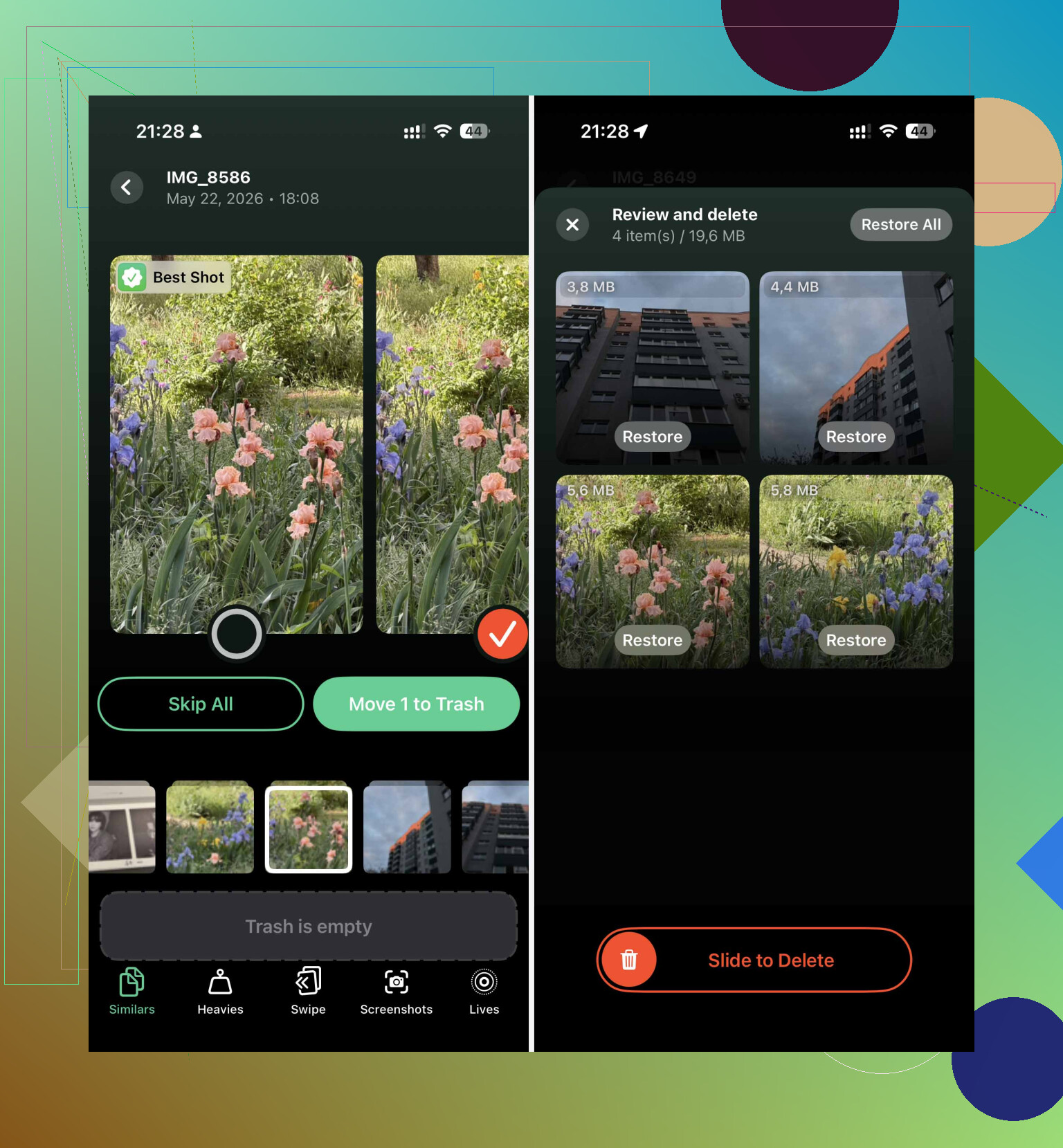
For a big photo library, I’d start with Clever Cleaner. The useful part is the AI “Similars” feature. It looks for photos that are basically the same, even if they are not exact file matches.

That matters because the iPhone’s own duplicate tool usually won’t flag a burst of almost-identical shots, or photos where one has been edited a bit. Clever Cleaner scans those groups and marks the clearest or best-lit one as the “Best Shot,” which makes it a lot easier to delete the extras without second-guessing every tap.
The privacy side was a big thing for me too. This app processes the scan locally on your phone, so your photos are not being uploaded somewhere just to find duplicates.
It’s also useful for the stuff that quietly eats storage. The “Heavies” section shows your biggest videos by size, which is often where the missing gigabytes are hiding. It can also group old screenshots and compress Live Photos into regular high-quality still images if you don’t care about keeping the short video part.
Then check Apple’s built-in duplicate folder
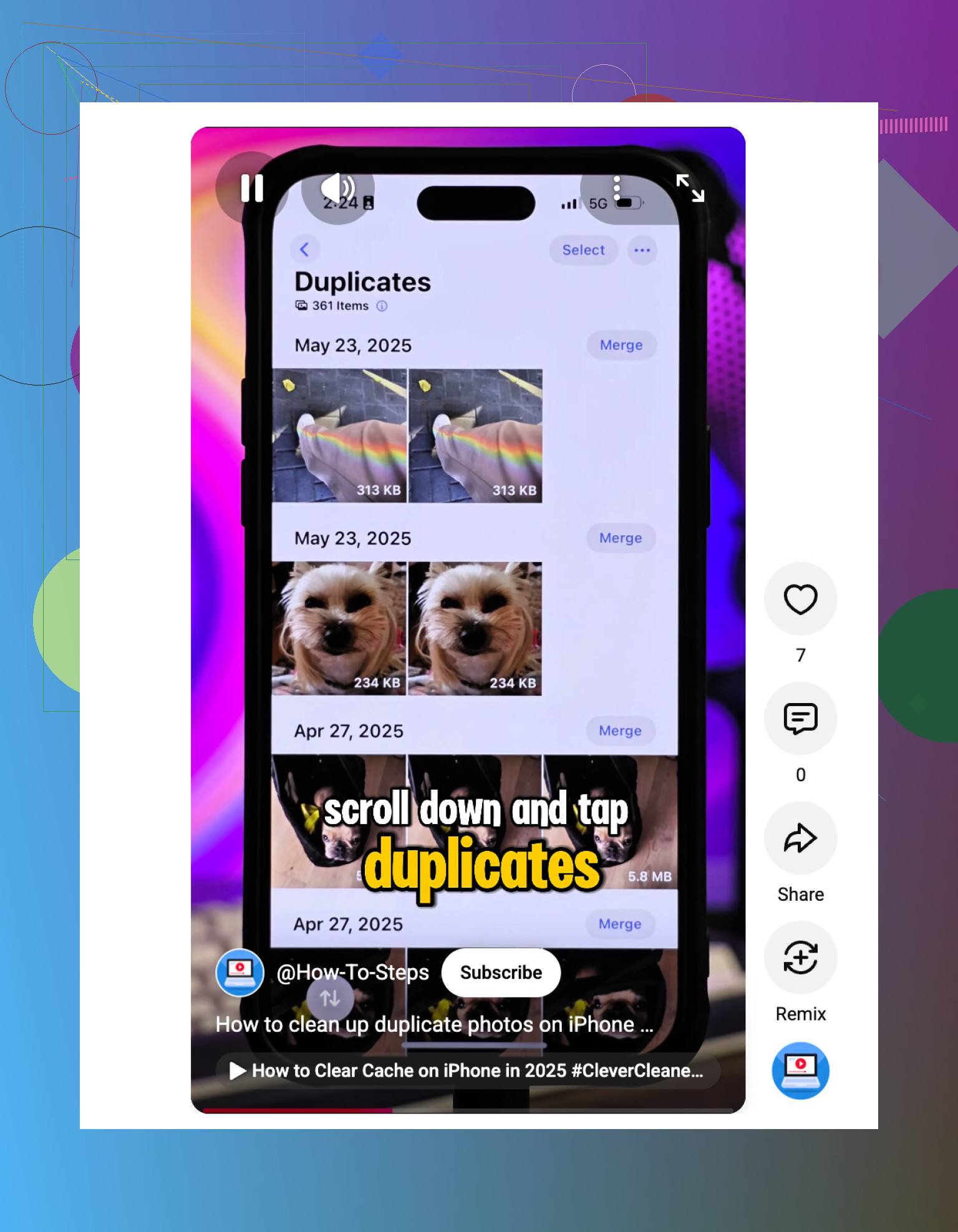
If your iPhone is on iOS 16 or newer, open Photos, go to “Collections,” then scroll down to “Utilities” and look for “Duplicates.” This is still worth checking because Apple’s “Merge” option is safe and clean. It keeps the best-quality version and combines useful metadata like captions and location info into one file.
Just don’t expect it to catch everything. Two things trip people up:
- It mostly finds exact duplicates, not a bunch of similar shots from the same moment.
- The scan does not happen instantly. Your iPhone looks for duplicates while it is locked and charging, so after a big import it can take a while before that folder shows up.
For smaller cleanups, use Search and Map
If you don’t want another app or your library is not huge, the Photos search tool can still help. Tap the magnifying glass and search by month, year, place, or subject, like “Dog” or “Beach.” That usually pulls related photos into one view, so you can select the weaker ones faster.
The Map view in Utilities is another good one. If you see a giant pile of photos from one restaurant, vacation stop, or event, there are probably a lot of repeats in there. It’s a quick way to find photo clusters you forgot about.
Stop the duplicates from coming back
The cleanup is only part of it. A lot of duplicate mess comes from syncing the same library through multiple services. If you use iCloud Photos and Google Photos at the same time, restored or re-downloaded images can sometimes come back as new files. It is much easier if you pick one main system and stick with it.
Also check Settings > Camera and turn off “Use Volume Up for Burst” if you keep accidentally taking bursts. That one setting can prevent a lot of random photo spam.
The best habit is still deleting bad batches right after you take them, while you remember which photo was actually the keeper. Also try not to download the same images over and over from messages, cloud drives, and chat apps.
One last thing: deleted photos still sit in “Recently Deleted” for 30 days. If you want the storage back right away, you need to empty that folder manually. Otherwise the cleanup worked, but the space will not fully come back yet.
Once the first big cleanup is done, keeping it under control is a lot less annoying.
20 Likes
No cleaner is going to make a messy library safe to fix in one tap. The risky part is that if iCloud Photos is on, deleting from the iPhone usually means deleting from iCloud and your other Apple devices too. So before doing a big purge, I’d make sure you have a backup or export of anything important, especially family photos, work photos, and old trips.
I agree with the earlier point that Apple’s Duplicates album is too conservative. It’s good for true copies, but it won’t solve the “17 nearly identical shots from the same moment” problem. An app like Clever Cleaner can be useful there because it groups similar photos faster than manually searching through years of pictures. I just wouldn’t blindly accept every suggested “best” photo. For faces, documents, receipts, screenshots with text, and Live Photos, review the group yourself.
The faster low-tech method is to attack by category instead of the whole library. Go to Videos first, then Screenshots, then Bursts, then Recently Deleted. A few long videos can free more space than hundreds of duplicate photos. After that, use a cleaner app for the similar-photo piles. That order usually feels less painful, and you get storage back sooner instead of spending an hour comparing almost identical selfies.
Don’t run a bunch of cleaner apps back to back and let each one delete whatever it finds. That is how people end up with half a vacation missing and three different “Recently Deleted” piles to sort through.
The built-in Photos duplicate tool is fine for exact copies, but I would not treat it as the main cleanup tool if your problem is backups, bursts, and near-identical shots. That kind of mess is more about judgment than matching files. Two photos can look almost the same to an app, but one might be the Live Photo you wanted, the one with the better expression, or the one that has the edit you spent time on.
My approach would be less “find every duplicate” and more “free space without making a disaster.” First check Settings > General > iPhone Storage and see what is actually huge. If Photos is taking 80 GB, sure, keep going. If Messages, downloaded videos, Spotify, TikTok drafts, or offline maps are the real hogs, deleting 400 duplicate photos may barely move the needle.
For the photo cleanup itself, I’d split it into two passes:
Use Apple Photos for true duplicates because Merge is usually the least messy option. It preserves the better version and combines some info instead of just tossing one copy. It is slow and boring, but it is the safer pass.
Use something like Clever Cleaner for the “these are basically the same shot” problem. That is where a cleaner app actually saves time. I would still review the groups manually, especially for faces, pets, documents, receipts, and anything edited. I don’t care how confident an app sounds, it does not know which blurry photo is the funny one your family actually likes.
The shared album part is worth being careful with. Photos in shared albums are not always the same thing as photos in your personal library. Removing something from a shared album may only remove it from that album, while deleting from your library can remove it from iCloud Photos too if syncing is on. Before you delete a bunch of “duplicates” that came from shared albums, check whether you are looking at a saved copy in your library or just the shared album item.
Same warning for backup imports. If you restored old photos from a computer, Google Photos, WhatsApp, AirDrop, or another iPhone backup, the dates and metadata can be weird. You may see two copies where one has the original date and location and the other is a re-saved version. If you care about sorting by date later, don’t automatically keep the newer-looking file just because it is bigger or sharper.
A faster workaround, if you just need breathing room today, is to ignore duplicates for the first 10 minutes and delete obvious storage hogs:
Videos longer than a minute
Screen recordings
Burst stacks
Failed Live Photos
Old screenshots
Stuff in Recently Deleted
That can free more space than carefully comparing hundreds of similar pictures. Duplicate cleanup is useful, but it is not always the fastest way out of the “storage almost full” warning.
If you are nervous, make a temporary album called something like “Delete Later” and move questionable keepers there while you clean. It sounds clunky, but it slows you down just enough to avoid deleting the only good copy of something. Then empty Recently Deleted only after you are sure. Until you empty that folder, the storage may not come back right away.
There’s a short walkthrough here if you want the visual version of the duplicate cleanup flow: quickly remove duplicate photos on iPhone
So yes, there are better ways than relying only on the Photos app, but I would use them as sorting tools, not as a one-tap trash button. Apple for exact duplicates, a cleaner app for similar shots, and manual review for anything you would be mad about losing.
Whether iCloud Photos is set to “Optimize iPhone Storage” matters a lot here. If most originals are already in iCloud, deleting near-duplicates may free less space than expected, so check that setting before spending an hour sorting photos when a few local videos or app caches might be the real problem.